
How to Fix Excessive GPU Usage in Valheim
High GPU usage in Valheim can be frustrating, especially when it leads to overheating, crashes, or noisy fans. The game, while seemingly simple in graphics, uses modern techniques like raycasting, shadows, and particle effects, which can push your GPU to its limits.
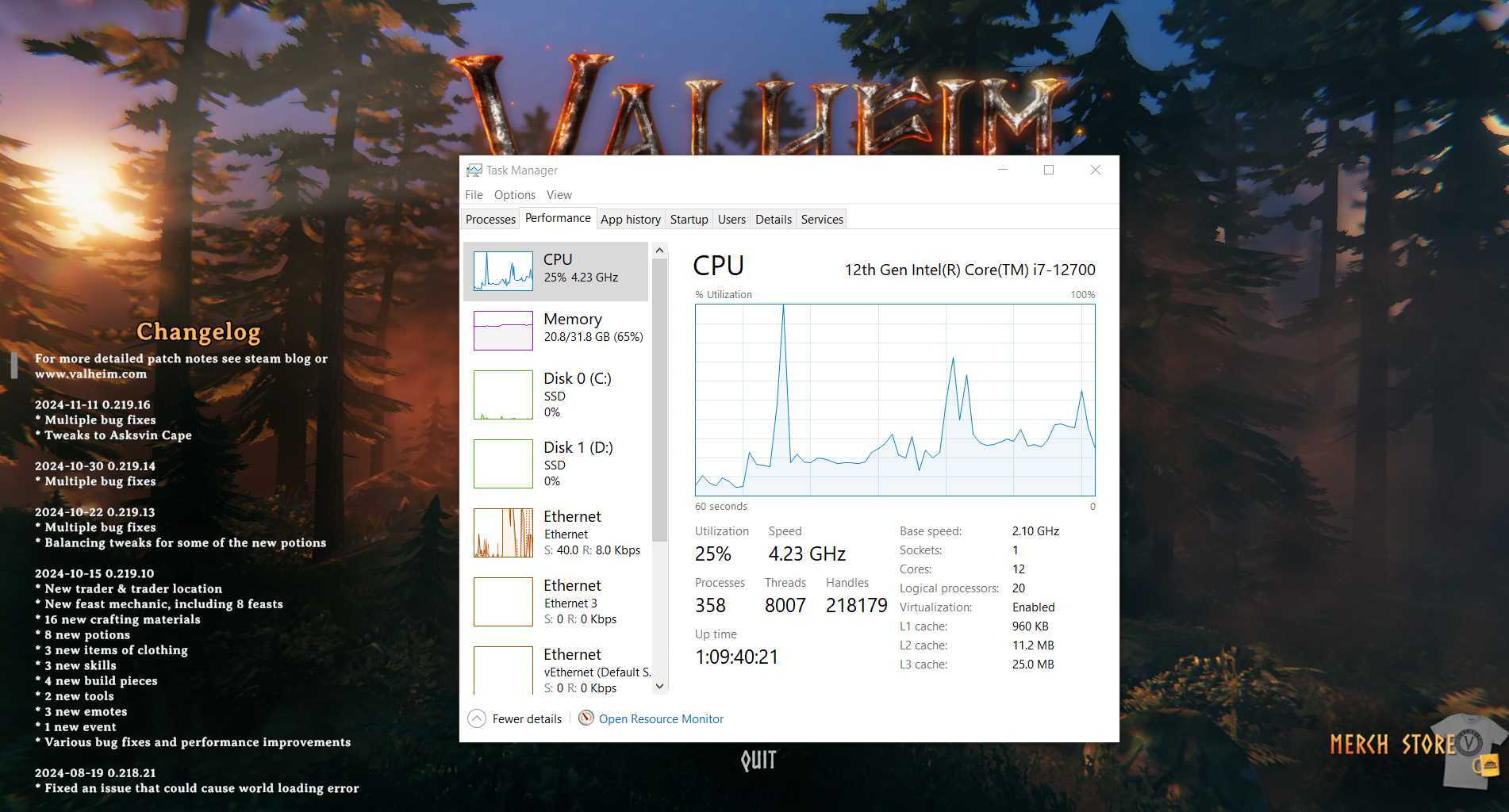
Adjust graphics settings
The first step is to tweak your in-game graphics settings. Navigate to the graphics menu and enable Vsync. This simple change can cap your frame rate to match your monitor’s refresh rate, preventing your GPU from rendering unnecessary frames. Additionally, reduce settings like shadows, bloom, motion blur, and depth of field. Lowering these can significantly decrease GPU load without compromising your gameplay experience.
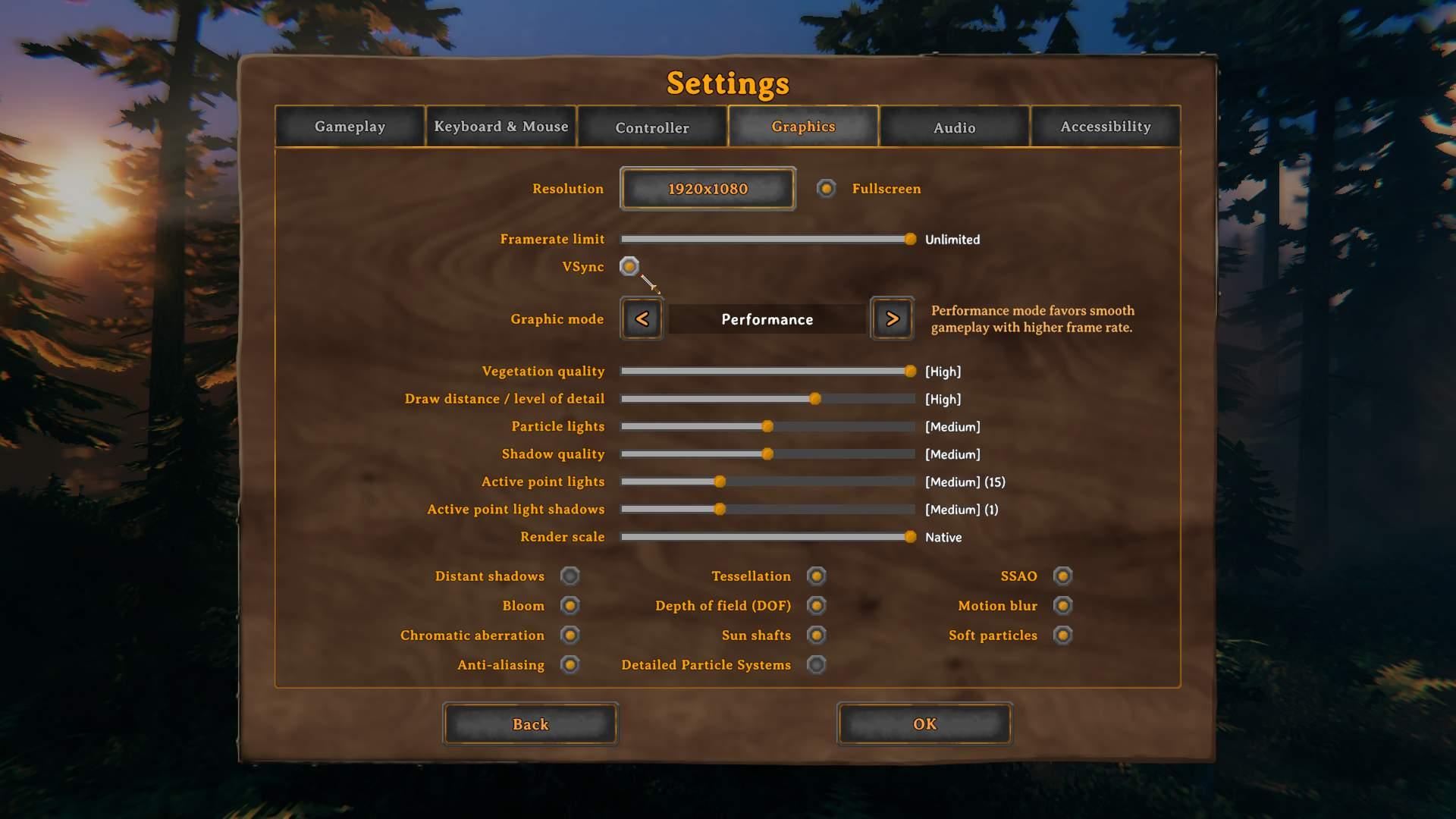
Set an FPS limit
Uncapped frame rates are one of the main reasons for high GPU usage. In Valheim, you can set an FPS limit directly in the graphics options. Try capping the frame rate to 60 or even 30 FPS if you prefer a cooler and quieter system. If the in-game cap isn’t sufficient, use third-party tools like RivaTuner to enforce a strict limit.
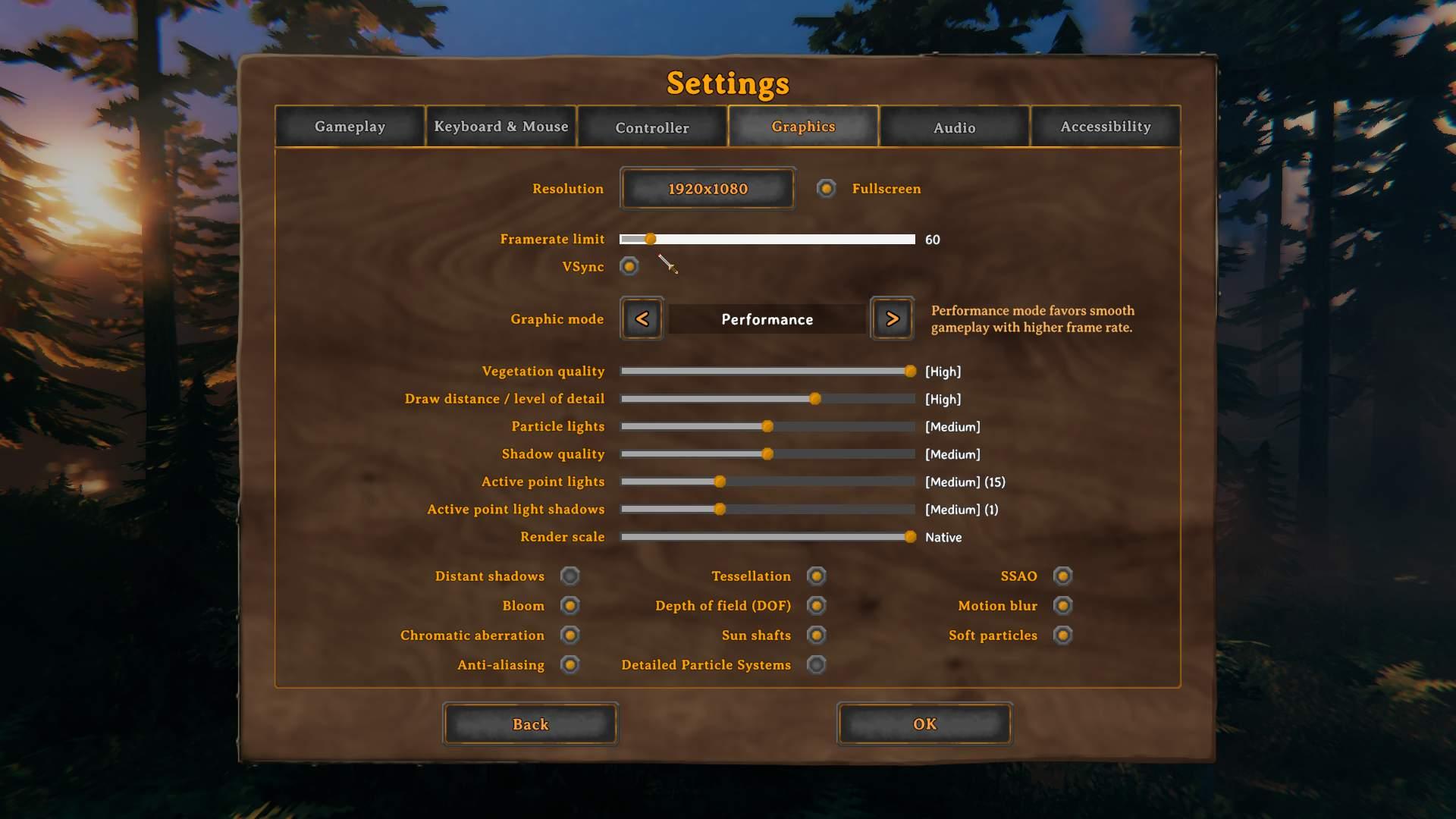
Switch to Vulkan API
For those using powerful GPUs, switching to the Vulkan API can offer better optimization. To enable Vulkan, right-click on Valheim in your Steam library, go to properties, and select Play Valheim using Vulkan in the launch options. Relaunch the game, and you may notice improved performance and reduced GPU stress.
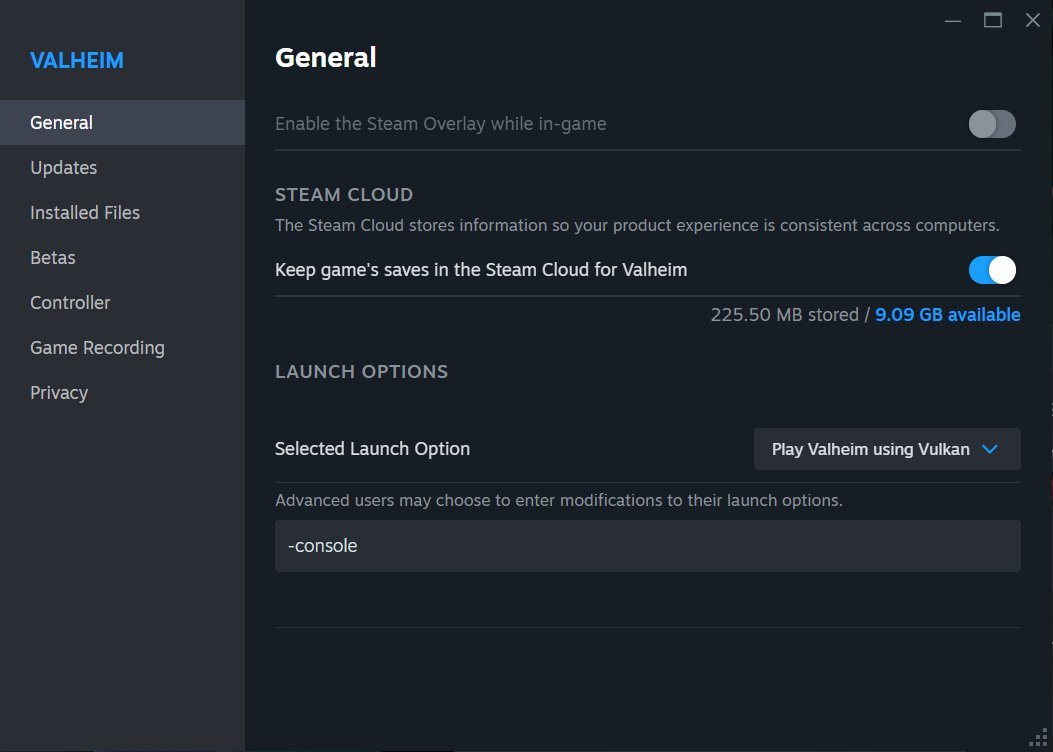
Monitor temperatures and fan curves
Overheating is a common symptom of excessive GPU usage. Use software like MSI Afterburner or HWMonitor to check your GPU temperatures. If they exceed safe levels (typically 80°C), adjust your fan curves to increase airflow. Cleaning your case and ensuring proper ventilation can also help keep temperatures in check.
Disable overclocking
Overclocking might enhance performance in some games, but in Valheim, it can cause instability and crashes. If you’ve overclocked your GPU, revert it to factory settings. Tools like MSI Afterburner or your GPU’s control panel make this process simple.
Update GPU drivers
Outdated drivers can lead to performance issues. A clean installation of the latest drivers can reset problematic settings and improve compatibility with Valheim.
Optimize power supply
If crashes persist despite lowering GPU usage, your power supply unit (PSU) might be the culprit. Ensure your PSU delivers enough wattage for your GPU, especially if you’re running a high-end card. A faulty or underpowered PSU can cause random shutdowns during demanding gameplay.
Revisit your build settings
In Valheim, large builds or excessive terraforming can strain your system. Consider optimizing your base design and avoiding unnecessary landscaping. The game’s performance may drop in areas with a high object count, so minimizing clutter can help reduce GPU usage.
Use external cooling solutions
For laptop gamers or those with compact cases, an external cooling pad or additional case fans can make a noticeable difference. Cooler hardware operates more efficiently, preventing throttling and extending the lifespan of your components.
Know when to upgrade hardware
If none of the above steps improve your experience, your hardware might be reaching its limits. Valheim can be demanding on older GPUs. Consider upgrading to a newer card that can handle the game’s requirements more effectively while staying within safe usage levels.
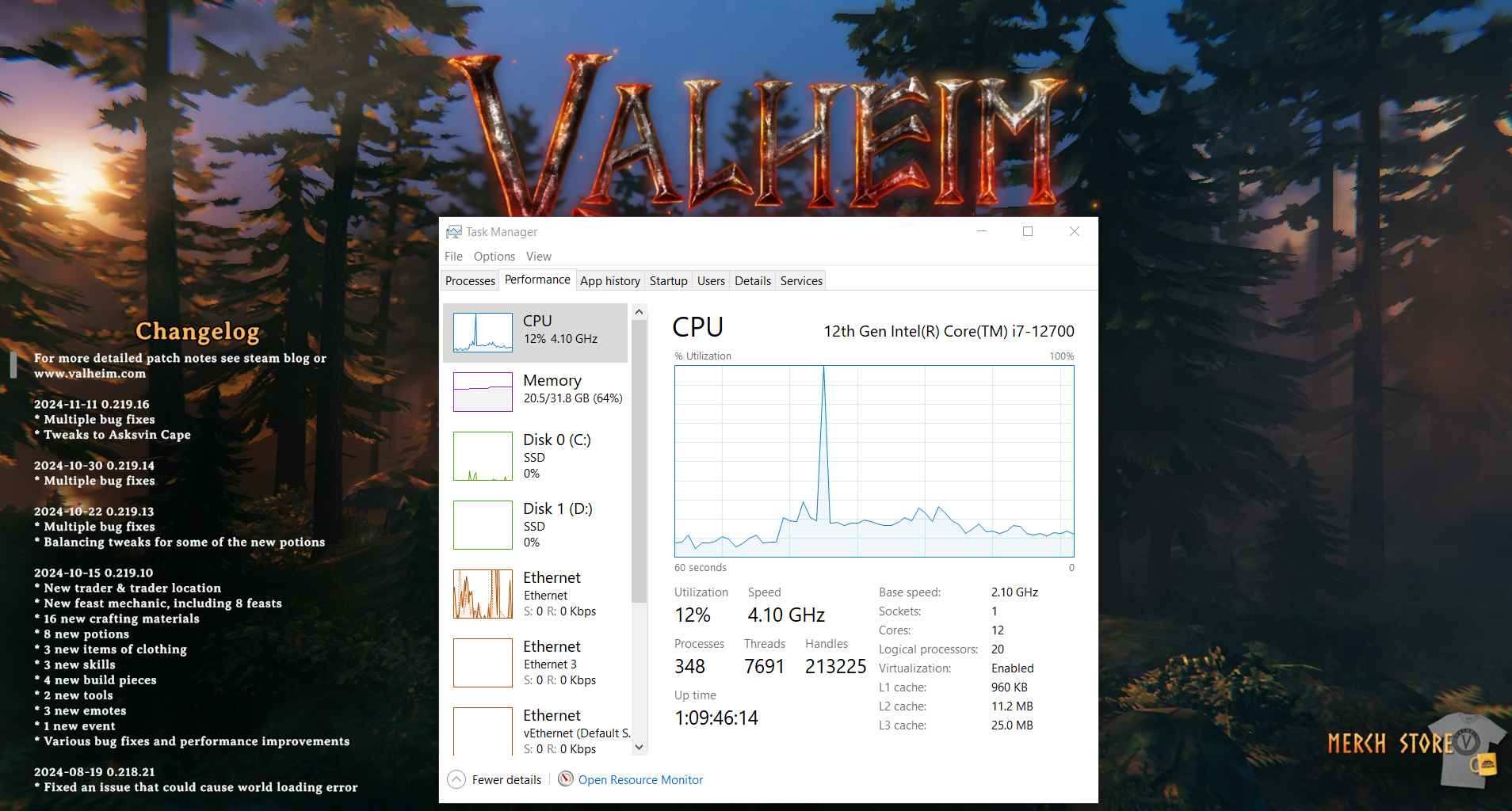
Excessive GPU usage in Valheim doesn’t have to ruin your gaming experience. With the right settings, proper hardware maintenance, and strategic upgrades, you can enjoy the game without worrying about crashes or overheating. By following these steps, you’ll not only optimize your gameplay but also extend the lifespan of your GPU.