
How to Fix Crashing Issue in Palworld Feybreak
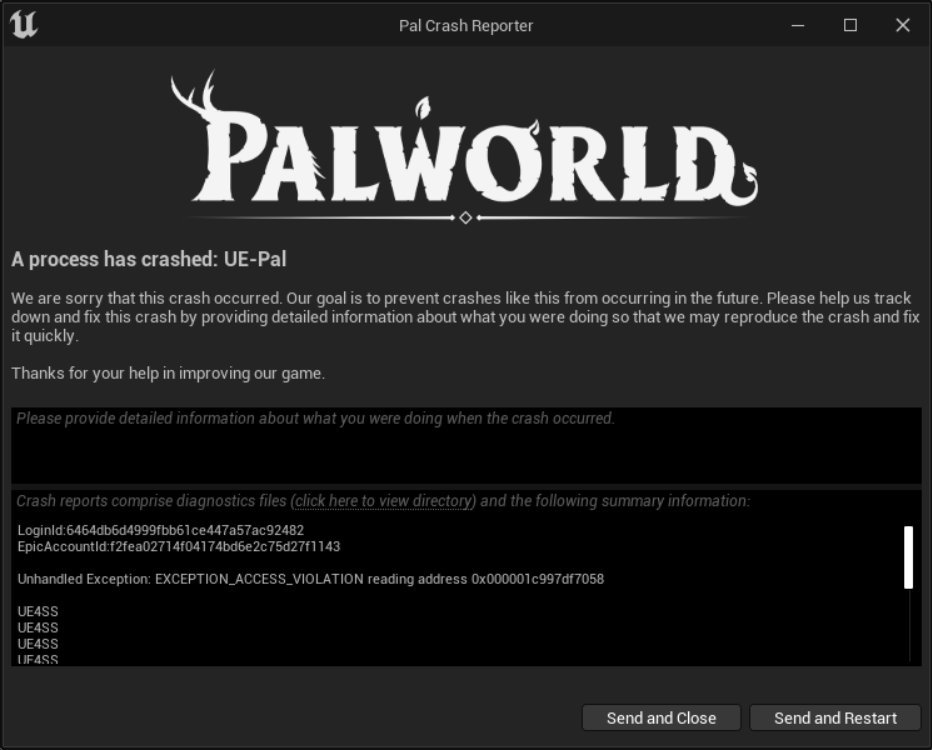
Before diving into the beautiful chaos of Palworld Feybreak, there’s nothing more frustrating than being stopped at the start by a crashing game. The thrill of exploring new Pals and conquering fresh challenges can come to a screeching halt when the game decides to quit on you.
Start with the Basics
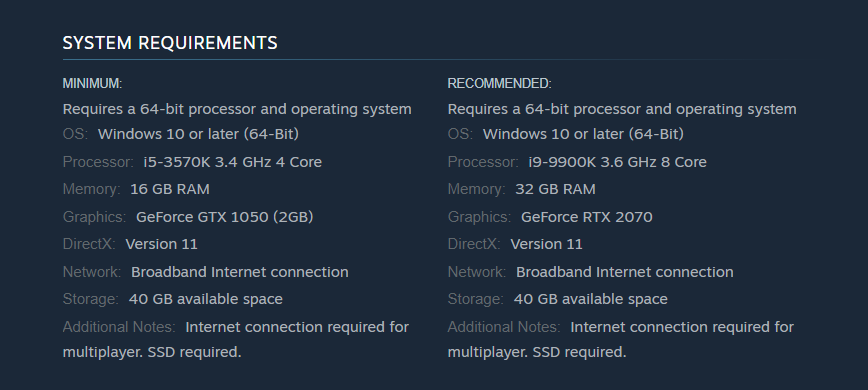
First things first: make sure your system meets the minimum requirements for Palworld Feybreak. If you’re trying to run the game on an outdated or low-spec PC, crashes are bound to happen. Check that your drivers, particularly for your graphics card, are up to date. Visit the official sites for NVIDIA or AMD to snag the latest versions.
Check for Mod Conflicts
Mods can add a lot of flavor to the game, but they’re often the culprits behind crashes after major updates like Feybreak. Disable or uninstall any mods to ensure nothing interferes with the game’s launch. If you’re unsure, a clean reinstallation of the game will remove all modded files.

Verify Game Files
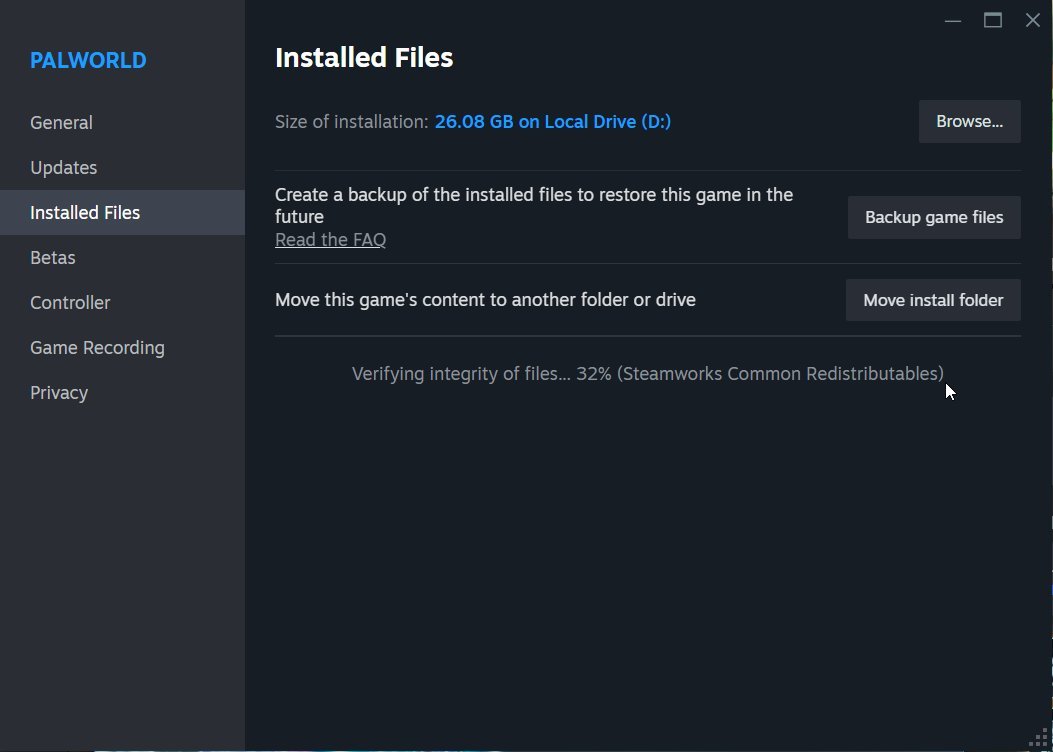
If disabling mods doesn’t work, use Steam’s built-in tools to verify the integrity of your game files. Right-click Palworld in your Steam library, go to Properties > Local Files, and hit "Verify Integrity of Game Files". This checks for any corrupted or missing files and automatically replaces them.
Adjust Launch Options
Sometimes, the default settings don’t play nice with certain systems. Open Steam, head to Palworld’s Properties, and add `-dx11` in the Launch Options under the General tab. This forces the game to use DirectX 11, which can resolve compatibility issues on older hardware.
Tweak Graphics Settings
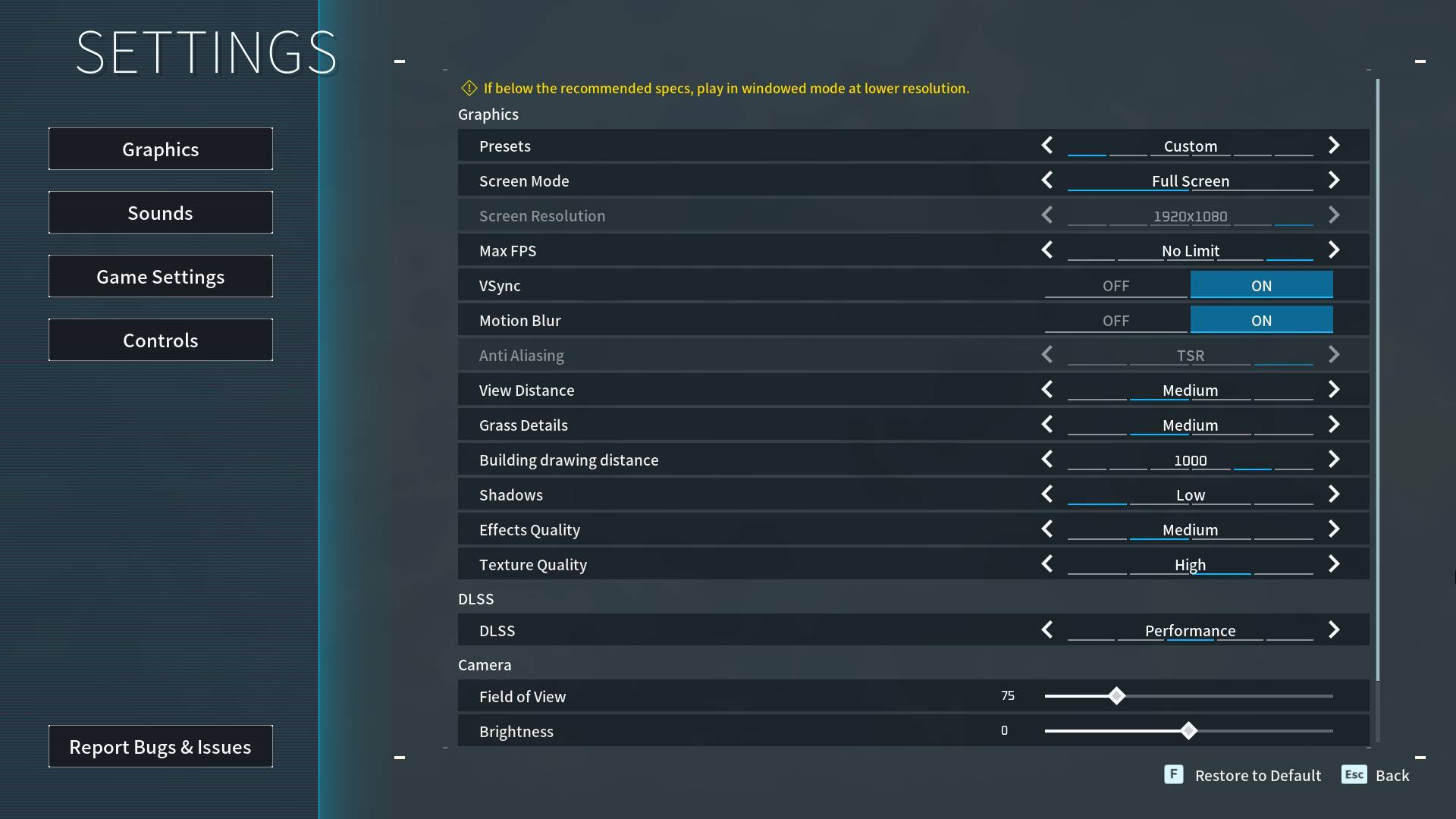
If you manage to launch the game but it crashes mid-play, the issue might be tied to your graphics settings. Lowering options like anti-aliasing or shadow quality can reduce the load on your system. If you’re not sure what to adjust, start with the "Low" preset and gradually increase settings.
Update Windows and DirectX
Ensure your operating system is fully updated. An outdated version of Windows or DirectX can cause compatibility issues. Go to Windows Update and check for updates, then install the latest version of DirectX from Microsoft’s website.
Disable Antivirus and Firewall
Your antivirus or firewall might mistake Palworld Feybreak for a threat and block it. Add the game to your antivirus exceptions or temporarily disable the software to see if that resolves the issue. Just remember to re-enable protection afterward.
Launch as Administrator
Running the game as an administrator can bypass restrictions that might be causing crashes. Right-click on the Palworld executable, select "Run as Administrator," and see if that makes a difference.
Reinstall the Game
If all else fails, uninstalling and reinstalling the game might be your best bet. Be sure to delete any leftover files in the game directory after uninstalling to ensure a fresh installation.
Stay Patient for Updates
Developers are aware of these issues and typically release patches to address them. Keep an eye on official forums or the game’s Steam page for announcements. Updates to the game or your favorite mods might resolve the problem without extra effort on your part.
Crashing issues can be a huge buzzkill, but they don’t have to keep you from enjoying the thrill of Palworld Feybreak. With these fixes, you’ll be back to exploring and battling alongside your Pals in no time. And hey, sometimes it’s just about tweaking settings, so don’t give up too quickly, Feybreak Update is really worth it to overcome this issue.