
How to Fix Crashing in Icarus Update
Experiencing crashes in Icarus can disrupt your gaming session and leave you frustrated. Whether it's sudden freezing, lag, or issues with launching the game, there are several troubleshooting steps you can follow.
Update Your Graphics Drivers
Keeping your graphics drivers up to date is one of the most effective ways to resolve crashes. Start by opening Device Manager on your PC. Find Display Adapters, right-click on your graphics card, and select Update Driver. Choose the option to search automatically for drivers. If this doesn’t fix the issue, visit the official website of your graphics card manufacturer (e.g., NVIDIA, AMD) and download the latest driver manually. Once downloaded, run the installer, follow the prompts, and restart your PC. This process ensures your system is running the most compatible version of the drivers for Icarus.
Adjust Graphics Settings
Changing graphics settings can reduce the strain on your system and prevent crashes. Open Graphics Settings on your computer and add Icarus to the list of programs. Set it to High Performance Mode to prioritize the game’s performance. Ensure the display resolution matches the in-game settings. For instance, if your game resolution is 1920x1080, make the same adjustments in your system’s display settings. Consistency between the game and system can prevent graphical conflicts.
Verify Game Files on Steam
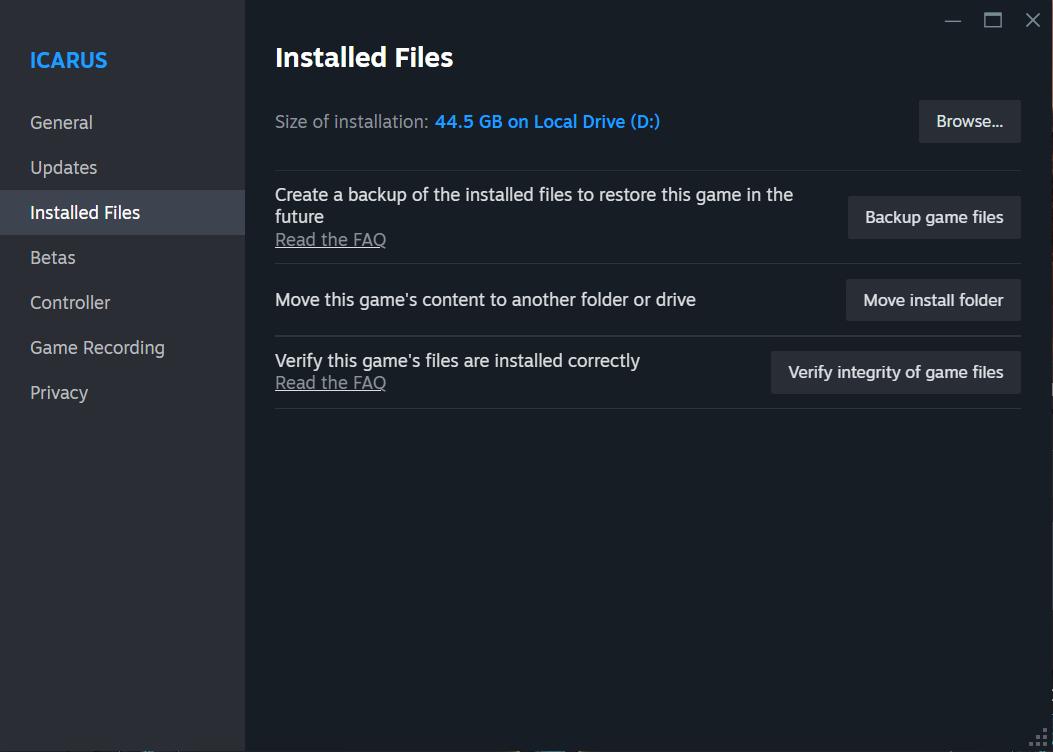
Corrupted game files are a common cause of crashes. Open Steam, go to your game library, and right-click on Icarus. Select Properties, then navigate to the Installed Files tab. Click Verify Integrity of Game Files. This process checks for missing or damaged files and replaces them automatically. It’s a quick way to ensure your game installation is intact.
Run the Game in Compatibility Mode
Sometimes, older compatibility settings can stabilize crashing games. Locate the game’s executable file by right-clicking the game in Steam, selecting Properties, and clicking Browse Local Files. Right-click the game application, select Properties, and navigate to the Compatibility tab. Enable Run this program in compatibility mode and try options like Windows 7 or Windows 8. Additionally, check Disable full-screen optimizations and optionally enable Run this program as an administrator to give the game more system access.
End Background Processes
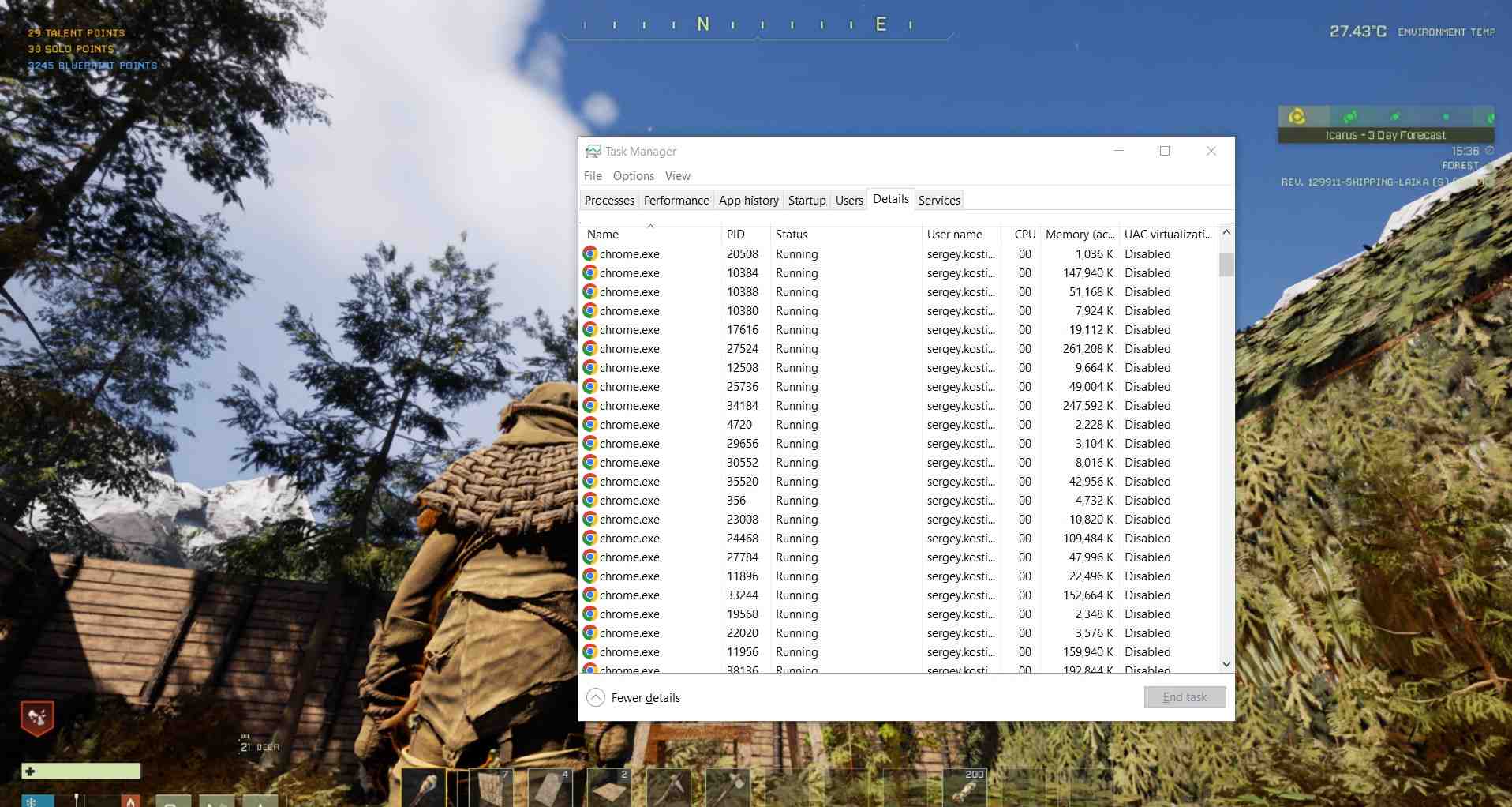
Too many background processes can overload your system. Open Task Manager and end unnecessary tasks unrelated to Windows or Icarus. Look for resource-heavy applications that might interfere with the game. This step frees up CPU and memory for a smoother gaming experience.
Check for Windows Updates
Outdated system software can cause crashes. Open Windows Update from the search bar and click Check for Updates. Install any pending updates and restart your PC. Keeping your system up to date ensures compatibility with the latest game updates and drivers.
Reconfigure Power Settings
For laptops or PCs using power-saving modes, switching to High Performance Mode can improve stability. Go to your Power Options, choose High Performance, and make sure your PC is running at full capacity while playing the game.
Advanced System Checks
If issues persist, consider running system diagnostics. Tools like sfc /scannow or DISM commands can repair corrupted system files. Open Command Prompt as an administrator and type these commands to initiate scans. Once completed, restart your system and try launching Icarus again.
Optimize In-Game Settings
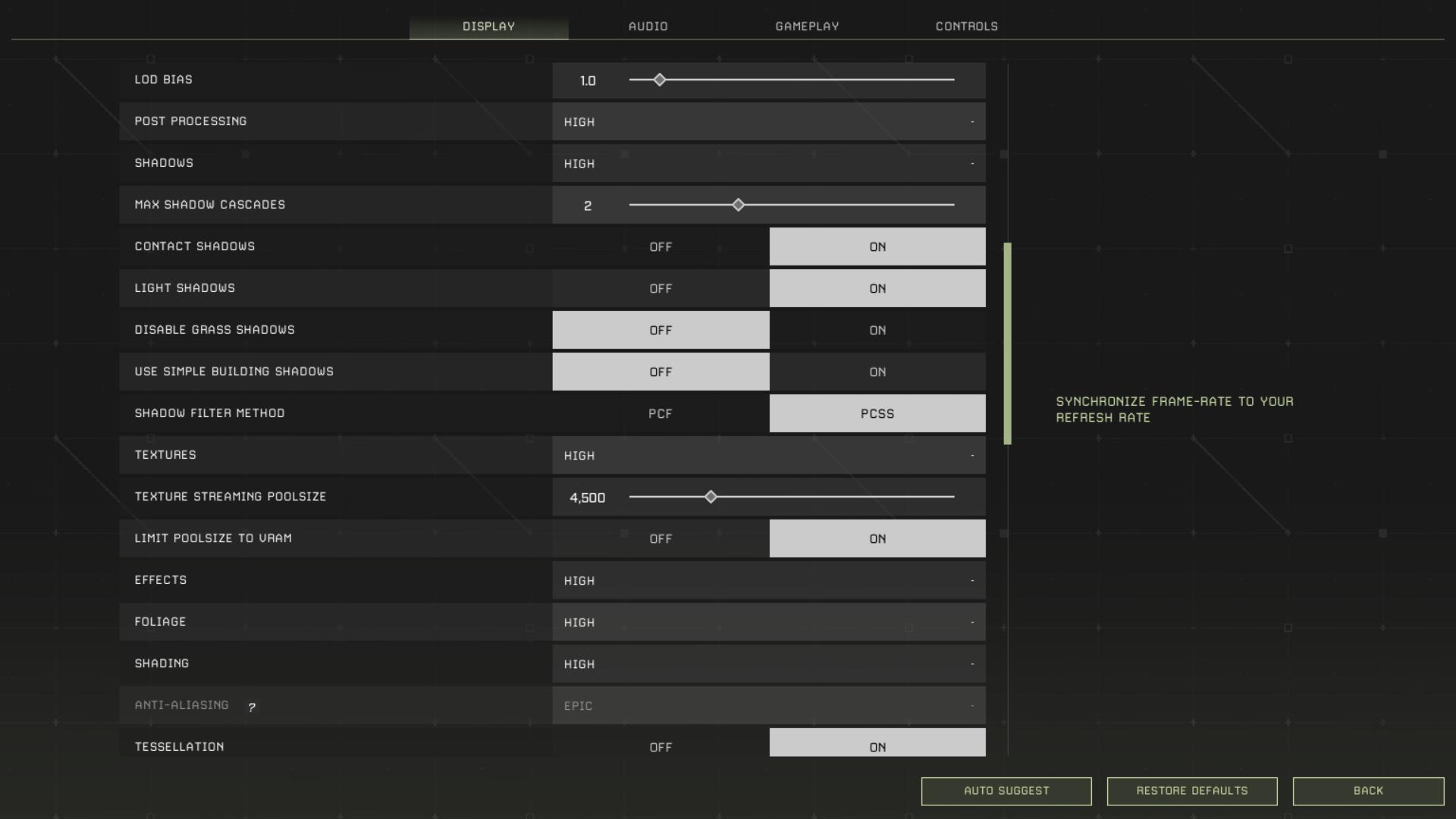
Lowering in-game graphical settings can help reduce crashes on older or less powerful hardware. Set textures, shadows, and effects to medium or low. Disable unnecessary features like motion blur or V-Sync if they’re not essential to your experience.
Troubleshooting crashes in Icarus often involves updating drivers, optimizing settings, and ensuring your system is running smoothly. By following these steps, you can minimize disruptions and enjoy uninterrupted gameplay. If problems persist, consider reaching out to the game’s support team for additional assistance.