
How to Fix Crashes After Loading Easy Anti-Cheat in Rust
If you've been struggling with Rust crashing right after the Easy Anti-Cheat (EAC) window appears, you're not alone. This issue has left many players stuck, unable to jump into the game they love. While the root cause may vary, from system conflicts to software bugs, there are multiple steps you can take to address this issue. Let’s go through the practical solutions to get you back into Rust without a hitch.

Check for Overlay Interference
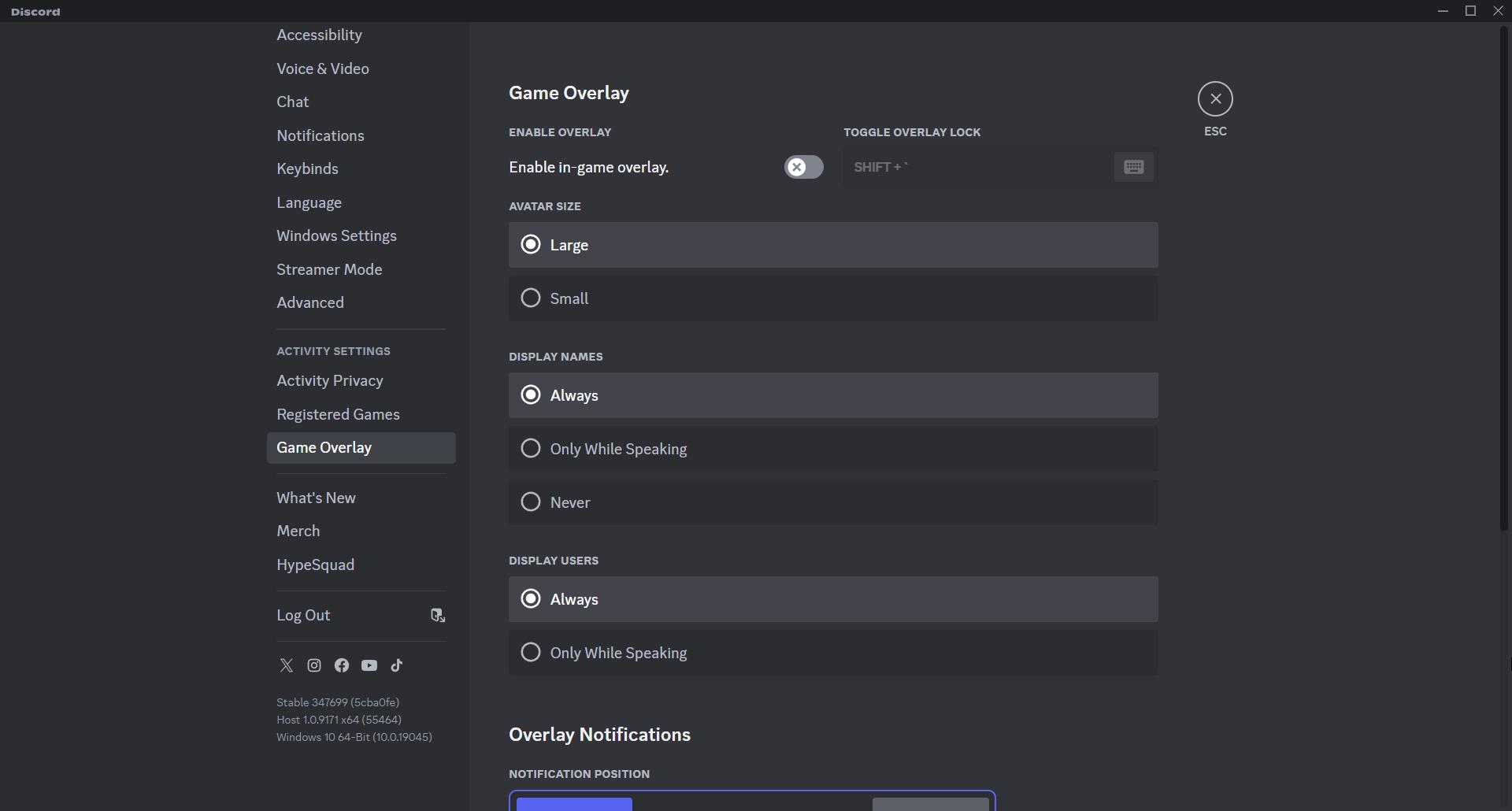
Sometimes, overlays from applications like Discord, GeForce Experience, or Steam can conflict with EAC. Disable these overlays to see if it resolves the issue. For Discord, navigate to ‘Settings > Game Overlay’ and toggle it off. If GeForce Experience is active, open the app, go to the settings menu, and disable the in-game overlay feature.
Verify Game File Integrity
Corrupt game files are a common cause of crashes. To verify Rust's files:
1. Open Steam and locate Rust in your library.
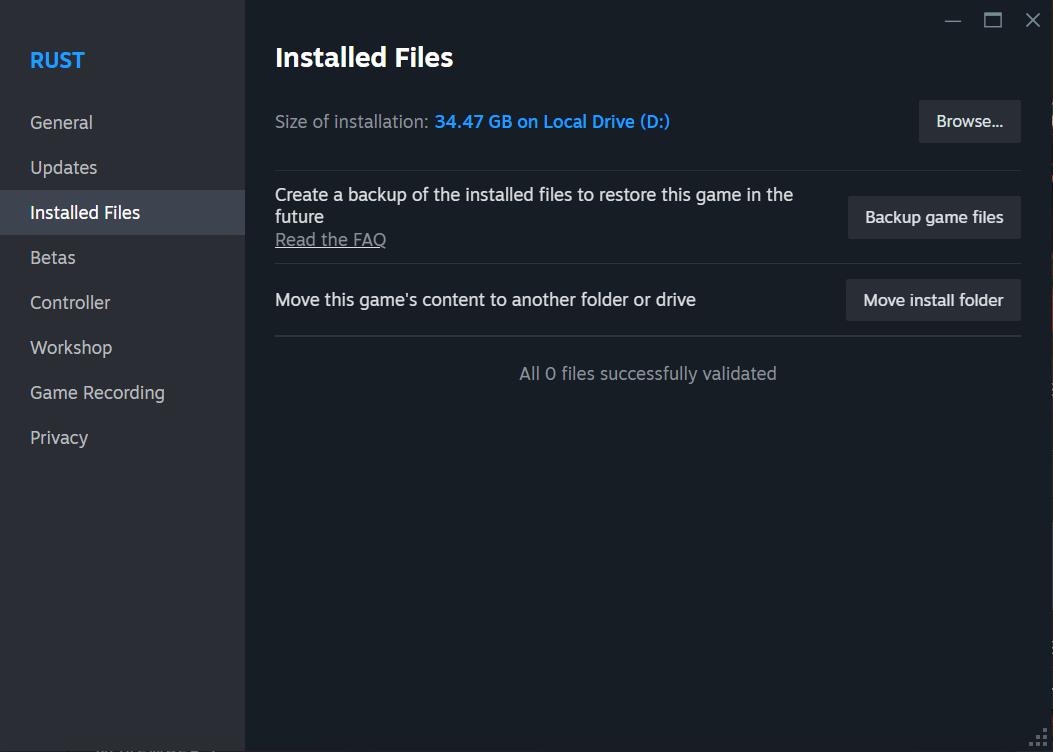
2. Right-click the game, select ‘Properties’, then navigate to ‘Installed Files’.
3. Click ‘Verify Integrity of Game Files’.
This process will ensure any missing or damaged files are replaced.
Repair Easy Anti-Cheat
Reinstalling or repairing Easy Anti-Cheat can resolve compatibility issues. Follow these steps:
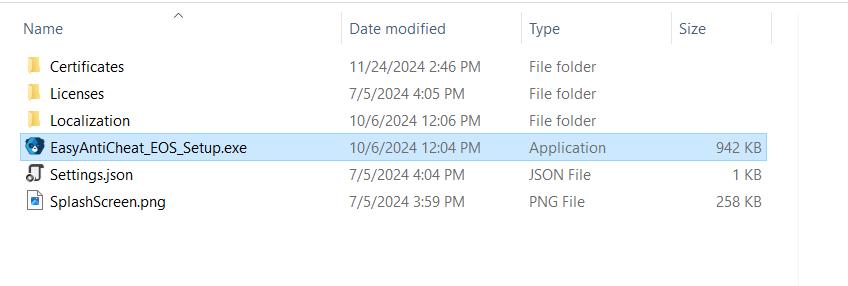
1. Locate the ‘EasyAntiCheat’ folder in Rust's installation directory.
2. Run the ‘EasyAntiCheat_Setup.exe’ file.
3. Select Rust from the dropdown menu and click ‘Repair Service’.
If the issue persists, uninstall and reinstall EAC using the same setup file.
Update Your System Drivers
Ensure your GPU, chipset, and network drivers are up to date. Use your device manager to check for updates or visit the manufacturer’s website to download the latest versions. Outdated drivers often cause crashes when interacting with anti-cheat software.
Adjust Antivirus or Firewall Settings
Overzealous antivirus software or firewall rules might block EAC from functioning properly. Add Rust and EAC as exceptions to your antivirus software. For Windows Firewall, navigate to ‘Settings > Update & Security > Windows Security > Firewall & Network Protection > Allow an App Through Firewall’, then add Rust and EAC to the list.
Check for Software Conflicts
Recently installed software, like VPNs or proxy services, might interfere with EAC. ProxyCap, for instance, has been known to cause issues. Temporarily disable or uninstall such applications and test Rust again.
Reinstall Rust
If other fixes don’t work, reinstalling the game can help eliminate persistent problems.
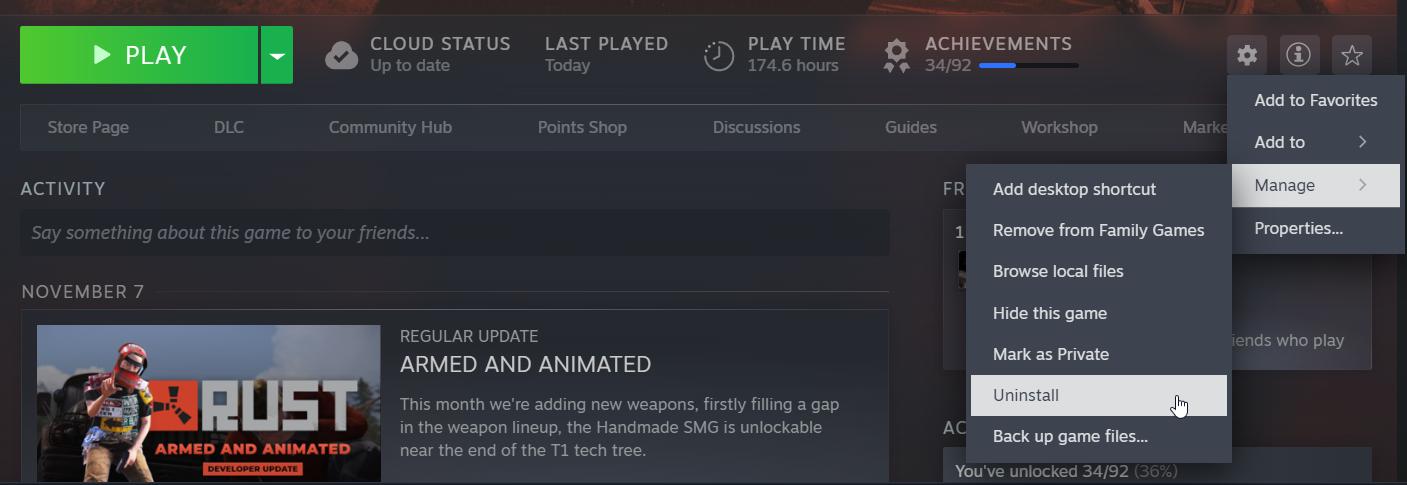
1. Uninstall Rust through Steam.
2. Delete the Rust installation folder to remove residual files.
3. Reinstall Rust from scratch.
Reboot and Try Safe Mode
Restart your computer to clear temporary files and refresh system processes. For a more thorough test, boot into Safe Mode with Networking to rule out third-party software conflicts.
Contact Support
If none of the above solutions work, consider contacting Rust support or Easy Anti-Cheat support. Provide detailed information about the crash, including system specifications and steps you’ve already tried.
Crashing after loading Easy Anti-Cheat in Rust can be frustrating, but with the solutions outlined here, you have several options to identify and resolve the issue. Whether it’s disabling overlays, updating drivers, or repairing the anti-cheat software, you’re now equipped with the knowledge to tackle the problem. With persistence, you'll be able to rejoin the game and enjoy uninterrupted gameplay.