
How to Fix Crash on Startup in Soulmask
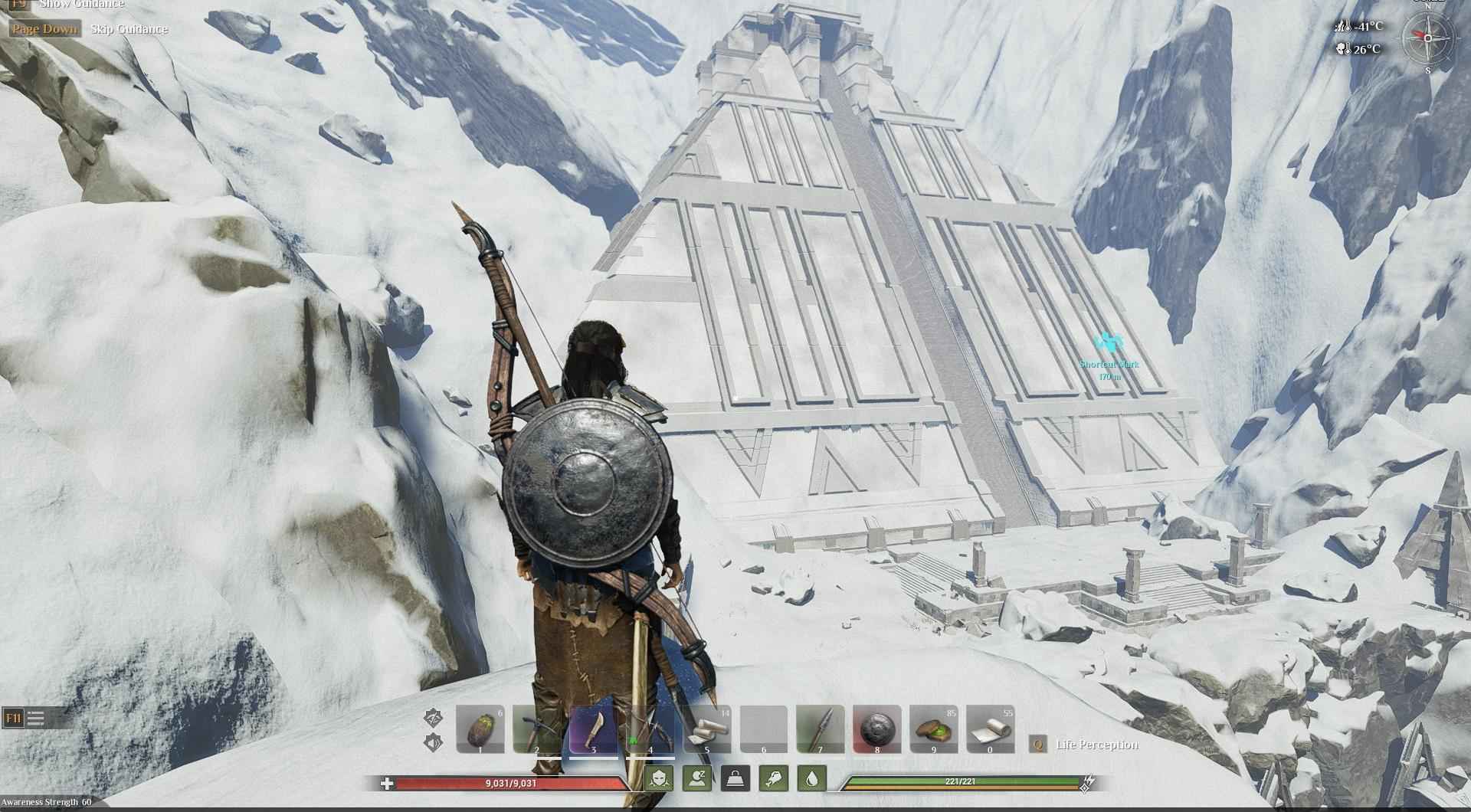
Soulmask is a thrilling survival game that has captivated many players since its launch on Steam Early Access. However, as an Early Access title, it can occasionally be prone to crashes, especially on startup. Fear not, as we've got a detailed guide to help you troubleshoot and fix these issues so you can dive back into the immersive world of Soulmask without any hitches.
Disable Conflicting Software and Overlays
One of the common causes for Soulmask crashing at startup is the interference from third-party tools and in-game overlays. Tools like MSI Afterburner, Discord, and various RGB software can sometimes conflict with the game. Here's how to disable them:
1. Disable Third-Party Tools: Close applications such as MSI Afterburner, Discord, and any software related to peripherals like HOTAS controllers.
2. Turn Off In-Game Overlays:
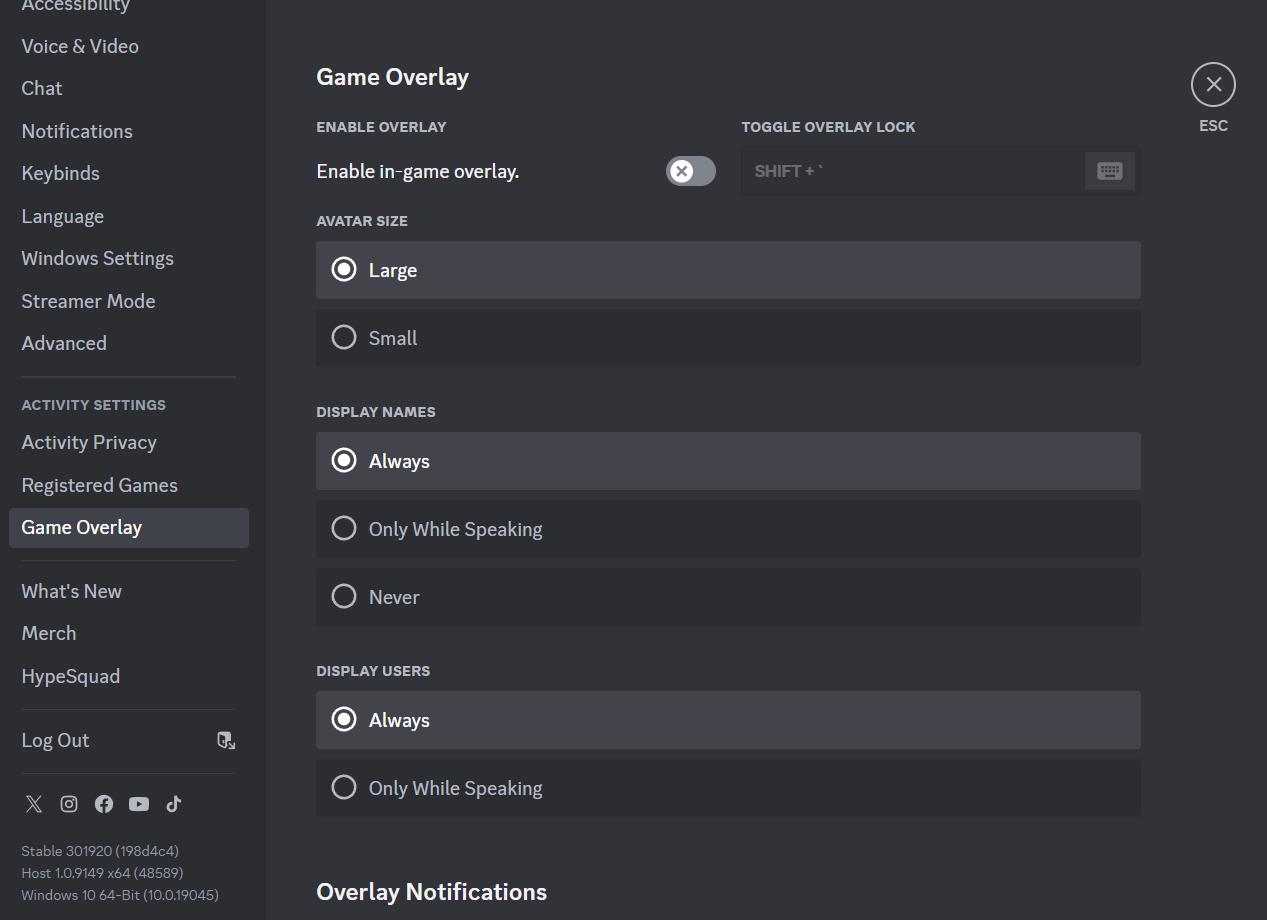
- Discord: Go to User Settings > Game Overlay > Turn off "Enable In-game overlay."
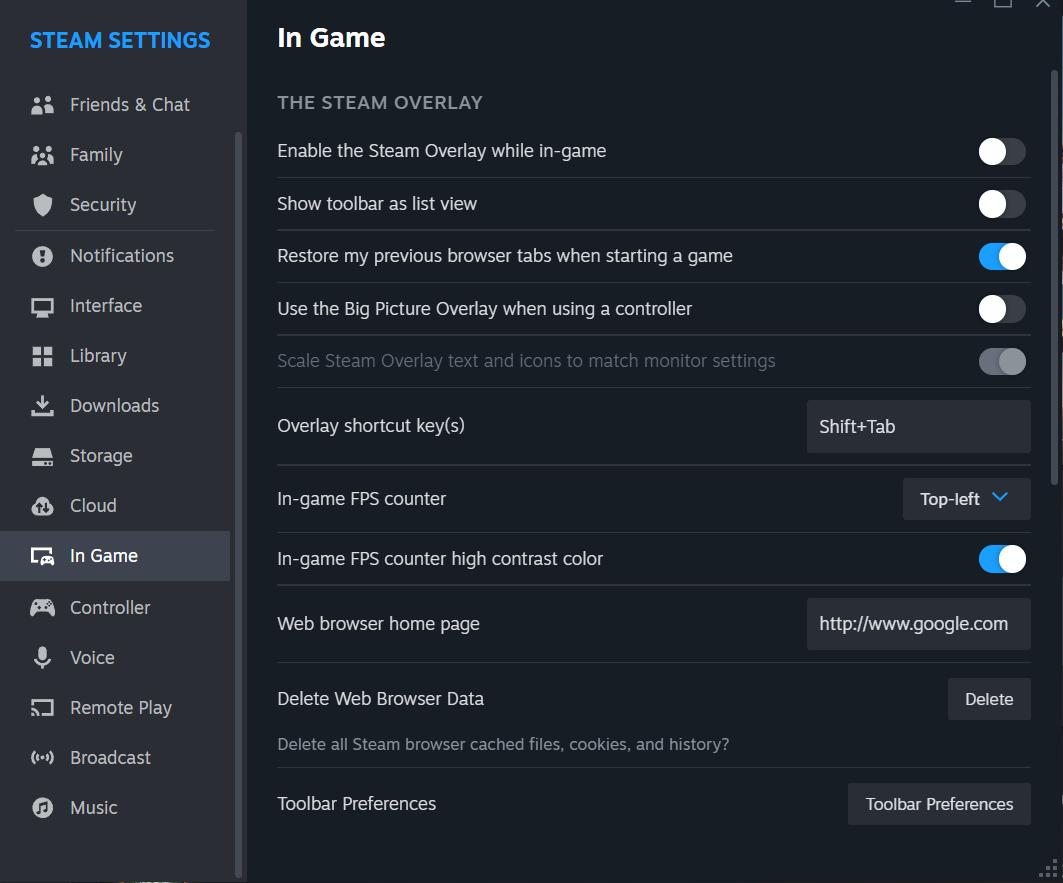
- Steam: Open Settings > In-Game > Uncheck "Enable the Steam overlay while in-game."
- GeForce Experience: Open GeForce Experience > Click on the Gear icon > General > Turn off "IN-GAME Overlay."
By disabling these overlays and third-party tools, you might resolve the startup crashes.
Tweak Graphics Settings and Update Drivers
Graphic settings and outdated drivers can also be culprits. Ensuring that your GPU settings and drivers are properly configured can often fix startup crashes:
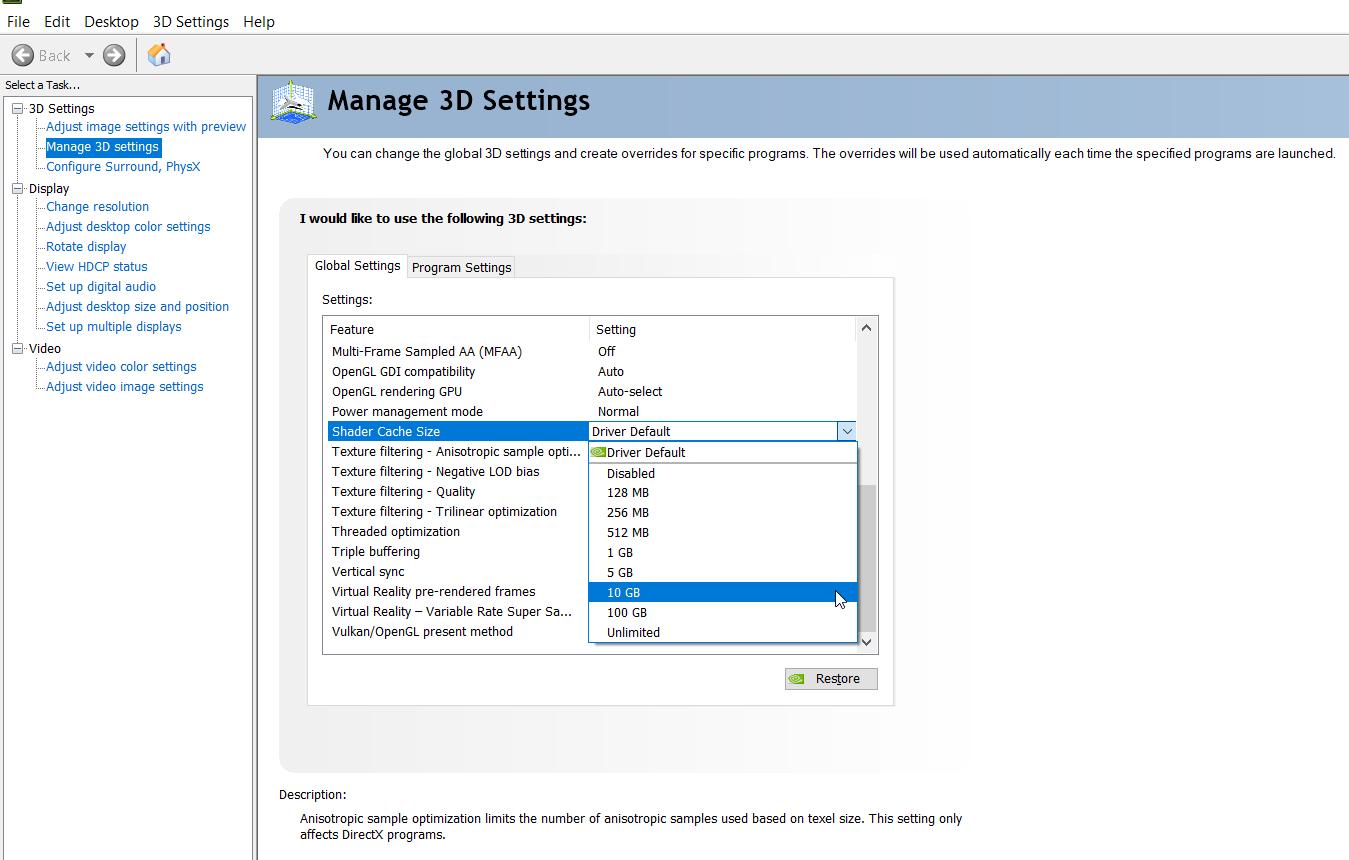
1. Increase Shader Cache:
- Open Nvidia Control Panel > Manage 3D Settings > Global Settings > Shader Cache > Select 10 GB and apply the changes.
2. Disable GPU Overclocking:
- If you have overclocked your GPU, revert it to its default settings.
3. Enable Debug Mode:
Enabling Debug Mode in the Nvidia Control Panel can help address startup crashes in Soulmask by forcing your GPU to run at its factory default settings. This mode is particularly useful if you've overclocked your GPU or if the GPU is experiencing stability issues due to hardware or software conflicts. Open Nvidia Control Panel > Help > Click on Debug Mode.

4. Limit Max Frame Rate:
- Nvidia Control Panel > Manage 3D Settings > Program Settings > Select Soulmask > Enable Max Frame Rate and set an appropriate value.
5. Update or Reinstall GPU Driver:
- Download the latest drivers from the Nvidia or AMD website, ensuring to perform a clean installation.
Corrupt Game Files or Administrative Issues
Sometimes, the game files themselves might be corrupted or lack necessary permissions, causing crashes. Follow these steps to address these issues:
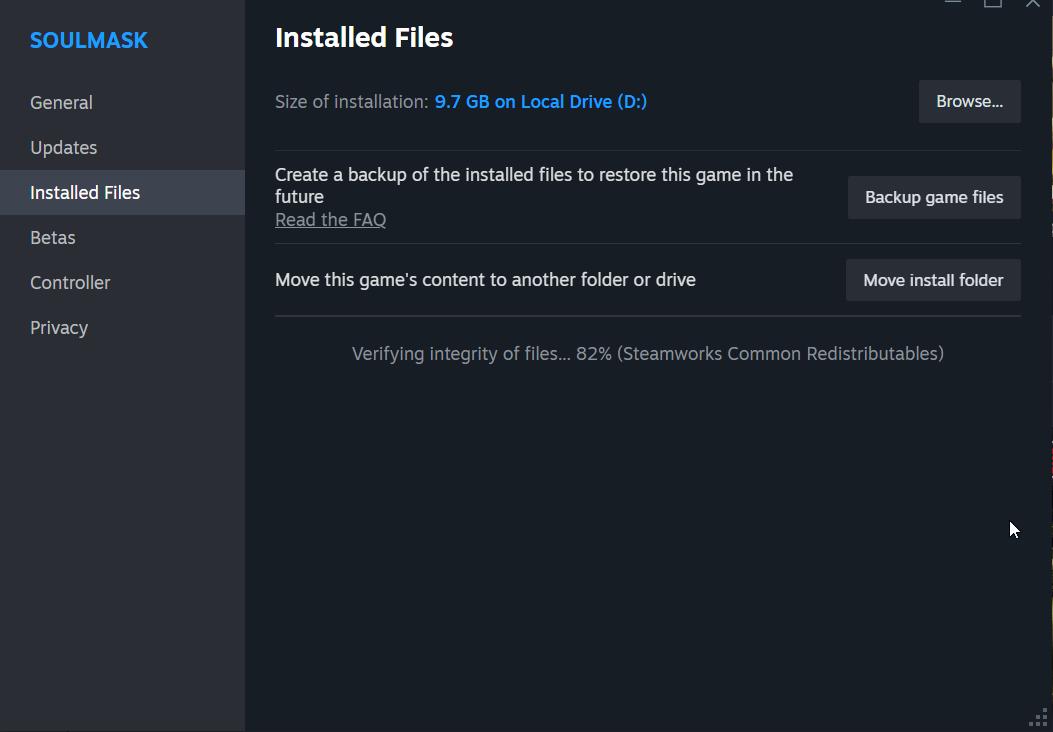
1. Verify Game Files:
- Steam Library > Right-click Soulmask > Properties > Installed Files tab > Click "Verify integrity of game files."
2. Run As Administrator:
- Right-click Soulmask in your Steam library > Manage > Browse local files > Right-click the executable > Properties > Compatibility tab > Check "Run this program as an administrator."
Optimize System Settings
If the above steps don't resolve the issue, adjusting some system settings might help:
1. Disable Anti-Virus:
- Temporarily disable or exclude the Soulmask game folder from your anti-virus software.
2. Update Windows:
- Windows Settings > Windows Update > Check for updates and install all available updates.
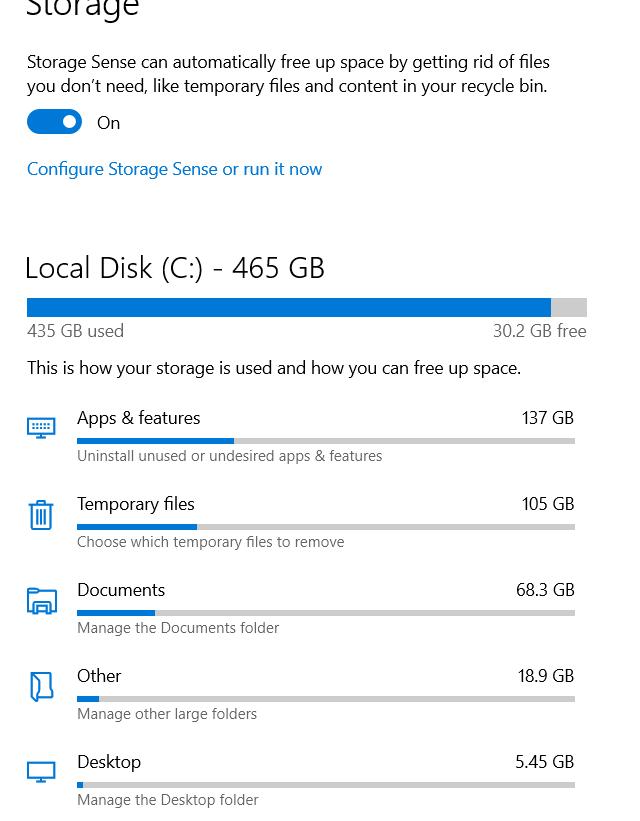
3. Delete DirectX Shader Cache:
- Windows Settings > System > Storage > Temporary Files > Select DirectX Shader Cache and click “Remove Files.”
4. Adjust Virtual Memory:
- Windows Search > View Advanced system settings > Settings under Performance > Advanced tab > Change Virtual Memory > Uncheck "Automatically manage paging file size" > Select Custom size and set appropriate values based on your total RAM.
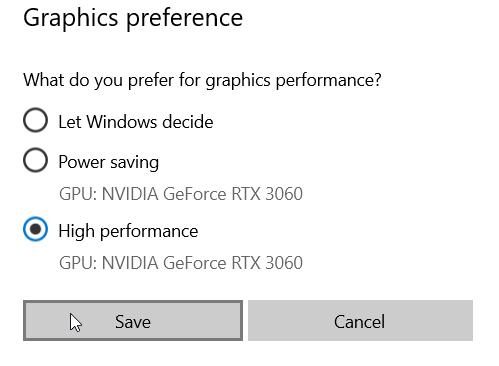
5. Run on Dedicated Graphics:
- Windows Search > Graphics settings > Browse for Soulmask executable > Add > Options > Select High performance and Save.
With these comprehensive steps, you should be able to fix the crashes at startup in Soulmask and get back to your gaming adventures. Always ensure your software and drivers are up-to-date, and tweak your settings as needed to maintain optimal performance. Enjoy the immersive experience that Soulmask offers, free from frustrating crashes!