
How to Fix Connection Issues in Soulmask

Soulmask is an awesome sandbox survival game that plunges you into a primitive world brimming with mysteries and challenges. But, let's face it, nothing's more frustrating than losing your connection mid-game. Don't worry, though; we've got your back! Let's dive into some solid solutions to get you back in the game.

Hosting or Joining Another Session
First off, let's talk about hosting or joining another session. If you're having trouble connecting to your friend's server, you have a couple of options. One way to troubleshoot is by hosting your own session. To do this, head to the main menu, click "Solo/Friends," adjust your game, set a password and quantity of players and press “Start”.

This might give you a more stable connection. If you still want to join your friend's server, select "Online Game" from the menu and select Private Servers to try connecting again. This could help you find a stable game without the hassle.

Adjusting Windows Network Adapter Settings
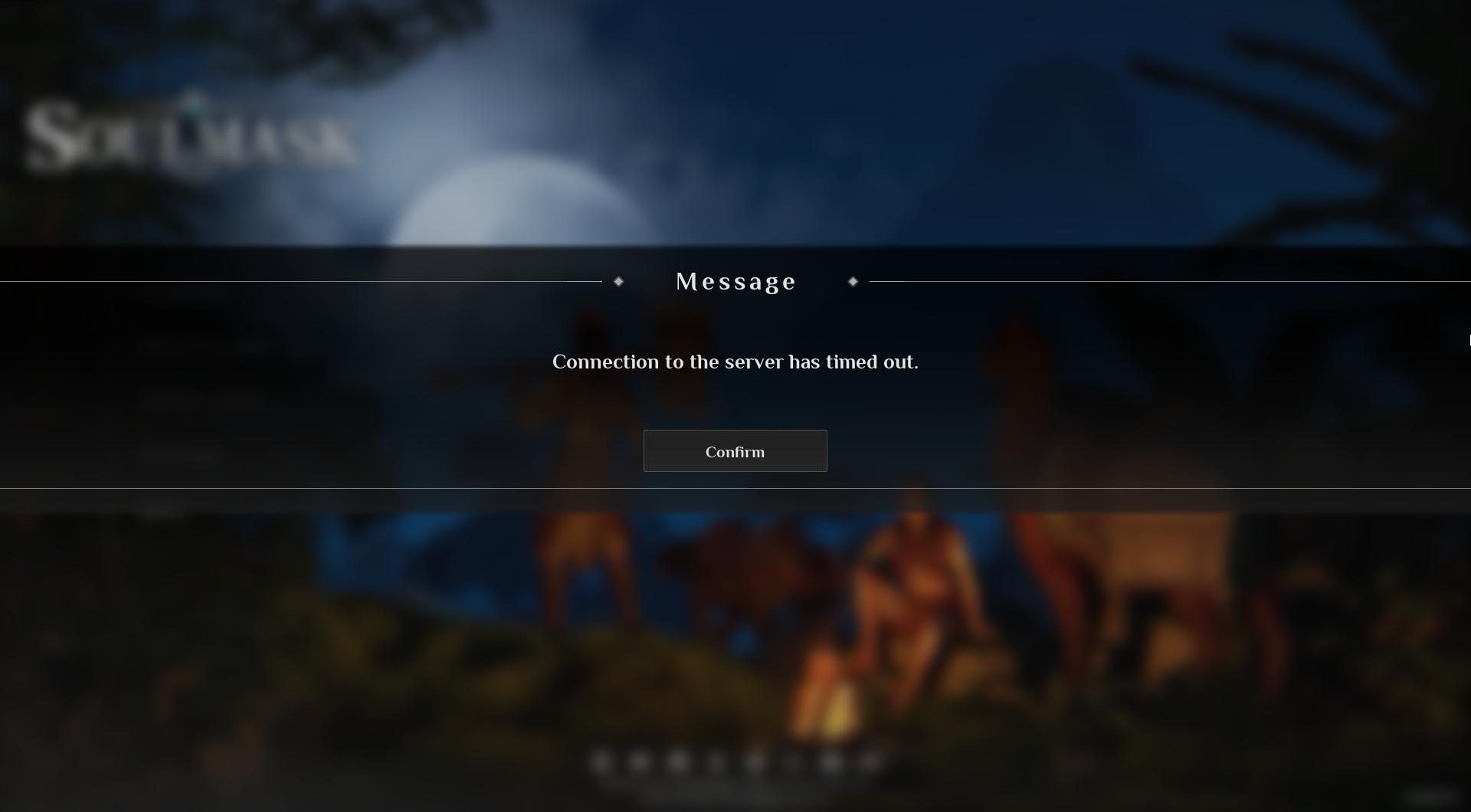
Another fix involves tweaking your Windows network adapter settings.
1. Open the Control Panel and navigate to the Network and Sharing Center.
2. Click on your local connection or internet connection, then hit Properties.
3. Uncheck the box for TCP/IPv4, click OK, and then check it again.

These steps can help reset and stabilize your network settings, potentially resolving connection issues.
Verify Integrity of Game Files
Lastly, let's not forget the good old Steam troubleshooting techniques. Sometimes, verifying the integrity of your game files can fix the issue. Open Steam, go to your Library, right-click on Soulmask, select Properties, navigate to the Installed Files tab, and click "Verify Integrity of Game Files."
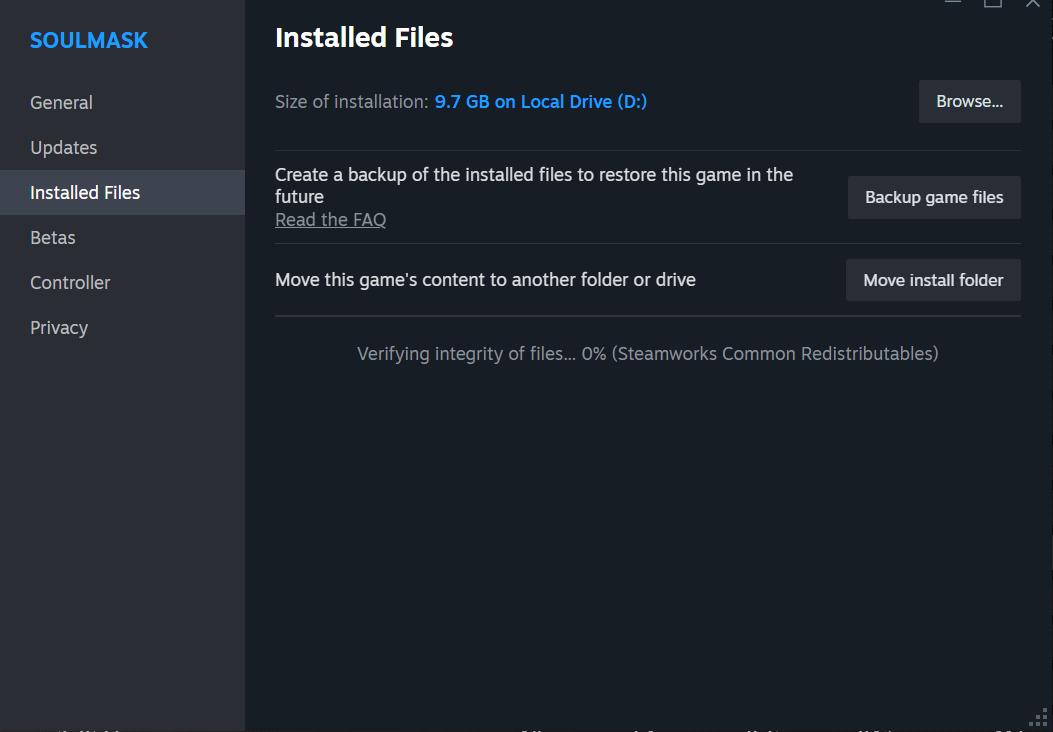
This will check for any missing or corrupted files and replace them. Additionally, running the game as an administrator can sometimes help. Right-click on the Soulmask executable file, select "Run as Administrator," and see if this resolves your problem.
And there you have it, folks! By hosting or joining different sessions, addressing the proximity repeater bug, adjusting your network adapter settings, verifying your game files, and running the game as an administrator, you should be able to tackle the "Connection To The Host Has Been Lost" issue in Soulmask. These fixes are straightforward and should get you back into the game, ready to face whatever challenges come your way. Happy gaming!