
How to find screenshots in Minecraft?
Introduction:
In addition to constructing and surviving, the sandbox game Minecraft, which has won over millions of fans worldwide, also focuses on documenting the amazing moments that occur during play. Taking a screenshot is the ideal way to save those moments, whether you just had a humorous glitch, an epic battle with the Ender Dragon, or constructed an architectural masterpiece. But many players are left perplexed, asking themselves, "Where did my Minecraft screenshot go?" after capturing that ideal photo. We'll walk you through the process of locating your Minecraft screenshots in this comprehensive guide, so that no special moment is ever lost again.
Why take screenshots in Minecraft?
1. Preserve Memories: Minecraft worlds are vast and full of surprises. Taking screenshots helps capture unique moments, from your first diamond find to an unexpected creeper encounter.
2. Showcase Creations: If you've spent hours building a castle or designing a complex redstone contraption, screenshots are a fantastic way to showcase your hard work.
3. Share with the Community: The Minecraft community thrives on shared experiences. Screenshots allow you to contribute to this community, sharing your adventures, builds, and stories.
Taking screenshots in Minecraft
Taking a screenshot in Minecraft is a simple task:
1. For PC users: Simply press the 'F2' key. The game will capture what's on your screen and save it as a file.
2. For Mac users: press ‘Shift + Command + 4’ and then press ‘Space’. Click on the Minecraft window.
3. In-Game Mods and Tools: Some players opt for mods or in-game tools for more screenshot options.
Locating the Minecraft screenshot folder
Once you've taken your screenshot, the next step is finding where Minecraft stores these files. Here’s how to locate them:
For Windows users:
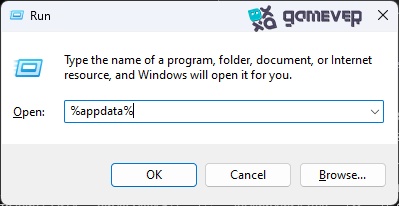
1. Press ‘Windows + R’: This opens the Run dialog box.
2. Type ‘%appdata%’: Press Enter. This takes you to the ‘Roaming’ folder.
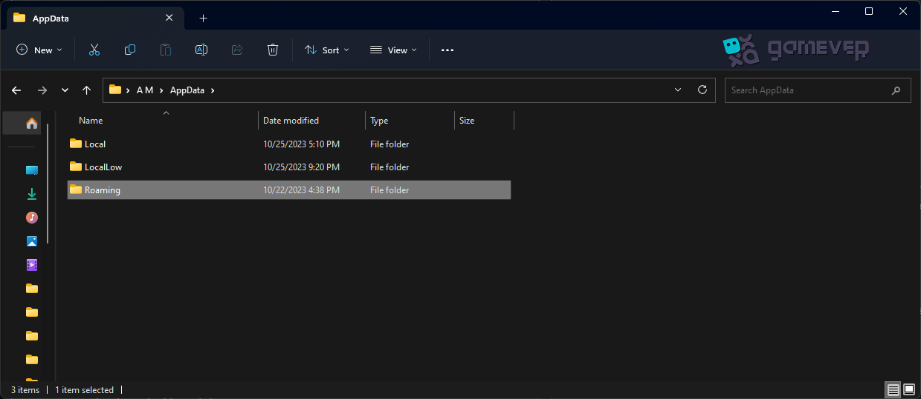
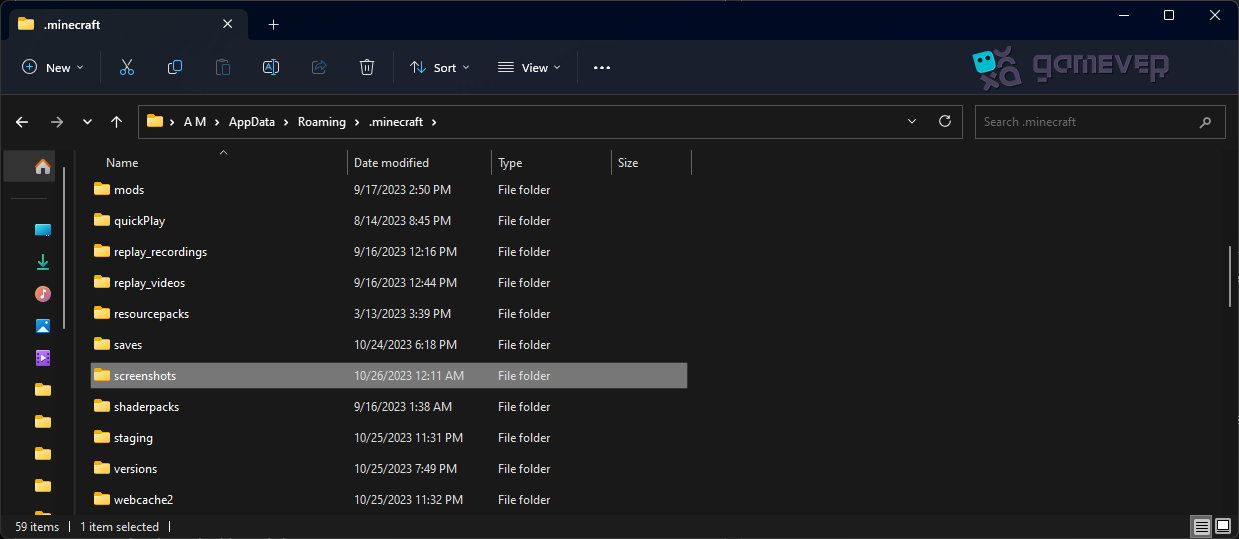
3. Navigate to ‘.minecraft’: Inside, find and open the ‘screenshots’ folder.

For Mac users:
1. Open Finder: Press ‘Command + Shift + G’.
2. Type ‘~/Library/Application Support/minecraft’: Press Enter.
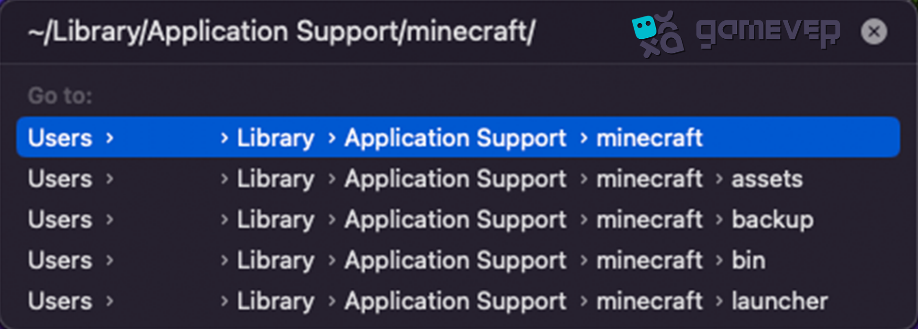
3. Find 'screenshots' folder: Your screenshots will be here.
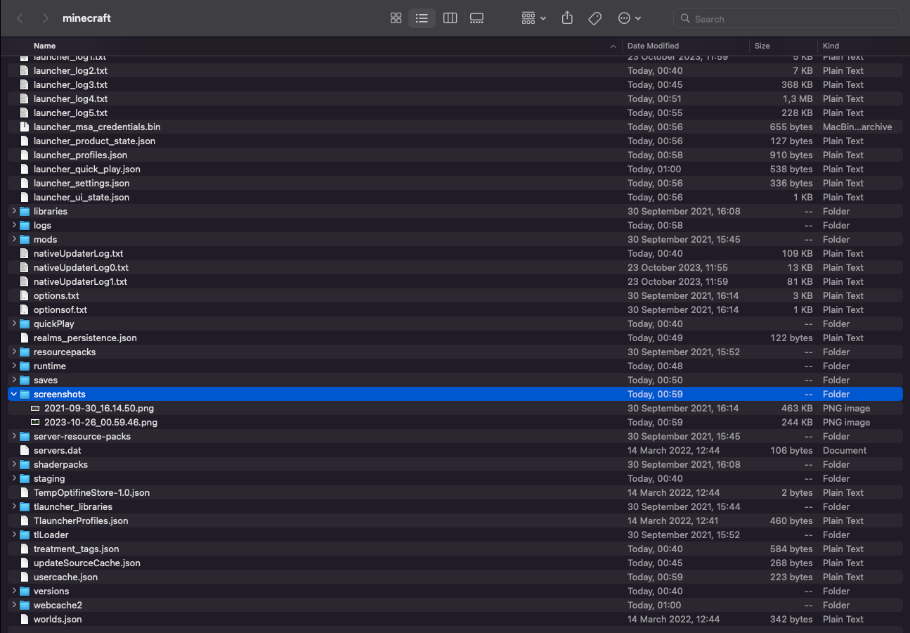
Organizing your screenshots
To avoid losing screenshots in the future, consider:
1. Creating a Backup Folder: Regularly copy your screenshots to a separate folder.
2. Renaming Files: Give descriptive names to help remember the context of each screenshot.
Sharing your Minecraft screenshots
Now that you've found your screenshots, it's time to share them.
1. Social Media: Platforms like Twitter, Instagram, or Reddit are great for sharing.
2. Minecraft Forums: Share and discuss your screenshots with other Minecraft enthusiasts.
3. Personal Blogs or Websites: Create a portfolio of your best Minecraft moments.
Utilizing screenshots for personal growth
Screenshots are not just for sharing; they can also be a tool for personal improvement.
1. Track Progress: Compare old and new screenshots to see how your building skills have evolved.
2. Learn from Mistakes: Analyze what went wrong in a particular situation to avoid repeating the same mistakes.
Enhancing Your Minecraft Experience with Gamever Servers
Screenshots capture moments, but what about creating more of those memorable moments? This is where Gamever comes in.
Gamever offers you the ability to rent servers to play Minecraft with your friends in a secure, lag-free environment. Imagine building monumental structures, exploring uncharted territories, and embarking on thrilling adventures, all while capturing screenshots to preserve these moments forever.
Conclusion:
It's easy to locate your Minecraft screenshots and make sure all of your in-game experiences are preserved and ready to be shared. You may quickly search through the files, locate your screenshots, and replay those incredible Minecraft moments whenever you'd like with these simple steps.
When you combine this with the strength of Gamever servers, you have countless chances to express your creativity, have fun, and, of course, take more pictures for your collection. So get your buddies together, get a Gamever server, and start making those Instagram-worthy moments in Minecraft right now!