
How to Enable Build Mode in Farming Simulator 25
Building your dream farm in Farming Simulator 25 is simpler than ever with Build Mode. This feature lets you design everything from farmhouse layouts to animal pens, factories, and landscaping.
Access the Build Mode Menu
To start, open the in-game shop menu by pressing “P” (or your platform’s designated button) to access the main menu. From here:
1. Scroll to the bottom icon on the left menu, which usually looks like a set of three lines – ‘Others’.
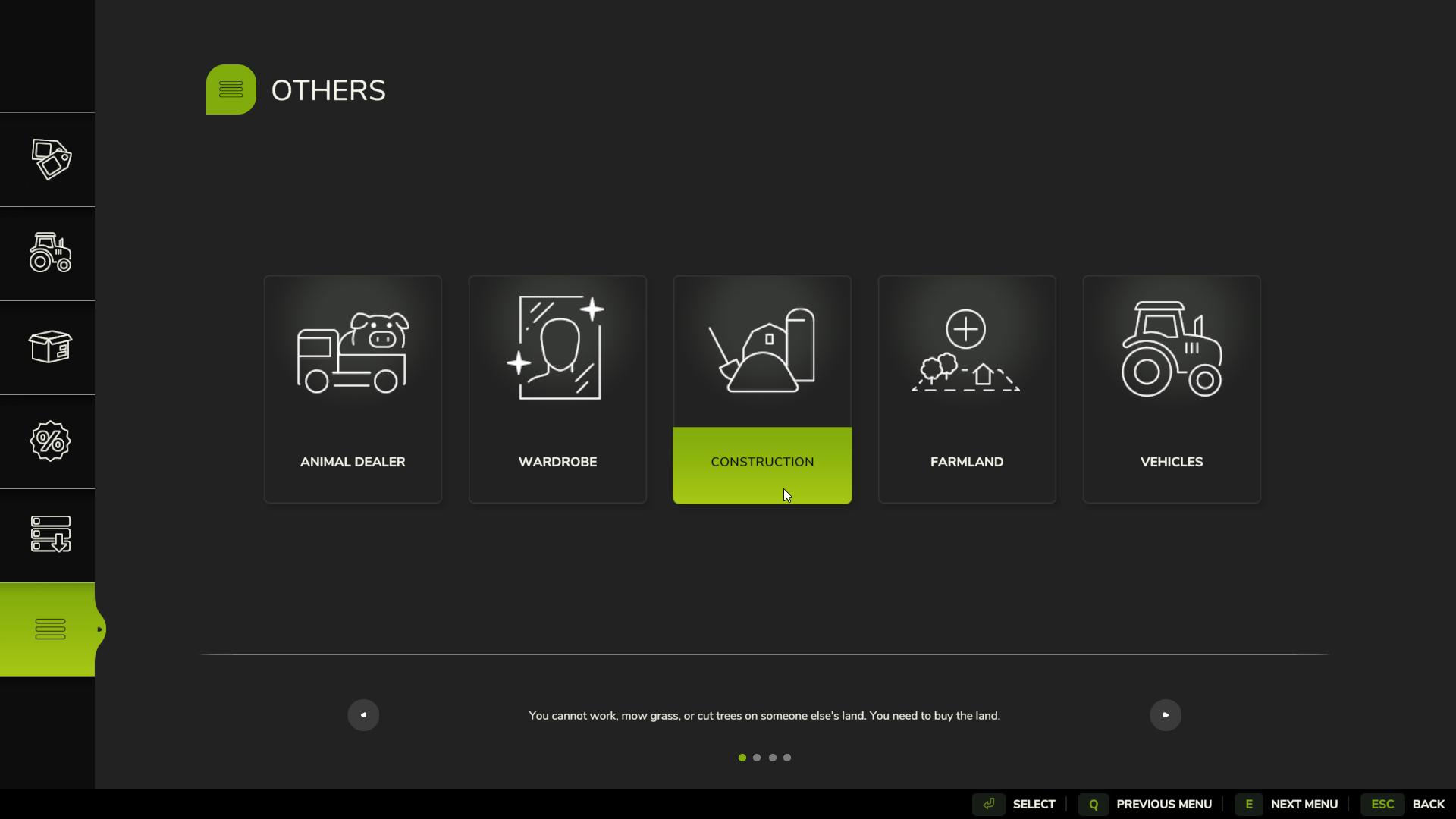
2. Select “Construction” from the options—this is the Build Mode. If you’re on a PC, you can activate Build Mode instantly with “Shift + P” for a quick shortcut.
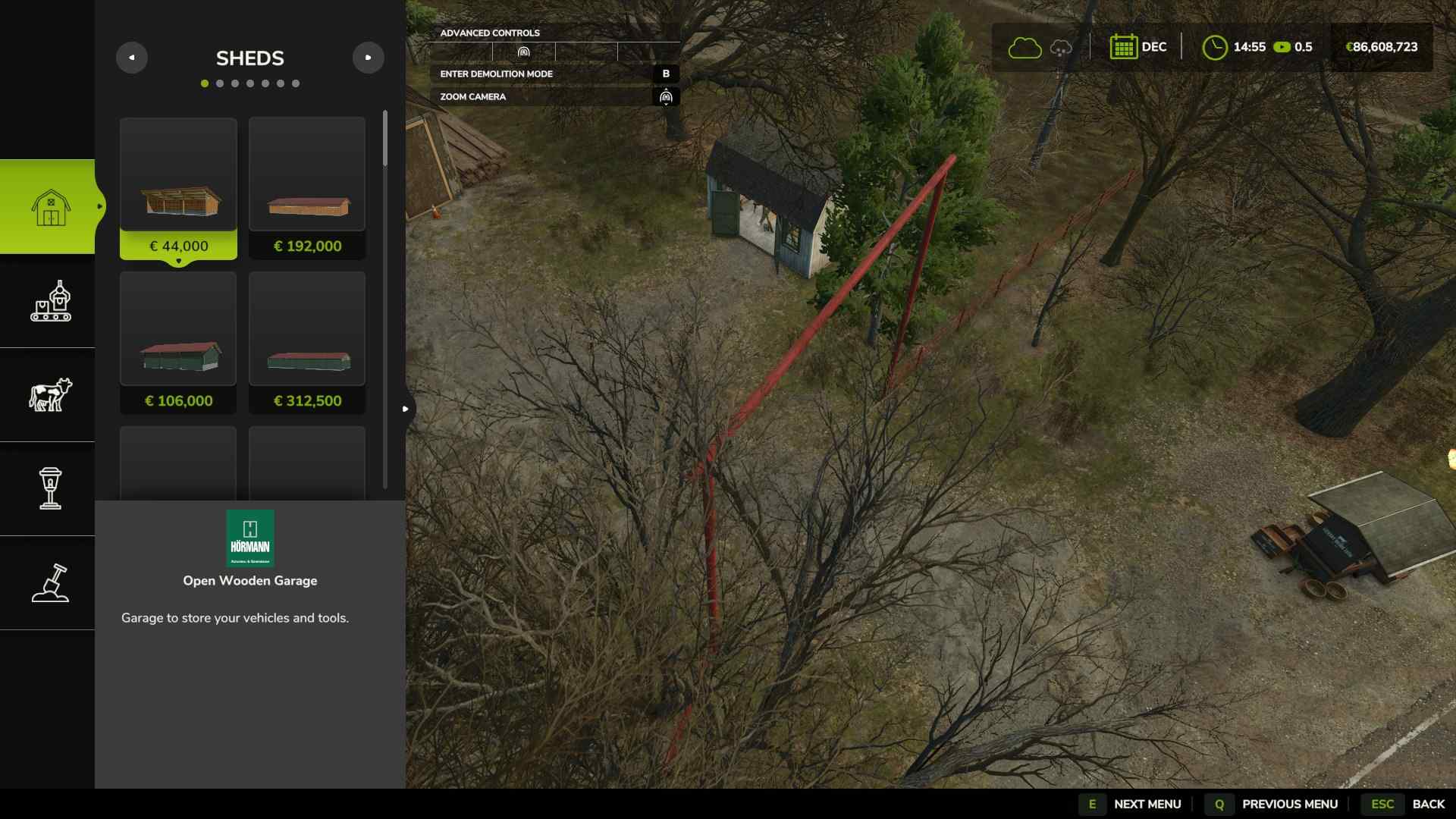
Once enabled, Build Mode opens up the entire construction map, allowing you to explore your land with a clear overhead view.
Navigate Build Mode
Once you’re in Build Mode, the fun begins. The camera will be positioned over your character, so try standing near your building area to save time. Use WASD keys (or the controller equivalent) to scroll around and find the right spot. You can also move the camera by pressing your mouse against the screen’s edges.
1. Hold down the middle mouse button to adjust the camera’s angle, moving it side to side or tilting it up and down as needed.
2. Use C and V to rotate your view (or hold the middle button on your mouse). Then the scroll wheel to zoom in and out for precise placement.
3. Hold the right mouse button to rotate objects you’re about to place.
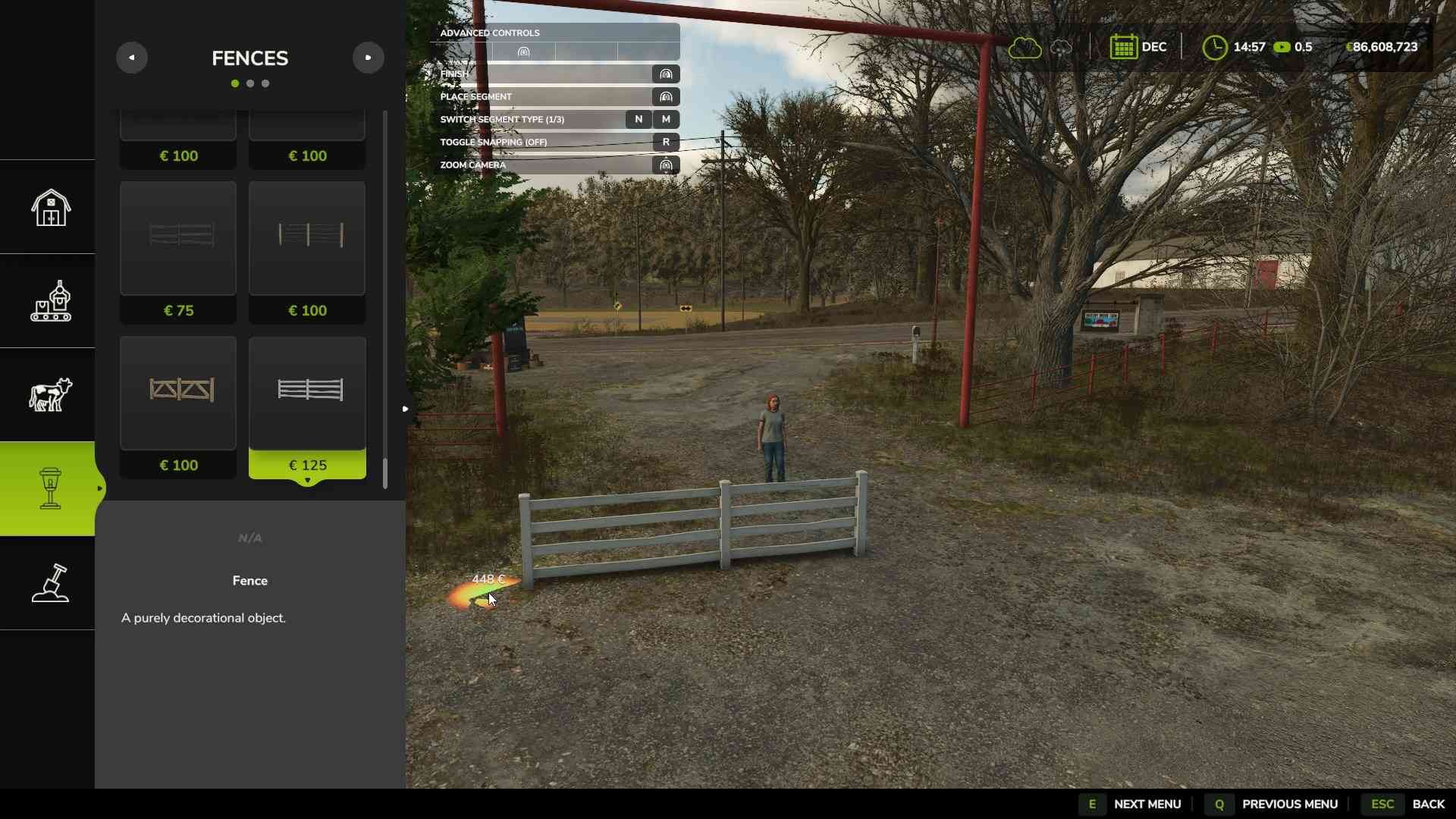
This setup gives you total control over your perspective, so you’re ready to start placing buildings.
Explore Building Categories
The Build Mode menu divides buildings into three main types:
- Buildings: Includes farmhouses, sheds, silos, and containers.
- Production Facilities: For crafting products like dairy, grain, or biofuel.
- Animal Pens: For housing animals like cows, chickens, and sheep.
- Fences: Used to define boundaries and add structure to your farm layout.
- Sculpting: For customizing terrain with landscaping tools.
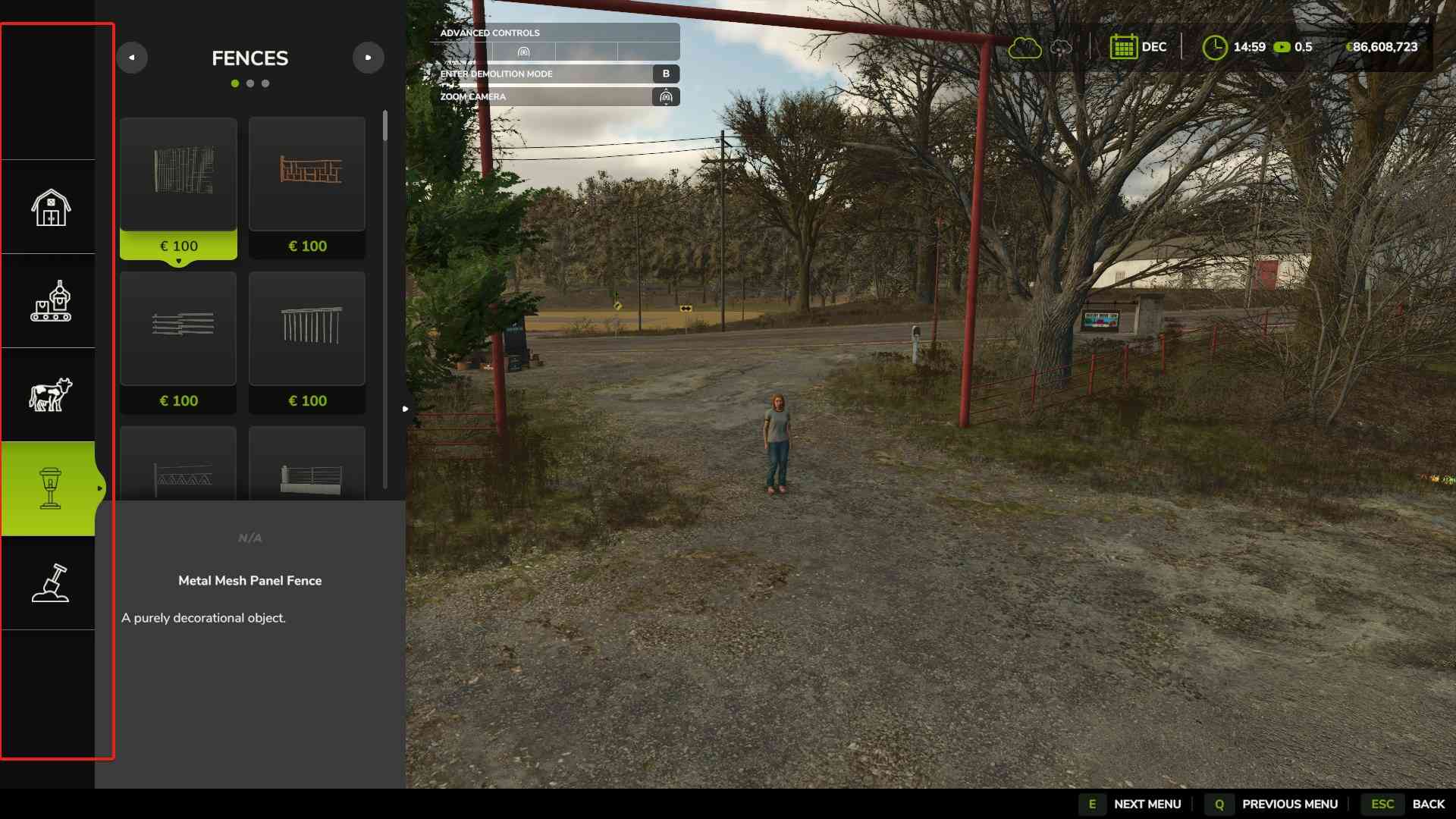
Each category contains subcategories for easy searching. For example, under “Buildings,” you’ll find silos, sheds, and farmhouses. Click on any type of building, then browse through the available options. If you want to place a farmhouse, click on that subcategory, and pick the model you like.
Place Your Building
Once you’ve chosen a building, it’s time to place it on the map:
1. Click the building to select it, then move it to the desired spot.
2. Use right-click to rotate the building, so it faces the direction you prefer.
3. Press left click to confirm and place it. Your funds will automatically adjust to cover the cost.
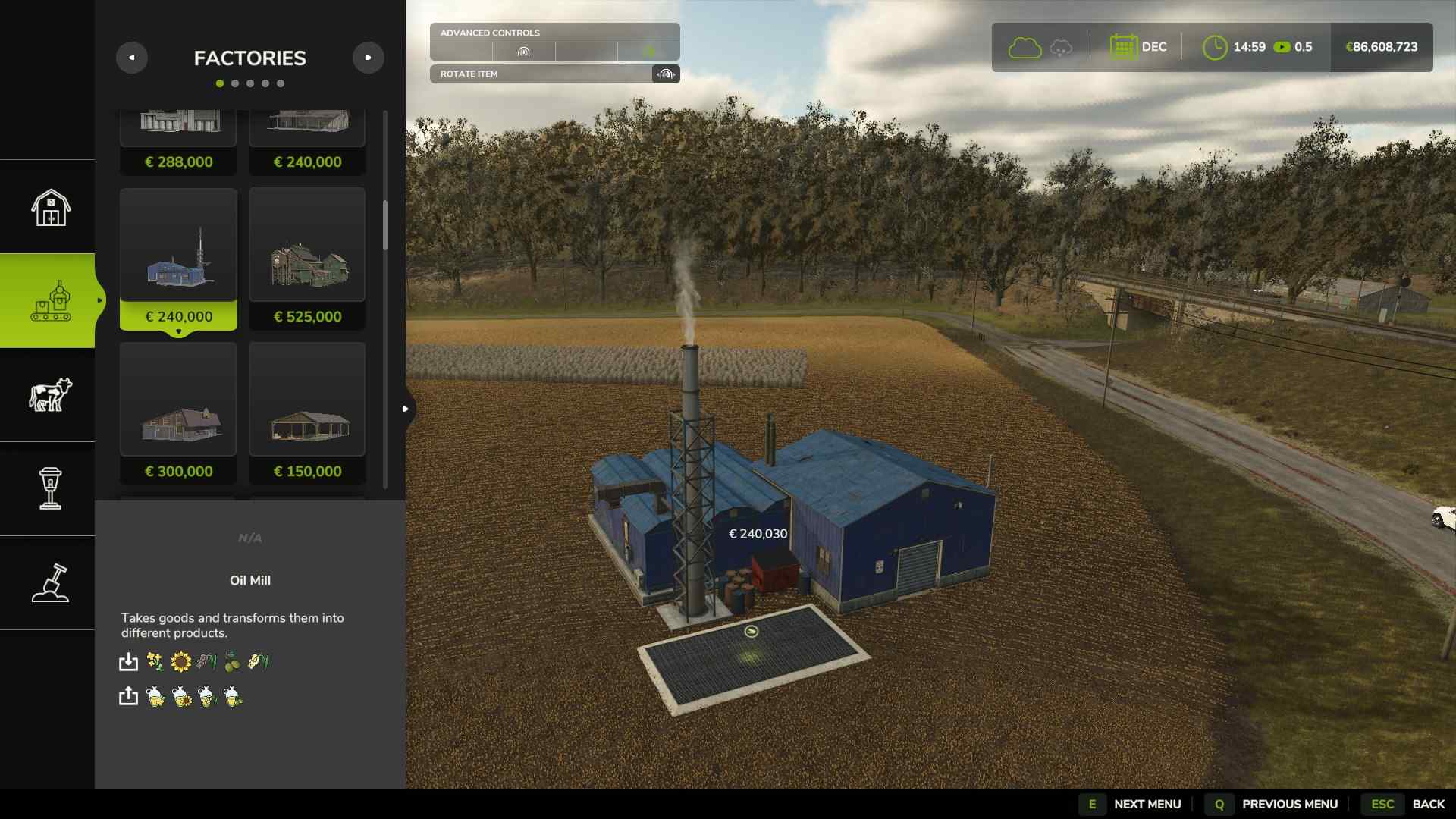
Remember to leave enough space between buildings for easy vehicle access and delivery points, especially for larger structures like silos or barns. Some buildings will show a dynamic placement cost as you move them around because the game will auto-level the ground, adjusting the price based on how much terrain needs modification.
Customize Terrain
This tab includes Landscaping, Painting, Trees and Plants:
1. Open the Landscaping tab within Build Mode to find options for shaping the terrain.
2. Select Raise, Lower, Level, Soften, or Slope to adjust the ground. Left-click raises, right-click lowers, and you can hold the button down to speed up the process.
3. With B, you can change brush shape, K and L change Brush Strength, N and M change Brush Size.
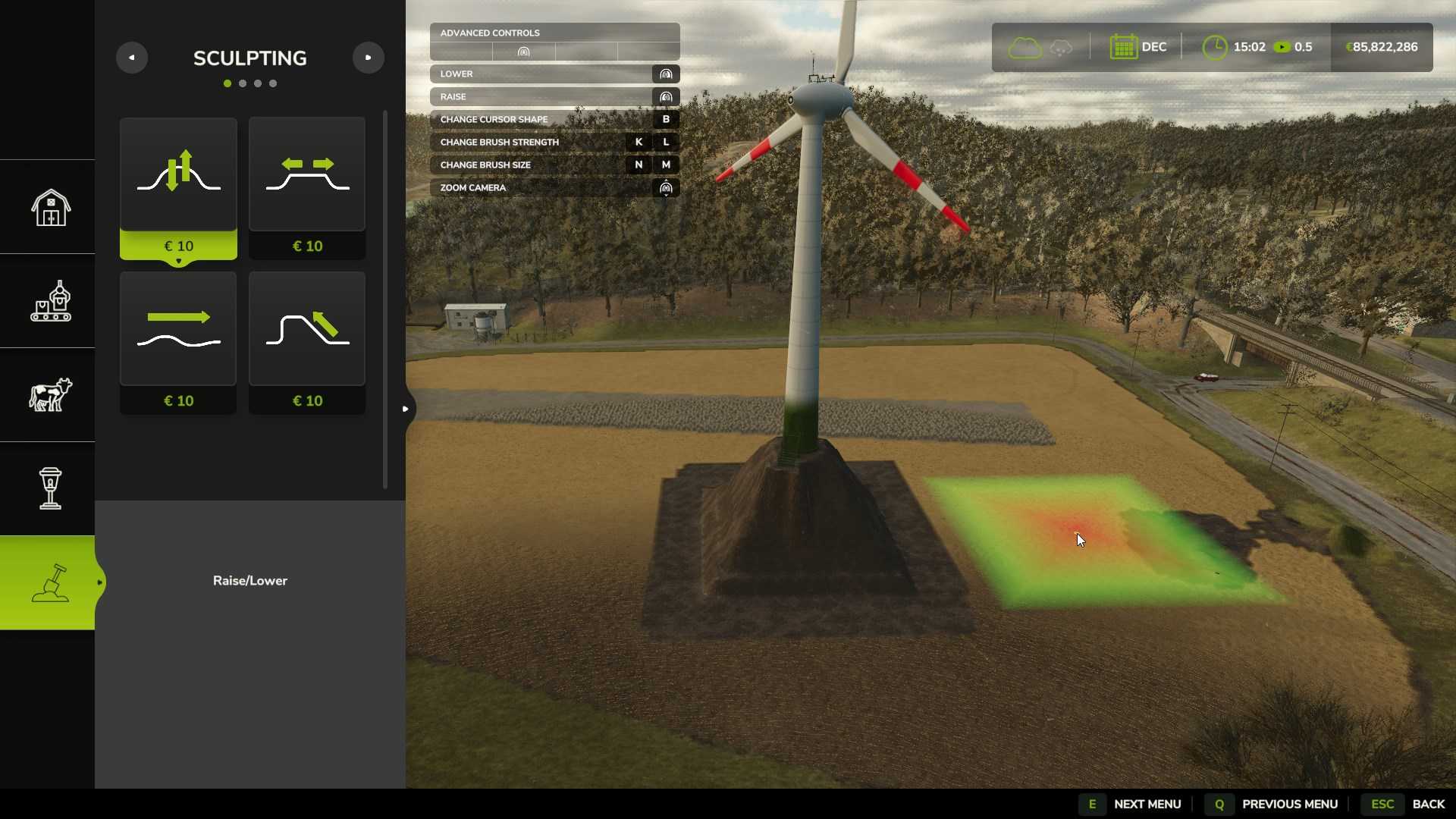
3. Choose the brush size by pressing M and N for larger or smaller effects, depending on the level of detail you need.
Within landscaping, there’s also a Paint option where you can switch ground textures (like dirt, gravel, or grass) and a Planting tool for adding trees, shrubs, and decorative grasses.
Decorate with Fences and Lights
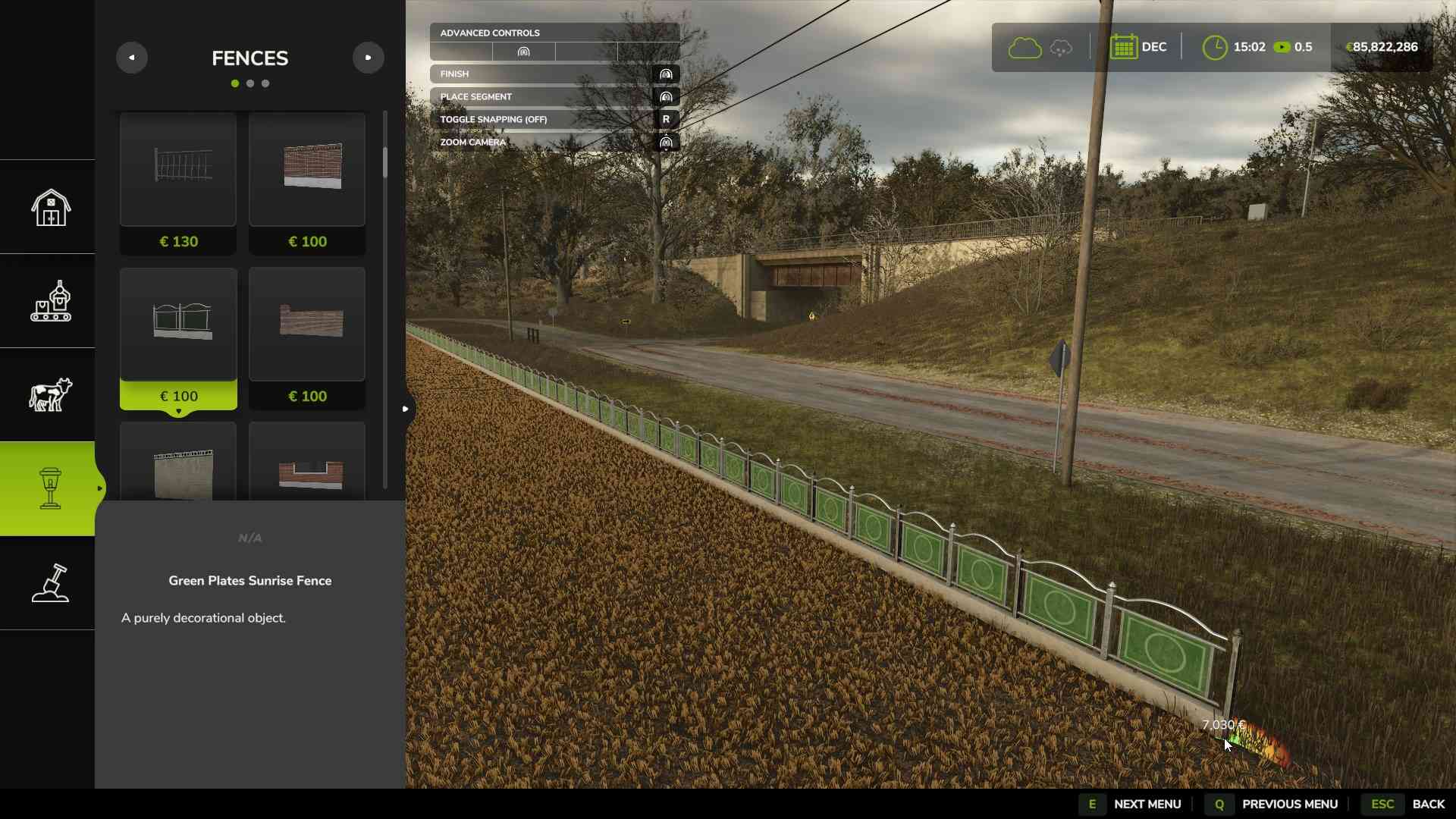
Add finishing touches to your farm by selecting fences, gates, and lights from the Decoration tab. To place a fence, click where you want it to start, and move the mouse to extend it. Place additional posts to complete your desired fence layout, then click right to finish.
Before making any major changes, save your game manually. Auto-save is handy but turning it off temporarily while you build can prevent unwanted saves in case of mistakes. That way, you can always reload your save if something doesn’t go as planned. Once you’re satisfied, remember to turn the auto-save back on.
Build Mode in Farming Simulator 25 is an incredible tool for shaping your farm exactly how you want it. With customizable buildings, landscaping options, and tons of decorations, you have everything you need to create a beautiful and functional farm. Take control, experiment with layouts, and enjoy the freedom to craft a farm that fits your vision!