
How to Drive a Tractor in Satisfactory
The Tractor is unlocked at Tier 3 and can haul items, craft on the go, and add some serious speed to your otherwise foot-powered adventures. Press Q and select Tractor at Transport Tab to craft one.
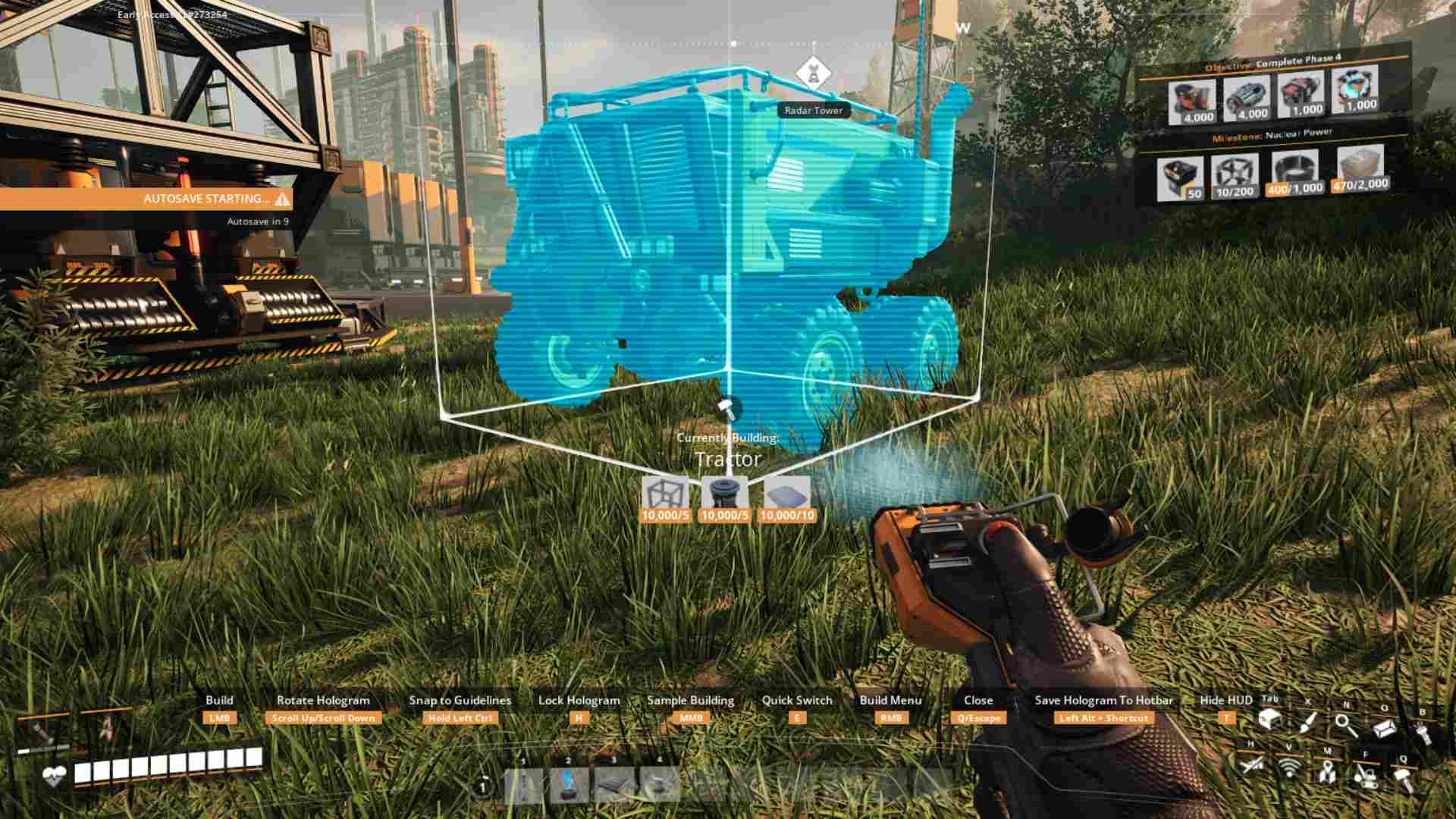
Fueling Up
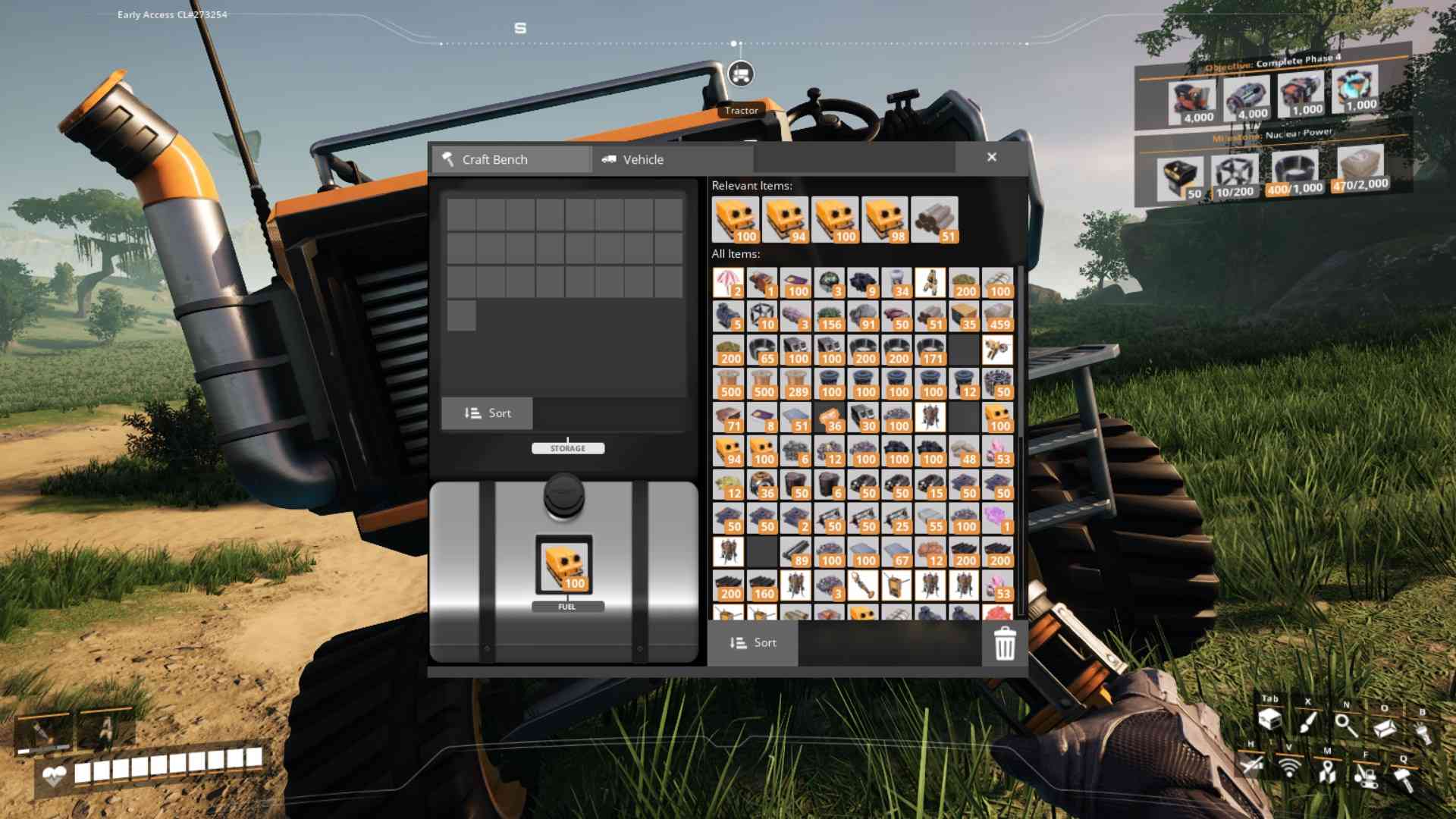
Before you can take your Tractor for a spin, you need to fuel it up. Head to the back of the vehicle where you’ll find the workbench. Here, you’ll see an inventory screen that includes a fuel slot. Pop your fuel—anything from leaves and wood to coal and uranium fuel rods—into the slot. The type of fuel you use will determine how long your Tractor can run, so choose wisely!
Controls
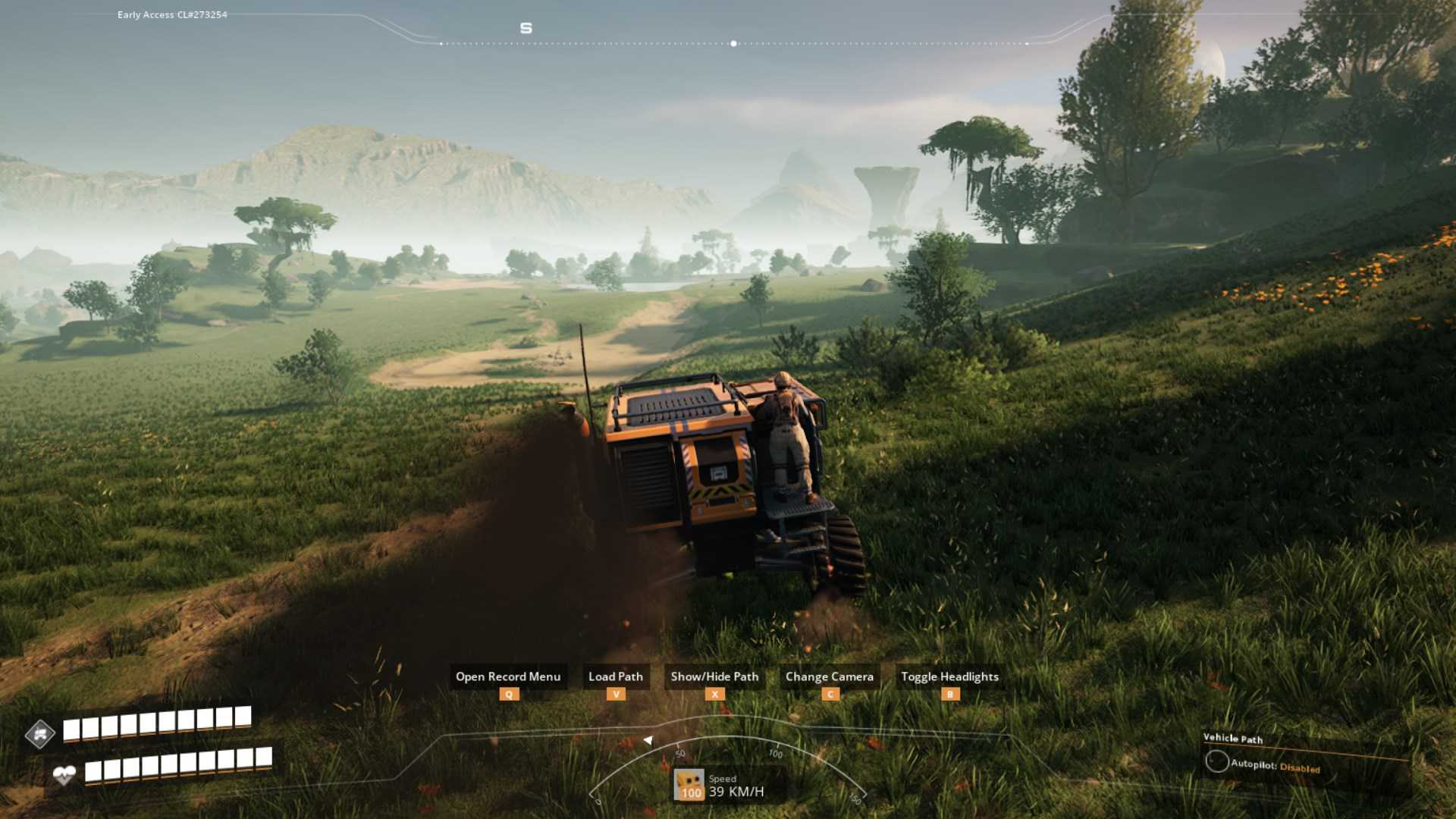
Once you’ve got your Tractor fueled and ready, jump in by interacting with it from any point except the back. To get moving, you’ll need to get familiar with the controls. Use the W key to accelerate, S to brake or reverse, and A and D to steer left and right, respectively. Make sure your handbrake isn’t engaged by pressing the Spacebar. With these controls, you’re all set to navigate through your factory and beyond.
Set Up Your Autopilot
One of the coolest features of the Tractor is its autopilot capability. To get this rolling, hold down the V key to bring up the autopilot menu. Choose “Start Recording” and then drive your Tractor along the path you want it to follow.
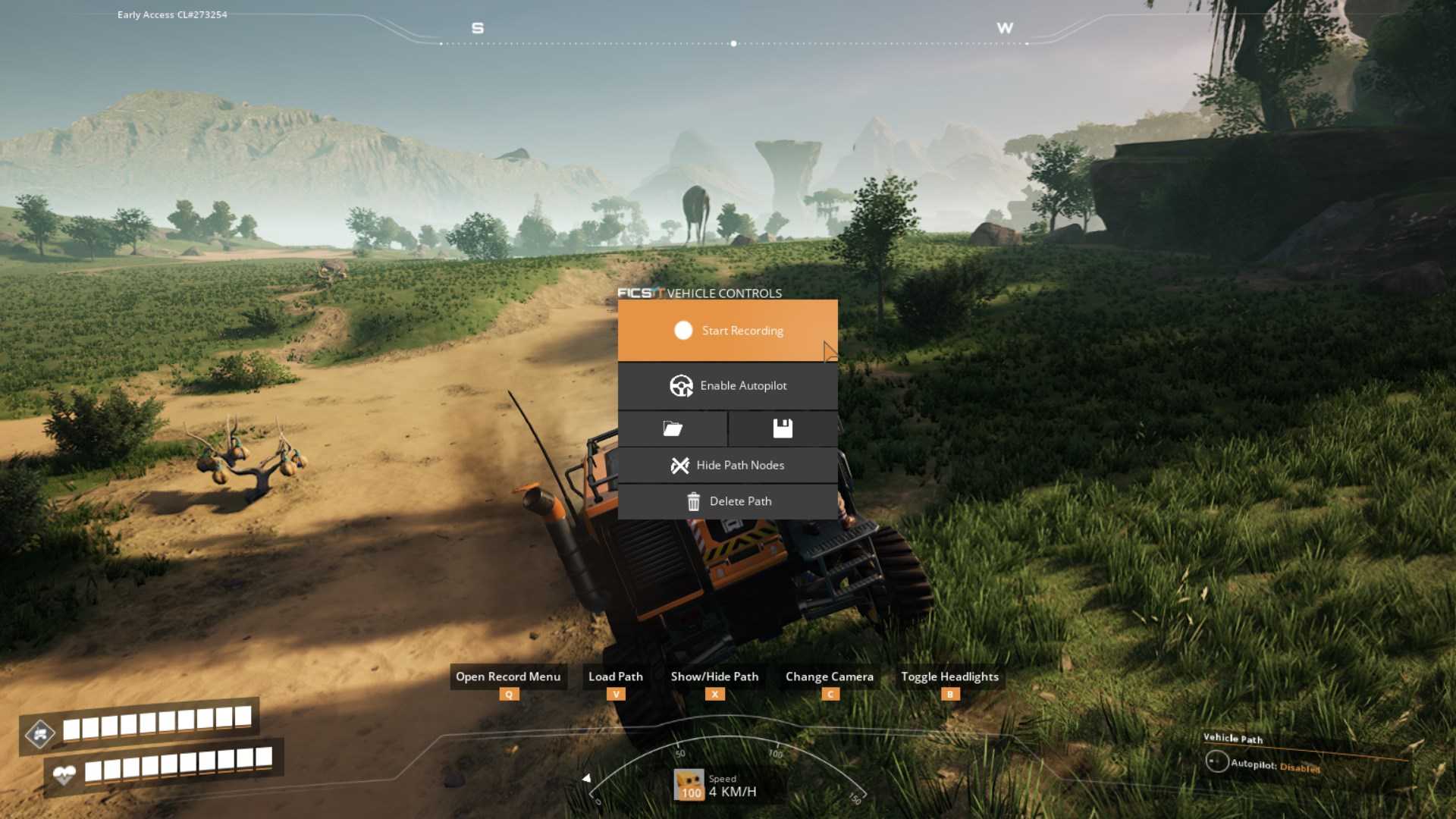
Be sure to stop at any truck stations for loading or unloading. Once you’re back at your starting point, hold V again, select “Finish Recording,” and then hit “Enable Autopilot.” Your Tractor will now follow the path you set, making transporting goods a breeze!
Editing Paths
To make your automated routes run smoothly, you might need to tweak your recorded paths. After finishing the recording, go into the path editor. Here, you can adjust wait times at truck stations and delete unnecessary pauses to streamline your route. This ensures that your Tractor doesn’t make unexpected stops or take too long to deliver resources.
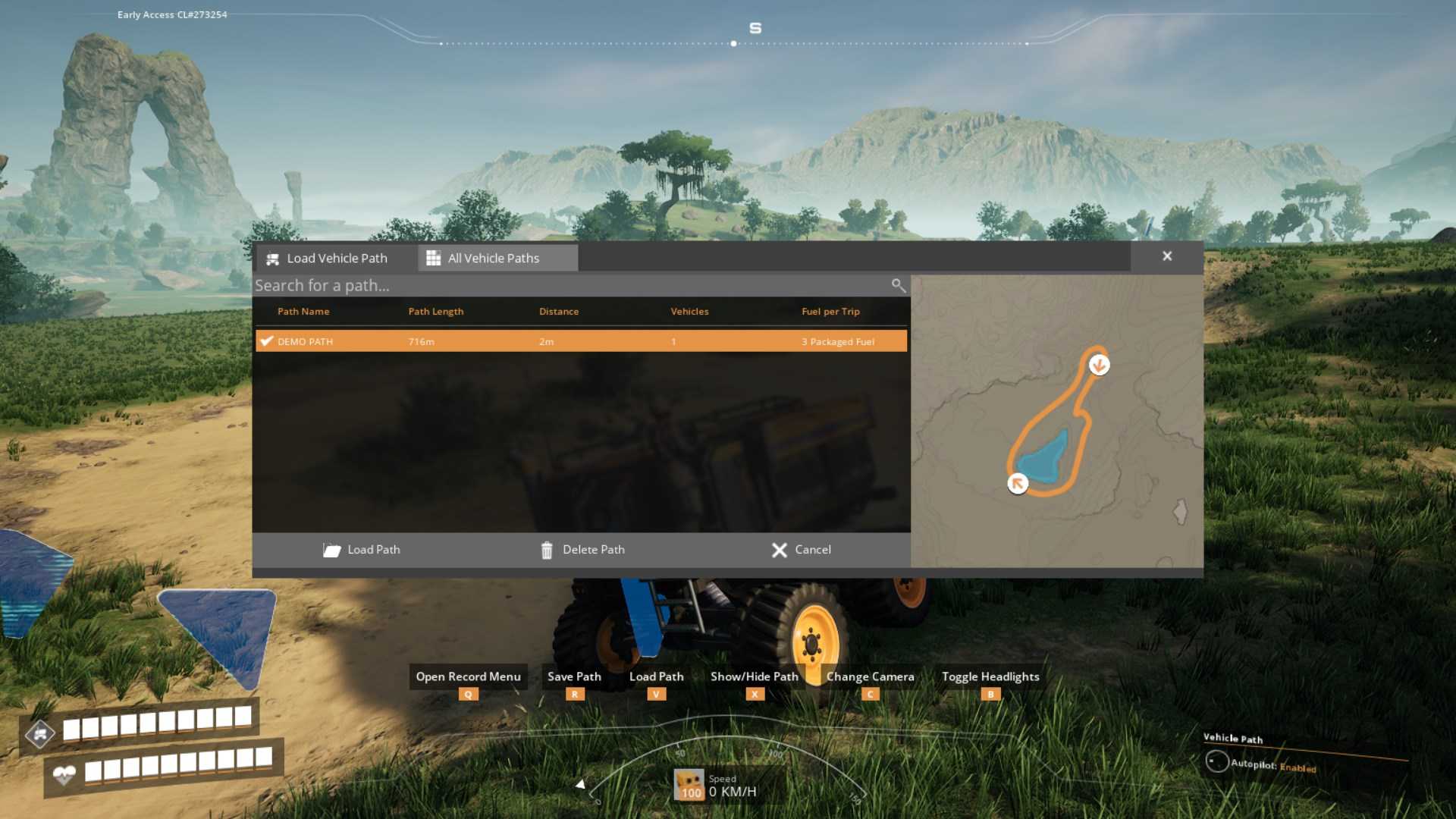
When setting up multiple automated routes, especially near truck stations, be mindful of potential vehicle collisions. Keep paths close together during transit but spread out at unloading stations to prevent messes and collisions. This will help avoid the chaos of vehicles clipping through each other and keep your factory running smoothly.
Although your Tractor comes with a health bar, there’s no way to repair it in the traditional sense. If your Tractor gets stuck or damaged, you’ll need to dismantle it and rebuild it from scratch. This resets its condition, ensuring that you’re not stuck with a broken down vehicle in the middle of your operations.
Using Truck Stations
Truck stations are crucial for efficient resource transport. At each station, you’ll find options to load and unload items, as well as refuel your Tractor. Make sure your stations are powered and set up correctly for smooth operation. Remember, the Crane at the station can move around a bit, so position your Tractor accordingly for optimal loading and unloading.
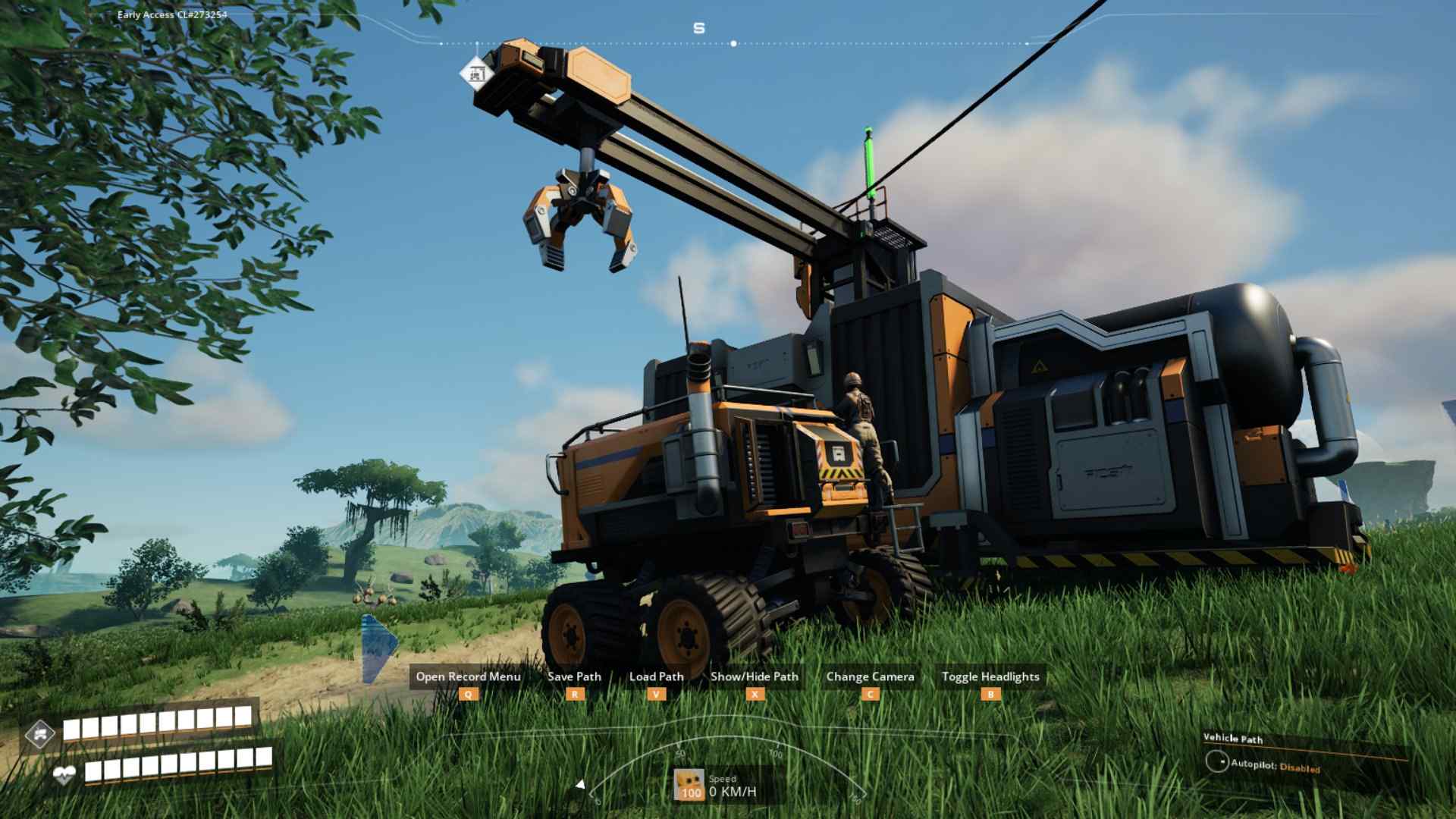
Driving the Tractor in Satisfactory is more than just a fun way to get around—it’s a key component of automating your factory’s resource transport. By fueling up, mastering controls, setting and editing paths, and managing truck stations, you’ll be able to streamline your production and keep things running smoothly.