
How to download Minecraft on Mac?
Introduction
The infinitely inventive and engaging gameplay of Minecraft has made it a sensation that appeals to gamers of all ages worldwide. This is the ideal location for Mac users who want to explore the blocky world of Minecraft. To provide a seamless and trouble-free experience, we will lead you through the steps in this guide to download, install, and begin playing Minecraft on your Mac. We'll also look at the thrilling possibility of improving your gaming on Gamever servers, where you can play Minecraft with friends in a way that has never been possible.
Step 1: Ensure Your Mac Meets the System Requirements
Before downloading Minecraft, it’s crucial to ensure your Mac meets the game’s system requirements:
- OS: macOS 10.14.5 Mojave or later
- Processor: Intel Core i3-3210 3.2 GHz/ AMD A8-7600 APU 3.1 GHz, or equivalent
- RAM: 2GB
- Graphics: Intel HD Graphics 4000 (Ivy Bridge) or AMD Radeon R5 series (Kaveri line) with OpenGL 4.4
- Storage: SSD and at least 1GB of available storage
- Internet connectivity is required for downloading the game files and playing online.
Step 2: Purchase Minecraft.
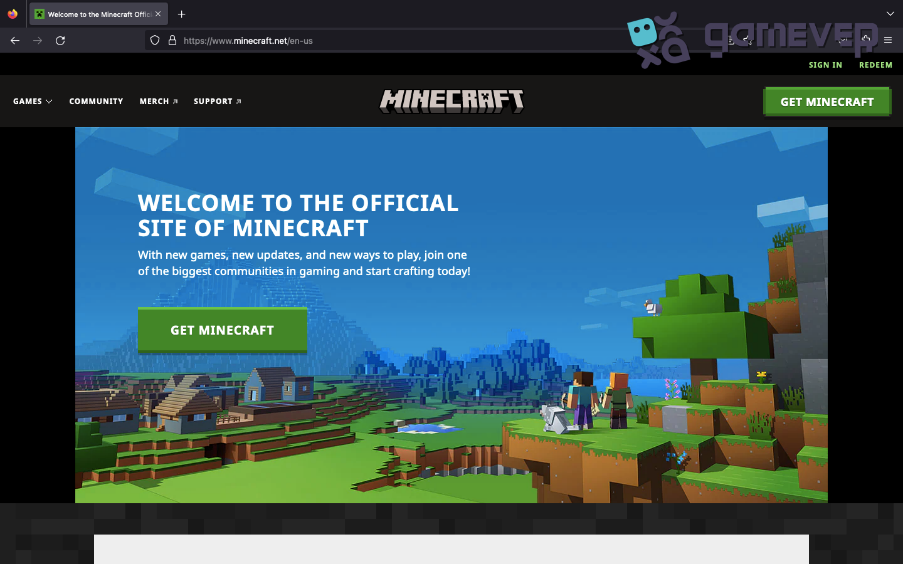
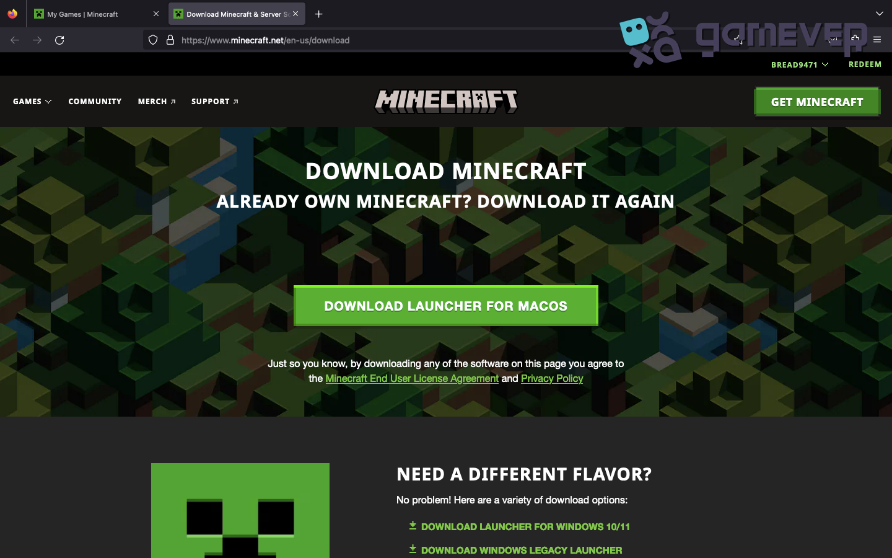
- Visit the Official Minecraft Website: Go to minecraft.net.
- Select ‘Get Minecraft’: Click on the “Get Minecraft” button.
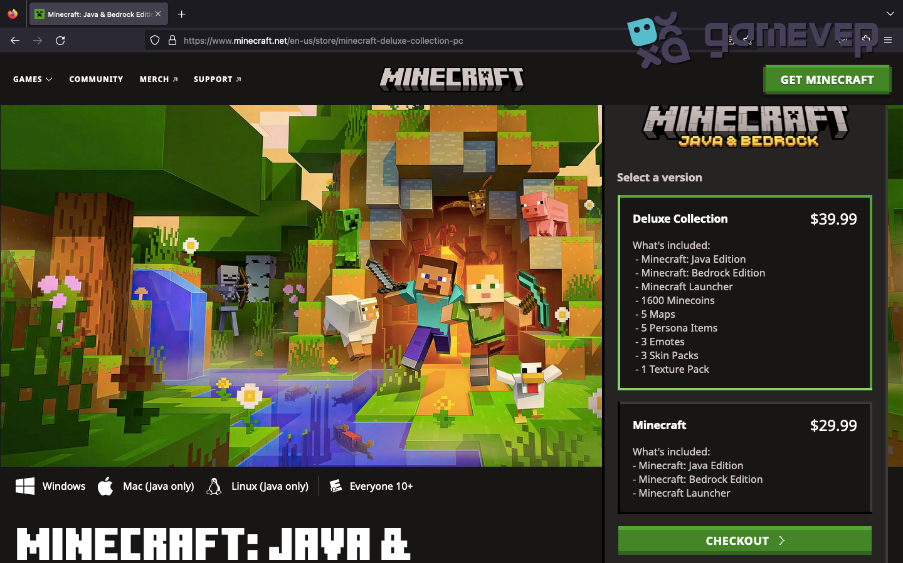
- Choose the correct version: Ensure you are purchasing Minecraft for Mac.
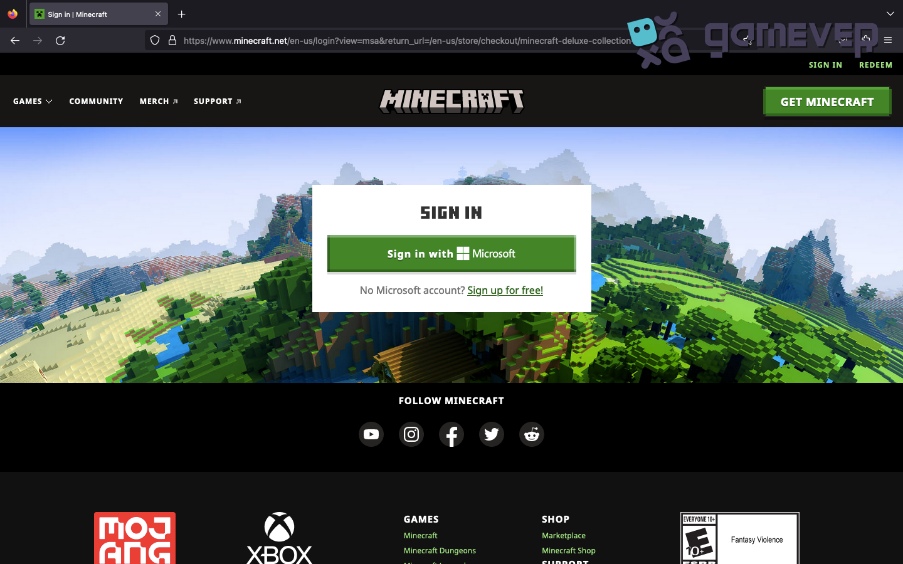
- Create a Mojang Account: You will need to create an account if you don’t have one.
- Complete your purchase. Follow the prompts to complete your purchase.
Step 3: Download and Install Minecraft
- Access your Mojang account: Log in to your account on the Minecraft website.
- Navigate to the Download Page: Find the section for downloading Minecraft for Mac.
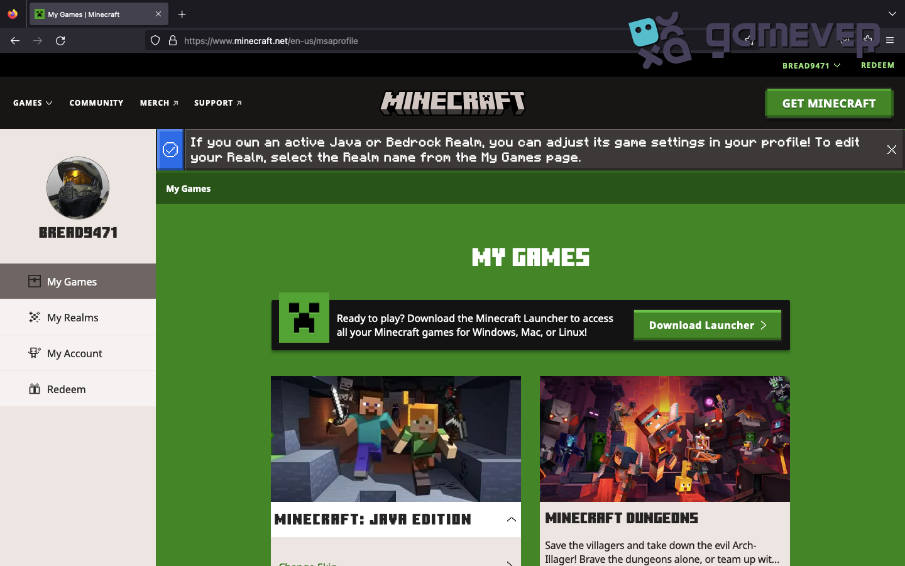
- Download the installer. Click the download link to download the installer.
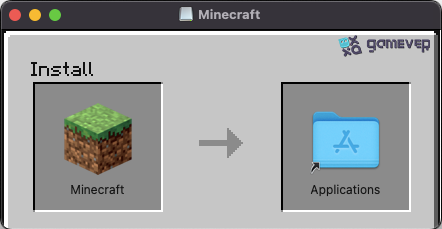
- Install Minecraft: Open the installer and drag Minecraft into your Applications folder.
Step 4: Launch Minecraft and log in.
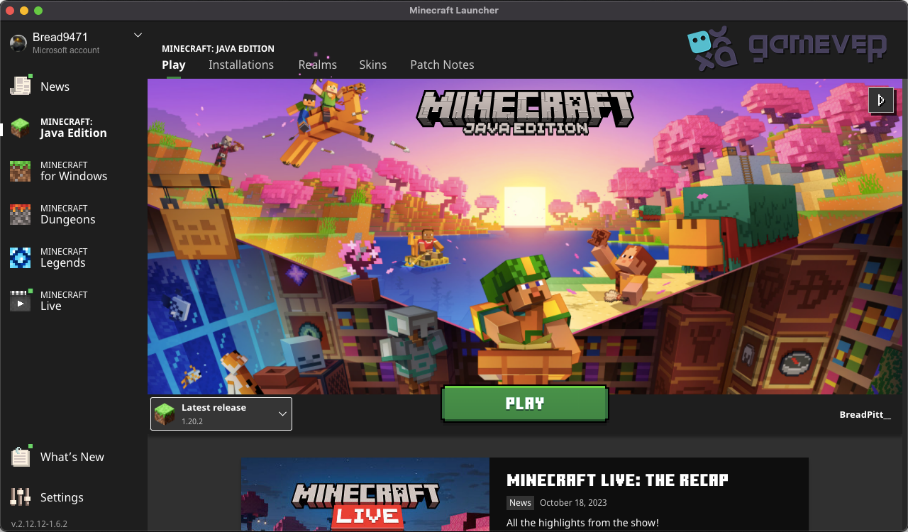
- Open Minecraft: Go to your Applications folder and open Minecraft.
- Log In: Enter your Mojang account details and log in.
- Download game files: Minecraft will download the necessary game files. Ensure you have an active internet connection.
Step 5: Configure Game Settings
Take some time to explore the settings and configure them to your preference. You can adjust graphics settings, controls, and more to enhance your gaming experience.
Step 6: Create or Join a World
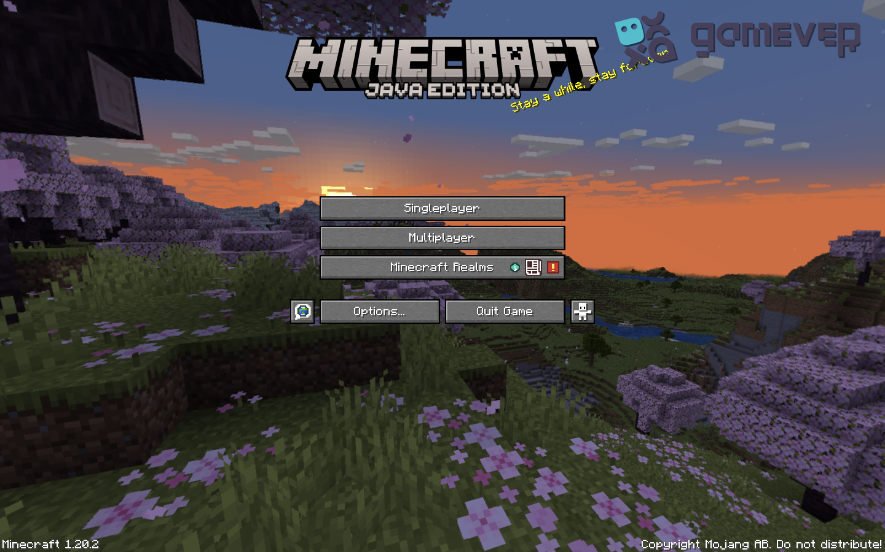
- Create a New World: Click "Singleplayer" and then "Create New World" to start your adventure.
- Join a Multiplayer Server: If you prefer multiplayer, select “Multiplayer” and enter the server details.
Step 7: Explore, Build, and Enjoy!
Now that you’ve successfully downloaded Minecraft on your Mac, the world is yours to explore. Build, craft, and embark on adventures to your heart's content.
Advanced Tips and Tricks
- Optimize Your Settings: Adjust your video settings to optimize performance based on your Mac’s capabilities.
- Install Mods: Enhance your gameplay by installing mods, but ensure they are compatible with your version of Minecraft.
- Stay Updated: Keep your game up to date for the best performance and new features.
Step 8: Join Gamever Servers for Enhanced Gameplay
To elevate your Minecraft experience, consider joining Gamever servers. Gamever offers high-performance server rentals, allowing you and your friends to play in a private, lag-free environment.
Why choose Gamever servers?
- High Performance: Enjoy smooth, uninterrupted gameplay.
- Security: Play in a secure environment, free from unwanted intrusions.
- Community: Join a community of like-minded players and share your Minecraft adventures.
Conclusion
Upon installing Minecraft on your Mac, you can enjoy countless hours of fun, creativity, and adventure. You are now prepared to explore the expansive world of Minecraft, build amazing structures, and go on thrilling quests after reading this article.
Remember to join the Gamever community to enhance your gameplay experience and have lag-free, private, and safe experiences with pals. Get your server today to make the multiplayer portion of your Minecraft adventure one you won't soon forget!