
How to disable structure collision on Ark: Survival Evolved server
In Ark: Survival Evolved, a structure collision occurs when two or more structures are put too closely together and overlap or clip into one another. This may take place while players construct their bases, which may include walls, foundations, and ceilings.
Structure collision can result in problems like gaps or overlaps in the structure, which can compromise the stability of the base and make it look unkempt. For instance, if two walls are positioned too closely to one another, they may clip into one another and create gaps or overlaps that could damage the structure.
However, sometimes the collision between structures can be frustrating and limit the player's creativity. Fortunately, there is a way to disable structure collision on your Ark Survival Evolved server. In this guide, we will walk you through the steps to disable structure collision.
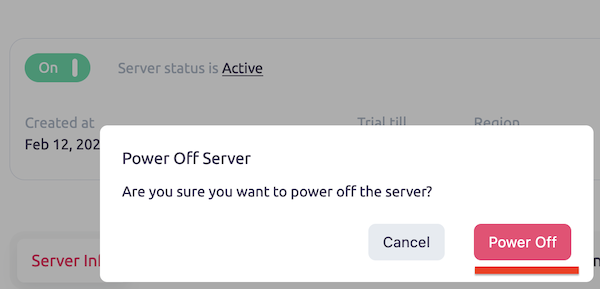
Step 1: Stop your server
Stop your server to start making changes to the configuration files. The stop is necessary so that the server does not make changes to them during work.
Step 2: Download Game.ini file
To disable structure collision, you will need to download the Game.ini file from your Ark Survival Evolved server. You can do this by accessing your server's control panel and navigating to the Game.ini file. You can find this file in Root/server/ShooterGame/Saved/Config/LinuxServer directory.
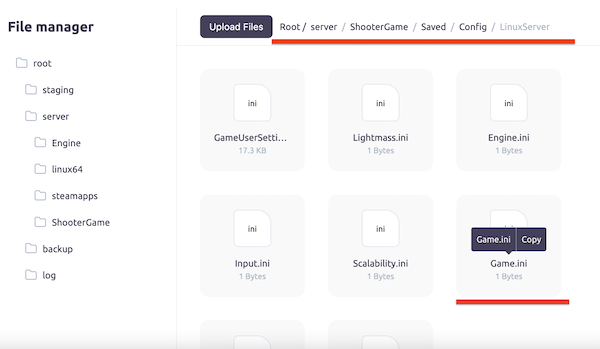
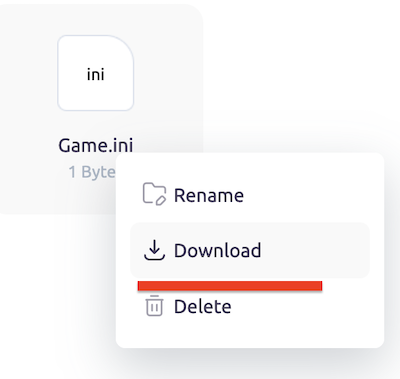
Right click on this file and then press ”Download”.
Step 3: Open and edit Game.ini file
Once you have downloaded the Game.ini file, you will need to add the following string to the file bDisableStructurePlacementCollision=true under [/script/shootergame.shootergamemode] section. This string will disable the collision between structures on your server. Add the following lines to the file:
[/script/shootergame.shootergamemode]
bDisableStructurePlacementCollision=true
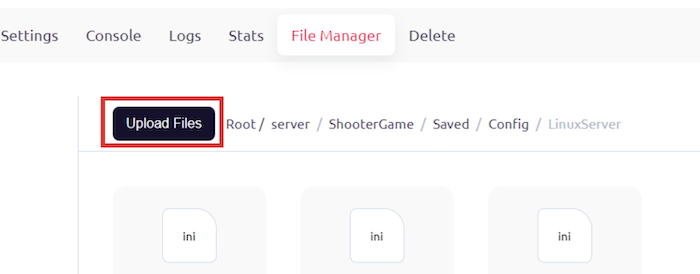
Step 4: Upload setting file to server
After adding the parameter to the Game.ini file, you will need to upload the file back to your server. You can do this by accessing your server's control panel and navigating to the Root/server/ShooterGame/Saved/Config/LinuxServer folder.
Step 5: Start server to apply changes
Once you have uploaded the Game.ini file to your server, you will need to start the server to apply the changes.
Conclusion
Congratulations! You have successfully disabled structure collision on your Ark Survival Evolved server. Now you can build buildings into the terrain without without collision issues. If you ever want to re-enable structure collision, simply remove the bDisableStructurePlacementCollision=true string from the Game.ini file and restart the server.