
How to Customize Gameplay Multipliers on Your Soulmask Server

One of the biggest reasons to run your own Soulmask server is control over the grind. The game's default pace is deliberately demanding, and most groups want to dial harvesting, experience, taming and combat up or down to suit how they like to play. On your gamever server you do this by editing Soulmask's gameplay-settings templates through the control panel — you are tuning a server you already rent from us, not building one from scratch. This guide shows where those templates live, how Soulmask decides whether your custom values actually take effect, and how to edit them safely.
Where the multipliers live
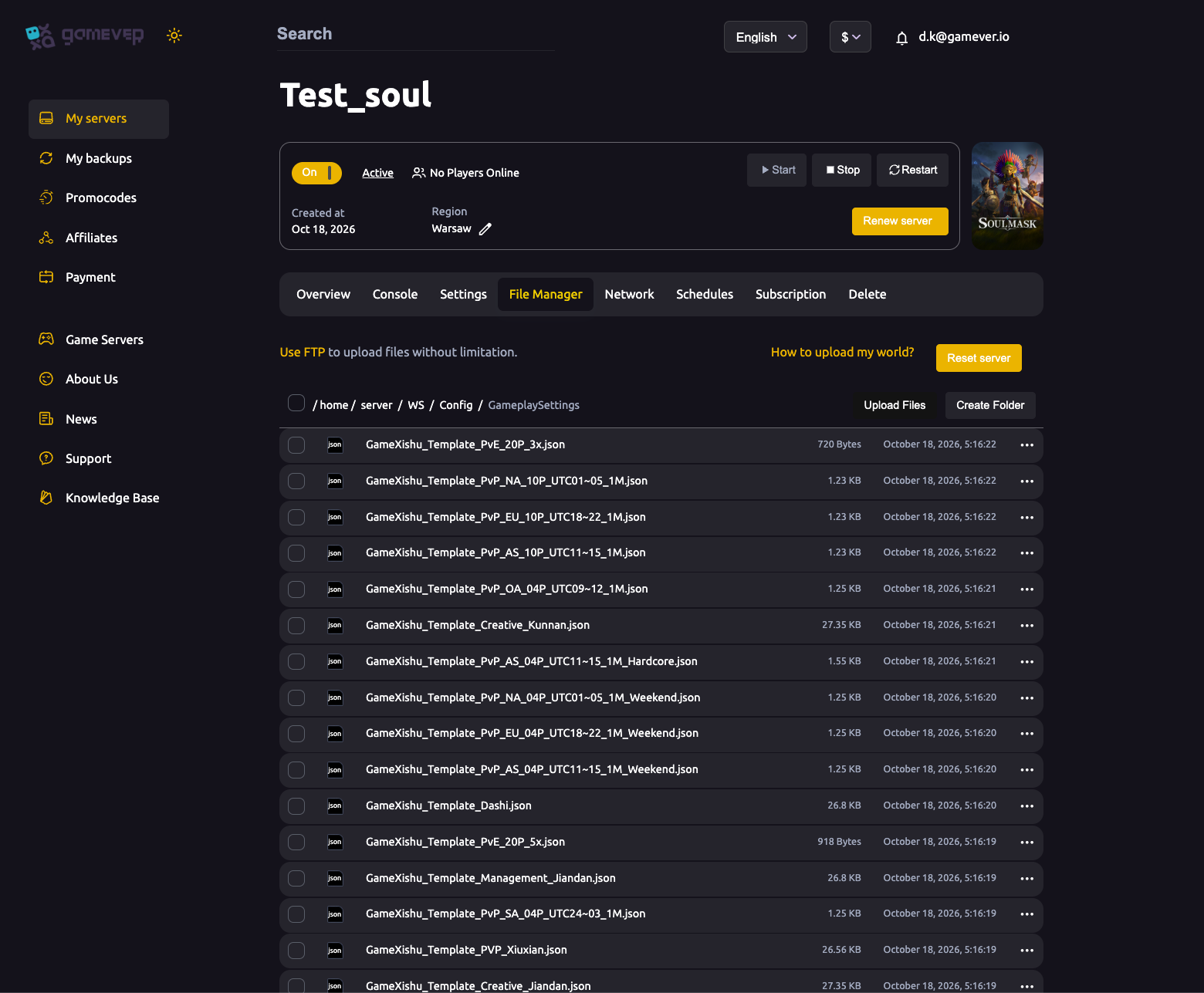
Soulmask keeps its rate and difficulty values in a set of gameplay-settings templates rather than in the main Settings tab. On your server they sit in the File Manager under:
/home/server/WS/Config/GameplaySettings/
Open the File Manager tab and follow the breadcrumb home / server / WS / Config / GameplaySettings to find them. Each file is named GameXishu_Template_*.json, and there is one per playstyle — PvE, PvP, Creative and Hardcore variants, including pre-multiplied rate versions:
| Template (example) | Intended for |
|---|---|
GameXishu_Template_PvE_20P_3x.json | PvE play with roughly 3× rates |
GameXishu_Template_PvE_20P_5x.json | PvE play with roughly 5× rates |
GameXishu_Template_PvP_*.json | PvP presets (region/time-window variants) |
GameXishu_Template_Creative_*.json | Creative / sandbox play |
GameXishu_Template_*_Hardcore.json | Hardcore, higher-difficulty presets |
The number in a name (for example 3x / 5x) is the broad multiplier bias baked into that preset, so the quickest route to faster progression is simply choosing a higher-rate template rather than hand-editing values.
The custom-difficulty rule
There is one rule that catches people out: Soulmask only applies hand-edited multipliers when the server is set to use a custom difficulty, not a fixed built-in preset. The locked presets (Normal, Hard and so on) each come with their own baked-in rate table, and the game will keep using that table — overwriting your edits — unless you point the server at a custom/editable template instead. In practice that means picking one of the GameXishu_Template_* files as your base and editing that, then making sure your server is configured to load it, rather than expecting changes to a preset to stick.
Beyond this general mechanism, treat the exact in-file field names with caution. Soulmask's gameplay keys are undocumented and labelled in Chinese pinyin, and the studio publishes no official English reference for them — so we deliberately don't quote specific JSON keys here, because guessing one risks sending you to edit the wrong value. Confirm the precise difficulty option and any individual multiplier name against the official Soulmask wiki and your own in-game admin screens before changing a number you don't recognise.
The friendlier alternative to raw JSON is in-game: log in with your Admin password (set on Settings → Server Settings) and open Soulmask's admin coefficient/multiplier screens from inside the game. These expose the same rate controls — gathering, experience, taming, combat and day-length among them — with on-screen labels, which is far less error-prone than editing pinyin keys by hand.
Editing a template safely
Config files like these are read by Soulmask at boot, and a running server will overwrite your changes on save — so the order of operations matters. Always back up first:
- Back up the world. Take a fresh backup from My backups in the left sidebar before you touch anything. Your saves live under
WS/Saved/Worlds/; keeping a copy means a bad edit is a one-click restore, not a lost base. - Stop the server. Use Stop on the Overview/top bar. Editing while the server runs is how edits get silently reverted.
- Open the template. In File Manager, go to
home / server / WS / Config / GameplaySettingsand open theGameXishu_Template_*.jsonthat matches the mode you run. For bigger files, download over FTP (credentials on Settings → FTP server settings, host and port on the Network tab), edit locally, and re-upload. - Change only the rates you understand. Adjust the multiplier values you've confirmed, and leave unfamiliar keys alone. Make one set of changes at a time so you can tell what did what.
- Save, then Start the server.
- Verify in-game. Join and check that gathering a node or gaining experience reflects the new rate. If nothing changed, the most common cause is the custom-difficulty rule above — the server is still loading a fixed preset.
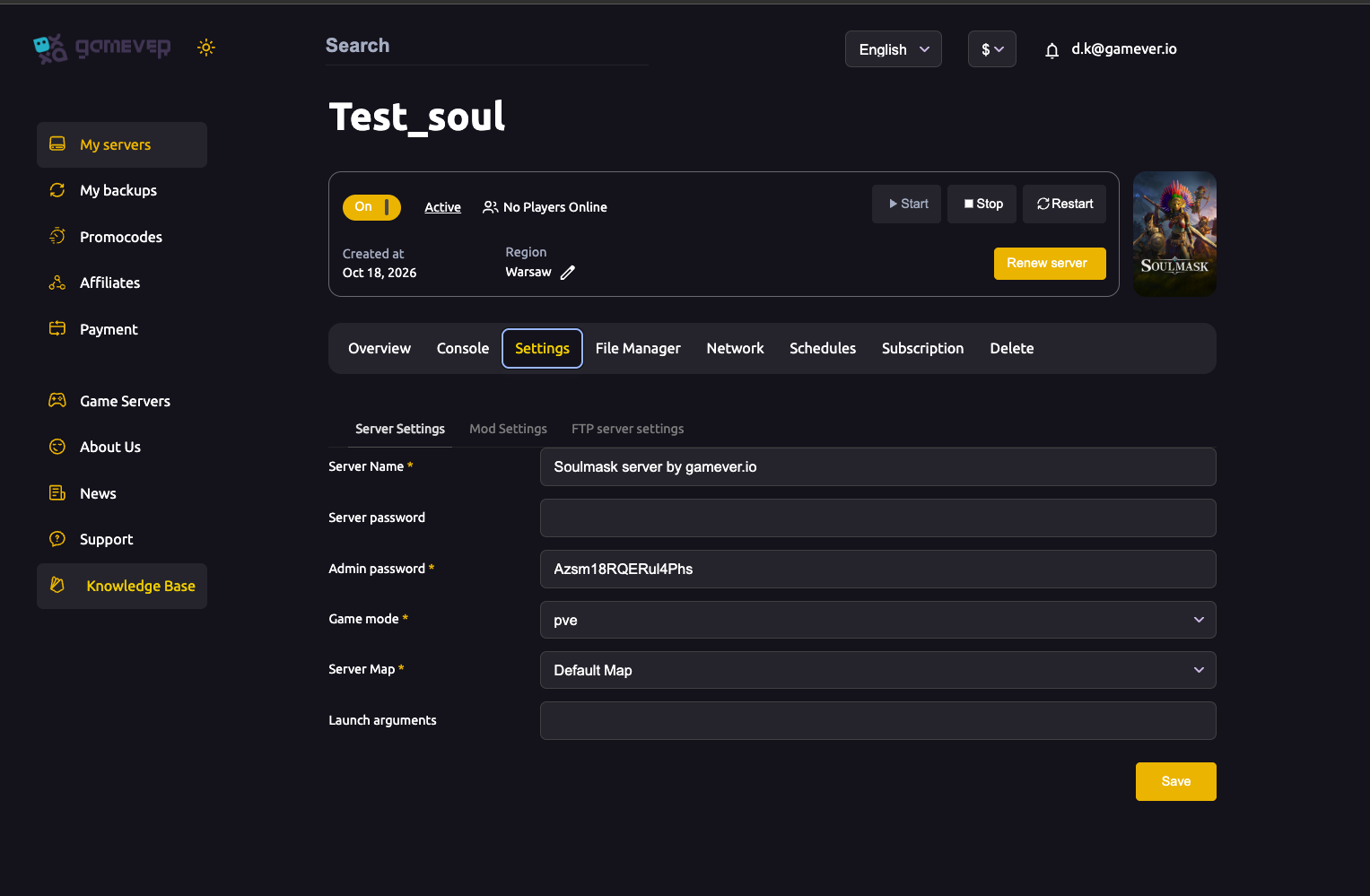
The Game mode dropdown on Settings → Server Settings (pve / pvp) also influences which template family makes sense for your server, so keep the two aligned:
Additional Tips
- Pick a preset before you hand-edit. A ready-made
3xor5xtemplate gets most groups where they want to be without touching a single key. - Change one thing at a time. Big simultaneous edits make it impossible to tell which value caused odd behavior.
- Keep gathering and progression balanced. Cranking harvest and experience very high can trivialize tech and gear progression faster than groups expect — nudge, then play, then adjust.
- Prefer the in-game admin menu for fine-tuning. It labels each rate in plain language; save the JSON route for bulk changes or copying a template between servers.
- Back up before every change. A pre-edit backup from My backups turns any mistake into a quick restore.
- Don't invent keys. If a multiplier name isn't confirmed on the wiki or visible in-game, leave it — a wrong key does nothing useful at best.
Conclusion
Customizing Soulmask's pace comes down to three things: edit the right GameXishu template under WS/Config/GameplaySettings/, make sure the server is set to a custom difficulty so your values actually apply, and always stop the server and back up before you change a file it only reads at boot. Where the exact JSON keys are unclear, lean on the in-game admin coefficient menus and the official Soulmask wiki rather than guessing. For the surrounding configuration, see our guides on Soulmask server settings and choosing PvE vs PvP.
Rent your Soulmask server at gamever.io — full File Manager and FTP access so you can tune every rate, plus one-click backups before you experiment. Free trial, promo code WELCOME.