
How to Connect to Your Core Keeper Server via Game ID
Your Core Keeper server is already running with gamever — there is nothing to download or self-host. What's left is getting you and your friends into the world, and in Core Keeper the main route is the Game ID: a code the server generates and prints to its Console on every boot. Paste that code into the in-game join screen and you're in. This guide shows where to read the Game ID in your control panel, how to join with it in-game, who can connect, and the Direct Connect (IP) alternative for the platforms that need it.
What the Game ID is and where to find it
The Game ID is the server's identifier for the current world. It's the value your friends paste in-game to connect — no IP address or port-forwarding required on their end, because our panel already handles the networking.
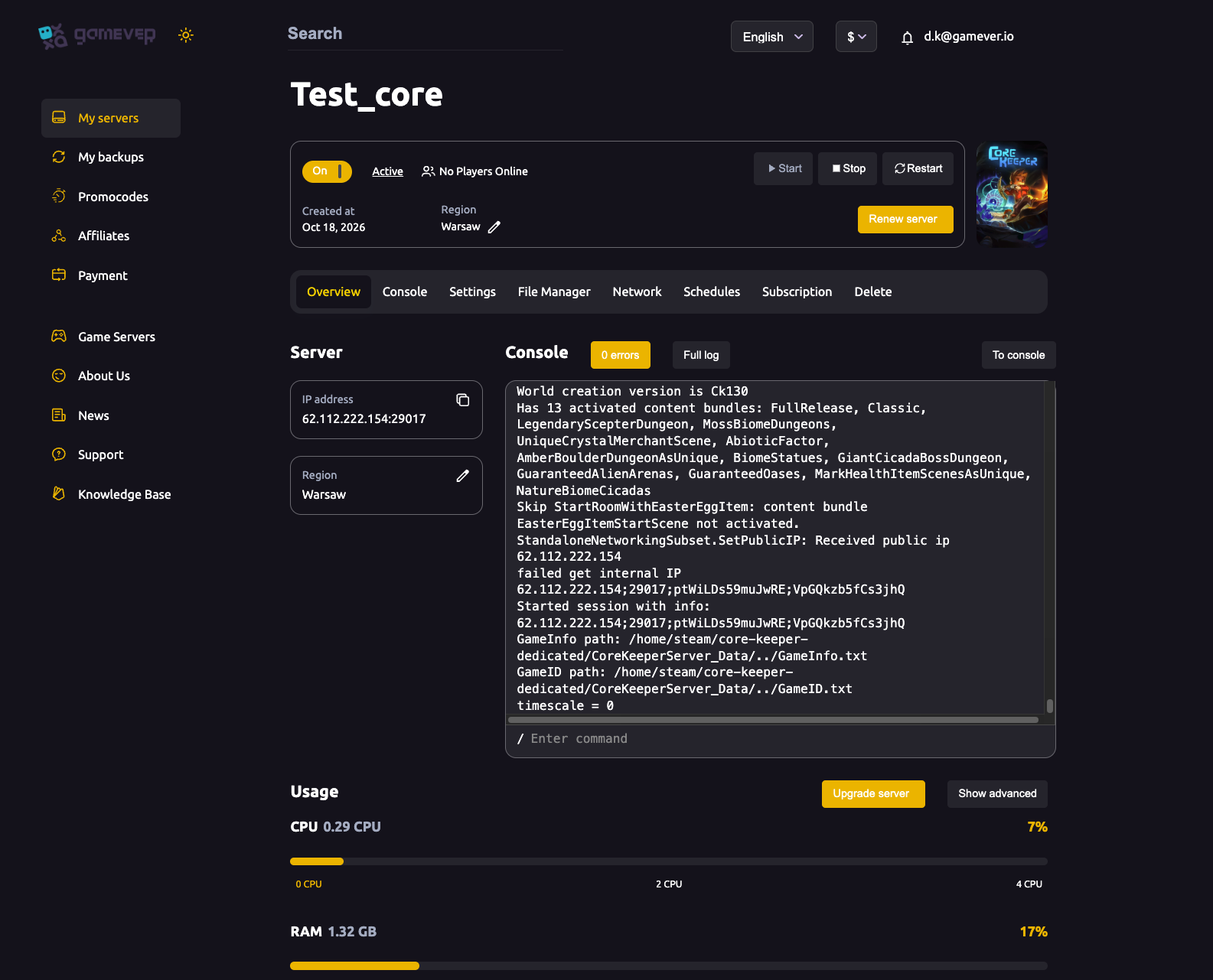
Open the Console tab (or the console preview on Overview). Each time the server starts it prints a session line in this form:
IP;port;gameId;password
The third field is the gameId your players need. You'll also see lines such as "World creation version is Ck130" and the activated content bundles confirming the world has loaded.
| Where | What you get |
|---|---|
| Console / Overview | The live session line IP;port;gameId;password printed each boot — copy the gameId field. |
File Manager (/home/configs/ServerConfig.json) | The gameId key, which you can pin so the ID stays the same across restarts. |
One thing to know up front: unless you've pinned it, the Game ID regenerates every time the server restarts, so the code you shared yesterday may not work today. If you want a code you can save and reuse, see pin a permanent Game ID.
Joining in-game with the Game ID
With the server running and the Game ID copied, each player does this in Core Keeper:
- Launch Core Keeper and, from the main menu, choose Join Game.
- Select the Join via Game ID option (some versions label this screen "Join With Game ID"; if you don't see it, it's inside the Join Game submenu).
- Paste the Game ID into the text box and confirm with Join.
Make sure the server is actually started first — the Console should show the world loaded. If the server is stopped, the Game ID won't resolve and the join will fail. Menu labels can shift slightly between game versions, so treat the wording above as a guide: the flow is always Join Game → enter the Game ID → Join.
Who can join by Game ID
Core Keeper supports cross-store play between PC storefronts. Players who own the game on Steam, Epic Games Store, GOG or the Microsoft Store can share the same dedicated server and play together using the Game ID.
What is not supported is PC-to-console crossplay: console players can only play with others in the same console family, and they can't join a PC dedicated server. Cross-progression isn't supported either, so saves stay tied to the platform you play on. If everyone in your group is on PC, the Game ID is all you need regardless of which store they bought the game from.
Direct Connect by IP (the alternative)
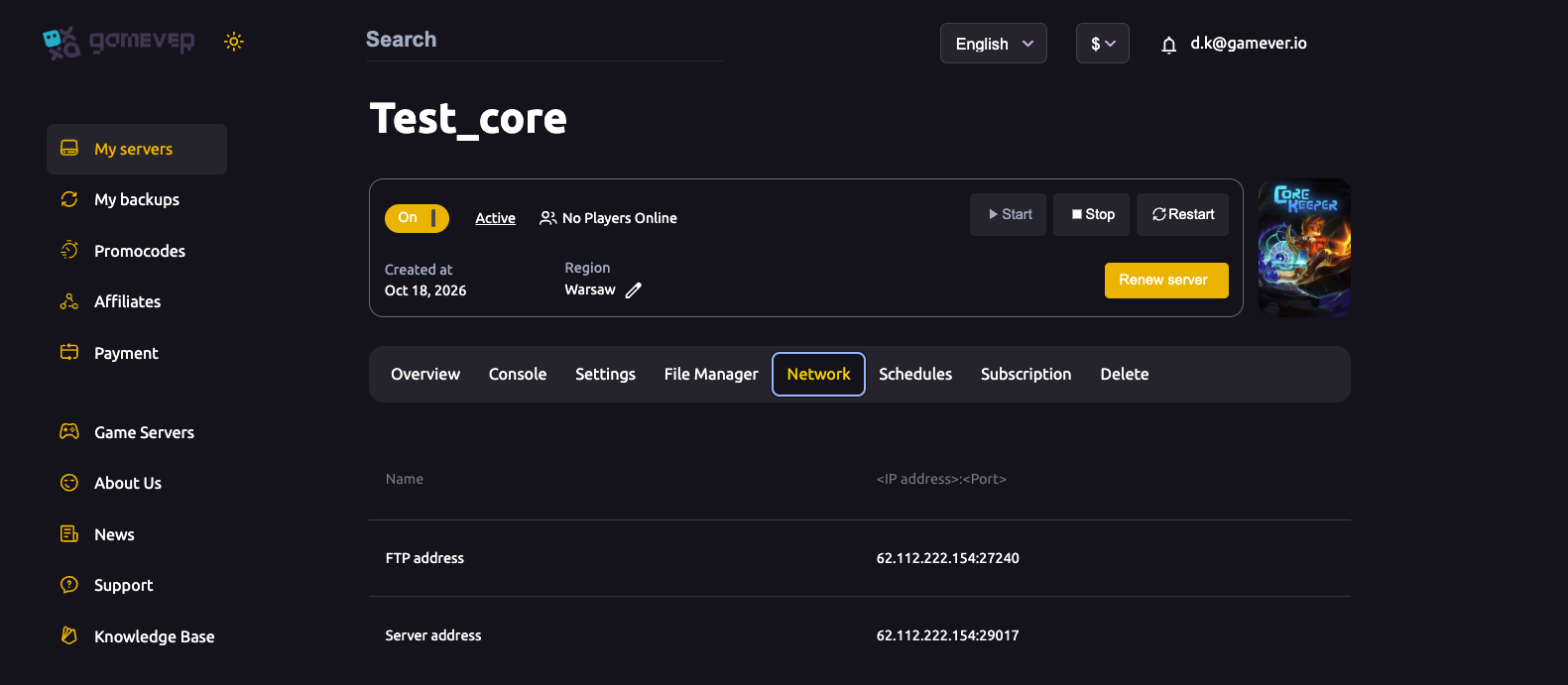
Some players prefer — or need — to connect straight to the server's address instead of using the Game ID. For that, open the Network tab in your panel, which shows your panel-assigned addresses:
| Network field | Example | Use |
|---|---|---|
| Server address | IP:29017 | Paste into Core Keeper's Direct Connect / "Join With IP" field to connect by address. |
| FTP address | IP:27240 | For file transfers via an FTP client, not for joining the game. |
Core Keeper uses UDP, and the panel assigns the actual port for you — you never port-forward or pick a port yourself. In-game, choose the Direct Connect option on the Join screen and enter the Server address exactly as the Network tab shows it (IP:29017). Read your own values off the panel; the numbers above are examples.
Passwords
If your world has a password, players must enter it when they join — the Game ID alone won't let them in. Core Keeper's password isn't a panel field; it lives in ServerConfig.json (the password key), edited through the File Manager under /home/configs/. When a password is set, it also appears as the fourth field of the Console session line. Share it with your group through a private channel, never publicly alongside the Game ID. If people are being turned away despite a correct code, a password mismatch is the first thing to check — see can't connect troubleshooting.
Additional Tips
- Start the server before sharing the code. A Game ID only works while the server is running and the world has loaded in the Console.
- Pin the Game ID if you share it often. A regenerated ID after a restart is the most common "it worked yesterday" problem — make it permanent.
- Copy the gameId field precisely. It's the third item in the
IP;port;gameId;passwordline — don't grab the IP or the password by mistake. - PC group? Store doesn't matter. Steam, Epic, GOG and Microsoft Store players can all join the same server by Game ID.
- Keep passwords off public posts. If a password is set, players need it; send it privately.
- IP join as a fallback. If a player struggles with the Game ID, give them the Network tab's Server address and have them use Direct Connect instead.
Conclusion
Connecting to your Core Keeper server comes down to one short code: read the Game ID from the session line in your Console, hand it to your group, and have them choose Join Game → enter the Game ID → Join. PC players can join from any store — Steam, Epic, GOG or Microsoft Store — and anyone who prefers a direct connection can use the Server address from the Network tab instead. Pin the Game ID if you want it to survive restarts, and remember a password (if set) is required alongside the code.
Rent your Core Keeper server at gamever.io — a running world in a couple of clicks, your Game ID and addresses laid out in the panel, and FTP access when you want it. Free trial, promo code WELCOME.