
How to Connect to and Join Your Soulmask Server

Your Soulmask server is already live on your gamever plan — there is nothing to install and no software to download. All that is left is telling the game where to find it. This guide covers the two ways players reach a server you rent from us: the in-game Online Game server browser, and a direct connection by IP and port read straight off your panel's Network tab. Both routes are driven from inside Soulmask; your job on the panel side is simply to read off the right address and (if you set one) share the password.
One thing to get out of the way first: Soulmask's dedicated server is Steam / PC-only, with no crossplay. Every player who joins needs the game on Steam on a PC — there is no console or mobile client to connect from.
Read your server address from the Network tab
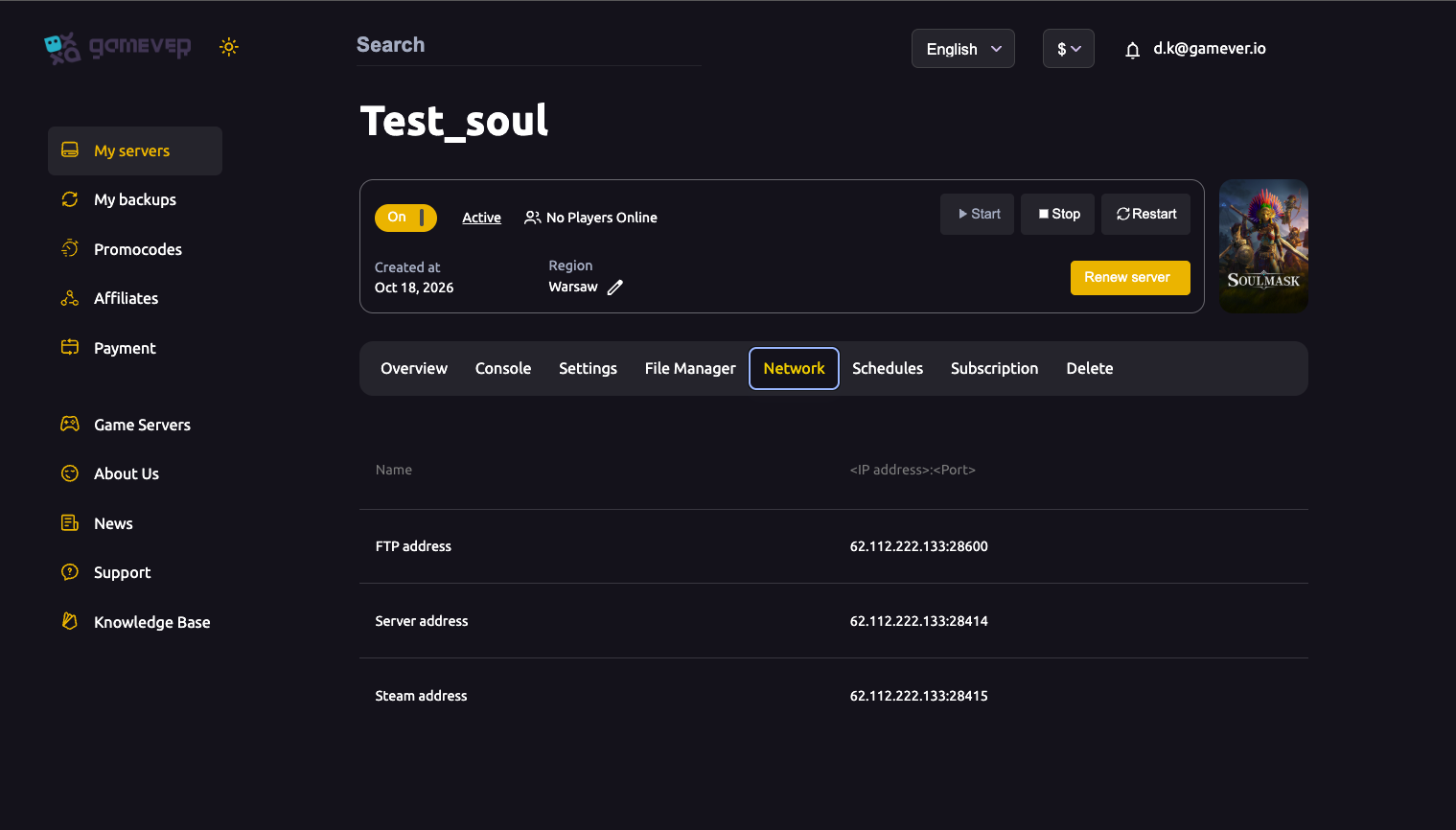
Everything a player needs to connect is on the Network tab of your server in the gamever control panel. Open your server, click Network, and you will see a short list of panel-assigned addresses:
| Address | Example | What it is |
|---|---|---|
| Server address | IP:28414 | The game address players use to direct-connect. The part before the colon is the IP; the part after is the port. |
| Steam address | IP:28415 | The Steam query port, used by Steam's server listing. |
| FTP address | IP:28600 | For connecting an FTP client to your files — not used to join the game. |
The port is assigned by our panel — you never have to port-forward or pick a number yourself. Always read your own values off this tab rather than copying the examples above; the number shown for your server is the one players need.
Option 1 — the Online Game server browser
From Soulmask's main menu, choose Online Game (not a local or single-player start). This opens the community server browser, where you can search the public server list by name and use the filters to narrow it down.
- Launch Soulmask and pick Online Game on the main menu.
- In the server browser, search for your server by its Server Name — the one set under Settings → Server Settings (for example, "Soulmask server by gamever.io"). A clear, unique name makes it far easier to find in a crowded list.
- Select your server and join. If it is password-protected, you will be prompted for the password.
The browser is the friendliest route for a public server, but a large list can be slow to load and filter. If your server is hard to find there — or does not appear at all — use the direct-connect route below, which does not depend on the browser.
Option 2 — direct connect by IP and port
Direct connection is the most reliable way in, and the one we recommend for a private group. Instead of searching a list, you point the game straight at your Server address:
- From the main menu, open Online Game.
- Choose the option to connect to a server directly (by address).
- Enter the IP and port exactly as shown on your Network tab — for example, IP
203.0.113.10and port28414for a Server address of203.0.113.10:28414. - Enter the Server password if one is set, then confirm to connect.
Because this skips the public list entirely, it works even when the browser is slow or your server has not yet refreshed into the listing. Share the IP and port with your group and they can all connect the same way.
Public vs. password-protected
Whether anyone can wander in or only your group can is controlled by the Server password field under Settings → Server Settings:
| Server password | Result |
|---|---|
| Blank | Server is public — anyone who finds it in the browser or has the address can join. |
| Set | Server is private — every player must enter the password to join, whether they come via the browser or direct connect. |
If you set or change the password, remember to click Save and then Restart the server (from the Overview tab) so the change takes effect, and pass the new password to your players. For more on this, see set a server password.
Additional Tips
- Give the server a distinctive name. A unique Server Name is what players scan for in the Online Game browser — generic names get lost among hundreds of others.
- Prefer direct connect for a private group. It is faster and more reliable than searching the browser, especially right after a start or restart while the listing catches up.
- Confirm the server is actually running. Check the Overview tab — it shows the current player count (e.g.
0/20) and a console preview. A server that is stopped or still booting will not accept joins. - Copy the address carefully. The IP is before the colon and the port after it; a single wrong digit in either will stop a direct connection.
- Everyone needs the same game build. All players must be on the same Soulmask version as the server; a client on an older or newer patch may fail to connect after an update.
- Share the password out-of-band. For a private server, send the password to your group over chat or voice rather than posting it anywhere public.
Conclusion
Joining a Soulmask server you host with gamever comes down to one piece of information — the Server address on your Network tab — and one choice of route. Use the Online Game browser to find a public server by name, or direct connect with the IP and port for the fastest, most dependable way in. Set a Server password if you want it private, and share the address (and password) with your group. If a player still cannot get in, work through can't connect to your server.
Rent your Soulmask server at gamever.io — panel-assigned ports so there is nothing to forward, a live Network tab with your address ready to share, and full control from the browser. Free trial, promo code WELCOME.