
How to Connect to and Claim Your Satisfactory Server

A Satisfactory dedicated server works a little differently from most games: you don't find it in a server browser, you add it inside the game using the in-game Server Manager, then claim it on first connection. This guide walks through connecting, claiming, setting your passwords, and giving friends admin — the first things to do with a new gamever Satisfactory server.
Step 1 — get your server address
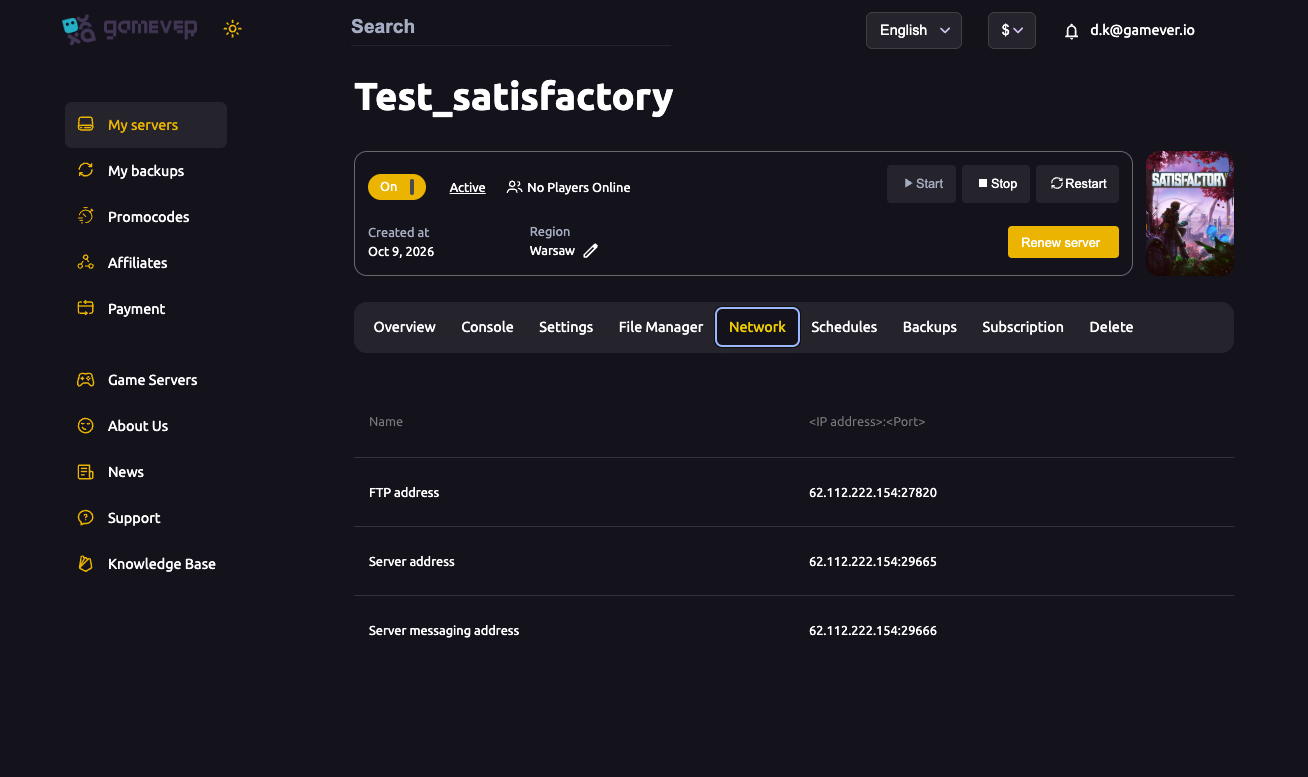
Open the Network tab in your gamever panel and copy the Server address (IP:port, e.g. 62.112.222.154:29665).
Step 2 — add the server in-game
- Launch Satisfactory.
- From the main menu open Server Manager.
- Click Add Server and paste your Server address (
IP:port).
The game connects to your server. The first time, it's unclaimed.
Step 3 — claim it and set the Admin Password
On first connection the server asks you to claim it:
- Give the server a name.
- Set an Admin Password.
Claiming makes you the administrator. The Admin Password is the key to full control — keep it private.
Step 4 — set a join (client) password
If you want to control who can play, set a Client Password (the game/join password) in the server's settings via the Server Manager. Players then need it to connect. Leave it blank for an open server.
Giving friends admin
Satisfactory's admin model is based on the Admin Password: anyone who adds the server and authenticates with the Admin Password becomes an administrator. So to give a trusted friend admin, share the Admin Password. For ordinary players, give them only the client password.
Step 5 — create a game or load a save
Once claimed, use the Server Manager to create a new game (choose the starting area and session name) or upload/load an existing save (see our save upload guide). Your factory lives on the server from then on, online 24/7.
Additional Tips
- Use the exact Server address from the Network tab — Satisfactory joins by
IP:port, not a browser. - Admin Password = full control — share it only with co-admins.
- Client password gates ordinary players; leave blank for open.
- Claim happens once — after that the server remembers its admins.
- Can't connect? Check the address and that the server finished starting — see ports & connection troubleshooting.
Conclusion
Setting up a Satisfactory server on gamever is an in-game flow: copy the Server address from the Network tab, add it in the Server Manager, claim it with an Admin Password, optionally set a client password, and create or load a game. Share the Admin Password only with co-admins — and your factory is online for the whole team.
Rent your Satisfactory server at gamever.io — instantly online, ready to claim, with 24/7 uptime for your factory. Free trial, promo code WELCOME.