
How to Configure map-gen-settings.json on Your Factorio Server (Terrain, Ore, Size)
On your gamever Factorio server, the shape of the world — how much ore sits in each patch, how big the map is, where the cliffs run — is decided by a single config file, map-gen-settings.json. You manage it through your control panel's File Manager, no self-install or SteamCMD required. But there is one rule that catches almost everyone the first time, so we'll lead with it: this file is read only when a new map is created. Editing it does nothing to a world that already exists. This guide explains what each verified field does and the exact panel steps to make your changes take effect.
The one rule: it only applies to a new map
Factorio bakes map-gen-settings.json into the save at the moment the map is generated. After that, the world is fixed — doubling ore richness or shrinking the map in the file will not change a world your group is already playing on. To see any change, you have to generate a fresh map.
That means editing this file is always a "start over" action. Before you touch it, back up your current world: take a backup from My backups in the left sidebar, or download your save files over FTP from the File Manager. Generating a new map does not delete the old save automatically, but you will be playing a different world, so protect the one you have first.
Where the file lives
Open the File Manager tab. The config path is /home/server/config/, which holds server-settings.json, map-settings.json, map-gen-settings.json and rconpw.
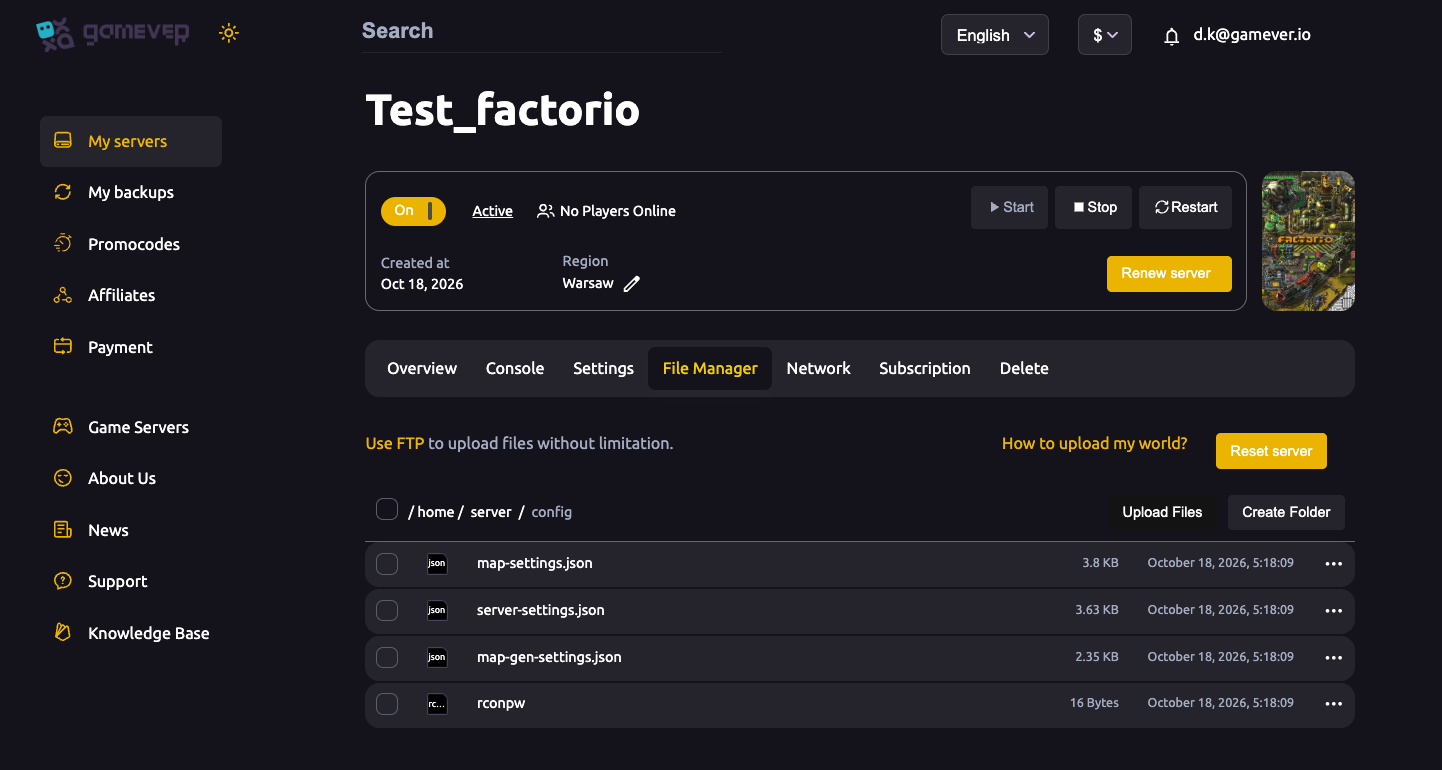
Factorio uses strict JSON — a single trailing comma will stop the server from booting. Keep every key in quotes, separate entries with commas, and leave no comma after the last item in a list or object. Edit the file over the web, or over FTP using the login on the Settings → FTP server settings sub-tab. Always stop the server before editing, since the file is only read at boot.
What you can control
These are the fields verified against the official Factorio documentation (lua-api.factorio.com / wiki.factorio.com). Values of type MapGenSize accept a number where 1 is "normal", below 1 means less, above 1 means more (the in-game generator exposes the same scale as none / very low / low / normal / high / very high).
Ore, trees and enemies — autoplace_controls
autoplace_controls is an object keyed by control name (for example iron-ore, copper-ore, coal, stone, uranium-ore, crude-oil, trees, enemy-base). Each entry takes three MapGenSize values:
| Key | What it changes |
|---|---|
frequency | How often patches/spots appear — higher means more, smaller gaps between them. |
size | The extent of each patch (for continuous features like forests, how much of the map they cover). |
richness | For ores, the amount of ore on each tile of a patch (more resource per patch). Note: enemy-base does not use richness. |
So to make a resource-rich, easy-start world you raise frequency, size and richness for the ores; to make enemies sparse you lower the frequency and size of enemy-base.
Cliffs — cliff_settings
cliff_settings controls cliff placement:
| Key | Type | Meaning |
|---|---|---|
name | string | The cliff prototype name. |
cliff_elevation_0 | number | Elevation where the first row of cliffs appears (documented default 10). |
cliff_elevation_interval | number | Elevation gap between cliff rows; smaller = more cliffs. |
richness | MapGenSize | "Continuity" — larger values give longer unbroken cliff walls; set to 0 to disable cliffs. |
Map size, starting area and seed
| Key | Type | Meaning |
|---|---|---|
width / height | number | Map dimensions in tiles. 0 means effectively infinite (limited to roughly one million tiles from the centre). Set a value for a finite, bounded map. |
starting_area | MapGenSize | Size of the cleared starting area — how far enemy bases are pushed back from spawn. Default 1. |
seed | number | The random seed. The same seed with the same settings always produces the same world, so save a seed you like. |
peaceful_mode | boolean | true = enemies only retaliate when attacked, they won't initiate. |
Water coverage and finer terrain tuning are also set here, but because their exact keys vary by game version we recommend changing those through the in-game map-preview generator (which writes a valid file for you) rather than hand-editing keys we can't verify for your build — then upload that file via File Manager.
How to apply your changes
Because the file is read only at map creation, the sequence matters:
- Stop the server (Overview → Stop, or the Stop button up top).
- Back up your current world (My backups, or download the save over FTP).
- Edit
map-gen-settings.jsonin/home/server/config/and save — valid JSON, no trailing commas. - Go to Settings → Server Settings and set Generate a new map to
true. (LeavingLoad latest save/Save namepointing at your old save would keep the old world and ignore your edits.) Click Save. - Start the server. It generates a brand-new map from your settings.
If instead you generate the map locally and upload a fresh save, the same rule holds: the new save carries its own baked-in generation, and your edited file only matters when that save is first created.
Additional Tips
- Always back up before generating — this is a new-world action, so keep the old save via My backups or FTP.
- Validate your JSON before starting. A trailing comma or missing quote keeps the server from booting; watch the Console tab after start for parse errors.
- Save your seed if you love a world — the same seed plus the same settings reproduces it exactly.
- Set
Generate a new mapback tofalseafter the world is made, so a later restart doesn't wipe it. - Tune enemies with
starting_areaandenemy-basefrequency/size, andpeaceful_modefor a build-in-peace run. - Use the in-game preview for water and terrain detail, then upload the generated file — it's the safest way to get valid, version-correct keys.
Conclusion
map-gen-settings.json is where your Factorio world is really decided — ore richness via autoplace_controls, map bounds via width/height, cliffs via cliff_settings, and the seed that locks it all in. Just remember the golden rule: it only applies to a new map, so edit the file, set Generate a new map = true under Settings, back up first, and start fresh. For the live, per-boot options see map settings, and for names, passwords and visibility see server settings.
Rent your Factorio server at gamever.io — full File Manager and FTP access to tune your world exactly how you want it, with one-click backups before every fresh map. Free trial, promo code WELCOME.