
How to Configure Blood Moon Settings on Your 7 Days to Die Server

Blood moon horde night is the event your whole 7 Days to Die server is built around, and almost everything about it is adjustable: how often it strikes, how predictable the day is, when players get warned, and how many zombies each player faces at once. On a gamever-hosted server these live in serverconfig.xml, which you edit in the panel's File Manager — no files to download, no SteamCMD, no router. This guide covers the real blood-moon settings, what each one does, their defaults, and how to tune them without breaking performance. For surviving the night once it starts, see our companion guide, how to survive blood moon horde night.
Where the blood moon settings live
Two layers control the horde, and it helps to know which is which:
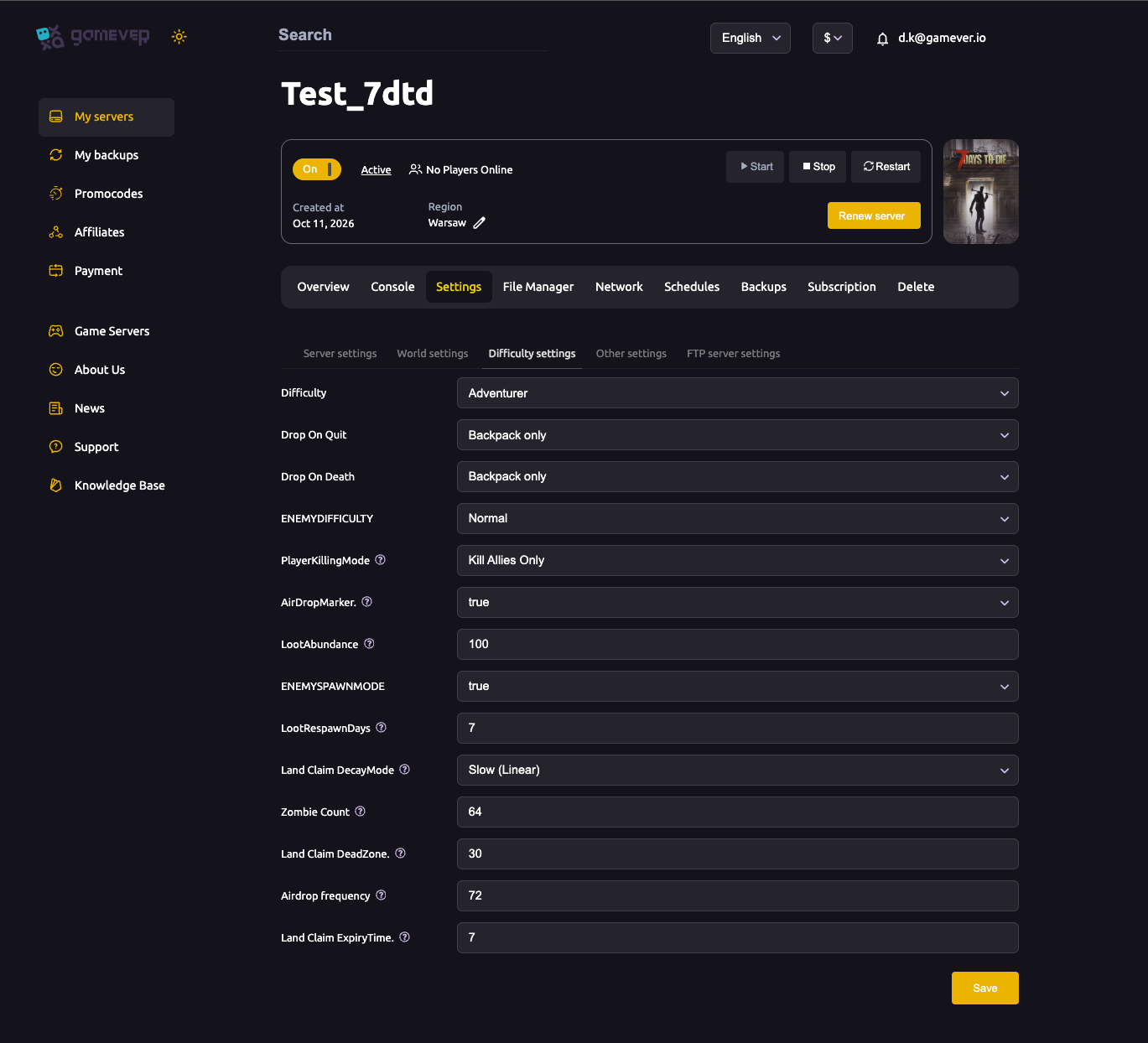
- The global zombie cap is exposed as a named field in the panel. Open Settings → Difficulty settings and you'll find Zombie Count — this is the game's
MaxSpawnedZombiesvalue (default 64), the hard ceiling on how many zombies can be alive across the whole map at once. See difficulty settings for the rest of that tab. - The blood-moon cadence settings (
BloodMoonFrequency,BloodMoonRange,BloodMoonWarning,BloodMoonEnemyCount) are not individual form fields — they live directly inserverconfig.xml, which you open and edit in the File Manager.
The blood moon settings
These are the verified serverconfig.xml properties that shape horde night:
| Setting | What it does | Default |
|---|---|---|
BloodMoonFrequency | In-game days between blood moons. Every 7th day by default (Day 7, 14, 21…). Set to 0 to disable blood moons entirely. | 7 |
BloodMoonRange | How many days the actual blood-moon day can randomly deviate from the frequency. 0 keeps it exact; a value of 2 lets a Day-7 horde land anywhere from Day 5 to Day 9. | 0 |
BloodMoonWarning | The in-game hour at which the blood-moon warning appears (the day number turning red). Set to -1 to hide the warning entirely. | 8 |
BloodMoonEnemyCount | The number of zombies that can be alive per player at once during the horde. On multiplayer this is multiplied by the number of players — and still capped by MaxSpawnedZombies. | 8 |
A note on BloodMoonEnemyCount: because it's per player, a value of 8 on a 4-player server asks for up to 32 simultaneous zombies — but your Zombie Count (MaxSpawnedZombies, default 64) is the hard ceiling that no per-player math can exceed. The two settings work together, so tune them as a pair.
How to edit serverconfig.xml in the panel
- Stop or prepare to restart the server — config changes apply on the next start.
- Open the File Manager tab and find
serverconfig.xmlin the server's root folder. - Edit the
valuefor the property you want, for example:
   <property name="BloodMoonFrequency" value="7" />
   <property name="BloodMoonRange"     value="0" />
   <property name="BloodMoonWarning"   value="8" />
   <property name="BloodMoonEnemyCount" value="8" />
- Save the file, then Restart from the Overview tab.
Prefer to work over a client? The same file is reachable over FTP (Settings → FTP), but File Manager is the quickest path for a single value.
Example setups
- Relaxed co-op:
BloodMoonFrequency10 andBloodMoonRange0 for a predictable, less frequent horde; keepBloodMoonEnemyCountat 8. - Unpredictable survival:
BloodMoonFrequency7 withBloodMoonRange2 so nobody knows the exact night — tense and fresh each cycle. - Hardcore group: raise
BloodMoonEnemyCountcarefully (e.g. 10–12) and make sure Zombie Count (MaxSpawnedZombies) has the headroom to actually deliver it. - No horde at all:
BloodMoonFrequency0 for a pure build-and-explore server.
Additional Tips
BloodMoonEnemyCountis the biggest performance lever. Every extra zombie is AI and pathfinding every tick — raising it is a direct CPU cost, felt hardest on horde night. If blood moons stutter, lower it (and Zombie Count) before anything else. See how to fix lag.- Remember the cap.
BloodMoonEnemyCount × playerscan never exceedMaxSpawnedZombies— if your horde feels small, check which value is the real bottleneck. BloodMoonRangeadds suspense, not difficulty. It only shifts the day; it doesn't change how hard the night is.- Don't set the warning too late.
BloodMoonWarningat a low hour gives players most of the day to fortify; -1 removes the red-number heads-up entirely for a brutal surprise. - Back up before big changes. gamever takes automatic backups, and you can make a manual one from the Backups tab before tuning horde difficulty — see backup and restore.
- Save then Restart — none of these take effect until the server restarts.
Conclusion
Blood moon night runs on four simple numbers: BloodMoonFrequency sets the cadence, BloodMoonRange decides how predictable it is, BloodMoonWarning controls the heads-up, and BloodMoonEnemyCount — paired with your Zombie Count cap — decides how many zombies each player fights at once. Edit them in serverconfig.xml through the File Manager, save, restart, and your horde nights play exactly the way your group wants, from a gentle weekly siege to an unpredictable wall of the undead.
Rent your 7 Days to Die server at gamever.io — full File Manager access, automatic backups and strong CPUs so even a boosted blood moon runs smooth. Free trial, promo code WELCOME.