
How to Change Your Soulmask Server Name

Your server name is the label players see when they go looking for your world in Soulmask's in-game server browser. On a Soulmask server you rent from gamever, you don't touch any launch scripts to change it — the name is a single field in your control panel, edited in the browser, saved, and applied with a restart. This guide shows you exactly where that field lives, how to apply a new name safely, and how to pick one that's easy for your group to find.
Where the server name lives
Open your server in the gamever control panel and go to the Settings tab, then the Server Settings sub-tab. The Server Name field is the first entry on that page — a plain text box. Whatever you type here is what appears in the Soulmask server list, so it's worth getting right.
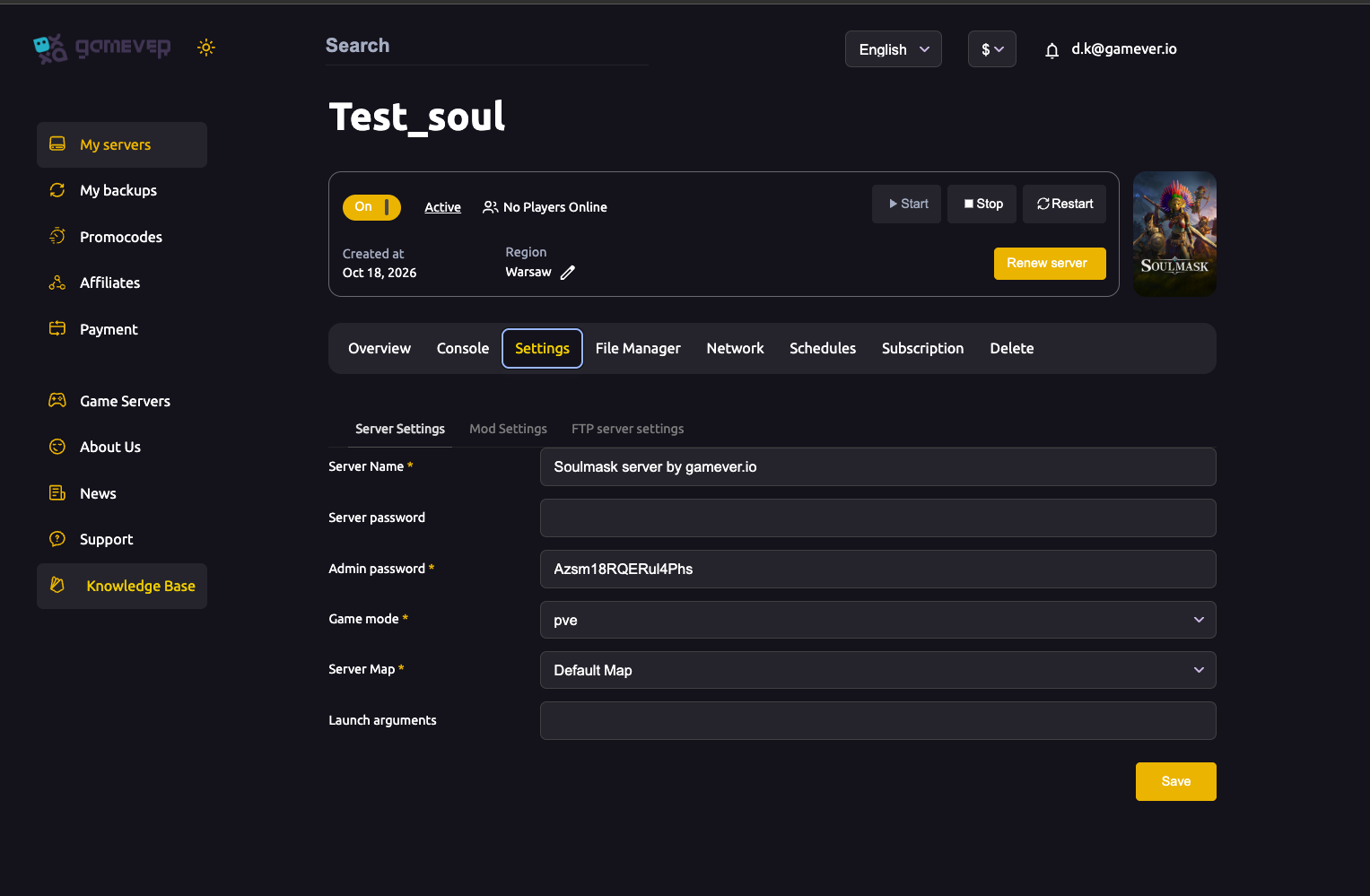
The Server Settings sub-tab holds a handful of fields; the server name is only one of them. Here's the full set so you know what you're looking at and what to leave alone:
| Field | What it does |
|---|---|
| Server Name | The display name shown in the in-game server browser — the field this guide changes. |
| Server password | Leave blank for a public server; set a value to make the server private (join-by-password). |
| Admin password | The admin/GM password you use in-game — not the same as the join password. |
| Game mode | pve or pvp. |
| Server Map | The map the world runs on, e.g. "Default Map". |
| Launch arguments | Extra startup flags for advanced setups. |
For a field-by-field walk-through of everything on this tab, see our Server Settings guide. For now, you only need the top field.
Changing the name, step by step
The server name is purely cosmetic — it's a label, not world data — so renaming it is one of the safest changes you can make. It won't affect your save, your players' progress, or your admin login. The steps:
- Go to Settings → Server Settings in the panel.
- Clear the Server Name box and type the new name, e.g.
Soulmask server by gamever.io. - Click Save.
- Open the Overview tab and click Restart so the running server picks up the new name.
That's it. The name change isn't live until the server restarts, because Soulmask reads the server configuration when it boots. If you save but don't restart, the browser list will keep showing the old name.
Give the browser list a moment
Soulmask players find your world from the main menu: Online Game → Private Servers, then type your server name into the search field at the top of the list. (If the list is slow or your server is far away geographically, players can also use Direct Connect with your server address — see connecting and joining for both methods and where to read your address.)
After a restart, it can take a moment for the new name to propagate to the community server list — the list is cached and refreshed on an interval, not instantly. If the old name lingers for a few minutes, that's normal. Ask players to close and reopen the server browser, or to search for the new name directly rather than scrolling. If it still hasn't updated after a while, confirm the server actually restarted cleanly on the Overview tab and that the name saved correctly on the Server Settings sub-tab.
Picking a good name
Soulmask's server list can be long, and its filtering is limited, so a clear, distinctive name is the single biggest thing you can do to help friends find you:
- Make it unique. Generic names like "Soulmask Server" are buried among hundreds of others. A distinctive word or your group's tag stands out in a search.
- Keep it short and typable. Players search by typing; a long name with punctuation is harder to match. Short and memorable wins.
- Flag the rules in the name. Adding
[PvE]or[PvP]tells browsers what to expect at a glance and matches your Game mode setting. - Avoid lookalikes. Steer clear of names that copy a well-known server — it only causes confusion in the search results.
Additional Tips
- Cosmetic only. The server name doesn't touch your world or saves, so you can rename as often as you like with no risk to progress.
- Save and restart. A saved name that was never applied is the most common "it didn't change" cause — the restart on Overview is the step that makes it live.
- Password is separate. Renaming does nothing to access. If you also want the server private, set the Server password field (not the admin password) on the same tab.
- Search, don't scroll. Tell your group the exact name so they can type it into the Private Servers search box rather than hunting through a long list.
- Steam/PC only. Soulmask's dedicated server is Steam/PC with no crossplay, so everyone searching for your name is on PC — no console browser to worry about.
- One name, two tabs to check. The name lives on Server Settings; your connection address lives on the Network tab. Keep the two straight when helping someone join.
Conclusion
Changing your Soulmask server's name is a quick, no-risk edit: open Settings → Server Settings, type a new value into the Server Name field, Save, and Restart from the Overview tab. Give the community list a few minutes to catch up, pick something short and distinctive, and your friends will be able to find your world in the Online Game browser without scrolling. For the rest of the server options, see our Server Settings guide; for how players actually get in, see connecting and joining.
Rent your Soulmask server at gamever.io — rename it, set the rules and go live from one simple panel, no scripts or port-forwarding. Free trial, promo code WELCOME.