
How to Change Your Minecraft Server Type (Vanilla, Forge, Paper, Fabric)
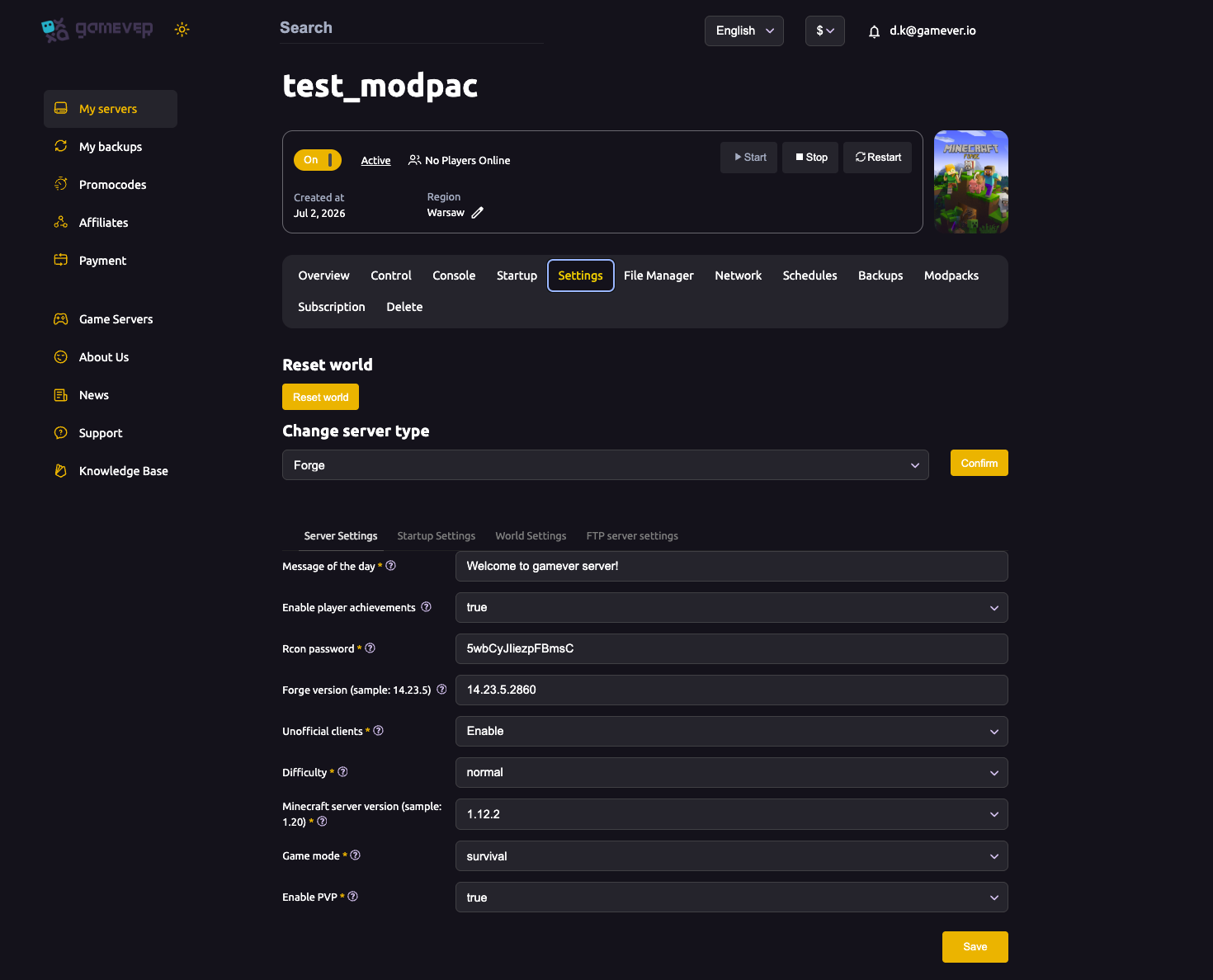
One of the most powerful features of your gamever Minecraft panel is that you can switch the whole server type without rebuilding the server. Want to move from Vanilla to Paper for plugins, or to Forge for a modpack? The Change server type dropdown does it. This guide explains what each type is for and how to switch safely.
Where to find it
Open the Settings tab. At the very top of the page — above the Server/Startup/World/FTP sub-tabs — is a Change server type dropdown (e.g. showing Forge) with a Confirm button. Pick the type you want and click Confirm. The current type is also shown in the Server type box on the Overview tab.
What each server type is for
| Type | Best for |
|---|---|
| Vanilla | The pure, unmodified Minecraft experience from Mojang. No mods or plugins. |
| Forge | Mod-heavy servers and CurseForge modpacks. Players need the matching mods/modpack client-side. See install mods & plugins and install a modpack. |
| Fabric | A lighter modding framework, popular for performance and newer-version mods. Also needs matching client mods. |
| Paper | A high-performance server that runs plugins (not client mods). Players join with a normal vanilla client — no install needed. Great for survival/minigame communities. |
The dropdown may list more options; these four cover the common choices. If you're unsure: choose Paper when you want plugins with no client installs, Forge/Fabric when you want a modded experience your players also install.
Switching safely
Changing server type is a significant change — it reinstalls the server software and can affect world compatibility (a modded world may not load on Vanilla, and vice-versa). Before you switch:
- Back up your world. Use the Backups tab or download
world/over FTP from the File Manager. - Pick the new type in the dropdown and click Confirm.
- Set the matching version on the Startup tab if needed (e.g. Forge version), and let the server reinstall.
- Tell your players what client they need — vanilla for Paper/Vanilla, the right mods/modpack for Forge/Fabric.
If the new type can't read your old world, you may need to start a fresh world — see reset world.
For modpacks, use the Modpacks tab
If your goal is a specific CurseForge modpack, you usually don't change type by hand — install the modpack from the Modpacks tab, which sets the server type to Forge (or Fabric) and the right version automatically.
Additional Tips
- Back up before switching — type changes can break world compatibility.
- Paper = plugins, no client installs; Forge/Fabric = mods, client must match.
- Set the version after switching on the Startup tab, then let the reinstall run.
- Use the Modpacks tab instead of a manual switch when you want a CurseForge pack.
- Confirm the type in the Overview Server type box after the switch completes.
Conclusion
The Change server type dropdown turns one server into a Vanilla, Forge, Fabric or Paper server at will — no new purchase needed. Choose Paper for plugins, Forge or Fabric for mods, and always back up your world first because a type change reinstalls the server and can affect world compatibility. Confirm, set the version, tell your players which client to use, and you're running the edition you want.
Rent your Minecraft Java server at gamever.io — switch between Vanilla, Forge, Paper and Fabric from one panel, with one-click modpacks and automatic backups. Free trial, promo code WELCOME.