
How to Change Your Enshrouded Server Name and Password

Two of the first things to set on an Enshrouded server are the name (shown in the browser and to joining players) and the password. Enshrouded's password system is a little different from most games: passwords are tied to roles, so the password a player uses decides whether they join as an Admin, a Friend, or a Guest. This guide covers the basics on the panel and how the password really works.
Where they are
Open the Settings tab:
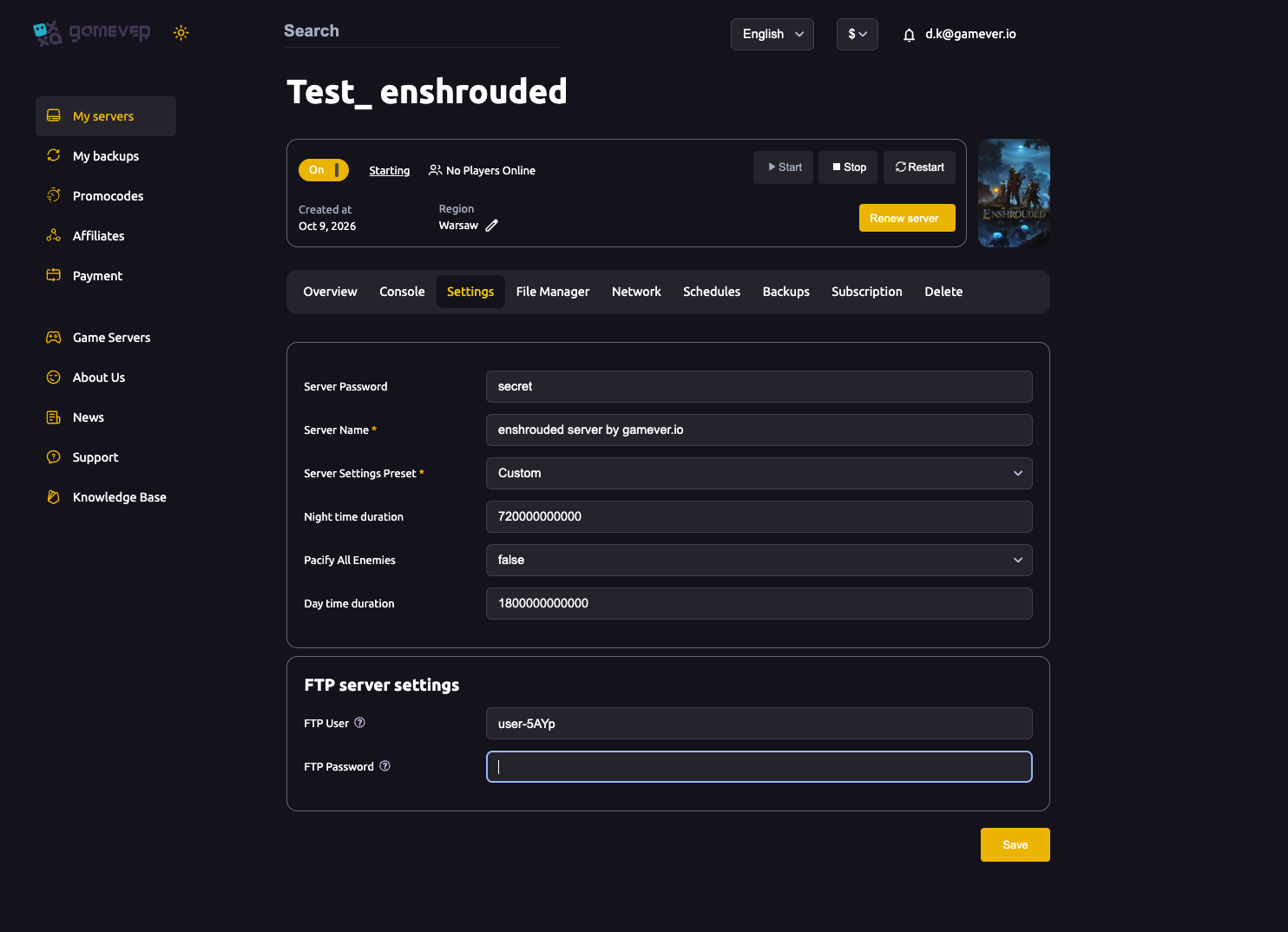
| Field | What it does |
|---|---|
| Server Name | The name shown in the server browser and to joining players. |
| Server Password | The join password. In current Enshrouded this maps to a default access group — see the role note below. |
Edit the field, click Save, then Restart. The new name/password applies once the server restarts.
Change the server name
- Edit Server Name.
- Save, then Restart.
The new name appears in the browser and in your friends' "Join via IP" list after the restart.
Change the password — and understand roles
Setting a password here gives you a basic locked server: players need it to join. But Enshrouded's modern access system is role-based — the server has Admin, Friend and Guest groups, each with its own password, defined in enshrouded_server.json:
- The panel Server Password acts as a general/default join password.
- For proper roles — a separate Admin password (kick/ban), a Friend password (edit bases, use chests) and a Guest password (play only) — set each group's password in the config file. Full walkthrough: admin roles & permissions.
So "setting a password" and "setting up admins" are related but separate: the panel field locks the server, while the role passwords decide what each player can do.
Important: edits and restarts
- Enshrouded writes its config back to
enshrouded_server.jsonwhen the server stops, so make panel changes with Save, then Restart to apply them cleanly. - If you also hand-edit the config file, do it with the server stopped (see the config guide) so your edits aren't overwritten.
Additional Tips
- Name change needs a restart to show in the browser.
- The password sets the role — don't hand your Admin password to everyone.
- Use role passwords for real admin control (Admin/Friend/Guest) — see the roles guide.
- Rotate the password if it leaks, and tell your players the new one.
- Save then Restart — changes apply on restart.
Conclusion
Naming and locking your Enshrouded server is two fields on the Settings tab — but the password is more than a lock: it ties into Enshrouded's Admin / Friend / Guest role system. Set the name and a base password here, then define per-role passwords in enshrouded_server.json to control exactly what each player can do. Save, restart, and your server is yours.
Rent your Enshrouded server at gamever.io — name it, lock it, and set full co-op roles from the panel and config. Free trial, promo code WELCOME.