
How to Change Your ARK Server Name

Your server name is how players find you. It's the line that shows up in the in-game server browser, and it's what people type into the search box when they're looking for your server by name. In ARK that name comes from a single setting — SessionName — and on a gamever-hosted server you change it from the control panel in a few seconds, no file editing required. This guide shows where to set it, where it appears, and how to name a server so players actually find and remember it. It works the same on ARK: Survival Evolved and ARK: Survival Ascended.
What the server name actually is
ARK stores the public server name in the SessionName setting. On the official ARK wiki it's described as the name "advertised in the Game Server Browser as well in Steam Server browser" — so it's purely the display name, separate from your map, your passwords, and your admin settings. In the config file it lives in GameUserSettings.ini under the [SessionSettings] header:
[SessionSettings]
SessionName=My Awesome ARK Server
| Setting | Lives in | What it controls |
|---|---|---|
SessionName | GameUserSettings.ini → [SessionSettings] | The server name shown in the browser |
ServerPassword | GameUserSettings.ini → [ServerSettings] | Password to join (not the name) |
ServerAdminPassword | GameUserSettings.ini → [ServerSettings] | Admin/RCON password (not the name) |
Changing the name has no effect on your save, your settings or your mods — it's just the label.
Change it in the gamever panel
The easy way is to let the panel write SessionName for you:
- Open your server in the gamever control panel and go to Settings → Server Settings.
- Find the server name field and type your new name.
- Click Save. The panel applies the new name on the next restart, so restart the server (or wait for a scheduled restart) for it to take effect.
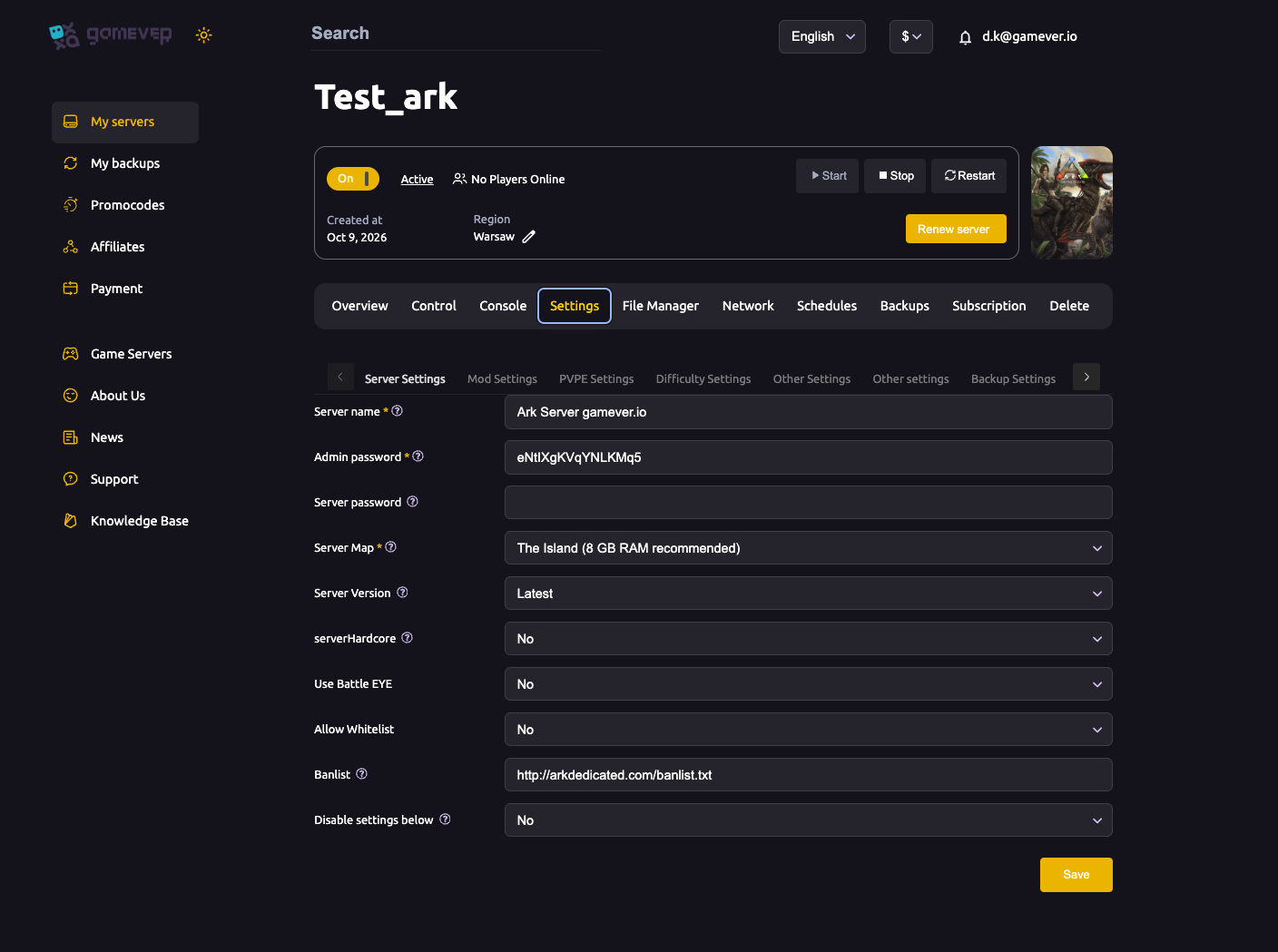
That's the whole job. Because the panel owns your config by default, using the form is the safe path — it won't get overwritten on restart.
Editing the config file directly (optional)
If you'd rather set it by hand — for example, to add characters the form won't accept — you can edit GameUserSettings.ini in the File Manager:
/home/server/ShooterGame/Saved/Config/LinuxServer/GameUserSettings.ini
Change the SessionName= line under [SessionSettings], save, and restart. Important: the panel rewrites these .ini files from your panel settings on every restart, which wipes hand edits. Before editing the file directly, set Disable settings below to Yes under Settings → Server Settings so your manual value sticks. Pick one method — the form or the file — and don't mix them. See our server settings guide for the full rundown on this.
Where the name shows up
Once the server restarts with its new name, that name appears:
- In the in-game server browser (the "Join ARK" / "Unofficial" list), as the server's title row.
- In the Steam server browser for ARK: Survival Evolved.
- In a player's Favorites list, if they've favourited you.
- In friends' "join session" prompts and recent-server lists.
It can take a minute or two after a restart for the new name to propagate to the public browser, so don't panic if the old name lingers briefly.
Naming tips (so players actually find you)
The server browser lets players type into a search/filter box and narrow a huge list down to names that match. A good name is built around that:
- Put the important words first. Long lists get truncated, and people scan the start of each name. Lead with what makes you distinct, not with filler.
- Include searchable keywords players filter by — things like the map, the rates, or the mode:
[PvE],3x,Boosted,Modded,TheIsland. People regularly search the browser for exactly these terms. - Keep it short and readable. A clean, memorable name is easier to tell a friend and easier to type into the filter than a wall of symbols.
- Be consistent across restarts. If regulars find you by name, don't rename every week — they filter for the old name and think you're gone.
- Go easy on special characters and emoji. Heavy symbol-spam can make a server harder to search for and looks like spam to new players; a little is fine, a lot hurts you.
- Don't rely on the name for security. The name is public and cosmetic — to make a server private, set a join password (
ServerPassword), not a sneaky name.
A practical pattern: Name | Map | Rates | Mode, for example Ragnarok Raiders | 3x | PvE | Modded.
Additional Tips
- Restart to apply. The name only updates after a server restart — use the panel's restart button or a scheduled restart.
- Name ≠ password. Changing the server name never changes your join or admin password; those are separate fields in Server Settings.
- Can't see your own server by name? Check it's actually running, clear the browser filters, and give it a minute to list. Our can't-join troubleshooting guide covers browser filters, version and port issues in depth.
- Editing the file? Turn on Disable settings below first, or the panel overwrites your
SessionNameon the next restart. - ASE and ASA both use
SessionName— the setting and the[SessionSettings]header are the same on each.
Conclusion
Your ARK server name is a one-field change with a big payoff: it's your storefront in a crowded browser. Set SessionName in Settings → Server Settings, restart, and pick a short, keyword-friendly name players can search for and remember — it's the same on ARK: Survival Evolved and ARK: Survival Ascended.
Rent your ARK server at gamever.io and rename it, restart it and tune every setting from a one-click control panel — no file editing, no downtime drama. Free trial, promo code WELCOME.