
How to Change World Mode and Difficulty on Your Core Keeper Server
Core Keeper's World mode decides how hard — or how relaxed — your shared world plays. On a server you rent from gamever, it isn't something you hand-configure from scratch: there's a single World mode dropdown in the control panel's Settings tab, sitting right alongside your seed, server name and season. This guide explains what each mode changes, how to set it in the panel, and the one thing that catches everyone out — world mode is tied to the world itself, not to the server, so when you can and can't change it matters. Everything here is done through your gamever panel or the world's config file, never a self-install.
Where the setting lives
Open the Settings tab for your Core Keeper server. The World mode field is a dropdown that shows Normal by default, listed with the rest of the world options.
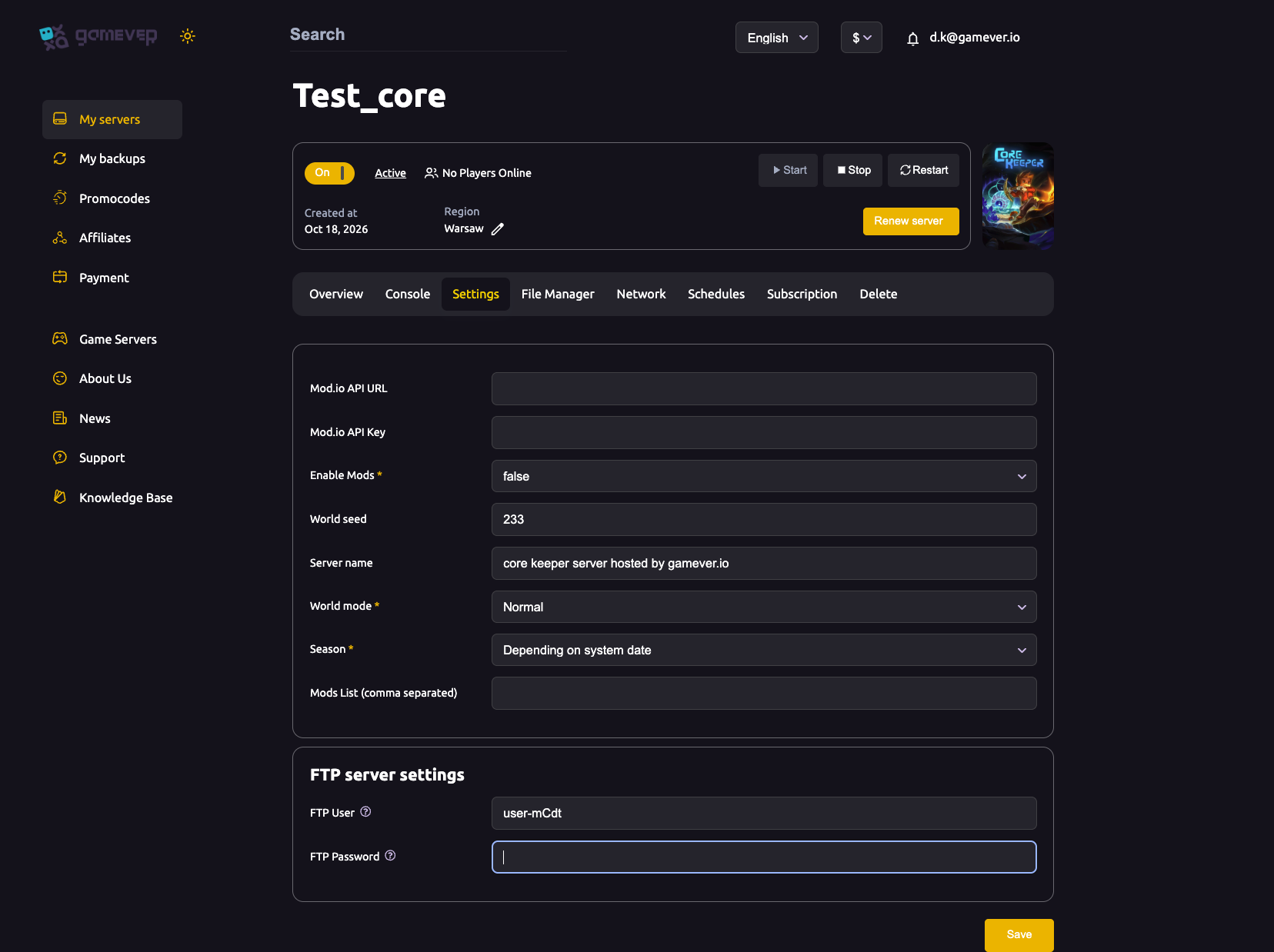
| Setting | What it does |
|---|---|
| World seed | Determines the layout; only used when the world is first created. |
| Server name | The name players see. |
| World mode | The difficulty / world type for this world — Normal, Hard, Creative or Casual. |
| Season | Controls seasonal events (e.g. "Depending on system date"). |
Pick the mode you want from the dropdown, scroll down and click Save, then Restart your server from the Overview tab so it loads with the change applied.
The four world modes
Core Keeper offers four world modes, and each changes the experience in a different way. The panel dropdown wording is what's authoritative for what you can pick; the effects below are drawn from Core Keeper's own game-mode documentation.
| Mode | What it changes |
|---|---|
| Normal | The default, balanced experience — standard enemy strength, resources and progression. The right choice for most groups and new players. |
| Casual | A gentler run: enemy health and damage are reduced by 50%. Good for players less interested in combat, or a more laid-back co-op session. |
| Hard | A tougher, higher-reward run: enemy and boss health increased by 50%, damage increased by 100%, and boss loot rolled 50% more often. Enemies hit far harder, but the drops are richer. |
| Creative | A building-focused sandbox: players get unlimited access to most items so they can build freely. It also changes world generation — the Core is removed and the centre of the world is a large patch of open ground. Creative worlds are a distinct type, so they're accessed by characters made specifically for them. |
If your group mostly wants to explore and build, Creative is its own world type rather than a simple difficulty tweak. For straightforward survival, you're choosing between Casual, Normal and Hard — the same world, dialled easier or harder.
World mode is set per world — not per server
This is the part worth reading twice. World mode belongs to the world, not to the server slot. It's chosen when a world is first generated, and Core Keeper's design treats it as fixed for that world's lifetime — in particular, switching a world between Creative and non-Creative is not supported. Changing the dropdown and restarting does not retroactively re-balance an existing, already-generated world the way changing a live toggle would.
So the reliable way to run a different mode is to start a fresh world on that mode rather than expecting an existing save to convert. In practice that means:
- Decide the mode before the first boot when you spin up a new server — this is the clean, no-regrets moment to pick Casual, Normal, Hard or Creative.
- If you want to change the mode of a running server, treat it as starting a new world: back up your current world first (download the
N.world.gzipsave via My backups or FTP), then set the new mode and generate a fresh world. - Keep Creative separate. Because Creative worlds use their own characters and altered generation, run them as a dedicated world rather than trying to flip an existing survival world into Creative.
The worldMode key in ServerConfig.json
The panel dropdown is the supported, simplest way to set this — but under the hood the same choice is stored as the worldMode key in ServerConfig.json. You'll find that file in the File Manager under /home/configs/, alongside Admins.json. The panel writes worldMode for you to match whatever you pick in the dropdown, so there's no need to edit the file by hand just to change difficulty — use the dropdown.
If you do open ServerConfig.json for other reasons (it also holds keys like world, gameId, maxNumberPlayers, name and password), you'll see worldMode listed there. Should you ever edit it directly, stop the server before editing, make your change, then start it again — Core Keeper only reads this file at boot. For a full walk-through of that file, see our Core Keeper server settings guide.
Additional Tips
- Choose your mode on day one. Because world mode is baked into the world at creation, the easiest time to get it right is before anyone has built anything.
- Back up before any change that means a new world — grab the
N.world.gzipsave from My backups or over FTP first. See resetting and wiping your world. - Normal is the safe default for mixed groups; drop to Casual if combat is wearing people out, or step up to Hard for a tougher, loot-richer challenge.
- Treat Creative as its own project. Its altered generation and dedicated characters make it a separate world, not a toggle on your survival save.
- Let the panel own the value. The dropdown writes
worldModefor you, so you rarely need to touchServerConfig.jsonjust to change difficulty. - Always Save, then Restart. A mode change isn't live until the server restarts from the Overview tab.
Conclusion
World mode is the single setting that most shapes how your Core Keeper server feels — from the gentle 50% enemy cut of Casual, through balanced Normal, up to the punishing, high-reward Hard, or the build-anything freedom of Creative. It's a one-dropdown change on the Settings tab (mirrored by worldMode in ServerConfig.json), but because the mode is tied to the world itself, the smart move is to pick it deliberately at world creation and back up before you ever start over on a different one.
Rent your Core Keeper server at gamever.io — set your world mode, seed and season in a couple of clicks from the panel, with backups a tab away. Free trial, promo code WELCOME.