
How to change the server Forge version?
Introduction:
Minecraft Forge is an essential tool for players looking to enhance their Minecraft experience with mods. It acts as a powerful gateway to a vast universe of Minecraft modifications, offering endless possibilities for customization. However, the rapid evolution of Minecraft mods means that server administrators often need to change their server's Forge version to maintain compatibility or to take advantage of the latest features. This detailed guide will walk you through the process of changing your server's Forge version, ensuring a smooth transition. Plus, discover how Gamever servers can elevate your modded Minecraft gameplay.
Why Change Your Forge Version?
Compatibility: Ensuring your Forge version is compatible with the mods you want to use is crucial.
Access to New Features: Newer versions of Forge often come with enhancements and new functionalities.
Performance Improvements: Updating Forge can lead to better performance and fewer bugs.
Step-by-Step Process to Change Your Forge Version
1. Backup your server.
Before making any changes, always back up your server. This includes world data, server settings, and any mods or custom files you have.
2. Accessing Your Server Settings
Log into your server’s control panel. This will be your central hub for making changes to your server, including updating Forge.
3. Locating the Forge Version Setting
In your server settings, look for the line labeled “Forge version." If you can't see this line immediately, click on “Show all fields” to reveal it.
4. Changing the Forge Version
By default, the Forge version might be set to "RECOMMENDED". To change it, manually input the required Forge version. Ensure you enter the correct version number that corresponds with your desired Forge update.
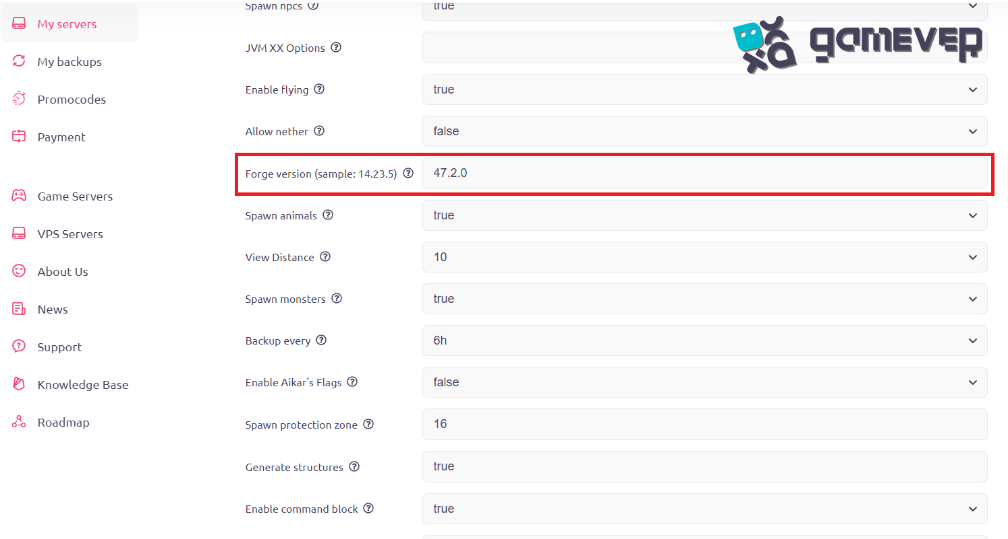
5. Saving and Applying Changes
After entering the new version, save your changes. The server will restart automatically.
6. Verifying the Update
Once your server restarts, verify that the Forge version has been updated successfully. This can typically be seen in the server console or the server’s main dashboard.
Tips for a Smooth Forge Update
Check Mod Compatibility: Before updating Forge, make sure that your mods are compatible with the new version.
Update Mods: Some mods may need to be updated alongside Forge. Check for updates and replace any outdated mod files.
Monitor Server Performance: After updating, keep an eye on server performance and functionality to ensure everything is running smoothly.
Handling common issues
Mod Incompatibility: If mods aren’t working post-update, check for compatibility issues or updates for the mods.
Server Crashes: If your server crashes after the update, review the server logs to identify the cause, which could be related to specific mods or configuration issues.
Gamever Servers: Enhancing Your Minecraft Experience
While managing a Minecraft server is rewarding, it can be technically demanding. Gamever servers provide a solution by offering high-performance server rentals that are easy to manage and customize.
Why choose Gamever?
User-Friendly Control Panel: Gamever offers an intuitive control panel, making server management accessible to everyone.
Customization at Your Fingertips: Easily adjust server settings, including Forge versions, to suit your specific needs.
Reliable and Secure: Enjoy a stable, secure gaming experience with minimal downtime.
Conclusion
To keep your Minecraft server compatible with mods and to guarantee the greatest gameplay experience, you must update the Forge version of your server. This article will walk you through the process of easily updating and maintaining your server by updating it to a new version of Forge. You may also enjoy a robust, feature-rich server environment with your buddies while taking your modified Minecraft adventures to the next level with Gamever servers. Begin your adventure now and discover the countless opportunities found in a Minecraft world that has been modified!