
How to Change the Max Players on Your ARK Server

The max players setting controls how many people can be connected to your ARK server at the same time. Set it too low and friends get turned away at a full server; set it far higher than you need and you pay for RAM and CPU that sit idle. This guide explains what the setting actually does on ARK: Survival Evolved and ARK: Survival Ascended, how to change the slot count on a gamever-hosted server, and how the number ties back to your plan and performance.
What "max players" really controls
ARK caps concurrent players with a single number that defaults to 70. How that number is stored differs between the two games, which is worth knowing even though gamever handles the mechanics for you:
| Game | Where the cap lives | Default |
|---|---|---|
| ARK: Survival Evolved (ASE) | MaxPlayers, in GameUserSettings.ini under the [/Script/Engine.GameSession] header | 70 |
| ARK: Survival Ascended (ASA) | The command-line option -WinLiveMaxPlayers=<number>, which replaces the old MaxPlayers INI value | 70 |
The key detail for ASA: the game no longer reads the MaxPlayers INI line on its own. If the server launches without -WinLiveMaxPlayers, it resets the cap back to the default 70 — which is exactly why hand-editing the INI often "doesn't stick" on Ascended. On a gamever server you don't touch either the file or the launch line by hand; you set one number in the panel and it applies the correct one for your game version on the next restart.
Change the slot count in the gamever panel
The ARK control panel has no command-line or Startup tab — all configuration goes through the Settings form, and the panel writes the right config for your game underneath.
- Open your server's Settings → Server Settings tab, alongside the other core server fields (server name, admin password).
- Find the Max players (slot count) value and set it to the number of simultaneous players you want.
- Click Save. The panel applies the change on the next restart — restart from the Overview/Control tab so it takes effect immediately rather than waiting for a scheduled reboot.
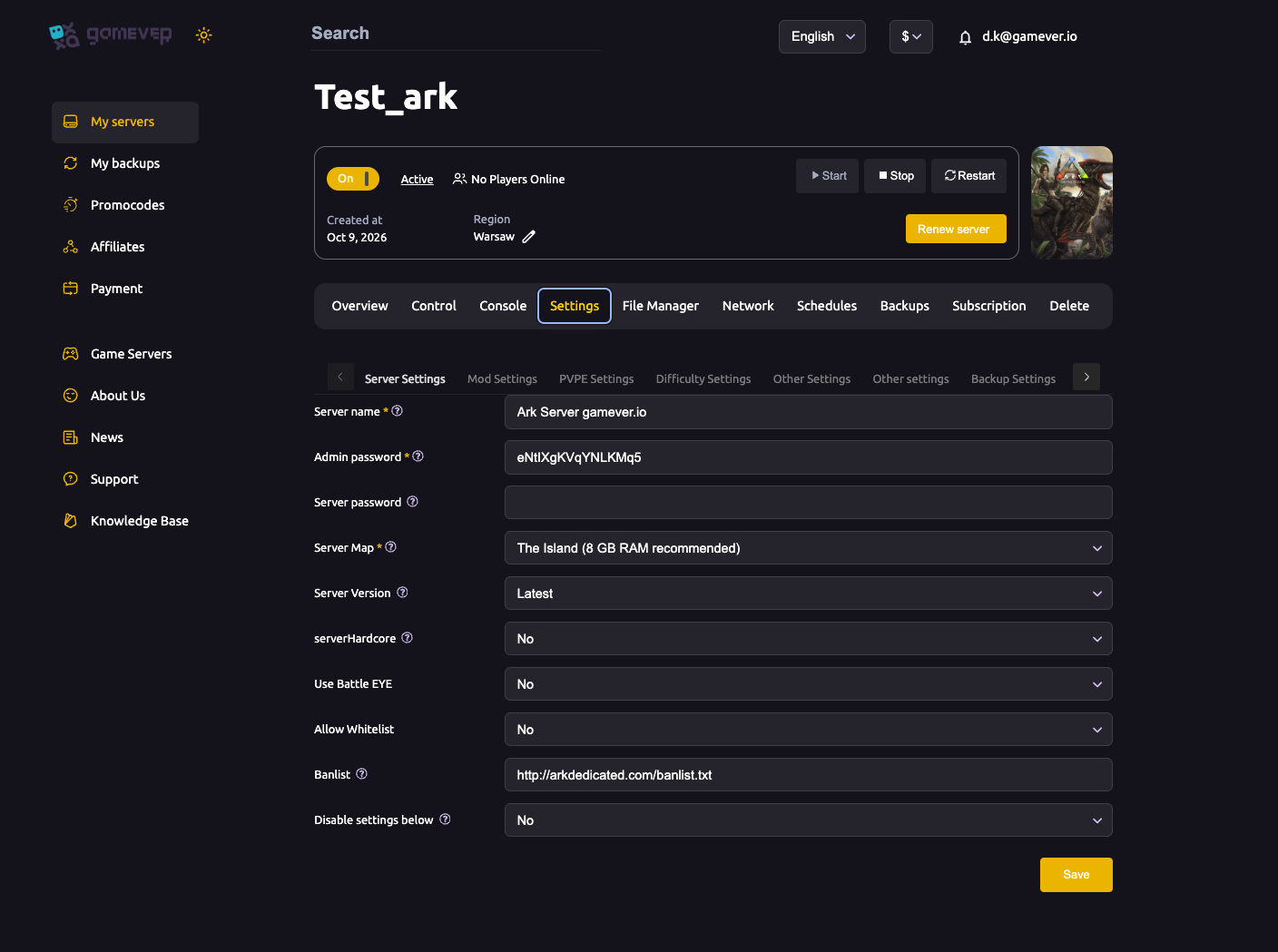
That's the whole change. Because the panel owns the config files, you don't need to add -WinLiveMaxPlayers for ASA or hunt for [/Script/Engine.GameSession] in the file manager — setting the field is enough.
Your plan sets the ceiling
There's an upper limit on how high you can push this: your gamever plan governs the maximum slots your server can run. The slot field controls how many of those slots are open, but you can't exceed what your plan provides — more players means more memory and CPU, and that capacity is what a plan pays for.
If you've hit your plan's ceiling and need more slots, upgrade to a larger plan (see the Subscription tab) or open a Support ticket and we'll help you size it. There's no benefit to setting the field higher than your plan allows — the extra slots simply won't be usable.
Slots, RAM and performance
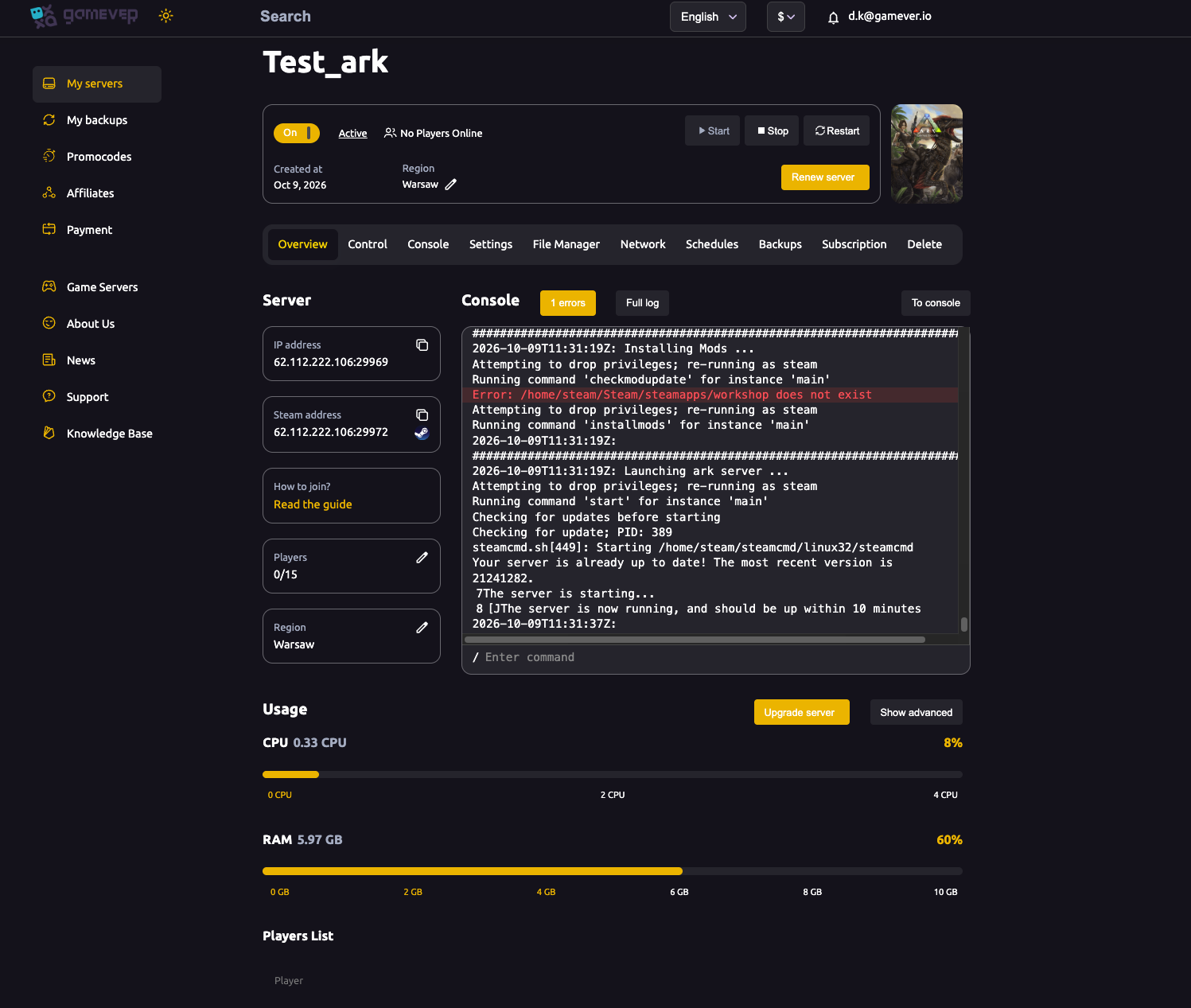
ARK is a heavy game to host, and every open slot adds load:
- More slots = more RAM and CPU. Each connected player streams a slice of the world, their tames and structures. A full 70-slot server works the hardware far harder than a 10-slot private one.
- Map and mods multiply it. Large maps and big mod lists already eat memory before anyone joins — a high slot count on top of that is what tips a server into lag.
- Right-size, don't max out. Set the cap to a bit above your usual peak, not to the biggest number your plan allows. A 10-player group runs smoother at 15 slots than at 70.
If performance dips as your server fills up, the slot count is only one lever — our server settings guide covers the tame caps, structure limits and save interval that also affect how a busy server performs.
Additional Tips
- Changes need a restart. The new cap applies when the server restarts, not live — expect a short reboot.
- Lowering the cap won't kick anyone already on. It only stops new joins once the server is at or above the new limit; players already connected stay until they disconnect.
- Full server? Check the real cause. If people can't join a server that isn't actually full, it's usually a version or connection issue rather than slots — see our can't-join troubleshooting guide.
- Plan your slots around events. Running a one-off event with extra guests? Bump the cap for the weekend and drop it back after, rather than paying for a bigger server year-round.
- Pair slots with sensible rates. A busy server feels very different from a quiet one — our ready-made presets are a good starting point for a populated world.
Conclusion
Changing your max players on ARK comes down to one field: set the slot count in Settings → Server Settings, Save, and restart. Behind the scenes gamever writes the MaxPlayers INI value for Survival Evolved or the -WinLiveMaxPlayers launch option for Survival Ascended, so you never have to. Just remember the ceiling is your plan — and that more slots means more hardware working to keep the world smooth.
Rent your ARK server at gamever.io and set your slot count from a one-click panel — scale up for an event, scale back after, no file editing and online 24/7. Free trial, promo code WELCOME.