
How to Change or Switch the Map on Your ARK Server
ARK ships with a whole roster of maps — The Island, Scorched Earth, Aberration, Extinction, Ragnarok, Valguero, Crystal Isles, Lost Island, Fjordur, The Center and more — and your gamever server can run any of them. This guide shows how to switch maps from the control panel, what happens to your current world, and what to watch for on RAM.
Switch the map in two clicks
- Open your server and go to Settings → Server Settings.
- Find Server Map and pick the map you want from the dropdown. Each entry shows its recommended RAM (for example, The Island (8 GB RAM recommended)).
- Click Save, then Restart the server from the top bar.
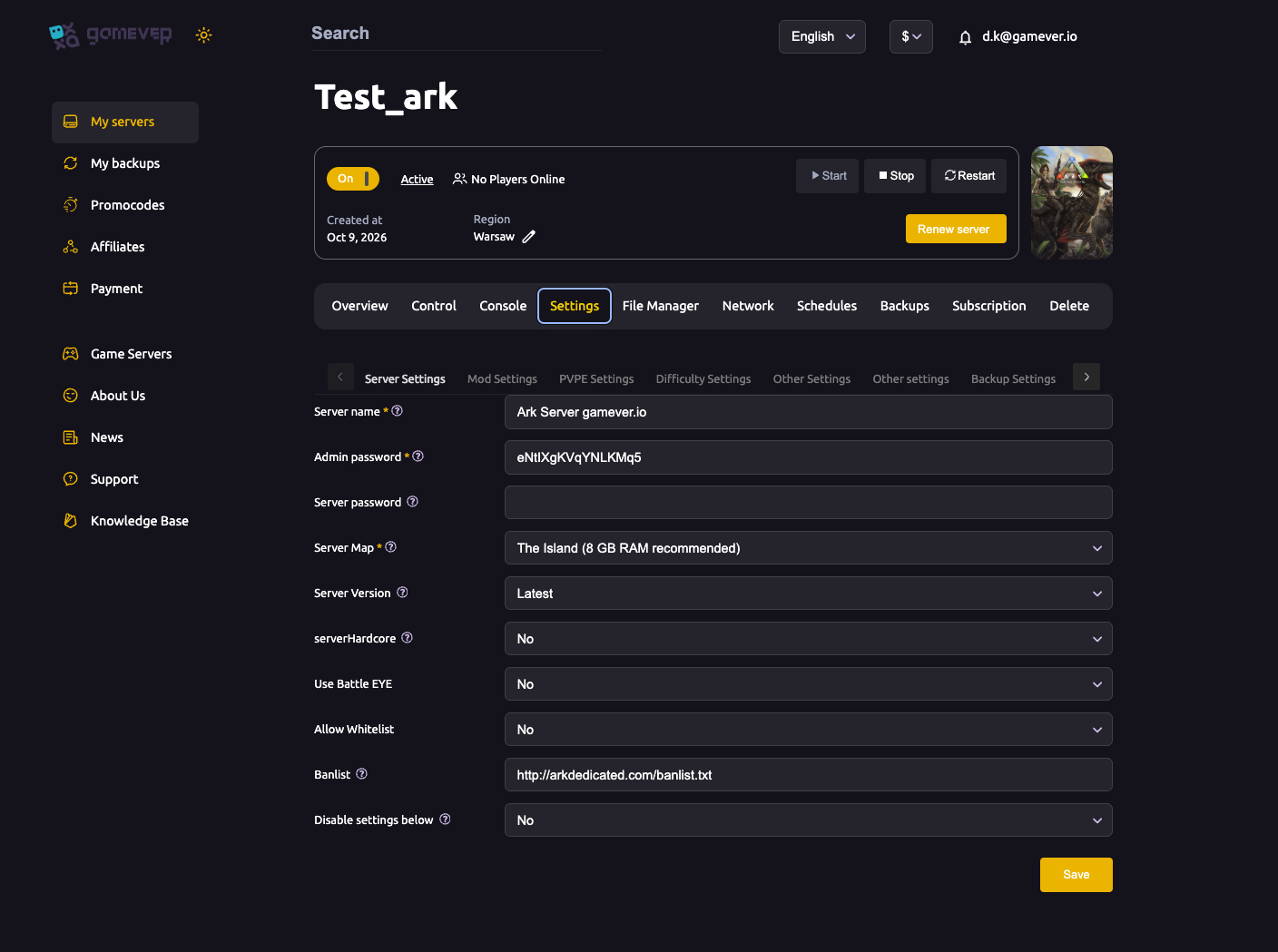
That's it — on the next boot your server loads the new map.
What happens to your old world?
Switching maps does not delete anything. ARK stores each map's save separately (by the map's file name), so your old map's world, bases and tames are kept on disk. Switch back to it later and your progress is right where you left it. The new map simply starts fresh the first time you load it.
Back up first anyway. A quick manual backup before any big change is cheap insurance — see our backups & schedules guide. On gamever you can also roll back from the Backups tab if anything looks wrong.
Mind the RAM
Bigger maps need more memory. The dropdown's "RAM recommended" figure is a real guide, not decoration — a map that wants 12–16 GB will stutter or fail to load on a smaller plan. If your target map recommends more RAM than your server has, bump your plan with Upgrade server on the Overview tab before switching.
| Map type | Typical RAM | Notes |
|---|---|---|
| The Island, The Center | ~8 GB | Good starting maps. |
| Scorched Earth, Aberration, Valguero | ~10 GB | Mid-size, DLC mechanics. |
| Extinction, Genesis, Ragnarok, Crystal Isles, Fjordur, Lost Island | ~12 GB+ | Large maps, heavier load. |
(Use the exact figure shown in your dropdown — it's tuned to each map.)
Custom and modded maps
The Server Map dropdown covers the official maps. To run a community/mod map (one from the Steam Workshop, like a custom biome map), you set it up through Mod Settings instead — see our guide to installing custom mod maps.
Additional Tips
- Tell your players before you switch — the server loads a different world, so they'll spawn fresh on the new map.
- Match the RAM recommendation or upgrade first; an under-provisioned map is the #1 cause of a map that won't finish loading.
- Your maps don't overwrite each other — experiment freely; switch back any time to resume an old world.
- Changing map ≠ wiping — if you actually want a clean slate on the same map, that's a reset, not a map switch (use Reset server in the File Manager).
- After switching, re-check map-specific settings like spawn/difficulty if you tuned them for the old map.
Conclusion
Switching ARK maps on gamever is a two-click job: pick the map under Settings → Server Settings, Save, and restart. Your old worlds stay safe, so you can rotate between Fjordur, Ragnarok and The Island whenever your tribe wants something new — just keep an eye on the recommended RAM.
Rent your ARK server at gamever.io and run any map you like, switch whenever you want, and upgrade RAM in one click. Free trial, promo code WELCOME.