
How to Change Max Players on Your Soulmask Server

On a Soulmask server rented from gamever, your maximum player count is set by two things: the plan you're on, which decides how many slots you have, and an optional cap you can set lower than that if you want a smaller session. There's nothing to install and no port to open — everything is done from the control panel. This guide shows where your current slot count is displayed, how to raise it, and how to cap it below your plan limit when you want a tighter group.
Your slot count comes with the plan
The number of players your server can hold is tied to your gamever plan, not to a setting you type in. You can see it at a glance on the Overview tab, where the player counter reads something like Players 0/20 — the number after the slash is your plan's slot limit.
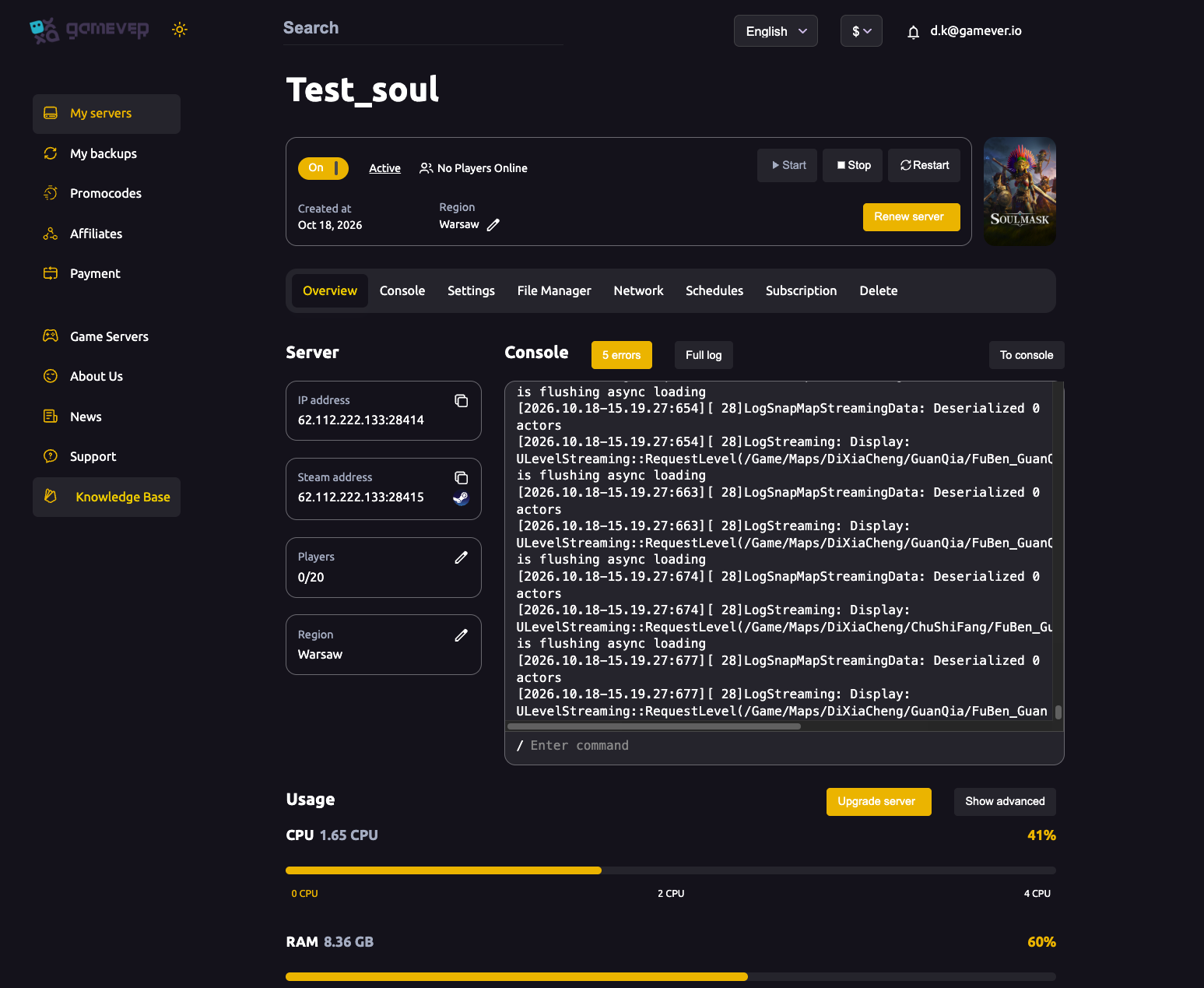
Because the ceiling is the plan, you don't need to edit any file to use all of it. A fresh server is ready to accept players right up to that number as soon as it's running. The two things you might want to change are: more slots than your plan allows, or fewer than your plan allows.
To add more slots: Upgrade server
If you've outgrown your current ceiling and want more players than your plan supports, the slot count moves with the plan — so you raise it by moving to a larger plan. Use the Upgrade server button in the panel header (next to Renew server). Upgrading changes your plan's slot limit; it does not wipe your world or reset your settings. After an upgrade, the Overview counter will show the new, higher ceiling.
To cap below your plan: the Launch arguments field
If you'd rather run a smaller session than your plan allows — say a private 10-player group on a 20-slot plan — you set a lower cap with Soulmask's dedicated-server max-players flag. On a gamever server, you don't touch a start script; you add the flag to the Launch arguments field under Settings → Server Settings.
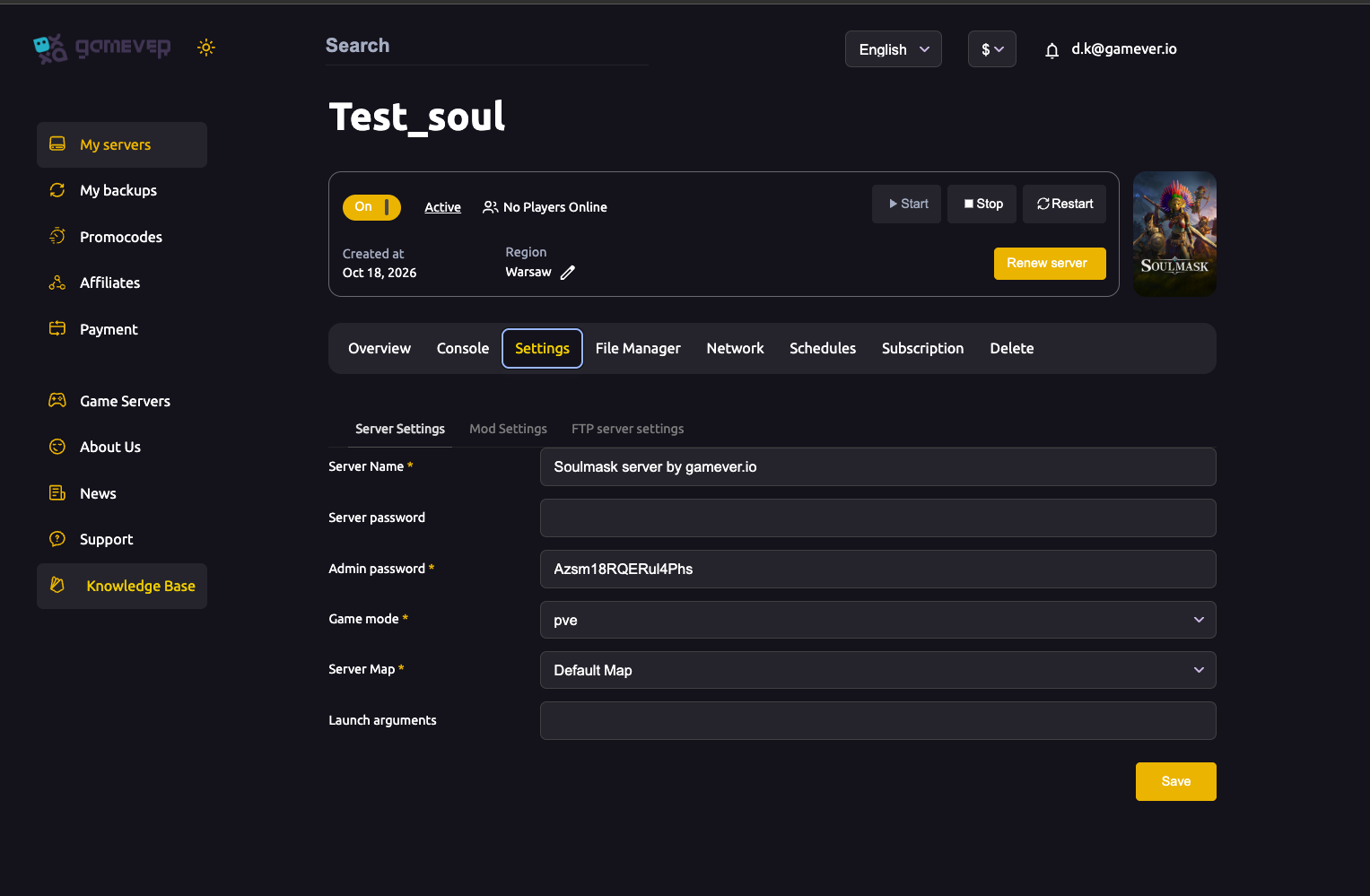
The Server Settings sub-tab holds these fields, in order:
| Field | What it does |
|---|---|
| Server Name | The name shown in the in-game server browser. |
| Server password | Blank = public; set a value to make the server password-protected. |
| Admin password | The in-game admin/GM password. |
| Game mode | pve or pvp. |
| Server Map | The world map, e.g. Default Map. |
| Launch arguments | Extra startup flags — this is where the max-players cap goes. |
Soulmask's dedicated server reads its player cap from the -MaxPlayers= startup flag (capital M and P, with an equals sign). To cap your server, add it to Launch arguments with the number you want:
| Flag | Example | Effect |
|---|---|---|
-MaxPlayers=N | -MaxPlayers=10 | Limits concurrent players to N. |
So -MaxPlayers=10 on a 20-slot plan holds the server to ten players. Set N at or below your plan's ceiling — the flag can only cap below the slot count your plan provides; it can't push past it. (The dedicated server's own default for this value is 20, which is why a fresh 20-slot server already behaves as -MaxPlayers=20 without you typing anything.)
If more than one flag is needed, separate them with spaces in the same field — but add only flags you've verified from Soulmask's own documentation; don't guess at unfamiliar ones.
Save, then Restart
Launch arguments are read when the server boots, so a change only takes effect after a restart:
- Enter the flag in Launch arguments and click Save.
- Go to Overview and click Restart.
- When the server is back up, the cap is live. The Overview counter still shows your plan ceiling, but the server will stop accepting joins once your capped number is reached.
If you ever want to return to the full plan ceiling, clear the flag from Launch arguments (or set it back to your plan's number), Save, and Restart.
Additional Tips
- Upgrade for more, Launch arguments for fewer. Raising the ceiling is a plan change (Upgrade server); lowering it within the plan is the
-MaxPlayers=flag. - Match the cap to your hardware headroom. A lower cap also means a lighter load, which can mean smoother performance for a small group.
- Verify any extra flag before you add it. Only use dedicated-server flags confirmed by Soulmask's official documentation — an unrecognised argument can stop the server booting.
- Remember the restart. Nothing in Launch arguments applies until the server is restarted from Overview.
- Not sure what your plan allows? The number after the slash on the Overview counter is your ceiling. If you need a cap you can't express with the flag, contact support.
- Keep the field tidy. One flag per setting, space-separated, no stray characters — a typo here is a common cause of a server that won't start.
Conclusion
Changing the player limit on your Soulmask server comes down to which direction you're going. For more players, use Upgrade server to move to a bigger plan — the slot count rides along with it. For a smaller, capped session, add -MaxPlayers=N to the Launch arguments field under Settings → Server Settings, then Save and Restart. Your Overview counter always shows the plan ceiling, and the cap simply holds the server below it. For the full tour of the other fields on that tab — server name, passwords, game mode and map — see server settings.
Rent your Soulmask server at gamever.io — full panel control over slots, settings and restarts, with a free trial and promo code WELCOME.