
How to Change Max Players on Your Icarus Server

On the gamever control panel, most of your Icarus server is configured from the Settings tab — the admin password, the join password and the server name all live there. The one thing you won't find on that page is the maximum player count. Icarus keeps that setting in a config file, not in the panel's Settings fields, so changing it means a quick edit through the File Manager (or over FTP). This guide walks through exactly where that value lives, how to change it safely, and why your hosting plan — not just the file — decides how many people can actually join.
Why Max Players isn't on the Settings page
The panel's Settings tab exposes the fields RocketWerkz surfaces for day-to-day use: Server admin password, Server password and Server name, plus your FTP server settings. Max players isn't one of them. Instead, Icarus reads it from ServerSettings.ini, which the dedicated server loads at boot. That's an important detail: because the value is only read when the server starts, you edit the file with the server stopped, then start it again for the change to take effect.
This is the honest, supported path for any Icarus setting the panel doesn't expose — you reach the config file directly rather than guessing at a panel field that isn't there.
Where the setting lives
Your Icarus config files sit together in one folder, reachable from the File Manager tab or any FTP client:
| Item | Value |
|---|---|
| Folder | /home/config/Saved/Config/WindowsServer/ |
| File | ServerSettings.ini |
| Section | [/Script/Icarus.DedicatedServerSettings] |
| Key | MaxPlayers |
| Default | 8 |
MaxPlayers is the number of players that can be connected to your prospect at once. The stock Icarus dedicated-server default is 8, matching the game's co-op design. The same folder also holds GameUserSettings.ini and Engine.ini, and the file is only created once the server has booted at least once — so if you don't see it yet, start the server once and come back.
Changing it through the File Manager
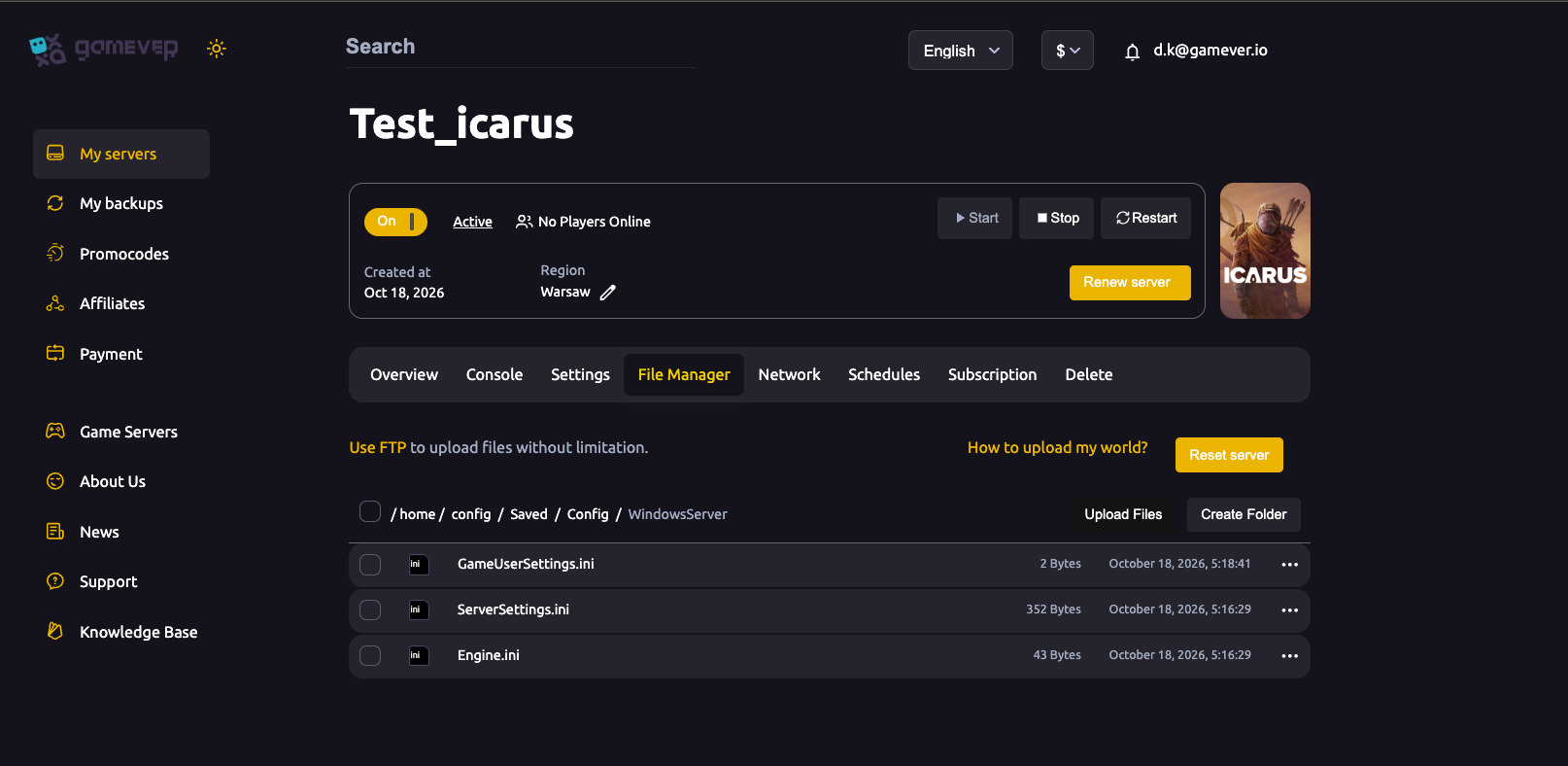
- Stop the server. Go to the Overview tab and click Stop. Icarus only reads
ServerSettings.iniat launch, so editing while it runs will have your change overwritten or ignored. - Open the File Manager tab and browse to
/home/config/Saved/Config/WindowsServer/. - Open
ServerSettings.iniand find the[/Script/Icarus.DedicatedServerSettings]section. - Set
MaxPlayersto the number of slots you want, for example:
   [/Script/Icarus.DedicatedServerSettings]
   MaxPlayers=8
If the key isn't present, add it on its own line under that section header.
- Save the file.
- Start the server from the Overview tab. Check the Console tab for a clean boot, then confirm the new capacity in-game.
Prefer a desktop editor? Grab your FTP login from Settings → FTP server settings, connect to the FTP address shown on the Network tab, download ServerSettings.ini, edit it locally and upload it back to the same folder — the server must still be stopped while you do it.
Your plan sets the real ceiling
Here's the part the config file can't tell you: your gamever plan's slot count is the real maximum. The Overview tab shows your current usage (for example 0/8), and the slot allowance comes with the plan you rent. Setting MaxPlayers higher than your plan allows won't add seats — the plan is the hard ceiling. If you've outgrown your current slots and want more players on your prospect, use the Upgrade server button at the top of the panel to move to a larger plan, then raise MaxPlayers to match.
So treat MaxPlayers as a way to set a limit at or below your plan's capacity — to cap a public server, say — rather than a way to conjure extra slots the plan doesn't include.
Additional Tips
- Stop first, always. The single most common reason a
MaxPlayerschange "doesn't work" is editing the file while the server is running. Stop, edit, save, start. - Keep the section header intact.
MaxPlayersonly takes effect inside[/Script/Icarus.DedicatedServerSettings]. A key placed outside its section is silently ignored. - Match the number to your plan. Check the
x/yfigure on Overview before you pick a value; the plan decides how high you can usefully go. - Set the admin password too. While you're in the panel, make sure Server admin password on the Settings tab is set — leaving it blank lets any joiner claim admin.
- Back up before editing. Take a copy from My backups in the left sidebar (or keep an FTP copy of the config folder) so you can roll back a bad edit.
- Name the server on the panel. Use the Settings Server name field rather than
SessionNamein the.ini, which is historically unreliable.
Conclusion
Changing max players on Icarus is a two-part job: edit MaxPlayers under [/Script/Icarus.DedicatedServerSettings] in ServerSettings.ini via the File Manager (stop → edit → save → start), and make sure your plan actually carries the slots you want — upgrade if it doesn't. Everything happens inside your gamever panel, with no self-install and no port-forwarding to worry about. For the fields that are on the panel, see our guide to the Icarus server settings.
Rent your Icarus server at gamever.io — full File Manager and FTP access, one-click upgrades when your crew grows, and easy backups before every change. Free trial, promo code WELCOME.