
How to Change Max Players on Your Core Keeper Server
Your Core Keeper server is already running with us at gamever.io, so raising or lowering the player limit is a quick config change through the control panel — no reinstall, no SteamCMD, no port forwarding. The one thing that surprises most people is where the setting lives. Core Keeper's player cap is not on the panel's Settings page; it sits in a config file you edit through the File Manager. This guide shows you exactly which file, which key, and the safe stop-edit-start order to apply it.
There is no max-players field in Settings
If you open the Settings tab looking for a "max players" dropdown, you won't find one. The Core Keeper Settings page exposes mod.io fields, the world seed, server name, world mode and season — but no player-limit field and no password field. That's expected. Core Keeper keeps the player cap in its server config file instead, so that is where you change it.
The file you want is ServerConfig.json, and you reach it from the File Manager tab.
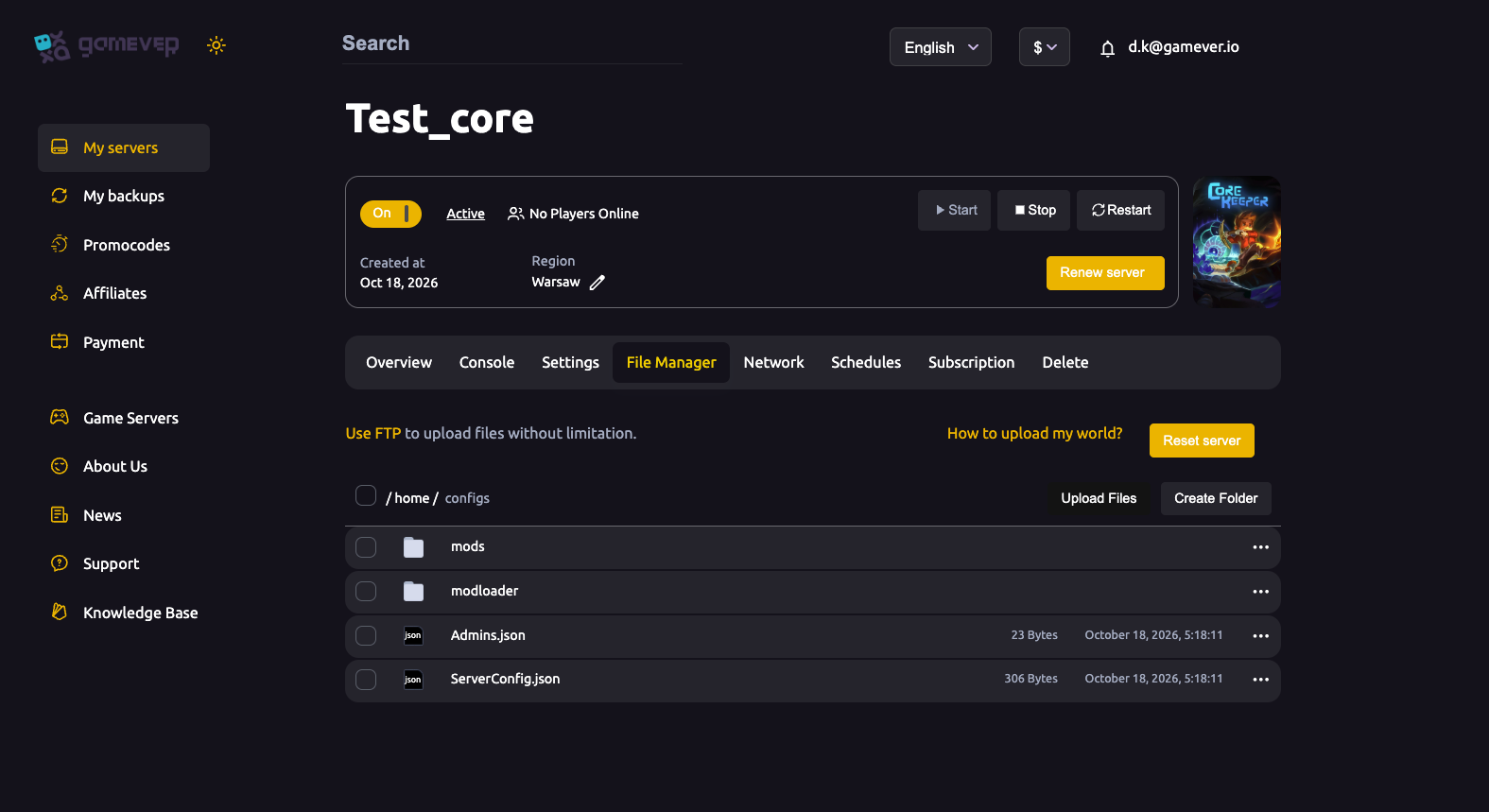
The File Manager opens on /home/configs/. Alongside the mods and modloader folders you'll see two files: Admins.json (admin identities) and ServerConfig.json, which holds the server-level options the panel doesn't surface — including the player cap.
| Key | What it controls |
|---|---|
maxNumberPlayers | The player limit — the value this guide changes |
name | Server display name |
password | Join password (blank = open) |
world | Numbered save slot the server loads |
gameId | The Game ID players paste to join (blank = regenerates each boot) |
worldSeed | Seed, used only when a world is first created |
worldMode | World type / difficulty |
Only touch maxNumberPlayers for this task; leave the other keys as they are unless you specifically mean to change them. If you want to adjust the name, seed or world mode instead, most of those have proper panel fields — see Core Keeper server settings.
What value to set
Core Keeper is a 1–8 player co-op game: Pugstorm designed it for up to eight players dropping in and out of a shared world, so 8 is the natural ceiling for a standard co-op server, and the value most groups should use. The shipped config value is higher (100), but that number is a soft default rather than a promise — the figure that actually matters is set by two real limits:
- Your plan's slot allowance. The player capacity that comes with your rented server caps the practical maximum. Setting
maxNumberPlayersabove what your plan allows will not magically add slots — the plan limit wins. If you've outgrown your current size, use Upgrade server at the top of the panel to add headroom. - CPU and RAM. Every connected player costs resources. A very high value doesn't just need more slots — it needs more compute to keep the world responsive. Pushing the number far past what your group actually uses only risks lag, not a better experience.
So pick a number that matches how many people really play together, keep it at or below your plan's capacity, and upgrade the server if you genuinely need room for a bigger group.
Change the limit, step by step
Core Keeper reads ServerConfig.json when the server boots, so you must stop it before editing — a change made while it's running won't take, and can be overwritten on shutdown.
- Stop the server. On the Overview tab, click Stop and wait for it to go fully offline.
- Open the file. Go to File Manager, open
/home/configs/, and openServerConfig.jsonin the web editor. - Edit
maxNumberPlayers. Find themaxNumberPlayersline and set it to your chosen number — a plain integer, no quotation marks (for example"maxNumberPlayers": 8). Keep the rest of the JSON intact: commas, braces and quotes all matter. - Save. Save the file in the editor.
- Start the server. Back on Overview, click Start and watch the Console come up clean.
That's it — the new cap is live from the next boot.
Additional Tips
- Match the value to your group, not the maximum. There's no benefit to setting 8 slots for a trio; a tighter number keeps resource use sensible.
- Mind your plan. If the limit won't go as high as you want, it's almost always the plan capacity, not the file. Upgrade server adds slots and the CPU/RAM to back them.
- Keep the JSON valid. A stray missing comma or quote will stop the file loading. If the server refuses to boot after an edit, re-open the file and check the syntax first.
- Stop before you edit. Core Keeper only reads this file at startup, so always stop, edit, save, then start — editing live does nothing useful.
- Back up before big changes. Grab your world (the numbered
N.world.gzipsave) via My backups or FTP before reworking the config, so a bad edit is never costly. - The Console confirms the session. After boot, the Console prints the live session line (
IP;port;gameId;password) — handy for confirming the server came back up and sharing the Game ID.
Conclusion
Changing the player limit on a Core Keeper server comes down to one key in one file: open File Manager → /home/configs/ → ServerConfig.json, set maxNumberPlayers, and apply it with a clean stop → edit → save → start. Keep the value in line with how many people actually play and with your plan's slot allowance, and reach for Upgrade server when you want real room to grow rather than a number the hardware can't honour. For the rest of the tunables — name, seed, world mode, mods and more — see Core Keeper server settings.
Rent your Core Keeper server at gamever.io — full File Manager and FTP access, easy upgrades when your group grows, and one-click backups before you change a thing. Free trial, promo code WELCOME.