
How to Boost FPS in Satisfactory Release 1.0
With the Release 1.0 update hitting the scene, it’s time to fine-tune your settings to make sure you’re getting the smoothest gameplay possible. If your FPS isn’t quite where you want it, follow these steps to give it a serious boost.
Check Your Game Files
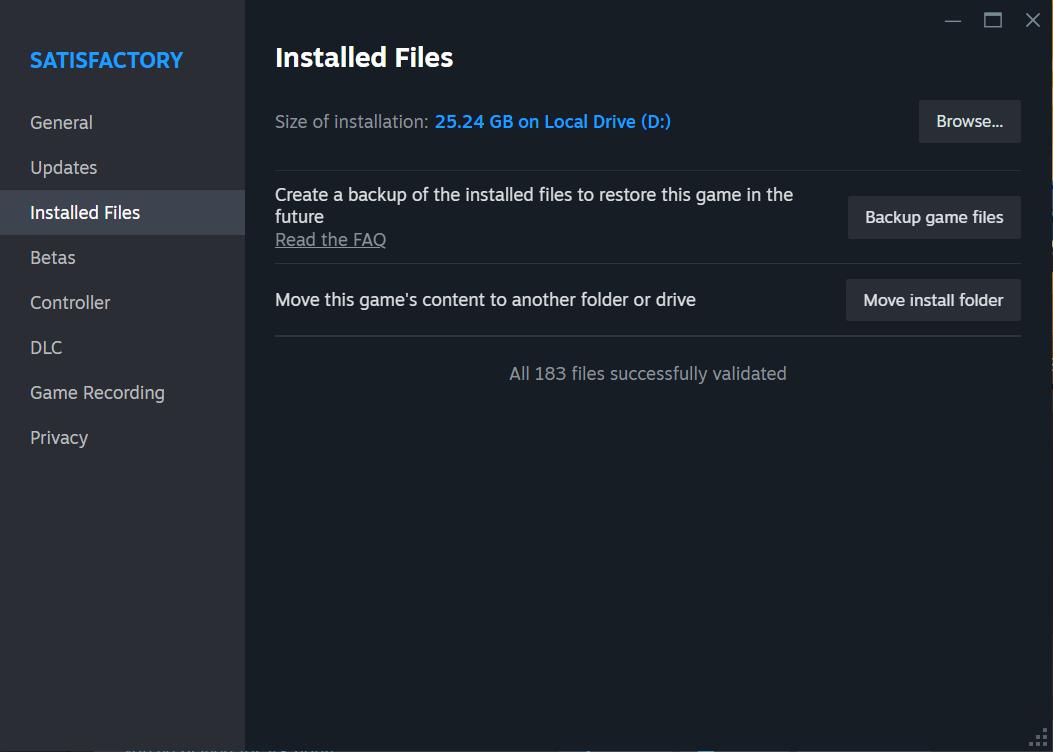
Before we dive into settings, if you’re having trouble launching Satisfactory, verify the game files on Steam or Epic Games. Sometimes, a quick verification can fix those startup issues and set you up for smoother gameplay.
Tweak Windows Settings
Let’s start by optimizing Windows settings. Right-click the Windows flag, go to Settings, then Gaming. Turn off the Game Bar—this feature can interfere with game performance. Also, make sure Game Mode is enabled.
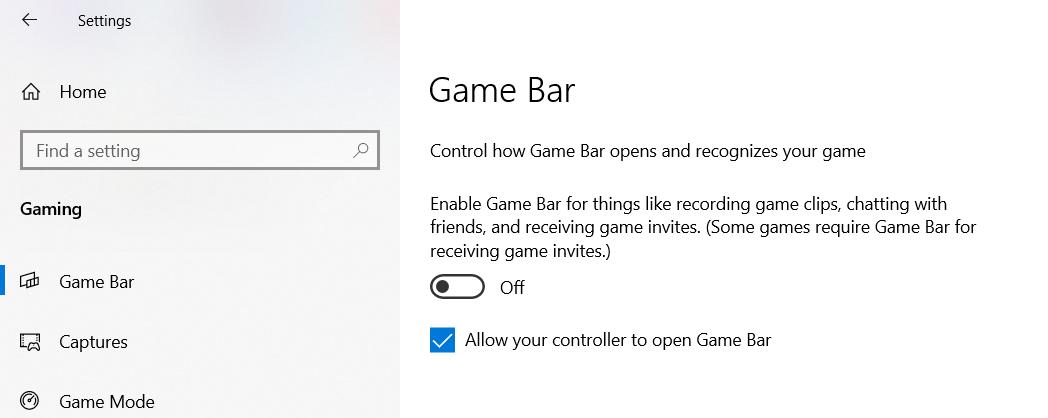
Game Mode helps by turning off background processes that you don’t need while gaming, which can improve FPS on Windows 11.
Head to your display settings and ensure your monitor’s refresh rate is set to the maximum it can handle. A higher refresh rate can enhance your FPS. In the gaming settings, also turn off "Record what happened" under the Capture section to avoid unnecessary performance hits.
Configure In-Game Settings
Fire up Satisfactory and go to the options menu. Set your resolution to the native resolution of your display for optimal performance. Fullscreen mode is preferred over windowed mode for a more stable frame rate. Under Graphics API, select DX12 if available, as it generally offers better performance compared to DX11.
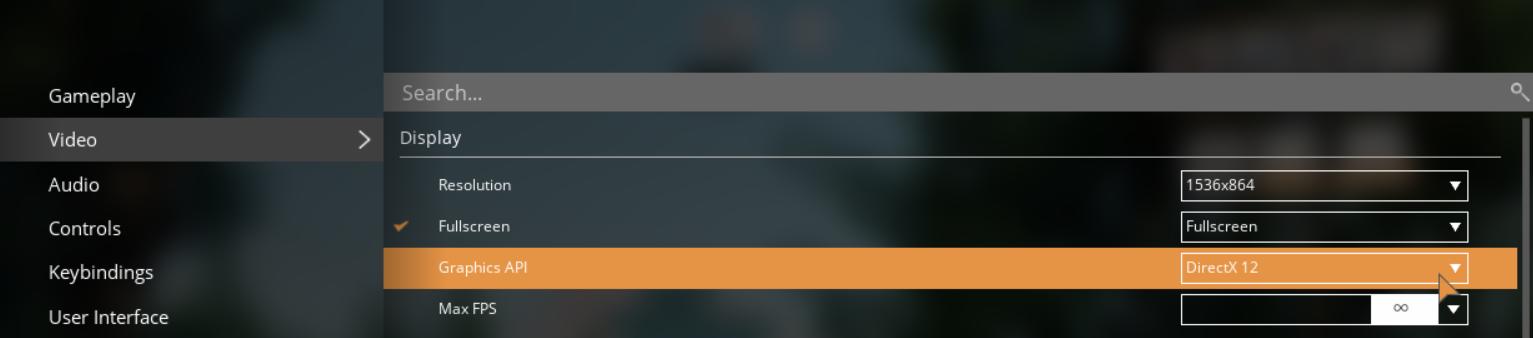
For FPS, set the Max FPS to match your monitor’s refresh rate—144Hz if that’s what you have. If you’re struggling with severe FPS issues, you might need to lock it to 60 FPS instead. Use the in-game hardware benchmark tool to find the optimal settings for your system. Start with the Ultra preset and adjust as needed based on performance.
Fine-Tune Graphics Quality
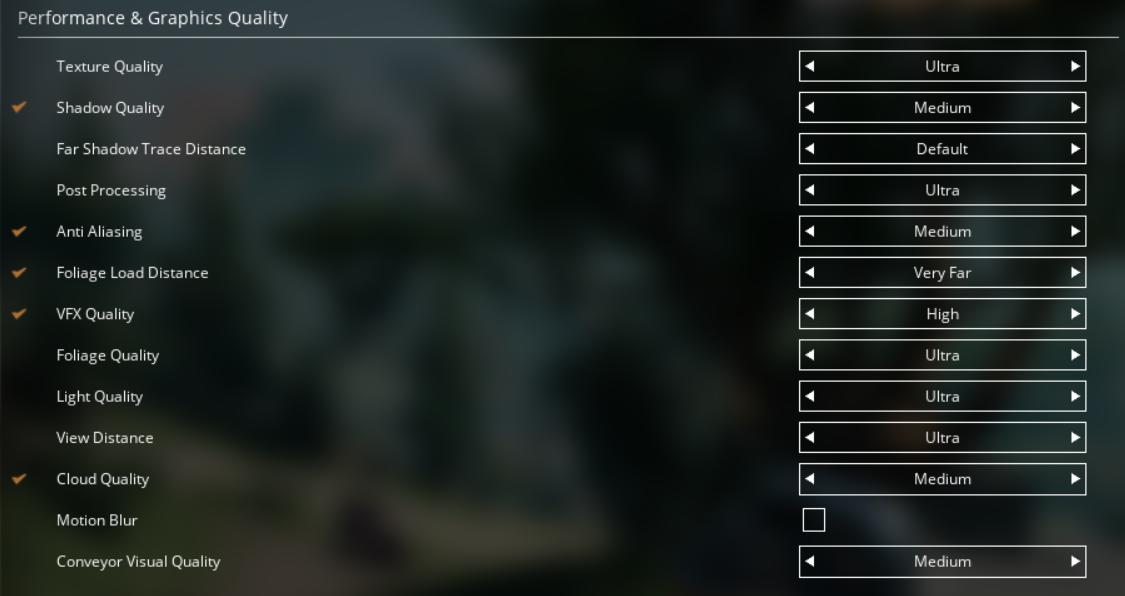
In the graphics settings, adjust the following:
- Shadow Quality: Lower this to Medium. Shadows can be quite taxing on performance.
- Shadow Tracing: Leave at default to avoid graphical glitches.
- Post Processing: Leave this at the suggested value from your benchmark.
- Anti-Aliasing: Set this to Medium instead of Ultra to balance performance and visual quality.
- Foliage Load Distance: If you’re seeing stutters, set this to Near; otherwise, keep it at Very Far for the best visuals.
- VFX Quality: Lower this if you’re experiencing performance issues, but be aware it might make the game look dated.
- View Distance: Reduce this to Medium or Near to improve FPS, especially if you’re having trouble with performance.
- Cloud Quality: Set this to Ultra or turn off if it’s causing performance drops.
- Motion Blur: Turn this off to avoid performance drops and visual smearing.
- Conveyor Visual Quality: Lower this if you’re running a mega base to prevent lag.
Optimize Advanced Settings
In Advanced Settings:
- Upscaling Method: Choose the appropriate method for your GPU (AMD or Nvidia). Using upscaling can enhance performance.
- Anti-Aliasing Method: Select Temporal AA for a good balance of performance and stability.
- Upscaling Preset: For maximum FPS, set this to Performance. Adjust to Balanced or Quality depending on your needs.
- Conveyor Belt Item Frequency and Render Distance: Lower these settings if you experience lag with many conveyor belts in view.
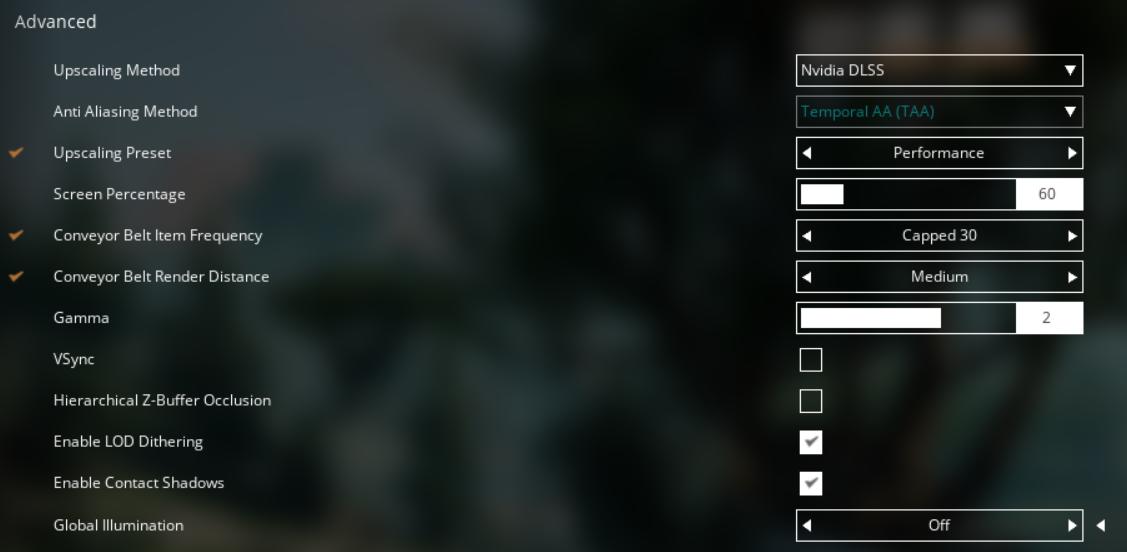
Apply your changes and test your custom performance mode in Satisfactory. You can always adjust each parameter as needed.
Boosting your FPS in Satisfactory Release 1.0 involves a mix of Windows settings tweaks and in-game adjustments. By following these steps, you should see a significant improvement in performance. If you found this guide useful, drop a like and consider subscribing for more awesome tips.