
How to Become Admin on Your Icarus Server

Admin rights on your gamever-hosted Icarus server are earned in two moves: you set a Server admin password in the control panel, then you authenticate in-game by typing a chat command. There is no separate web console to grant you powers and — importantly — Icarus has no RCON, so every admin action happens inside the game while you are connected. This guide covers the supported way to do it through your gamever panel, without touching a dedicated-server install or any remote tooling.
Step 1 — set the admin password in Settings
Open your server in the gamever control panel and go to the Settings tab. The first field on the page is Server admin password. Type a strong password here, then scroll down and click Save.
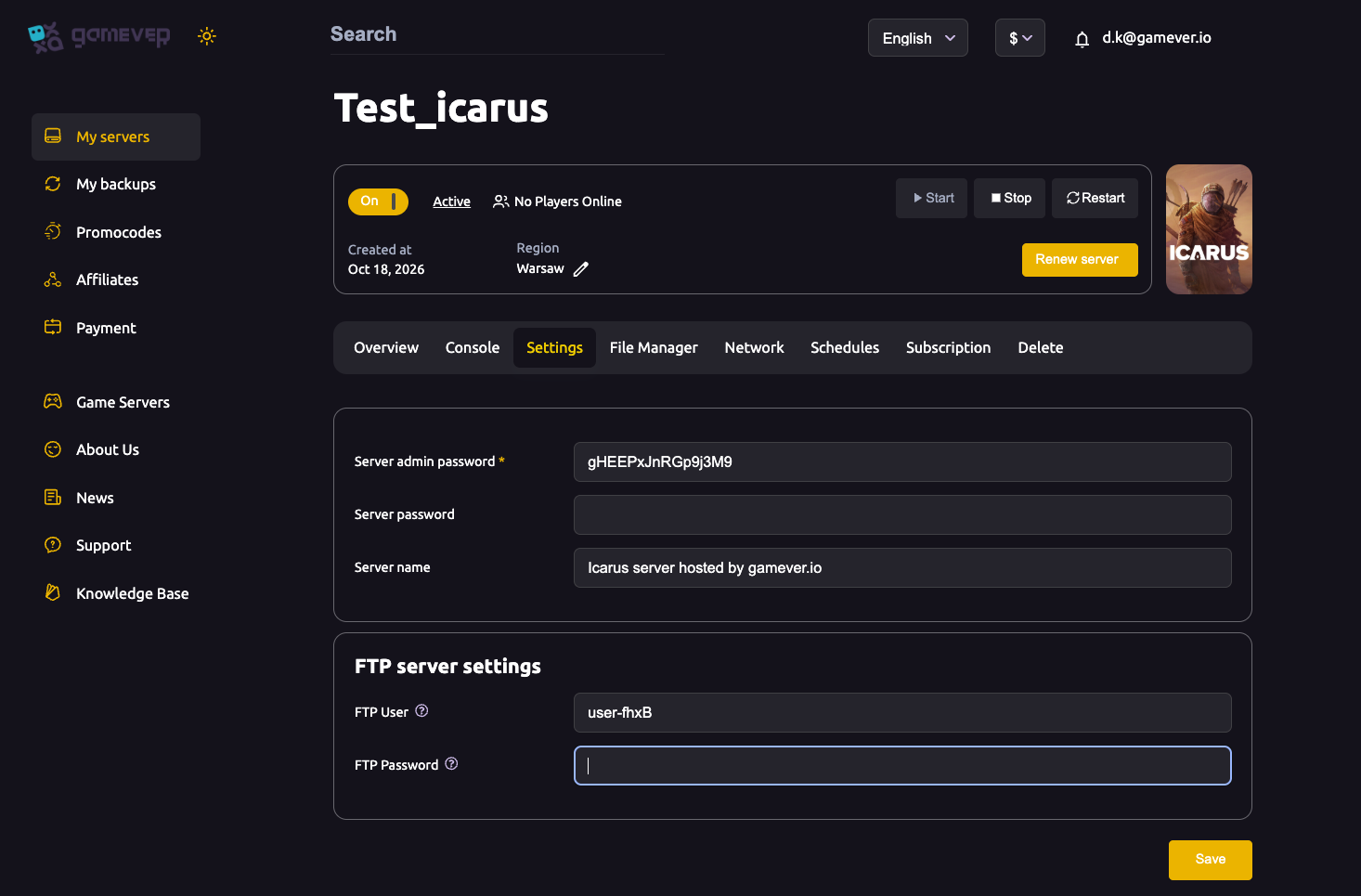
| Field | Type | What it does |
|---|---|---|
| Server admin password | text | The password you type in-game to claim admin. Leave it blank and anyone who joins can claim admin — always set it. |
| Server password | text | The join password players need to connect. Blank = open to anyone with the address. |
| Server name | text | The name shown in the browser, e.g. "Icarus server hosted by gamever.io". |
After saving, apply the change: go to the Overview tab and click Restart so the server reloads with the new admin password. The address and ports are already assigned for you on the Network tab — there is nothing to port-forward.
Never leave the admin password blank. On Icarus, an empty admin password means the admin-login command will grant admin rights to anyone who runs it. On a public or password-protected server this is the single most common security mistake. Set a password that is different from your join password.
Step 2 — log in as admin in-game
Admin authentication happens from inside the game, once you are connected:
- Join your server and spawn into the prospect (world).
- Press Enter to open the chat box.
- Type the admin-login command followed by your password, then press Enter:
/AdminLogin yourpasswordhere
That command — the one Icarus uses to elevate a connected player — matches the Server admin password you set in the panel against what you typed. If they match, you are admin for that session. Icarus does not keep a persistent list of admin accounts tied to Steam IDs the way some games do; it is a single shared password that any trusted player can use the same way.
Verify as you go. RocketWerkz's exact command text can shift between updates. The form above is the one every current host and the community documentation use, but if it ever doesn't take, confirm the current command and syntax on the official Icarus wiki before trying variations — don't guess at alternate spellings.
A few things worth knowing about how this behaves:
- Admin is per-session. Your elevated status lasts only while you stay connected. If you disconnect and rejoin, you log in again with
/AdminLogin. - It's password-based, not account-based. Anyone you give the admin password to can log in as admin, so treat it like a key — share it only with people you trust, and change it in Settings → Save → Restart if it leaks.
- No console, no RCON. There is no in-game developer console separate from chat, and no remote console port. Everything an admin does is typed into the same chat box after logging in.
Step 3 — use your admin commands
Once /AdminLogin succeeds, the admin and cheat commands become available to you — kicking and banning players, managing the session, and the various gameplay/cheat commands. These are all typed into chat the same way, as / commands.
Rather than reproduce the full list here (it changes with updates), see our dedicated reference: Icarus console and admin commands. That article lists the current commands and what each one does.
Additional Tips
- Set the admin password before you ever open the server to others. A fresh server with a blank admin field is wide open to admin-claiming the moment someone joins.
- Use two different passwords. Keep your Server admin password separate from your Server password (join password) — see server passwords explained for how the two differ and when to use each.
- Restart after changing it. The admin password is read at boot, so a change in Settings only takes effect after you Save then Restart from the Overview tab.
- Re-login after a crash or restart. If the server restarts (scheduled or manual), everyone — including you — needs to run
/AdminLoginagain after reconnecting. - Rotate the password if it spreads. Because admin is just a shared password, the only way to revoke it from someone is to change the password and restart.
- Keep the exact command handy. If
/AdminLoginever doesn't work after a game update, check the official Icarus wiki for the current syntax before improvising.
Conclusion
Becoming admin on your Icarus server is a panel step plus an in-game step: set the Server admin password under Settings (never leave it blank), Save and Restart, then join and type /AdminLogin <password> into chat to elevate yourself for the session. There's no RCON and no remote console — Icarus keeps admin entirely in-game — so once you're logged in, head to the console and admin commands list to put those powers to use, and review server passwords to keep the admin and join keys straight.
Rent your Icarus server at gamever.io — a full control panel, File Manager and FTP access, and one-click restores so you can experiment freely. Free trial, promo code WELCOME.