
How to Become Admin and Use Admin Commands on Your Soulmask Server

On your gamever Soulmask server, becoming an administrator doesn't involve editing the server install or running any command-line tools — the whole flow is handled through the control panel and then in-game. You set one password in the panel, join your world like any other player, and authenticate as a GM from inside the game. This guide covers exactly where the Admin password lives, how to log in as admin once you're in the world, and how to reach the in-game admin menu. Because Soulmask's GM command list comes from the community and changes between patches, we keep the command reference pointed at the official wiki rather than reproducing a list that may be out of date.
Step 1 — Set the Admin password in the panel
Everything starts with the Admin password field. Open Settings → Server Settings, and you'll find it in the first block of fields alongside your server name and join password.
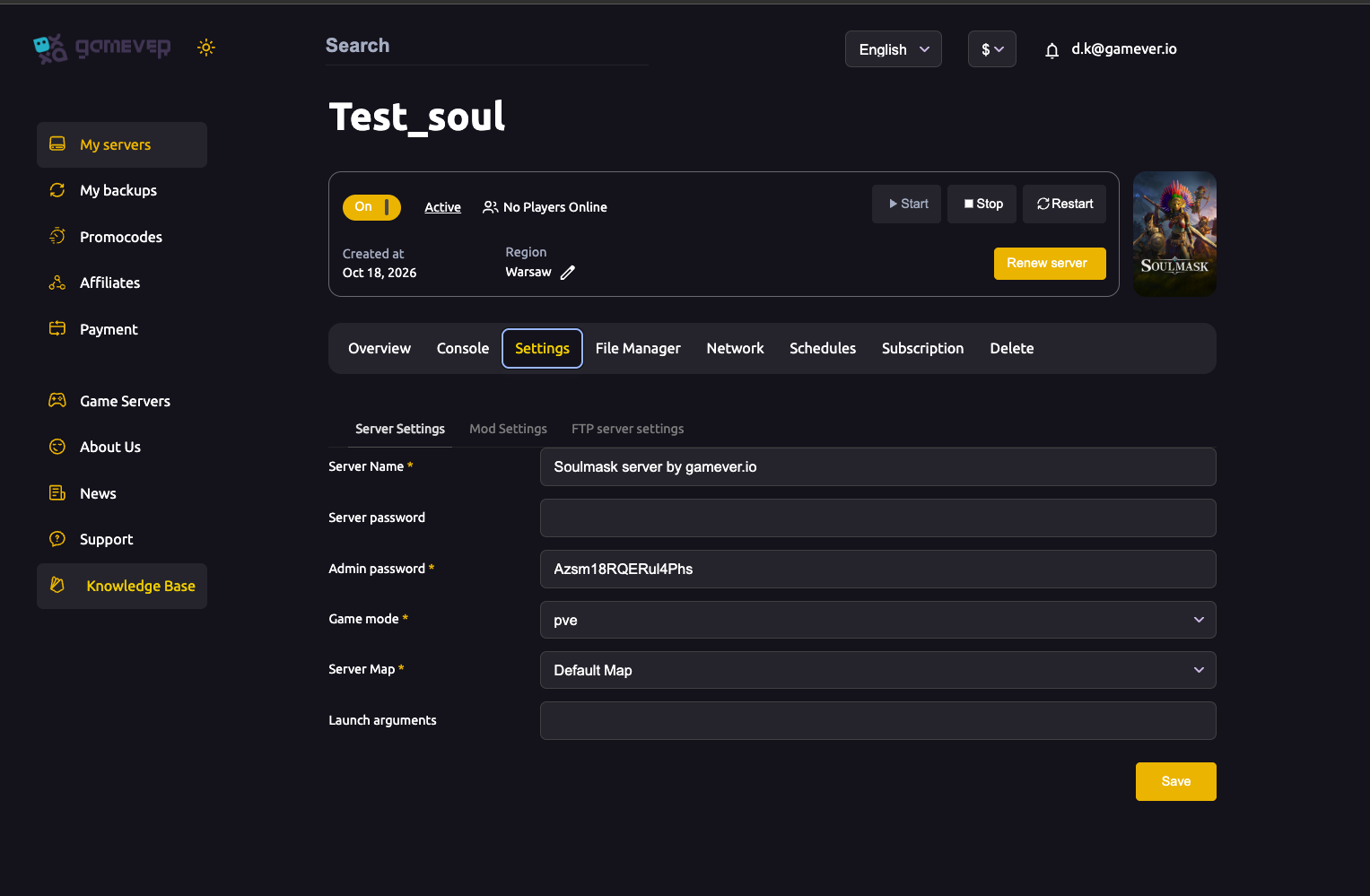
| Field | What it does |
|---|---|
| Server Name | The name shown in the server browser (e.g. "Soulmask server by gamever.io"). |
| Server password | The join password. Blank = public; set it to make the server private. This is not your admin password. |
| Admin password | The GM credential you'll use in-game to become admin. Treat it like a root password — anyone who knows it has full admin control. |
| Game mode | pve or pvp. |
| Server Map | The world map (e.g. "Default Map"). |
Enter a strong value in Admin password, click Save, then open the Overview tab and Restart the server so the new credential is loaded. A blank Admin password means GM access is effectively off, so always set one before you try to log in.
Step 2 — Authenticate as admin in-game
Soulmask has no "add admin by name" step and no admin list to maintain — admin status is granted to whoever enters the correct password from inside the game. Once the server has restarted with your Admin password set:
- Join your server as you normally would, and spawn into the world with your character.
- Open the in-game console. The console is bound to the tilde key (~) by default; a numeric-keypad binding was added in an early hotfix as an alternative if the tilde key doesn't register on your keyboard layout. If neither opens it, confirm your current binding on the official wiki before troubleshooting further.
- Enter the admin log-in using your Admin password — the game's GM/admin panel opens once the password is accepted.
- Confirm to become admin. Soulmask's GM panel asks you to confirm the password a second time before granting rights, so complete that final step rather than assuming the open panel means you're already authenticated.
Admin rights stay active for that session until you log out or step down from admin via the panel's own control, so you can drop back to normal play without restarting. Because the exact console key and the precise log-in syntax have shifted across patches, treat the official wiki (below) as the authority on the current wording if a step doesn't behave as described.
Step 3 — Use the in-game admin menu
Once you've authenticated, Soulmask's admin tools live in the in-game GM/admin menu — a panel inside the game, not in the control panel. From there you reach the GM actions the game exposes (world, character, NPC and event controls). Admin GM commands are also typed into the same in-game console you used to log in.
We deliberately do not reproduce a full GM command list here. Soulmask's commands are community-documented rather than published by Qooland Games, the spellings and case-sensitivity differ between sources, and several entries are tied to specific patch versions — so a copied list risks being wrong on your build. For the current, maintained command reference, check the official Soulmask wiki at soulmask.wiki.gg and confirm each command on your own server before relying on it.
A note on RCON: the gamever panel for Soulmask has no RCON row — there's no remote-console field in Settings or on the Network tab. Administer the server the supported way: log in as GM from inside the game as described above. Your Network tab shows the panel-assigned server and Steam query addresses (the panel handles all ports — you never port-forward), and that's all you need to connect.
Additional Tips
- Set the Admin password before your first real session. A blank field leaves you with no way to run GM actions in the world.
- Keep the Admin password separate from the Server (join) password. They're two different fields doing two different jobs — don't reuse one for the other.
- Restart after changing it. The Admin password is read when the server boots, so Save in the panel then Restart from Overview for a change to take effect.
- Share it sparingly. Anyone with the Admin password can become GM and reshape your world; rotate it in Settings → Server Settings if it leaks.
- Confirm commands against the official wiki. Community command lists drift between patches — verify on soulmask.wiki.gg before running anything destructive.
- Watch the Console tab after a restart to confirm the server came back up cleanly before you try to log in as admin.
Conclusion
Admin access on a gamever Soulmask server is refreshingly simple: set the Admin password under Settings → Server Settings, Save and Restart, then join your world and authenticate as GM from the in-game console to open the admin menu. There's no admin whitelist to manage and no RCON to configure in the panel — the password is the key, and the in-game GM panel is where you work. For the exact GM command syntax, lean on the official wiki rather than a copied list, since Soulmask's commands move with each patch. When you're ready to manage who else can play, see banning and unbanning players, and for the rest of the Server Settings fields, see our server settings guide.
Rent your Soulmask server at gamever.io — Admin password, game mode and map are all a couple of clicks away in the panel, with a full File Manager and FTP when you need them. Free trial, promo code WELCOME.