
How to Ban, Unban and Kick Players on Your Project Zomboid Server
Running a Project Zomboid server with other people eventually means removing someone — a griefer, a troll, or just a player you need gone for a while. Project Zomboid handles this with a small set of admin commands you run as the server admin: kick a player off, ban them by name or by Steam ID, and lift a ban later. This guide covers each command and when to use which, all from your gamever control panel. (For setting up the admin account itself, see passwords & admin; for the player whitelist, this guide covers only the ban-related commands.)
Before you start: log in as admin
These commands only work for the server admin, so you need the admin account set up first. On Settings → Server Settings you'll find the Admin username and Admin password fields:
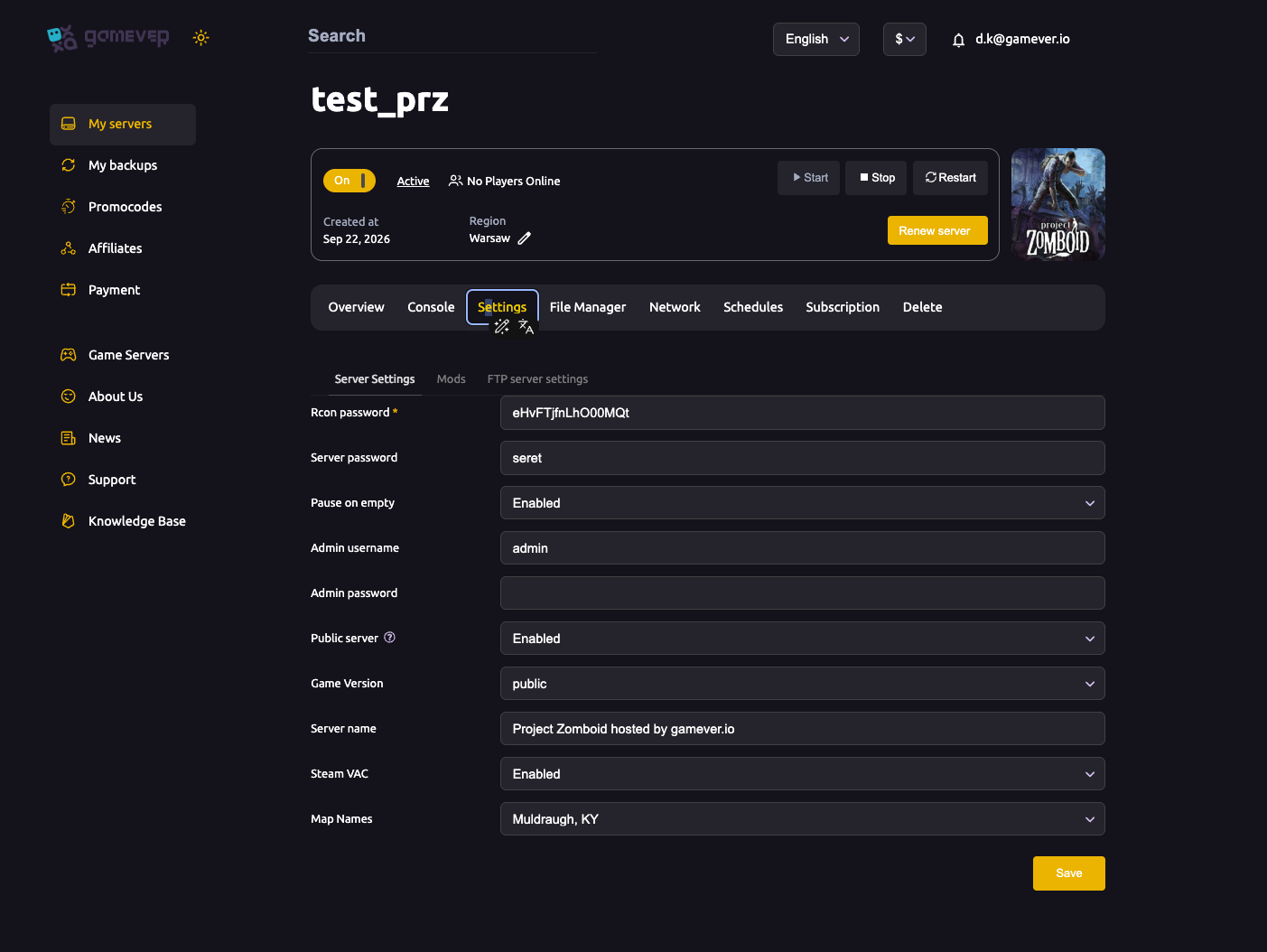
Set both, Save and Restart, then join the server and log in with that account in-game. Full details are in passwords & admin. Once you're logged in as admin you can run the commands below.
Where to run the commands
There are two places to issue admin commands:
- In-game chat — logged in as admin, type the command (it starts with
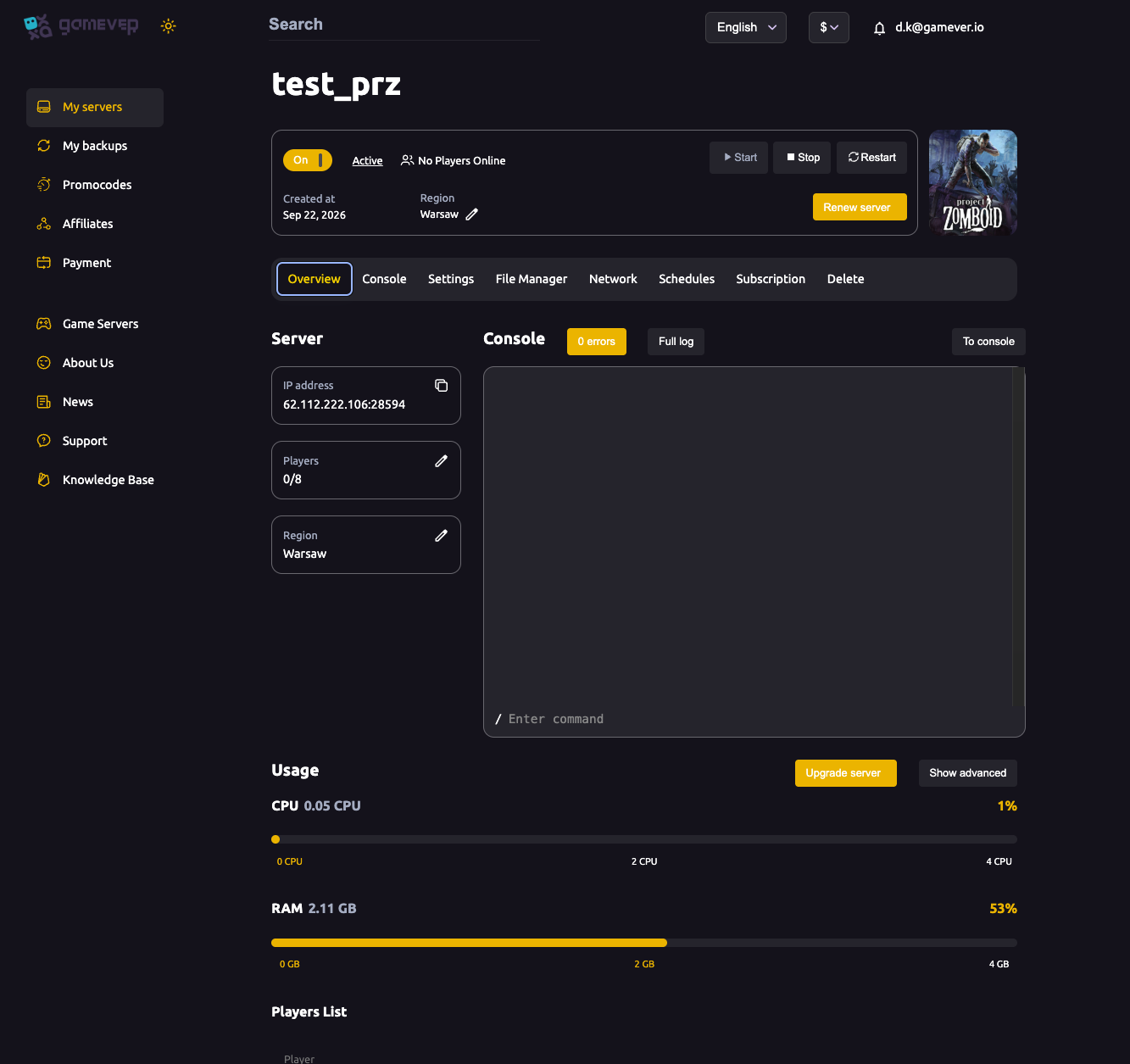
/) straight into the chat box. - The panel Console tab — open Console to watch the live server log (joins, leaves, chat) and send commands to the server.
Quote any username that contains spaces, for example "My Player".
Kick a player
A kick disconnects a player immediately, but doesn't stop them rejoining. It's the right tool for someone being briefly disruptive.
| Command | What it does |
|---|---|
/kickuser "username" | Disconnects that player from the server. |
/kickuser "username" -r "reason" | Kicks and attaches a reason the player sees. |
Ban a player — username vs. Steam ID
A ban disconnects the player and stops them reconnecting. Project Zomboid lets you ban two ways, and the difference matters:
| Command | What it does |
|---|---|
/banuser "username" | Bans the account by its in-game username. |
/banuser "username" -ip | Bans the username and their IP address too. |
/banuser "username" -r "reason" | Bans with a reason attached (combine with -ip if needed). |
/banid SteamID | Bans a player by their 17-digit Steam ID. |
- Ban by username is the quick option when the player is connected and you can see their name.
- Ban by Steam ID (
/banid) ties the ban to the player's Steam account, which survives a username change — the stronger option for a determined troublemaker. You can read Steam IDs from the server log in the Console tab as players connect. - The
-ipflag adds an IP ban on top; use it with care, since players sharing a network or a dynamic IP can be caught unintentionally.
Unban: lifting a ban
Reversing a ban uses the matching unban command for how you banned them:
| Command | What it does |
|---|---|
/unbanuser "username" | Lifts a username ban. |
/unbanid SteamID | Lifts a Steam ID ban applied with /banid. |
Use the command that matches the ban you set: if you banned with /banid, clear it with /unbanid; if you banned with /banuser, clear it with /unbanuser.
A note on the whitelist
If your server uses a whitelist (only approved players can join), two related commands manage who's on it: /addusertowhitelist "username" adds a currently-connected player, and /adduser "username" "password" creates a new whitelisted account. These control access rather than punish, so they're a separate topic from banning — set up alongside your admin and password choices in passwords & admin and server settings.
Additional Tips
- Kick for a warning, ban to keep someone out. A kick is reversible the moment they reconnect; a ban is what actually removes them.
- Prefer
/banidfor repeat offenders — it's tied to the Steam account, so it holds even if they change their display name. - Grab the Steam ID from the Console tab as the player connects, so you have it ready before you ban.
- Quote names with spaces —
/banuser "My Player", not/banuser My Player. - Use
-ipsparingly — an IP ban can catch other players on the same network. - Admins are immune to normal moderation, so run these from the admin account against regular players.
Conclusion
Moderating a Project Zomboid server comes down to a handful of admin commands: /kickuser to disconnect, /banuser or /banid to remove someone for good, and /unbanuser / /unbanid to lift a ban. Log in as admin, run them from in-game chat or the panel Console tab, and your Knox County stays the server you want it to be. For the admin account and passwords behind it, see passwords & admin, and for the full field tour, server settings.
Rent your Project Zomboid server at gamever.io — a built-in Console, full admin control and instant setup in one simple panel. Free trial, promo code WELCOME.