
How to Back Up and Transfer Your Valheim Character
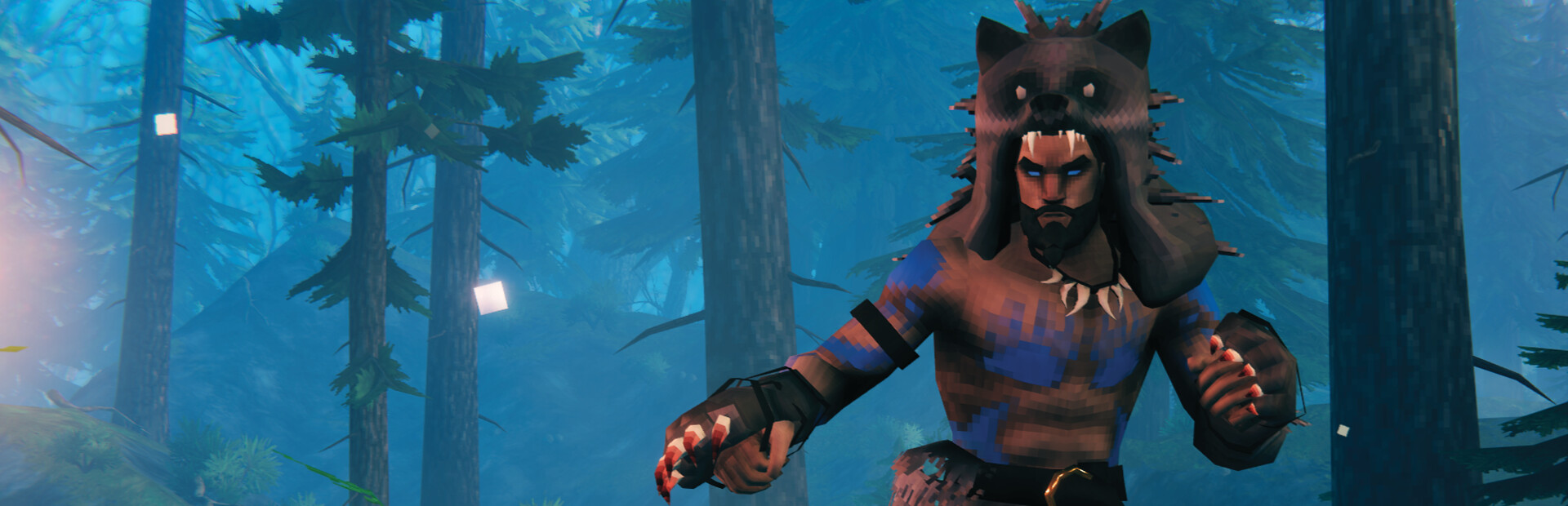
A common surprise for new server owners: your Valheim character lives on your own computer, not on the server. The server stores the world; each player brings their own character to it. That design has an important upside — you can take the same Viking to any server — and one risk: lose the local file and the character is gone. This guide shows how to back up and transfer a character.
Why the character is client-side
Valheim separates world (server-side .db/.fwl) from character (client-side). When you join a server, your local character — skills, inventory, equipment — comes with you. So:
- A world reset doesn't touch anyone's character.
- Your Viking carries its skill levels and inventory between servers (unless a world blocks it).
- If your PC's character file is lost, no server backup can recover it — it was never on the server.
Where the character file lives
On your PC, Valheim characters are stored at:
C:\Users\<you>\AppData\LocalLow\IronGate\Valheim\characters\
Each character is a <Name>.fch file (plus a .fch.old backup). That .fch is the whole Viking.
Back up your character
- Close Valheim.
- Copy the
<Name>.fchfile somewhere safe (cloud drive, USB, another folder).
That's it — one file is your entire character. Do this before trying risky mods or a new PC.
Transfer to another PC
- On the old PC, grab the
<Name>.fchfrom the folder above. - On the new PC, install Valheim, launch it once (so the folder exists), then close it.
- Drop the
.fchinto the samecharacters\folder on the new PC. - Launch Valheim — the character appears in your list, ready to join your gamever server.
Crossplay / cloud note
If you use Valheim's cloud saves or play across platforms, characters can sync through the platform rather than a raw file — but the .fch copy above is the reliable, host-independent backup. For how identities work across platforms on a server, see crossplay.
Additional Tips
- Characters are on your PC, not the server — back them up yourself.
- One
.fch= one character — copy the file to back up or move. - Close Valheim first before copying or pasting the file.
- A world reset keeps characters — only the map changes.
- Lost
.fch= lost Viking — no server restore can help, so keep a copy.
Conclusion
Your Valheim character is a single .fch file on your own PC, not on the server — which is why the same Viking can hop between servers, and why only you can back it up. Copy the .fch to keep it safe, drop it into the characters\ folder on a new machine to move it, and join your gamever world with your skills and gear intact.
Rent your Valheim server at gamever.io — bring your own Viking to a 24/7 world, with crossplay so friends on any platform can join. Free trial, promo code WELCOME.