
How to Back Up and Restore Your Valheim World
A Valheim world is hours of building and exploring, and plenty can go wrong: a troll flattens your base, a mod corrupts a save, someone terraforms the wrong hill. gamever backs your world up automatically and lets you restore in a couple of clicks, plus force a save on demand. This guide covers all of it.
Turn on automatic backups
Open Settings → Schedule & Backups:
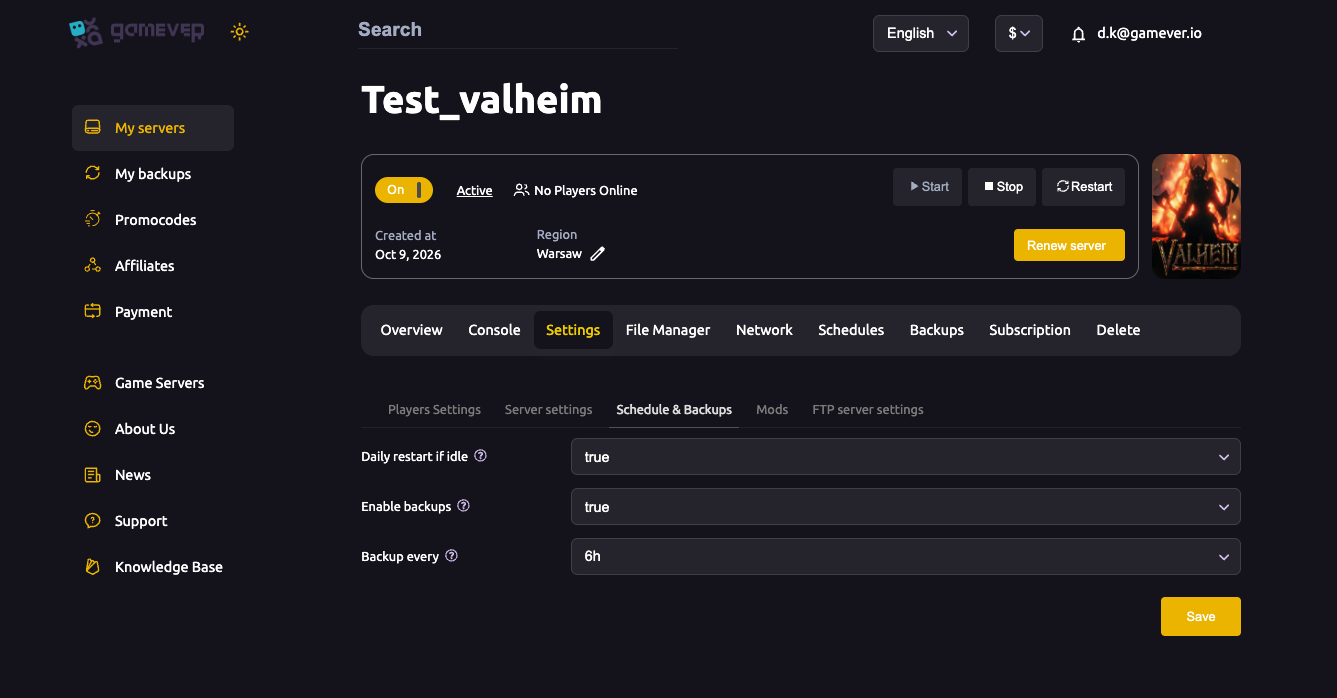
| Setting | What it does |
|---|---|
| Enable backups | true = the server takes scheduled backups automatically. |
| Backup every | The interval (e.g. 6h) between automatic backups. |
Set Enable backups = true, pick an interval, Save. Now there's always a recent restore point.
Restore (roll back your world)
Open the Backups tab in your panel (or My backups in the sidebar). You'll see your backups listed by time:
- Pick the backup from before things went wrong.
- Restore it — the server rolls the world back to that snapshot.
- The server restarts on the restored world.
A restore overwrites the current world, so if there's any chance you'll want "now" back, take a fresh backup first.
What's in a Valheim backup
Valheim's world is a pair of files — <World>.db (the world data) and <World>.fwl (the world metadata/seed). A backup captures both. If you ever restore or move a world manually over FTP, always keep the .db and .fwl together — see moving a world and the new save system.
Force a save on demand
Valheim autosaves periodically (and on a clean shutdown/restart), but to force a save right now — e.g. before you try something risky:
- Type
savein the Console (Overview or Console tab) as an admin, or - Restart the server from Overview (it saves before cycling).
Then take a manual backup so that exact state is captured.
Back up before anything risky
Always snapshot before:
- Installing or updating mods.
- Switching the beta branch.
- Resetting or changing the world.
- Big terraforming or building sessions.
Additional Tips
- Turn backups on day one — don't wait for a disaster.
- Restore from before the problem — pick the right timestamp.
- A restore overwrites now — snapshot the current state first if unsure.
.db+.fwltravel together — never split the pair.- Force a save with the
saveconsole command before experiments.
Conclusion
Protecting your Valheim world on gamever is two steps: turn on Enable backups with a sensible interval, and restore from the Backups tab whenever you need to roll back. Both world files are captured together, you can force a save with the save command any time, and a bad night in the Black Forest is never more than a click away from undone.
Rent your Valheim server at gamever.io — automatic backups, one-click restore, and full FTP access to your world files. Free trial, promo code WELCOME.