
How to Back Up and Restore Your Soulmask Server

A Soulmask world is a lot of hours: a settled tribe, tamed proficiency, a built-up stronghold. One bad update, a mod that misbehaves or a change you regret can undo all of it, so a backup is simply insurance. On the server you rent from gamever you have two routes to that insurance — managed backups through the control panel, and a manual copy of the world file you pull down yourself over the File Manager or FTP. This guide covers both, plus how to restore when something goes wrong. Nothing here involves installing a server from scratch; it's all done through your panel.
Managed backups: My backups and Schedules
Backups on your gamever panel are not a per-server tab — they live in two places you reach from the control panel:
| Where | What it does |
|---|---|
| My backups (left sidebar) | Your managed backup snapshots. Create a restore point on demand and roll the server back to one from here. |
| Schedules tab | Scheduled tasks for the server, such as automated restarts and backups, so copies are taken on a regular cadence without you remembering to. |
The practical pattern is to let Schedules take a steady, automated copy in the background, and to open My backups to make an extra restore point by hand right before you do anything risky. A managed restore point is the fastest way back when a world goes wrong — you select a snapshot and roll back, no file handling required.
Manual backup: download the world save
For a copy you control completely — stored on your own computer, independent of the server — pull the world save down through the File Manager or over FTP. Your server files sit under /home/server/, and the File Manager opens straight onto them:
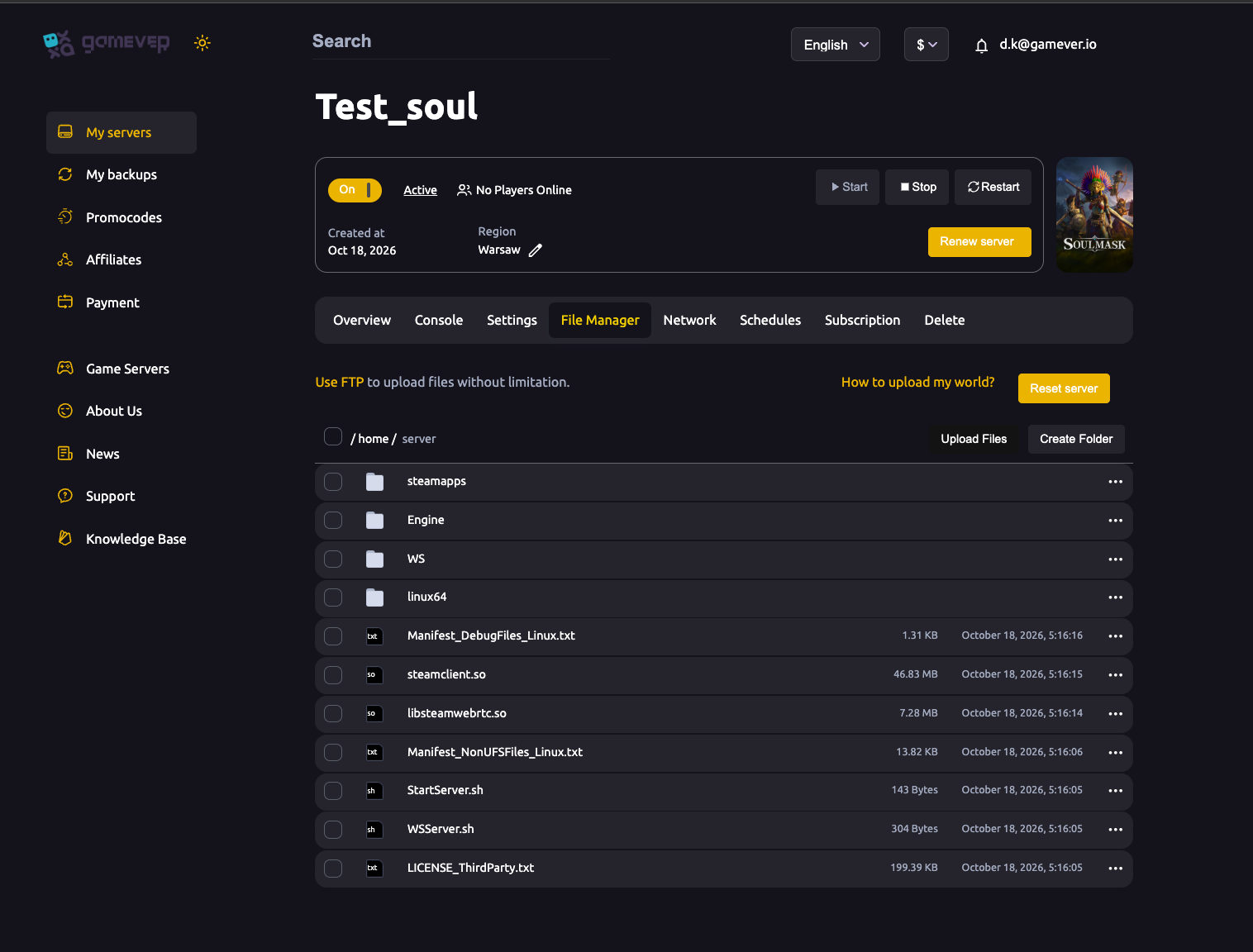
The Soulmask world save lives under:
/home/server/WS/Saved/Worlds/
For a standard dedicated world that resolves to WS/Saved/Worlds/Dedicated/Level01_Main/, where the actual save is world.db. To take a manual backup:
- Stop the server first (Overview → Stop). The world file is written live while the server runs — copying it mid-write risks a corrupt backup.
- Open the File Manager and browse to
WS/Saved/Worlds/, or connect an FTP client using the FTP User and FTP Password from Settings → FTP server settings (the FTP host and port are on the Network tab). - Download the
Worldsfolder — or at minimum theDedicated/Level01_Main/world.dbfile — to your own machine. - Start the server again.
You now have an off-server copy you can keep as long as you like. For a full walkthrough of moving world files in and out over FTP, see uploading a world to your server.
Restoring your world
There are two ways back, matching the two kinds of backup.
From My backups (managed): open My backups in the sidebar, pick the snapshot you want, and restore it. This is the quickest route and handles the files for you.
From a manual copy (File Manager / FTP):
- Stop the server — never overwrite a save while the server is running.
- Open the File Manager or FTP and browse to
WS/Saved/Worlds/Dedicated/Level01_Main/. - Upload your saved
world.dbback in, replacing the current one. Keep the file and folder names exactly as the server expects (world.dbinLevel01_Main) or the server won't load it. - Start the server and watch the Console to confirm the world loads cleanly.
If you've only ever used the automated route, the managed restore is all you need; the manual path matters most when you're carrying a world between servers or keeping an archive the server itself never holds.
Always back up before you change things
A backup is only useful if it exists before the thing that breaks the world. Make a restore point a reflex ahead of anything that rewrites the save:
- Before a game update or version change — a new build can change save formats.
- Before adding, removing or changing mods via Settings → Mod Settings (the Steam Workshop IDs field). A pulled or updated mod is a classic cause of a world that no longer loads.
- Before a reset or wipe — see resetting or wiping your world — so a fresh start is a choice you can undo, not a one-way door.
- Before editing gameplay-settings templates or other config files in
WS/Config/GameplaySettings/.
Additional Tips
- Stop the server before copying or restoring save files. A live
world.dbis being written to; a copy taken mid-write can be unusable. - Keep an off-server copy of your most important world. A managed snapshot is convenient, but a downloaded
world.dbon your own machine is yours no matter what. - Label your downloads with a date. A folder named with the day you took it saves confusion when you have several restore points.
- Pair backups with a scheduled restart on the Schedules tab for a tidy, dependable server.
- Test risky changes on a throwaway copy where you can, rather than your main world.
- Preserve the exact file names (
world.dbinDedicated/Level01_Main/) when restoring, or the server will start a fresh world instead of loading yours.
Conclusion
Backing up a Soulmask server turns a disaster into a thirty-second inconvenience. Let My backups and the Schedules tab keep managed restore points for you, and pull a manual copy of WS/Saved/Worlds/ over the File Manager or FTP for the worlds you can't afford to lose. Restore the same two ways — roll back from My backups, or stop the server and upload your saved world.db back in. Above all, make a backup before every update, mod change or wipe, and a bad day becomes a quick recovery.
Rent your Soulmask server at gamever.io — managed backups plus full File Manager and FTP access, so your tribe's world is always safe. Free trial, promo code WELCOME.