
How to Back Up and Restore Your Minecraft Server World
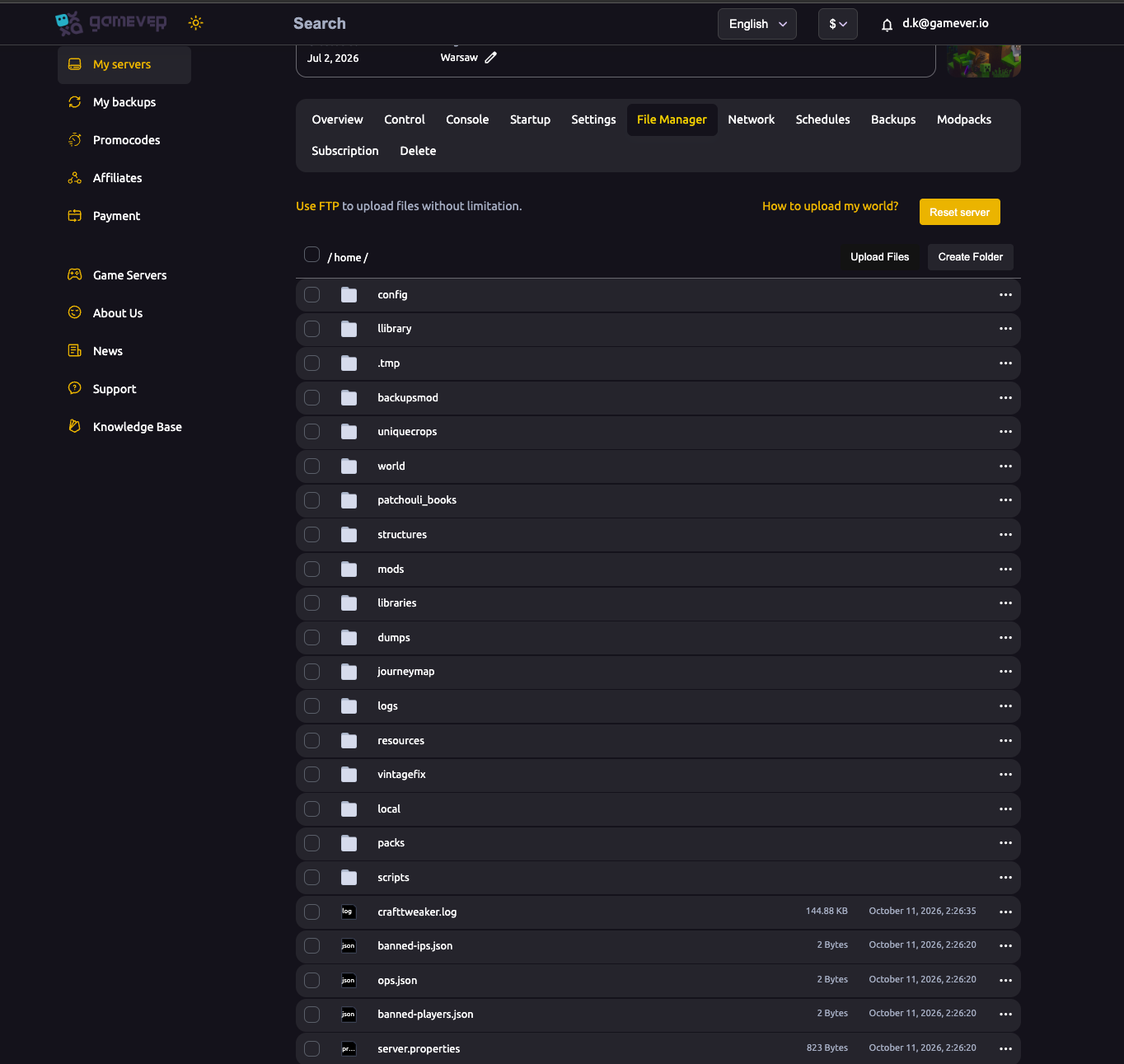
Your Minecraft world is the one thing you can't replace — months of building, gone if a mod update corrupts a chunk or someone griefs spawn. gamever gives you two ways to protect it: the Backups tab for point-in-time snapshots, and FTP to download the world/ folder yourself. This guide covers both backing up and restoring.
The Backups tab
The Backups tab holds your server's backup history — snapshots you can create and restore from the panel:
- Open the Backups tab.
- Create a backup (snapshot) — do this before any risky change: a version change, a modpack switch, or a server-type change.
- To roll back, restore the snapshot you want from the list.
Backups are the quick, in-panel safety net — a few clicks, no files to move.
Manual backup over FTP
For a copy you keep on your own machine, download the world directly:
- Get your FTP User and FTP Password from Settings → FTP server settings, and the FTP address from the Network tab.
- Connect with any FTP client.
- Download the
world/folder from the server root (/home/). For modded servers you may also have extra dimension folders — grab the whole world data. - Keep the copy somewhere safe.
The File Manager can also browse these files in the browser, but FTP is better for downloading a whole world folder.
Restoring a world
| Method | How |
|---|---|
| From the Backups tab | Restore a snapshot directly in the panel — fastest. |
| From an FTP copy | Stop the server, upload your saved world/ folder back into /home/ (overwriting the current one), then start the server. |
Always stop the server before overwriting world files over FTP, so nothing is being written while you replace it.
Build a backup habit
- Before any big change — version, modpack or server-type switch, or a large build — take a backup first.
- Use Schedules (the Schedules tab) for automated restarts, which pair well with regular backups.
- Keep an off-server copy of your most important world via FTP — belt and braces.
Additional Tips
- Back up before risky changes — the single best habit for a server owner.
- Use the Backups tab for fast in-panel snapshots and restores.
- Download
world/over FTP for a copy you control off-server. - Stop the server before overwriting world files via FTP.
- The File Manager is for browsing/editing; FTP is better for whole-folder downloads.
Conclusion
Protecting your Minecraft world takes two tools: the Backups tab for quick point-in-time snapshots you can restore in the panel, and FTP to download the world/ folder for an off-server copy. Make a backup before every risky change, keep an independent copy of your most-loved world, and a corrupted chunk or a bad update becomes a five-minute restore instead of a lost world.
Rent your Minecraft Java server at gamever.io — a Backups tab for one-click snapshots and full FTP access to download your world anytime. Free trial, promo code WELCOME.