
How to Back Up and Restore Your Factorio Server
Your Factorio server runs with us at gamever, so backing it up is never a self-install job — it's a few clicks in the control panel. A good backup habit means a biter breakthrough, a bad mod update, or a map regen can never cost you your factory: you keep known-good copies of the world and roll one back in minutes. This guide covers the two ways to capture a backup through your panel — My backups plus the Schedules tab for automated copies, and a manual download of the save .zip from the File Manager or FTP — then how to restore either one. It also explains how Factorio's own autosaves fit in.
Managed backups: My backups + Schedules
The simplest safety net needs no file handling at all. Open My backups in the left sidebar to see the stored backups of your server. Each entry is a full snapshot you can restore from the same screen, which makes it the fastest way to undo a bad change — no download, no re-upload.
To take backups on a schedule rather than by hand, use the Schedules tab on the server. Schedules runs scheduled tasks (such as automated restarts and backups) at times you set, so a fresh copy is captured regularly without you having to remember. There is no per-server "Backups" tab for Factorio — managed backups live under My backups in the sidebar, and automation lives in Schedules.
| Where | What it does |
|---|---|
| My backups (left sidebar) | Lists stored snapshots of your server; restore one from here |
| Schedules (server tab) | Scheduled tasks — set automated backups and restarts |
Managed backups are the recommended default. The manual method below is for keeping your own off-site copies or moving a world between servers.
Factorio's own autosaves
Independently of the panel, the Factorio server keeps autosaves. These are written into the same saves/ folder as your normal saves, under rotating names — _autosave1.zip, _autosave2.zip, and so on — with the oldest slot overwritten once the rotation fills (the autosave interval and the number of slots are governed by autosave_interval and autosave_slots in server-settings.json). On the Settings → Server Settings sub-tab, the Save name field (for example _autosave1) chooses which file the server loads, and Load latest save (true/false) tells it to pick the most recent save instead. Autosaves are a convenience, not a backup strategy on their own — they rotate and overwrite — so treat them as the newest restore point and keep real backups via My backups or a manual copy.
Manual backup: download the save .zip
For an off-site copy, grab the world file yourself. A Factorio save is a single .zip file, and all of them — your named saves and the _autosaveN.zip files — live in the server's saves/ folder. Open the File Manager tab and use the breadcrumb to move up from /home/server/config/ to the saves/ folder:
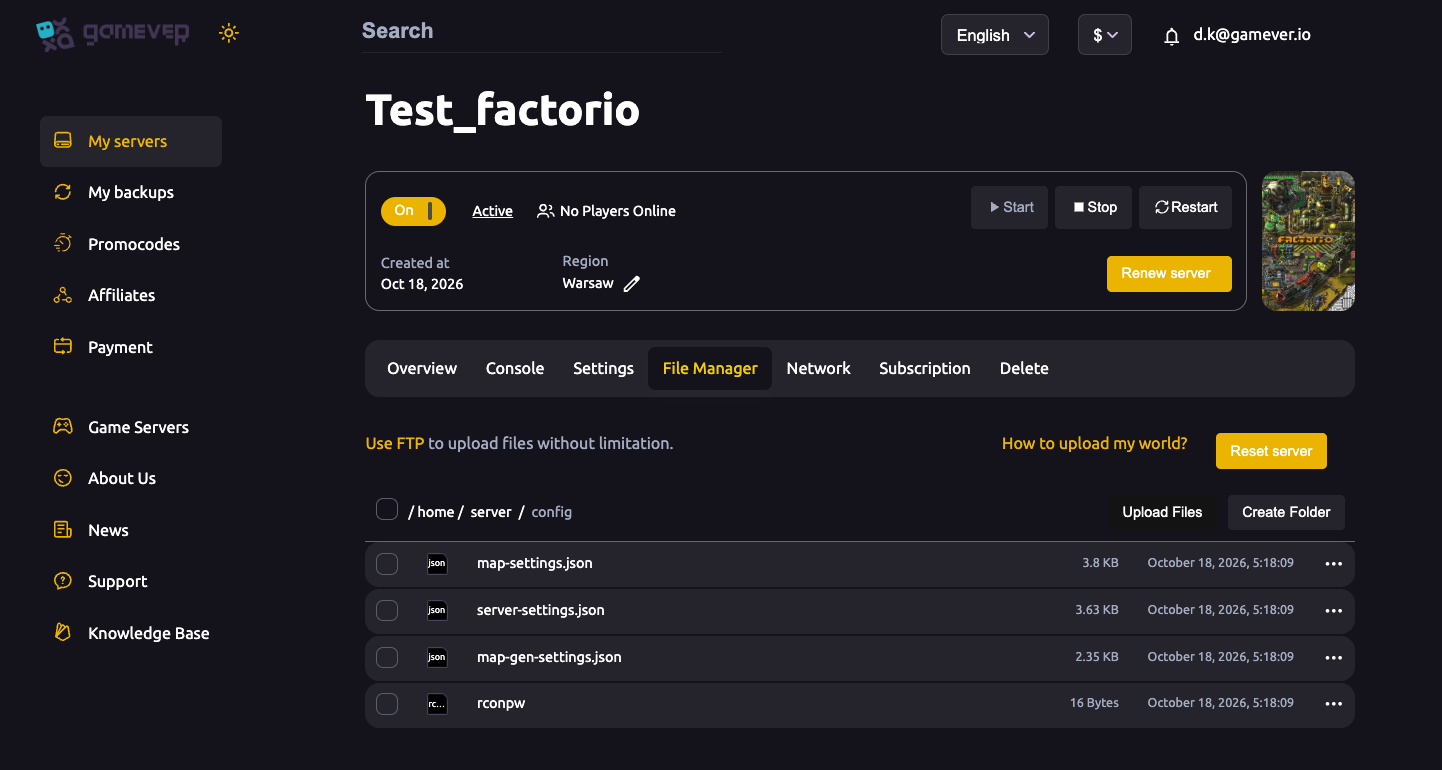
- In File Manager, browse to the
saves/folder under/home/server/. - Open the row menu (
...) on the.zipyou want and download it to your PC. - For many or large files, connect over FTP instead — "Use FTP to upload files without limitation." The FTP host and port are on the Network tab and the login is under Settings → FTP server settings. See upload an existing save for the full FTP walkthrough.
Store that .zip somewhere safe. That one file is your whole world.
Restoring a backup
From My backups: open My backups in the sidebar and restore the snapshot you want. This is the quickest path and needs no files.
From a saved .zip: to put a downloaded world back on the server:
- Stop the server first (Overview → Stop) — the save files are in use while it's running.
- In File Manager (or over FTP), upload your
.zipinto thesaves/folder. - Go to Settings → Server Settings and set Save name to the file you just uploaded (without inventing a path — just the save's name as it appears), then Save.
- Start the server and watch the Console for a clean load.
If you'd rather always boot the newest file, set Load latest save to true instead of pinning a specific Save name.
Additional Tips
- Back up before anything risky — server version changes or DLC toggles, mod installs or updates, and especially Generate a new map / map regen, which replaces your world.
- Don't rely on autosaves alone — they rotate and overwrite; keep a My backups snapshot or a downloaded
.zipas the real copy. - Stop the server before uploading a save so the file isn't locked, then Start to apply.
- Label your downloads with a date so you can tell restore points apart.
- Mind the config, too — a quick File Manager copy of
server-settings.json,map-settings.jsonandmap-gen-settings.jsonsaves re-tuning after a restore (they're strict JSON — a trailing comma stops boot). - Test a restore once while things are calm, so you trust the process before you ever need it in a hurry.
Conclusion
Protecting a Factorio factory comes down to two habits: let My backups and the Schedules tab keep managed snapshots automatically, and pull the occasional manual .zip from the saves/ folder via File Manager or FTP for an off-site copy. Restoring is just as simple — roll back from My backups, or stop the server, upload a .zip, set Save name, and start. Always capture a backup before updates, mod changes, or a map regen, and understand that Factorio's rotating _autosaveN.zip files are a newest-restore-point convenience, not your whole safety net. For moving worlds between servers, see upload an existing save, and to tune how often the game saves itself, see autosave and AFK settings.
Rent your Factorio server at gamever.io — My backups snapshots, scheduled backups, and full File Manager and FTP access so your factory is always one click from safe. Free trial, promo code WELCOME.