
How to Back Up and Restore Your Enshrouded Server
An Enshrouded world is a lot of building and progression, and things go wrong: a bad update, a griefer, a corrupted save. gamever backs your server up automatically and lets you restore quickly, and you can grab the save files yourself over FTP. This guide covers autosaves, scheduled backups, and restoring.
Autosaves vs. backups
Two different things protect your world:
- Autosave — Enshrouded itself saves the world to disk periodically (and on a clean stop/restart). This is the live world, not a historical copy.
- Backups — gamever's point-in-time snapshots you can roll back to. This is what saves you when the current world is the problem.
You want both: autosave keeps progress current, backups let you undo a disaster.
Turn on and manage backups
Open the Backups tab in your panel (or My backups in the sidebar):
- Automatic backups run on a schedule so there's always a recent restore point.
- On-demand backup — snapshot the server now; do this before an update, a config change, or a risky session.
Restore (roll back)
- Open the Backups tab.
- Pick the backup from before things went wrong.
- Restore — the server rolls the world back to that snapshot and restarts on it.
A restore overwrites the current world, so if you might want "now" back, take a fresh backup first.
What's in an Enshrouded save (for manual copies)
Enshrouded's world lives in the savegame folder plus the enshrouded_server_NNN.dat files you can see in the File Manager:
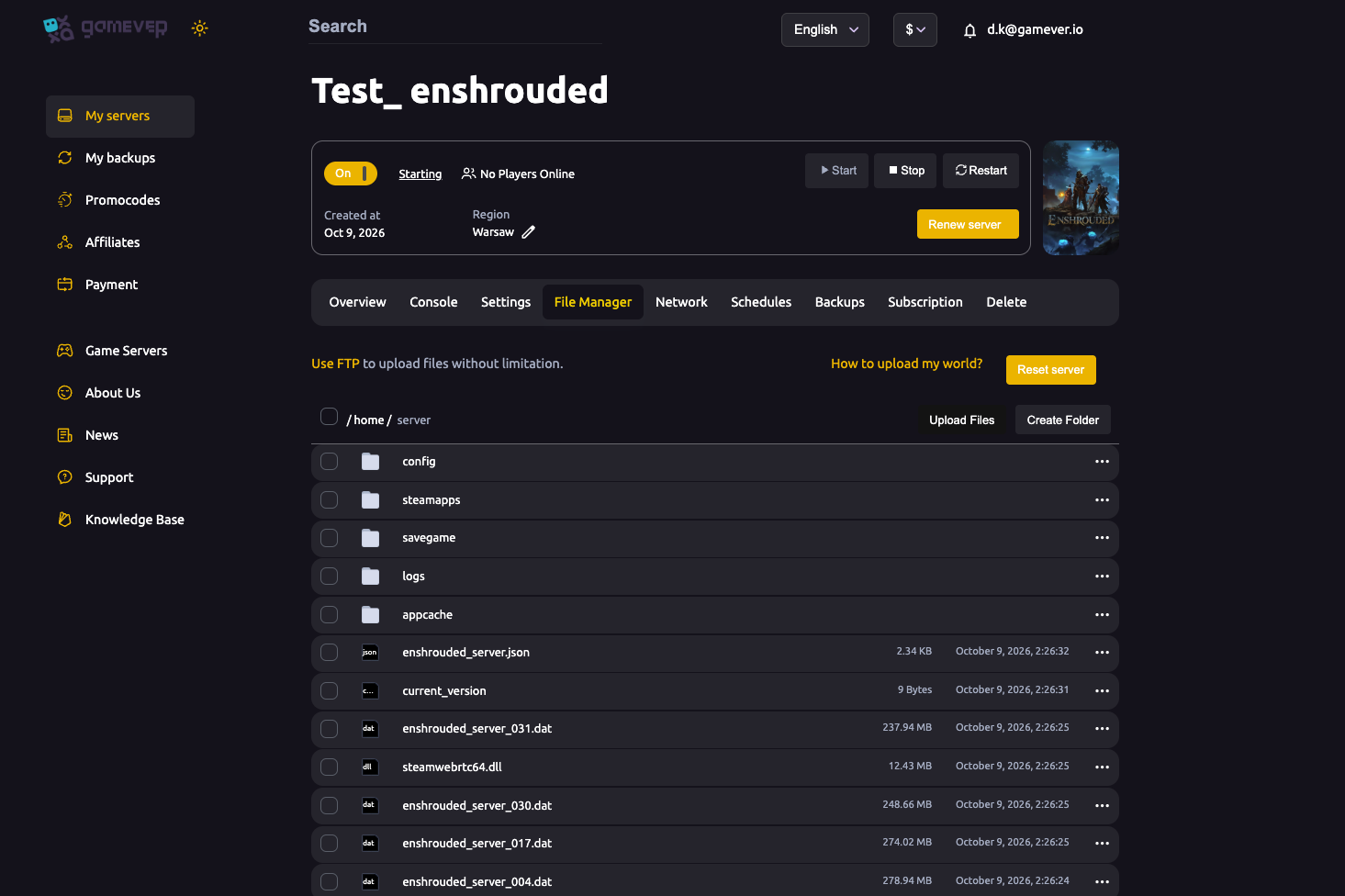
To keep an off-server copy, stop the server and download the savegame folder (and the .dat files) over FTP. That set is exactly what you'd re-upload to restore manually or move hosts.
Back up before anything risky
Always snapshot before:
- Updating the server.
- Editing
enshrouded_server.jsonor changing difficulty. - Installing mods.
- Resetting/wiping.
Additional Tips
- Turn backups on day one — autosave alone won't undo a disaster.
- Restore from before the problem — pick the right timestamp.
- A restore overwrites now — snapshot first if unsure.
- Stop the server before copying saves over FTP, so the files are consistent.
- Keep an off-server copy of
savegame+.datfor peace of mind.
Conclusion
Protecting your Enshrouded world on gamever is two layers: the game's autosave keeps progress current, and gamever's Backups let you roll back to any snapshot when the current world is the problem. Turn on automatic backups, snapshot before anything risky, and a bad update or a griefer is never more than a click away from undone.
Rent your Enshrouded server at gamever.io — automatic backups, one-click restore, and full FTP access to your saves. Free trial, promo code WELCOME.