
How to Back Up and Restore Your Core Keeper World
Your Core Keeper world is the one thing on the server you can't rebuild with a click: the mined-out caverns, the boss progress, the Game ID your friends have memorised. On a server you rent from gamever, you don't need to self-host or hunt through hidden system folders to protect it. Everything is handled from the control panel — the My backups sidebar entry for managed snapshots, the Schedules tab for automated ones, and the File Manager (or FTP) for pulling a copy of the raw world file onto your own machine. This guide covers all three, plus how to restore when something goes wrong.
Why back up a Core Keeper world
Core Keeper worlds are persistent and shared — the server keeps your save between sessions and streams it to everyone who joins with the Game ID. That persistence is exactly why a bad save can cost you everything. Back up before any of these:
- Installing a game update (a new Core Keeper build can touch your world file).
- Changing the World mode or World seed in Settings (seed only affects a new world, but it's a sign you're about to re-create one).
- A planned wipe or reset, or swapping in a different numbered world.
- Adding or removing mods via mod.io.
A backup is cheap. Losing a long-running world is not. Treat "copy first, change second" as the rule.
Option 1 — Managed backups (My backups + Schedules)
The simplest path is the panel's own backup system, which snapshots the whole server without you touching a single file.
| Where | What it does |
|---|---|
| My backups (left sidebar) | Lists your saved server snapshots. Take a backup on demand here, and restore (roll back) the server to a listed snapshot. |
| Schedules tab | Set up scheduled tasks — including automated backups and restarts — so a fresh copy is taken on a cadence without you remembering to. |
For a world you play regularly, set a schedule so there's always a recent snapshot, and take a manual My backups copy right before any update or world-mode change. To recover, open My backups and restore the snapshot you want — the panel rolls the server back to that point.
Managed snapshots are the fastest route, but they restore the whole server state. If you only want the single world file — to archive it, move it elsewhere, or keep a copy off the server — use the File Manager method below.
Option 2 — Manual backup via File Manager / FTP
Core Keeper stores each world as a single, numbered, gzip-compressed file. The world you're playing is selected by the world slot in ServerConfig.json, and its save is named by that slot number — for example 0.world.gzip or 1.world.gzip — inside the server's worlds folder. (A brand-new server may not create the worlds folder until a world has actually been generated.) To keep your own copy, download that file.
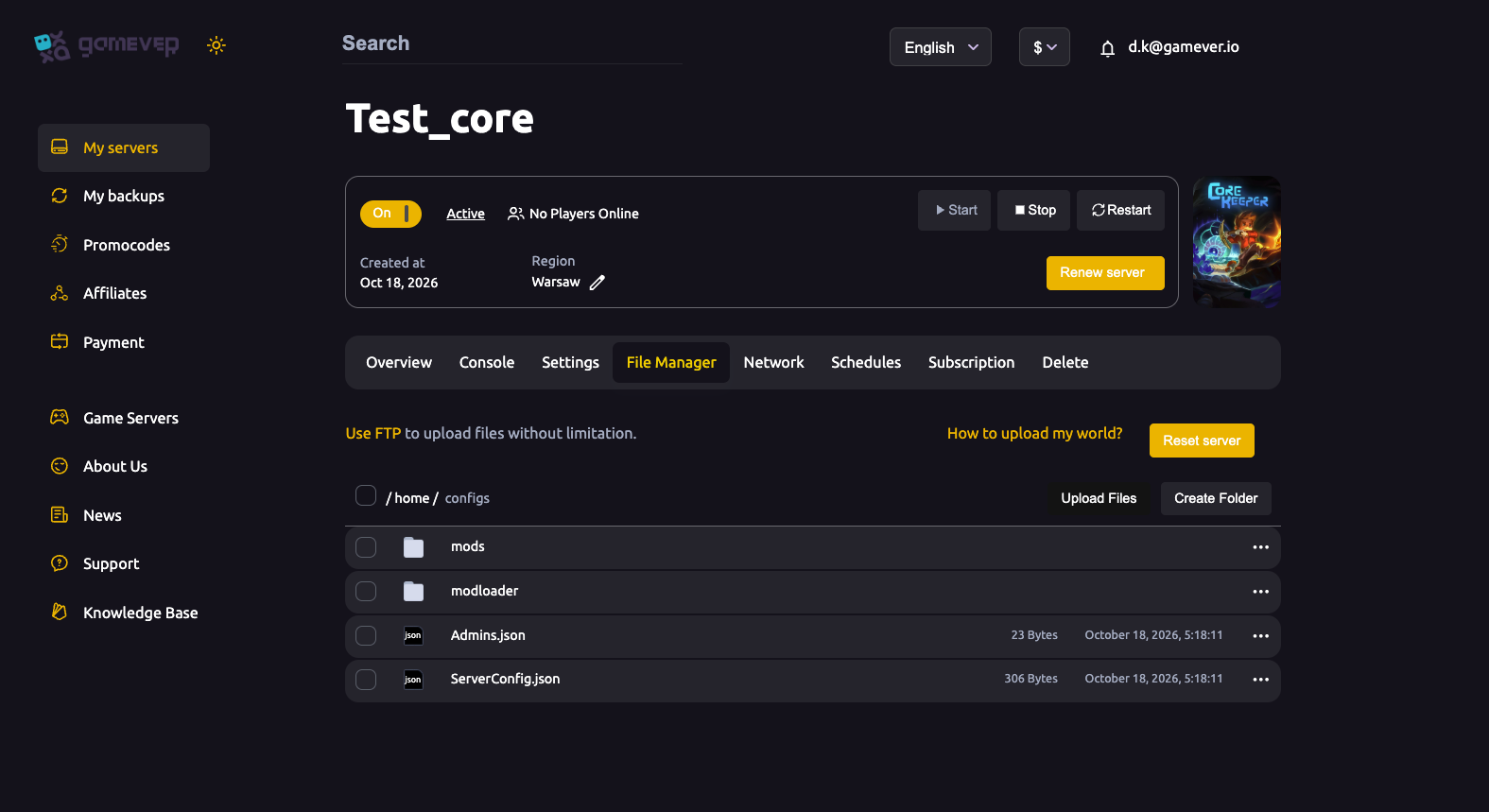
- Open the File Manager tab (root
/home/configs/, where you'll also findServerConfig.json,Admins.json, and themods/modloaderfolders). - Browse to the worlds folder and find your active save — the file named for the
worldslot inServerConfig.json(e.g.0.world.gzip). - Download it to your computer. That single
.world.gzipfile is your backup — store it somewhere safe and date the filename so you know which copy is which.
For larger or bulk transfers, use FTP instead of the browser uploader. Get your FTP login from Settings → FTP server settings (FTP User + FTP Password), and the FTP host and port from the Network tab. A desktop FTP client lets you drag the whole worlds folder down in one go, and avoids the File Manager's upload size limits. See uploading a world for the full FTP walkthrough.
Restoring a world
There are two ways back, depending on how you backed up.
Roll back from My backups. If you took a managed snapshot, open My backups in the sidebar and restore it. The panel handles the rest; no file juggling required.
Re-upload a saved world file. If you have a downloaded N.world.gzip, put it back through the File Manager or FTP:
- Stop the server first (Overview → Stop). Core Keeper reads the world at boot, and overwriting a file the live server is using won't apply cleanly.
- Upload your saved
.world.gzipinto the worlds folder. To restore the world the server was already running, keep the same slot number as theworldvalue inServerConfig.json— note that uploading over an existing slot file replaces that world, so copy the current one off first if it still matters. - Start the server and watch the Console. On boot it prints the world creation version and the session line (
IP;port;gameId;password) — confirm your world loaded rather than a fresh one.
If you want the restored world under a different slot, set world in ServerConfig.json to match the number you uploaded (edit it in the File Manager while the server is stopped, then Save and Start).
Additional Tips
- Date your filenames. Rename downloaded copies like
0.world-2026-10-18.gzipso you can tell snapshots apart at a glance. - Back up before every update. Game updates are the single most common reason people reach for a restore — take a copy first, every time.
- Pin your Game ID. Set
gameIdinServerConfig.jsonso a restart or restore doesn't hand your friends a new join code; a blank value regenerates each boot. - Keep an off-server copy. A managed snapshot lives on the server; a File Manager download lives on your machine. Keep both for anything you'd hate to lose.
- Stop, then edit. Always stop the server before uploading a world or editing
ServerConfig.json— boot-time files won't pick up changes made live. - Test a restore before you need it. Once, on a throwaway world, practise the stop → upload → start loop so the real recovery isn't your first attempt.
Conclusion
Protecting a Core Keeper world comes down to three tools in your gamever panel: My backups for one-click snapshots, the Schedules tab to automate them, and the File Manager or FTP to download the raw N.world.gzip save for a copy you control. Restoring is just as direct — roll back a snapshot, or stop the server, re-upload your saved world, and start again. Take a backup before every update, world-mode change or wipe, and you'll never lose more than a session. Need to move a world in or wipe and start fresh? See uploading a world and resetting or wiping your server.
Rent your Core Keeper server at gamever.io — managed backups, full File Manager and FTP access, and one-click restores when a world goes sideways. Free trial, promo code WELCOME.