
How to Assign Hotkeys in Sons of the Forest
When it comes to accessing your inventory and equipping items, Sons of the Forest offers three main methods:
Normal Inventory Button
This method is straightforward but can be time-consuming. Simply open your inventory bag to browse through your items. While it may require a bit more effort, it's a reliable option when you have a moment to spare.
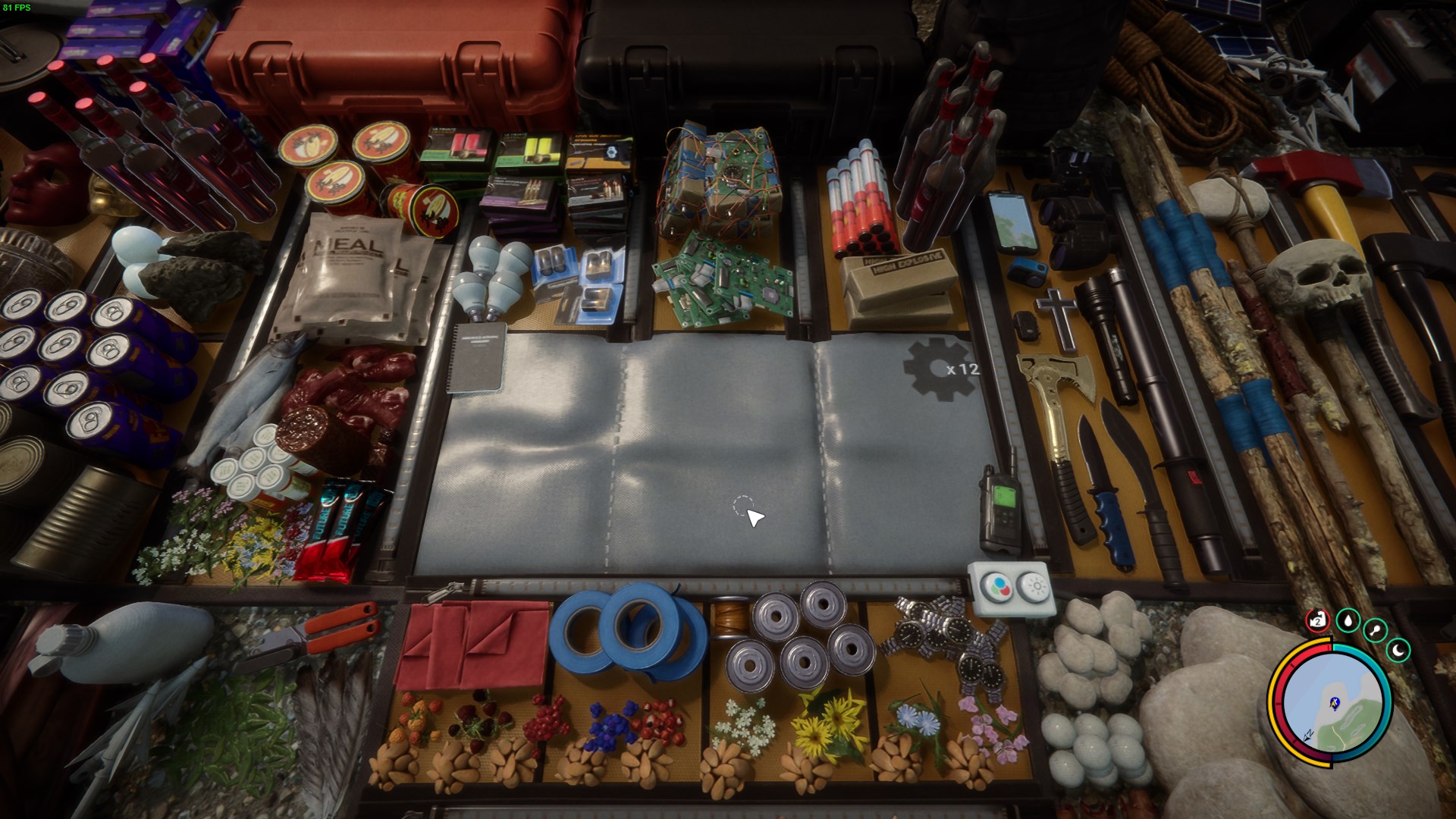
Quick-Select
For a faster alternative, utilize the quick-select option. Hold down the designated key to raise your backpack to eye level, granting you immediate access to select weapons and items. It's a convenient middle ground between speed and ease of use.
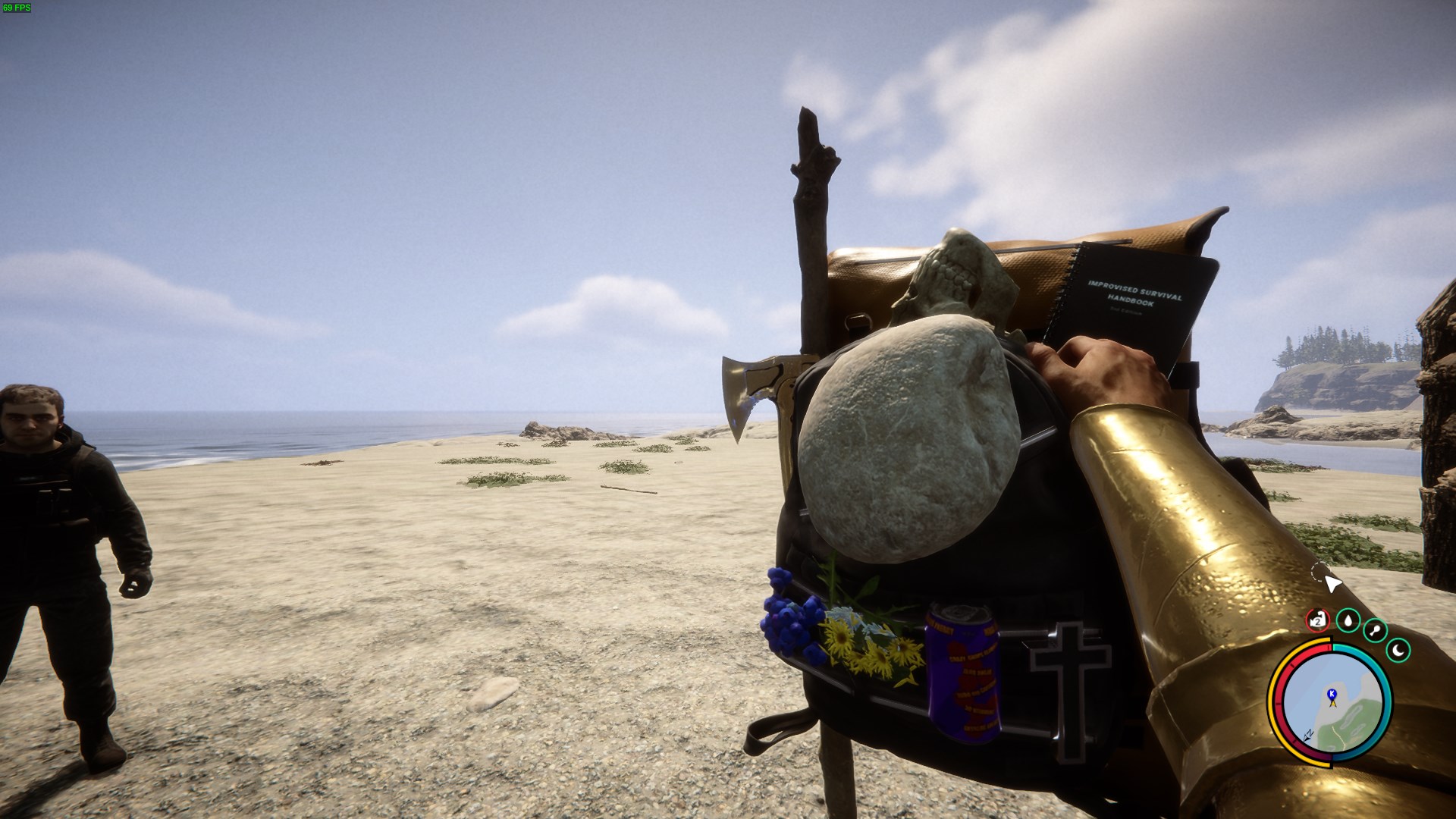
Hotkey
The most efficient method by far is utilizing hotkeys. With just a press of a key, you can equip any item previously assigned to a specific hotkey. From weapons to medical supplies, hotkeys ensure you're always prepared for whatever the forest throws your way.
By default, hotkeys range from 1 to 9. However, you can reassign them to better suit your gameplay preferences. Simply open Options -> Controls to adjust hotkeys.
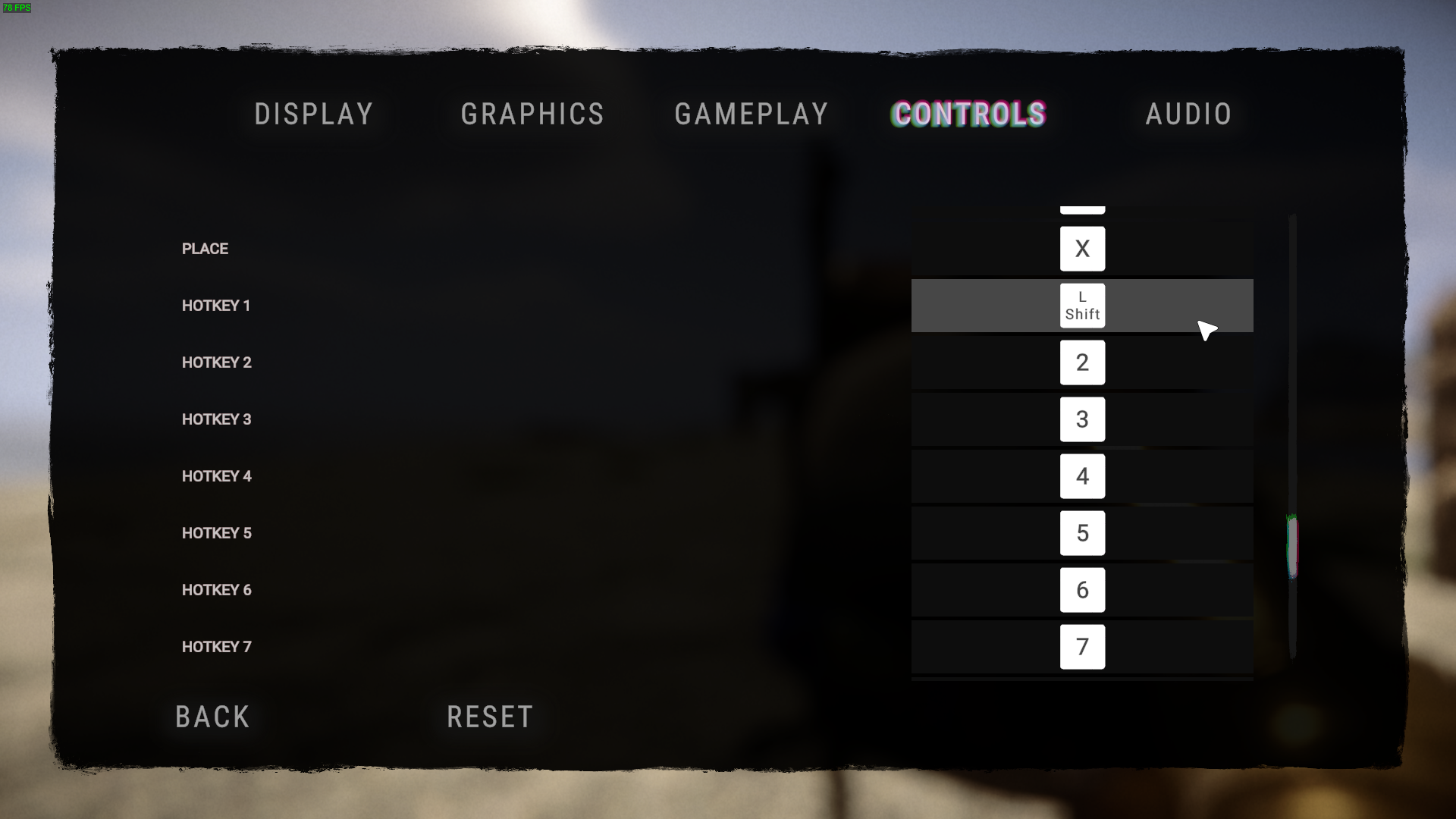
Assigning Hotkeys
Assigning hotkeys is a breeze once you know how. Follow these steps to streamline your inventory management:
- Open the Full Inventory Menu: Access your inventory to view all available items and weapons.
- Browse for the Desired Item: Scroll through your inventory to locate the item you wish to assign a hotkey to.
- Assign the Hotkey: Instead of clicking "equip," simply press and hold any key from 1 to 9 to assign it to the selected item. This ensures quick access whenever you need it most.
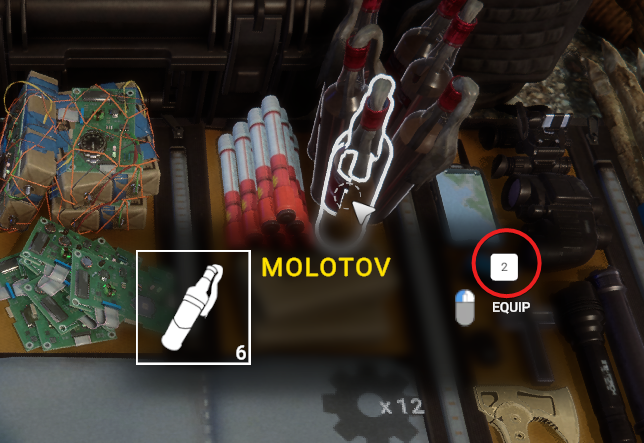
With hotkeys at your disposal, navigating the treacherous landscapes of Sons of the Forest becomes infinitely smoother. Whether you're facing off against cannibals or exploring dark caverns, having your essential gear readily available can mean the difference between triumph and defeat. So, take advantage of hotkeys and equip yourself for success in the unforgiving wilderness.