
How to Allocate More RAM to Rust
Rust, the thrilling multiplayer survival game, is known for its vast world and intensive gameplay. To ensure a seamless experience, allocating sufficient RAM is crucial. This guide will walk you through the process of allocating more RAM to Rust, enhancing performance and reducing the risk of crashes.
Explaining the Importance of RAM in Rust
Rust's demanding nature requires substantial RAM for smooth operation. With numerous assets, player interactions, and dynamic environments, the game's memory usage can be intense. Unlike games with predefined worlds, Rust's procedural generation creates diverse terrains, structures, and objects. This dynamic content necessitates significant RAM allocation to load and process in real-time.
Upgrade Your RAM
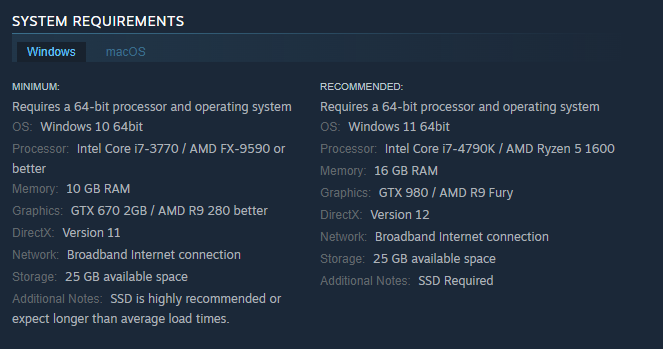
Ensure your system meets or exceeds the recommended 16GB RAM for Rust. Upgrading your RAM is the most effective way to allocate more memory to the game.
Allocate Virtual Memory
To adjust your system's virtual memory (page file) to supplement physical RAM, follow these steps on a Windows operating system:
- Access System Properties:
Right-click on "This PC" or "My Computer" (depending on your Windows version) on your desktop or in File Explorer.
- Select "Properties" from the context menu.
In the System window, click on "Advanced system settings" on the left-hand side.
- Access Performance Options:
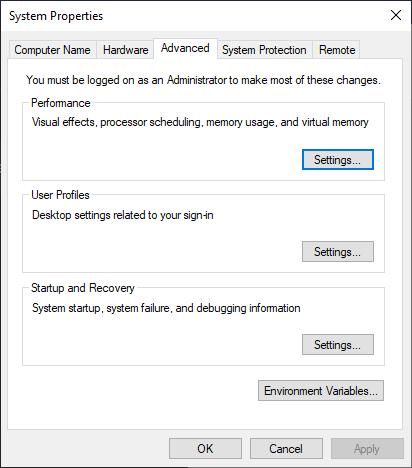
In the System Properties window, go to the "Advanced" tab.
Under the "Performance" section, click on the "Settings" button.
- Access Virtual Memory Settings:
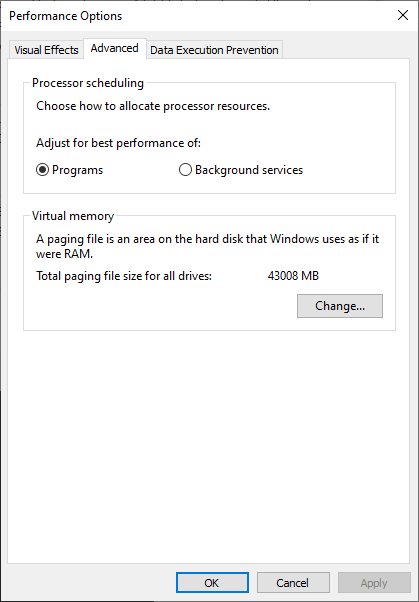
In the Performance Options window, go to the "Advanced" tab.
Under the "Virtual memory" section, click on the "Change" button.
- Adjust Virtual Memory Settings:
Uncheck the box that says "Automatically manage paging file size for all drives" to enable manual control.
Select the drive where you want to change the page file settings (usually the C: drive).
- Choose one of the following options:
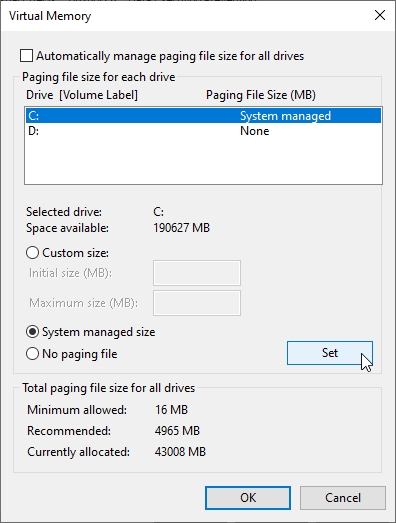
"Custom size": Allows you to set a specific initial and maximum size for the page file. It's recommended to set the initial size to be the same as your physical RAM and set the maximum size to be higher (e.g., 1.5 times your RAM).
"System managed size": Lets Windows manage the page file size for you.
"No paging file": Disables the page file, but this is generally not recommended unless you have a very specific reason to do so.
- Apply Changes:
After making your selection, click the "Set" button.
Click "OK" to confirm the changes.
You may need to restart your computer for the changes to take effect.
Adjust In-Game Settings
Rust allows some control over memory usage through graphical settings. Lowering texture quality, view distances, and disabling unnecessary graphics effects can alleviate RAM load.
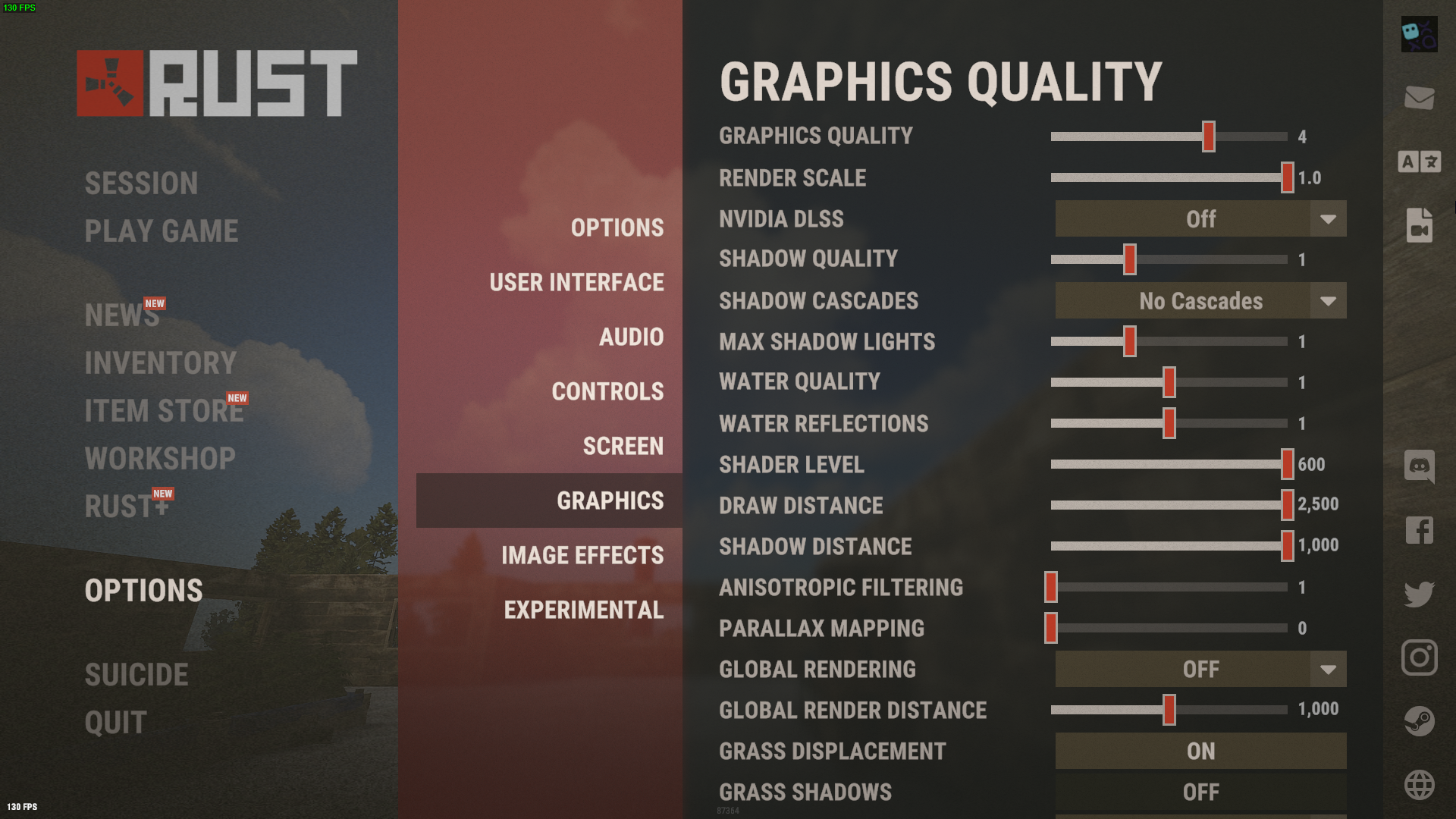
By following these steps, you can optimize your system's RAM usage and allocate more resources to Rust, leading to smoother gameplay and fewer crashes.
Conclusion
Allocating more RAM to Rust is essential for an enjoyable gaming experience. Understanding the game's requirements, upgrading your system's RAM, and optimizing in-game settings can significantly enhance performance. By ensuring your system meets or exceeds Rust's recommended specifications, you'll be ready to navigate the game's immersive world without the frustration of crashes or lag.