
How delete a player from 7 Days to Die server
As an admin on a 7 Days to Die server, you may need to delete a player's data from the server. This can be necessary if a player is causing problems or if they are no longer playing on the server. In this guide, we will walk you through the steps to delete a player from a 7 Days to Die server.
Step 1: Locate Saves Folder
The first step is to locate the "Saves" folder for your 7 Days to Die server. This folder contains all of the saved data for the server, including player data. You need to go to the "maps/Saves/" folder and select your current world and game. You can then find the "Player" folder, which stores player data.
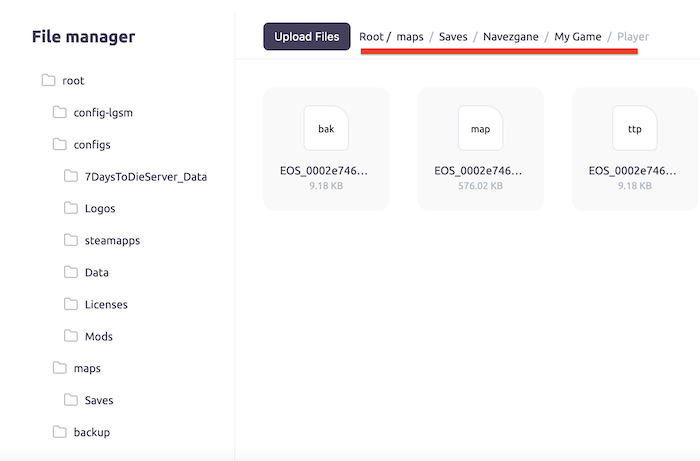
Step 2: Locate Player files
Once you have located the "Saves" folder, you will need to find the files associated with the player's STEAM-ID. These files will have the player's STEAM-ID in the file name and will have the extensions .bak, .map, and .ttp. Look through the folder to find these files.
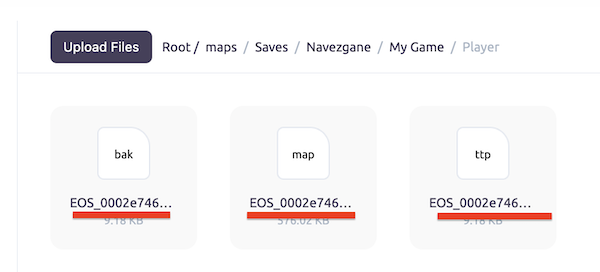
Step 3: Delete These Three Files
Once you have located the files associated with the player's STEAM-ID, you can delete them. Make sure to delete all three files (.bak, .map, and .ttp) to completely remove the player's data from the server.
Step 4: Conclusion
Congratulations! You have successfully deleted a player from your 7 Days to Die server. Remember to use this power responsibly and only delete players when necessary. By keeping the server clean and fair, you can help create a fun and enjoyable gaming experience for all players on the server.