
Getting Started with Your Project Zomboid Server on gamever
Welcome to your gamever Project Zomboid server. A dedicated server is the best way to survive Knox County with friends — it stays online 24/7, so your group can keep building, looting and fighting hordes whether or not the host is in-game. Everything you need is on the control panel, and friends join by the server address. This guide is the quick tour plus a first-time checklist, with links to deeper guides.
The Overview tab
When you open your server you land on Overview:
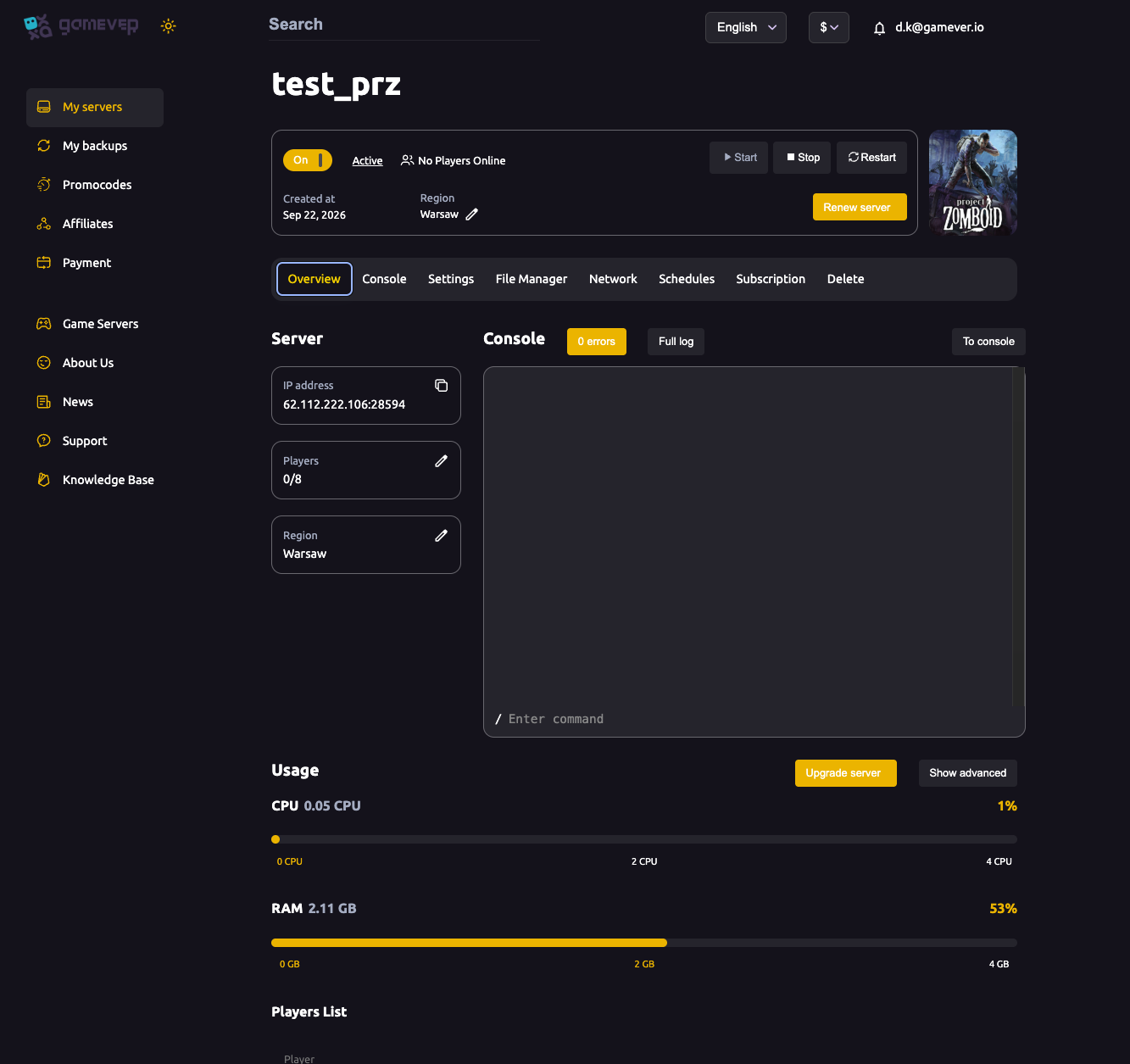
- On/Off, Start / Stop / Restart — power controls for the server.
- IP address (for example
62.112.222.106:28594) — this is what players use to join. - Players — the live count against your slots (0/8 by default — see max players).
- Region — where your server is hosted; pick one close to your group.
- Usage — live CPU and RAM meters, with Upgrade server if you need more power.
- Renew server and a link to the Console.
The tab bar across the top: Overview · Console · Settings · File Manager · Network · Schedules · Subscription · Delete.
What each tab is for
| Tab | Use it to |
|---|---|
| Console | Watch the live server log and send commands. |
| Settings | Server name, passwords, admin, public toggle, map and more — see server settings, mods and FTP. |
| File Manager | Edit options.ini, the Server/ config and the sandbox file; reset the server — see sandbox settings. |
| Network | Your server, UDP, RCON, Query and FTP addresses — see ports & connection. |
| Schedules | Automated restarts — see scheduled restarts. |
| Subscription / Delete | Billing and removing the server. |
How your friends join
Project Zomboid doesn't rely on a host staying online — your server is always up. To play together:
- Copy the IP address and port from Overview (for example
62.112.222.106:28594). - In Project Zomboid, each player opens Join → Internet (or Favorites) and adds a server by IP.
- Enter the server IP and the port (
28594), plus the server password if you set one (see passwords & admin). - Click Join — the game creates each player's character on first connect.
That's the whole co-op setup — no host needs to stay in-game.
Your first-time checklist
- Wait for the server to come online on first boot — give it a few minutes and watch the Console.
- Set your server name and a password on Settings → Server Settings — see server settings.
- Set an admin username and password so you can run admin commands in-game — see passwords & admin.
- Tune the sandbox (zombie count, loot, XP) if you want something other than the default — see sandbox settings.
- Set up a daily scheduled restart at a quiet hour.
- Share the IP and start surviving.
Additional Tips
- Players join by IP and port — share
IP:28594; no host needs to stay online. - Be patient on first boot — let the server finish starting before anyone joins.
- Set a password early if you want a private group.
- Create your admin account first so you can manage the server from in-game.
- Stop the server before hand-editing config files so your changes stick (see sandbox settings).
Conclusion
Your gamever Project Zomboid server is ready as soon as it's online: set a name and password, create your admin account, tune the sandbox if you like, schedule a restart and share the IP. The panel handles everything a dedicated Project Zomboid server needs — work through the checklist and your group's Knox County is online around the clock.
Rent your Project Zomboid server at gamever.io — instant setup, 24/7 co-op, a browser console and full file access, all in one panel. Free trial, promo code WELCOME.