
Getting Started with Your Minecraft Java Server on gamever
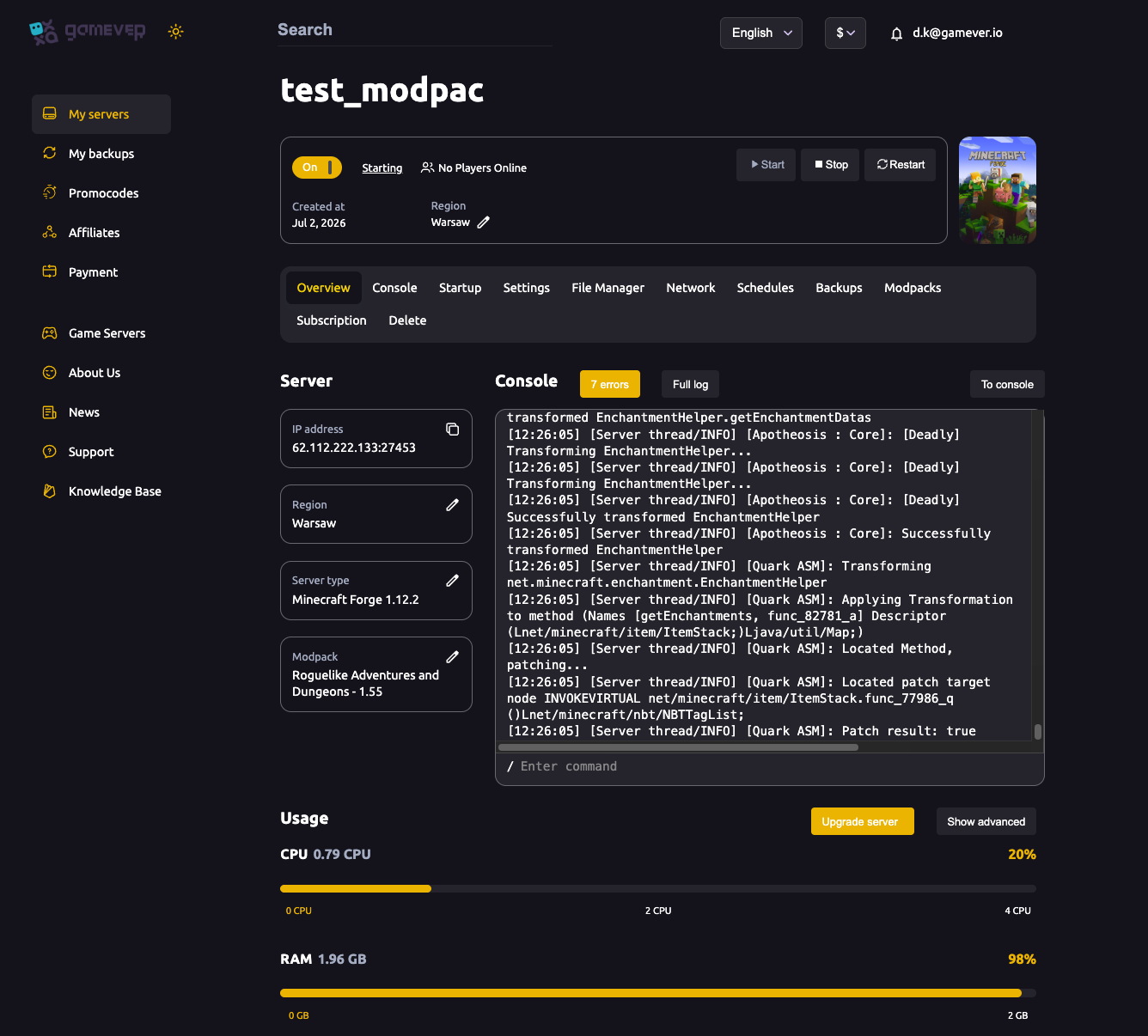
Welcome to your gamever Minecraft Java server. A dedicated server is the best way to play Minecraft with friends — it's online 24/7, so your group can build, mine and explore whenever they like, with no one needing to host from their own PC. Everything you need is on the control panel, and friends join with a single server address. This guide is the quick tour plus the first things to do, with links to deeper guides for each area.
The Overview tab
When you open your server you land on Overview:
- On / Off and Start / Stop / Restart — power controls for the server.
- IP address (for example
62.112.222.133:27453) — copyable; this is what players paste into Minecraft to join. - Region — where your server is hosted.
- Server type box — the edition of Minecraft you're running, e.g. Minecraft Forge 1.12.2. See change server type.
- Modpack box — the installed CurseForge modpack, e.g. Roguelike Adventures and Dungeons - 1.55. See install a modpack.
- Console — a live server log with an Enter command box, so you can run admin commands without logging in-game.
- Usage — live CPU and RAM meters, with an Upgrade server button if you need more power (modpacks are RAM-heavy — see fixing lag).
The tab bar
Minecraft has the richest panel of any game we host. Here's what each tab is for:
| Tab | Use it to |
|---|---|
| Overview | Power, addresses, usage meters and the live console. |
| Control | Quick server/admin controls — see ops & whitelist. |
| Console | The full live log and command input. |
| Startup | Java version, server/Forge version and launch arguments — see startup & Java. |
| Settings | MOTD, difficulty, game mode, world rules, FTP, change server type, reset world. |
| File Manager | Browse and edit server files: mods/, config/, world/, server.properties and more. |
| Network | Your server, query, Rcon and FTP addresses and ports. |
| Schedules | Automated restarts and tasks. |
| Backups | Your backup history — see backup & restore. |
| Modpacks | Install or switch a CurseForge modpack. |
| Subscription / Delete | Billing and removing the server. |
How to connect (Minecraft Java)
- Launch Minecraft Java Edition and make sure your client version matches the server (shown as the Server type / Minecraft server version, e.g. 1.12.2). For a modded server you also need the matching mods or modpack installed on the client.
- On the main menu choose Multiplayer → Add Server.
- Paste the IP address from Overview, including the port (e.g.
62.112.222.133:27453). - Click Done, then select the server and Join Server.
If players can't see the server, double-check the version match and that the server shows Active on Overview.
Your first-time checklist
- Wait for Active. On first boot the server installs Minecraft (and your modpack if you picked one). Progress scrolls in the Console — give it a few minutes.
- Set your MOTD, difficulty and game mode on Settings → Server Settings — see server settings.
- Tune world rules (spawn protection, view distance, nether, mobs) on Settings → World Settings — see world settings.
- Make yourself an operator so you can use admin commands — see ops & whitelist.
- Turn on backups and a scheduled restart — see backup & restore.
- Share the IP and start playing.
Additional Tips
- Players join by IP — copy the address from Overview; no one needs to host from their PC.
- Match the version — a 1.12.2 server needs a 1.12.2 client (plus mods for modded servers).
- Use the Console to run commands without being in-game — handy for
/op,/whitelistand/say. - Watch the Usage meters the first time your whole group logs in, and Upgrade server if RAM runs hot.
- Turn on backups immediately so you always have a restore point.
Conclusion
Your gamever Minecraft Java server is ready the moment it reaches Active: set your MOTD and difficulty, tune the world rules, make yourself an operator, turn on backups and a restart, and share the IP. The panel's rich tab bar puts everything a Minecraft server needs in one place — work through the checklist and your world is online around the clock.
Rent your Minecraft Java server at gamever.io — instant setup, 24/7 uptime, one-click modpacks, automatic backups and a browser console, all in one panel. Free trial, promo code WELCOME.