
Getting Started with Your 7 Days to Die Server on gamever

Welcome to your gamever 7 Days to Die server. A dedicated server is the best way to play 7DTD with friends — it stays online 24/7, so your group can keep building, looting and surviving blood moons whether or not you're the one playing. Everything you need is on the control panel, and friends join by the server address. This guide is the quick tour plus a first-time checklist, with links to the deeper guides.
The Overview tab
When you open your server you land on Overview:
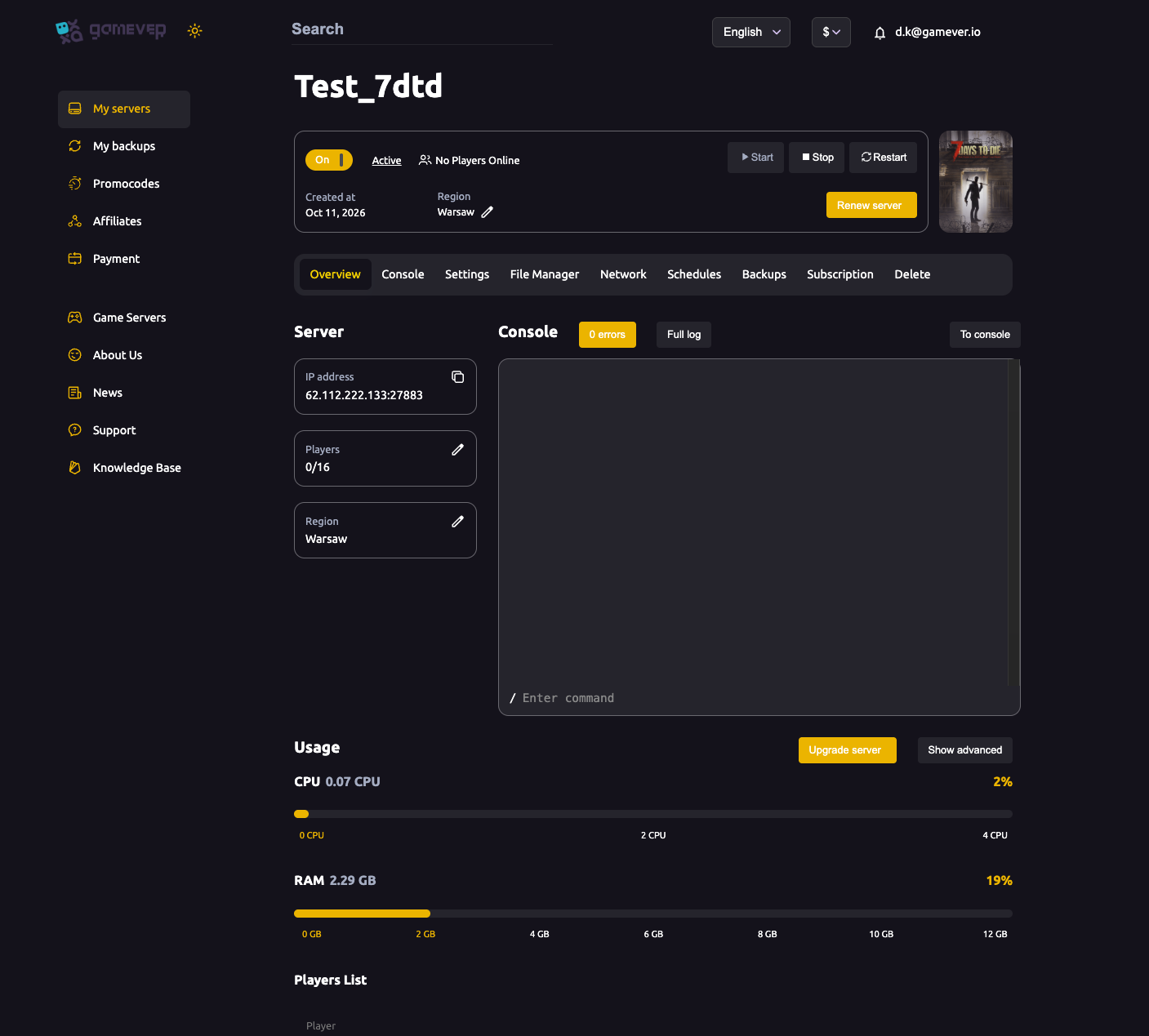
- On/Off and Start / Stop / Restart — your power controls, plus Active status.
- IP address (
62.112.222.133:27883) — this is what players use to join. - Players (shown as
0/16) — who's online right now against your slot count. - Region — where your server is hosted.
- Console with an Enter command box — run commands and watch the live log.
- Usage — live CPU and RAM meters, with Upgrade server if you need more power.
The tab bar across the top: Overview · Console · Settings · File Manager · Network · Schedules · Backups · Subscription · Delete.
What each tab is for
| Tab | Use it to |
|---|---|
| Console | Watch the live log and run commands. |
| Settings | Name, password, world, difficulty and FTP — see server settings, world settings and difficulty settings. |
| File Manager | Edit serverconfig.xml, manage your save, upload a world, or Reset server. |
| Network | Your server address and port. |
| Schedules | Automated restarts — see scheduled restarts. |
| Backups | Your backup history — see backup & restore. |
| Subscription / Delete | Billing and removing the server. |
How your friends join
7 Days to Die doesn't need a host to stay in-game — your server is always up. To play together:
- Copy the IP address from Overview (
62.112.222.133:27883). - In 7 Days to Die, each player opens Join a Game → Connect to IP / Favorites and enters it.
- They enter the server password if you set one — see password & admin access.
That's the whole co-op setup — no one has to host, and the world persists between sessions.
Your first-time checklist
- Wait for Active. On first boot the server downloads and prepares the game; give it a few minutes and watch the Console.
- Set your server name and password on Settings → Server settings — see server settings and password & admin.
- Pick your map and world size on Settings → World settings — see world settings.
- Choose a difficulty and the survival knobs on Settings → Difficulty settings — see difficulty settings.
- Size your plan to your group — a full 16-player server needs real headroom; see max players.
- Turn on a scheduled restart and check your backups — see scheduled restarts and backup & restore.
- Share the IP and start surviving.
Sizing your plan
7 Days to Die is a CPU- and RAM-heavy survival game — the world, zombie AI and physics all add up, especially on blood moon nights with a full group. The default here is 16 slots. Watch the Overview → Usage meters with your group on and click Upgrade server if they run hot (see fixing lag).
Additional Tips
- Players join by IP — share
62.112.222.133:27883; no one needs to host. - Be patient on first boot — the Console preparing the game is normal; wait for Active.
- Set a password early if you want a private server — see password & admin.
- Schedule a daily restart to keep a long-running world smooth.
- Blood moon nights are the stress test — size your plan for the horde, not for a quiet afternoon.
Conclusion
Your gamever 7 Days to Die server is ready the moment it reaches Active: set a name and password, pick your map and difficulty, size the plan to your group, turn on a restart schedule, and share the IP. The panel handles everything a dedicated 7DTD server needs — work through the checklist and your group's apocalypse is online around the clock.
Rent your 7 Days to Die server at gamever.io — instant setup, 24/7 survival, a browser console and simple settings tabs, all in one panel. Free trial, promo code WELCOME.