
Finding Your Dragonwilds Server: The World Name Is Case Sensitive, and It Is Not the Server Name
A Dragonwilds server that is running perfectly can still be impossible to find, and there are two documented reasons for it. The search is case sensitive, and it wants the world name, not the server name — two values you set separately in the same config file.
Get either wrong and the server simply does not appear, with no error to explain why.
How to Find It
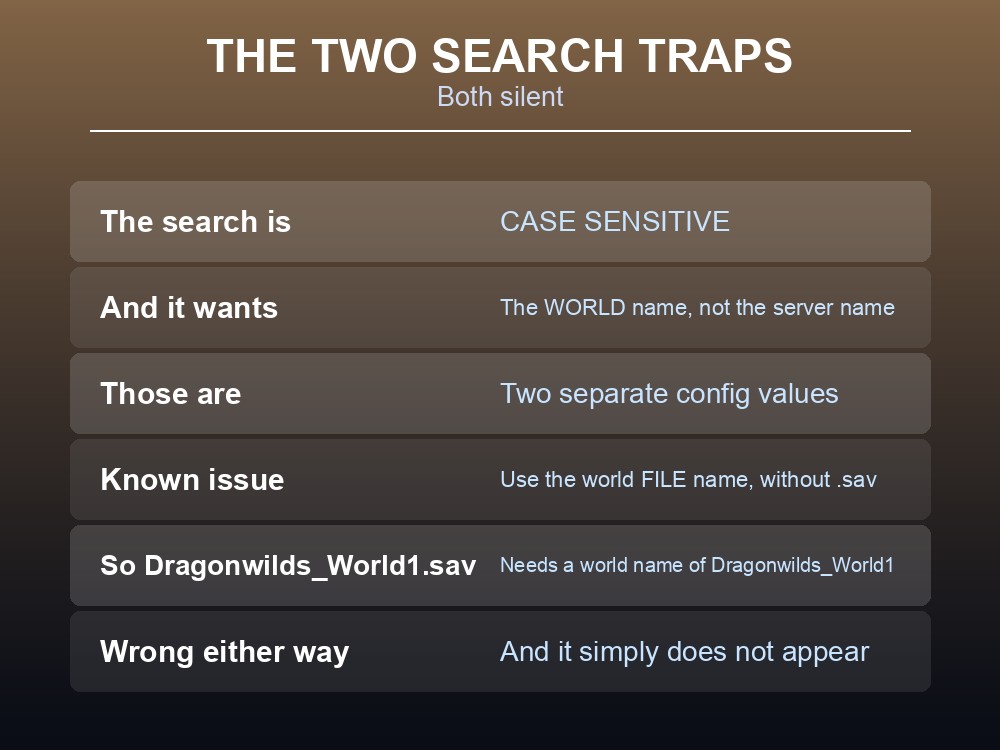
- Open the Worlds screen and go to the Public tab.
- Type the world name into the search box.
- Match the case exactly — the wiki states the world name is case sensitive.
- Wait a few seconds. The server should appear.
Search by world name, not server name. These are two different config values: Server Name is what you called the server, Default World Name is what the world is called. The browser searches the second.
And there is a further wrinkle in the known issues. You may need to search for the world file name rather than the world name plus its suffix — if your save is Dragonwilds_World1.sav, the world name value must be Dragonwilds_World1.
That is a real trap. A world name that includes .sav, or that does not match the save file, produces a server nobody can search for.
When It Does Not Appear
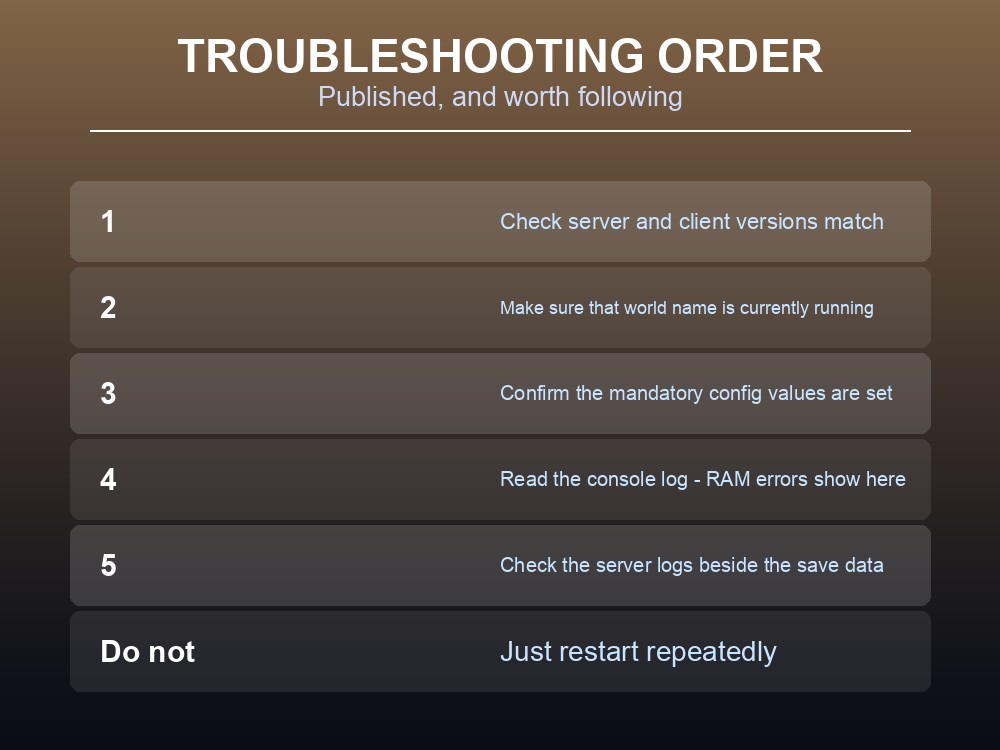
The wiki publishes a troubleshooting order, and it is worth following in sequence rather than guessing:
- Check the versions match. Server and clients must both be on the latest game version. Hosted servers usually restart to the latest version automatically; a client that has not updated will not see them.
- Make sure the world name is currently running. A server can be up while running a different world than the one you are searching for.
- Confirm the mandatory config values are set. Missing values — the Owner ID especially — are a documented cause.
- Read the console log. RAM errors show up here, and on a self-hosted box they mean the allocation is too small.
- Check the server logs, which are written alongside the save data and are what support will ask for.
Work down that list rather than restarting repeatedly. Each step rules out a different cause, and "it appeared after a restart" usually means the config edit finally took.
The Two Documented Known Issues
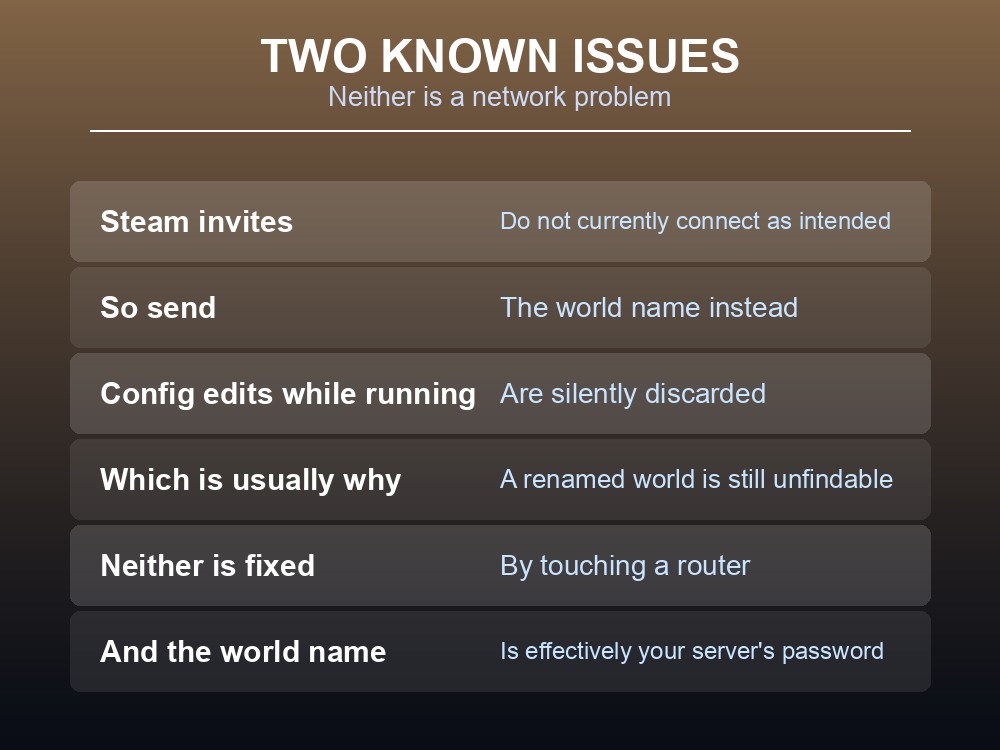
Steam invites do not work. The wiki states plainly that "inviting a player to your dedicated server via Steam Invites doesn't currently connect as intended." Do not troubleshoot your config because an invite failed — send people the world name instead.
Config edits are lost if the server is running. "Changing dedicatedserver.ini values while the server is running will result in those changes being lost." If you renamed the world to make it findable and it still is not, this is almost certainly why.
Both of these look like network problems and are not. They are the two most likely explanations for "the server is up and nobody can join", and neither is fixed by anything you do to a router.
A Checklist Before You Ask For Help
- Are you searching the Public tab? The server will not appear anywhere else.
- Are you typing the world name, in the right case? Not the server name, and not with
.savon the end. - Does the world name match the save file name?
Dragonwilds_World1.savmeans a world name ofDragonwilds_World1. - Was the server stopped when you last edited the config? If not, your change did not persist.
- Are the client and server on the same game version?
Send people the world name, not an invite. Given that Steam invites are documented as not working, the world name is the only reliable way to get somebody onto your server — which also means it is effectively your server's password, since anyone with the world name is a regular user.
Running your own Dragonwilds server
A server nobody can find is a server nobody plays on, which is a good argument for a host that keeps versions aligned automatically. A gamever Dragonwilds server keeps Ashenfall persistent with automatic updates and one-click backups.
Conclusion
A Dragonwilds server is found from the Public tab of the Worlds screen, by searching the world name — not the server name, and case sensitively. A documented known issue adds one more constraint: you may need the world file name without its suffix, so a save called Dragonwilds_World1.sav needs a world name of Dragonwilds_World1. When it does not appear, the published order is to check version match, then that the world name is actually running, then that the mandatory config values are set, then the console and server logs for RAM errors. Two known issues explain most of the rest: Steam invites do not connect as intended, and editing dedicatedserver.ini while the server is running silently discards the change. Neither is a network problem, and neither is fixed by touching a router — so send people the world name, and remember that doing so is what grants them access.
Want a world you can actually find in the list? Rent a RuneScape: Dragonwilds server at gamever.io — instant setup, one-click backups and updates, and 24/7 uptime. Start with a free trial and use promo code WELCOME.