
Editing serverauto.cfg: Rust Server Convars Explained

Most of how your Rust server plays — decay rates, gather amounts, chat rules, anti-cheat tolerances and hundreds of other knobs — is controlled by convars. On a gamever Rust server those overrides live in a file called serverauto.cfg, which you can edit directly in the control panel. This guide shows where it is, how to edit it safely, and the convars most admins touch first.
Where it is and how to edit it
Open the File Manager and browse to your server's config folder:
/home/server/server/<server-identity>/cfg/serverauto.cfg
(Your identity is set in Settings → Server Settings → Server identity, e.g. rust-server-gameverio.) Click the file to open the built-in editor, make your changes, and hit Save Content. Restart the server (or run server.writecfg / reload the convar) for changes to take effect.
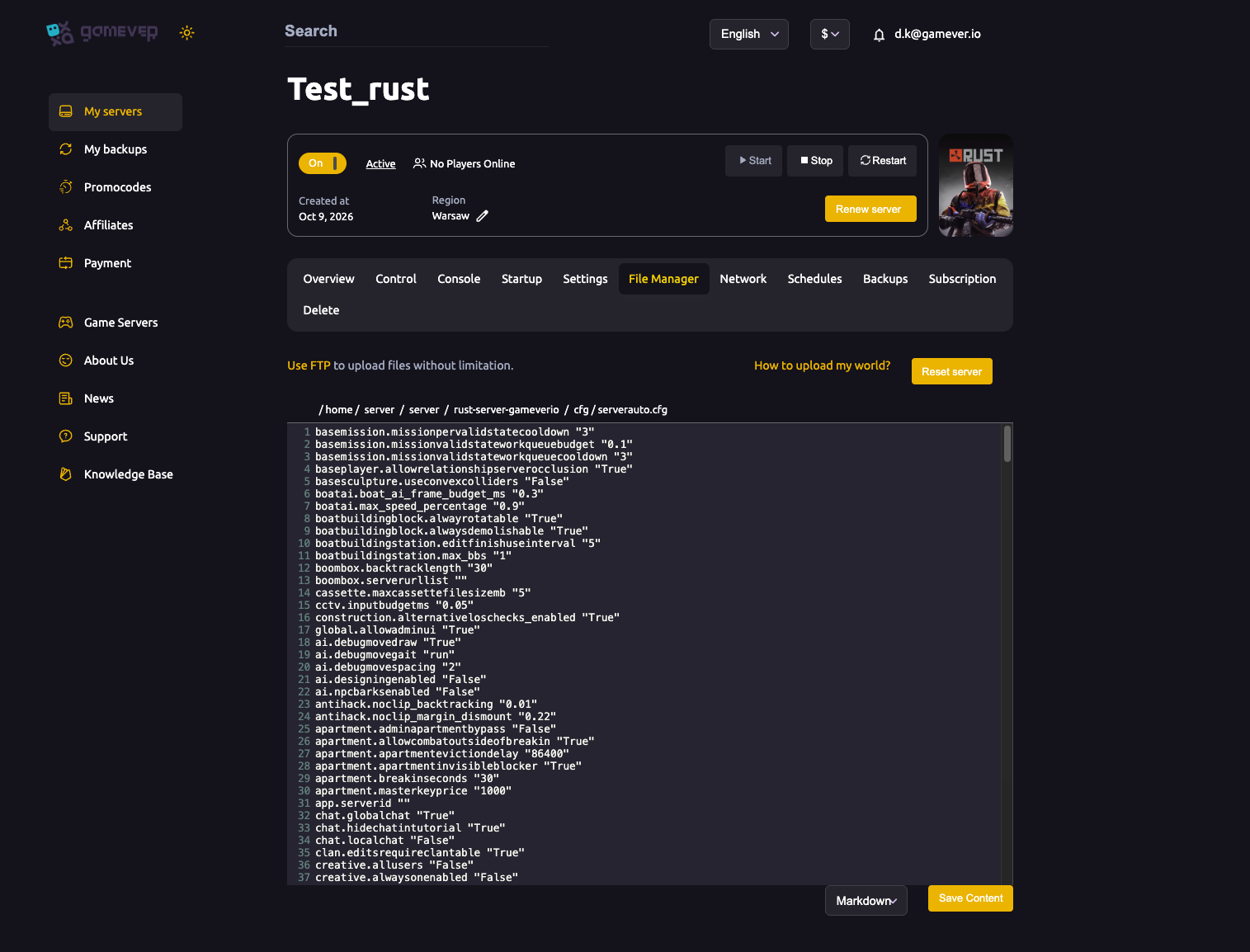
Each line is one convar and its value, in quotes:
chat.globalchat "True"
global.allowadminui "True"
decay.scale "1"
What belongs here vs. in the panel
Keep two things straight:
- Gameplay convars (decay, gather, chat, AI, anti-hack, building rules…) →
serverauto.cfg. - Identity / world / name (server name, description, world size, seed, gamemode) → the panel's Settings and Startup tabs, not this file. Setting those in the panel keeps them consistent with how your server installs and wipes.
Convars admins change first
These are the usual starting tweaks. Add or edit the line, then save and restart.
| Convar | Example | What it does |
|---|---|---|
server.maxplayers | "50" | Max slots (also tied to your plan's slots). |
decay.scale | "0.5" | Base decay speed. Lower = structures decay slower. |
craft.instant | "False" | Instant crafting when True (common on modded servers). |
chat.globalchat | "True" | Global chat on/off. |
chat.localchat | "False" | Proximity chat on/off. |
server.stability | "True" | Building stability on/off. |
baseplayer.corpseremovaltime | "60" | Seconds before a corpse despawns. |
antihack.flyhack_protection | "1" | Anti-cheat aggressiveness (leave on unless debugging). |
(Your file already contains a long list of baked defaults — the ones above are the knobs most servers adjust.)
Applying changes live
You don't always have to restart. From the Console tab (or RCON) you can set a convar on the fly, e.g.:
decay.scale 0.5
server.writecfg
server.writecfg saves current values back to disk so they persist. For bulk edits, though, editing serverauto.cfg and restarting is cleaner.
Additional Tips
- Keep values in quotes and one convar per line, exactly as the file shows.
- Don't put server name/world/identity here — set those in Settings/Startup so wipes and installs stay correct.
server.writecfgafter console changes, or they're lost on the next restart.- Back up
serverauto.cfgbefore a big edit — copy the text out first, or use the Backups tab. - Unknown convar? It's ignored — a typo won't crash the server, it just won't apply, so double-check spelling if a change "does nothing".
Conclusion
serverauto.cfg is the heart of a Rust server's gameplay tuning on gamever. Open it in the File Manager, edit convars one per line, Save Content, and restart. Keep identity and world settings in the panel, and use the console for quick live tweaks — and you have full control over how your server plays.
Rent your Rust server at gamever.io — edit your config right in the browser, with a built-in console and one-click Oxide/Carbon. Free trial, promo code WELCOME.