
Dragonwilds Settings Worth Changing: Performance, Safety and Comfort
One Dragonwilds setting protects your gear and it is switched off out of the box. Gravestone Protection stops other players opening your grave — and until you enable it, anyone can. Beyond that, the settings menu holds a small number of genuinely consequential options buried among dozens of cosmetic ones: Nanite is off by default and costs a lot when on, Frame Generation only works with one specific upscaler, and the graphics API you pick decides your baseline stability. Here is what to change and what to leave.
On sourcing. The setting behaviour below comes from the community RuneScape: Dragonwilds wiki, and can change with any patch.
Change These First
| Setting | Why |
|---|---|
| Gravestone Protection | Disabled by default — stops other players accessing your grave |
| Press To Sprint | Toggle sprint instead of holding it |
| Screen Shake | Can be disabled — worth it if you play long sessions |
| Font Size | Normal, Large or Small — set it from the main menu |
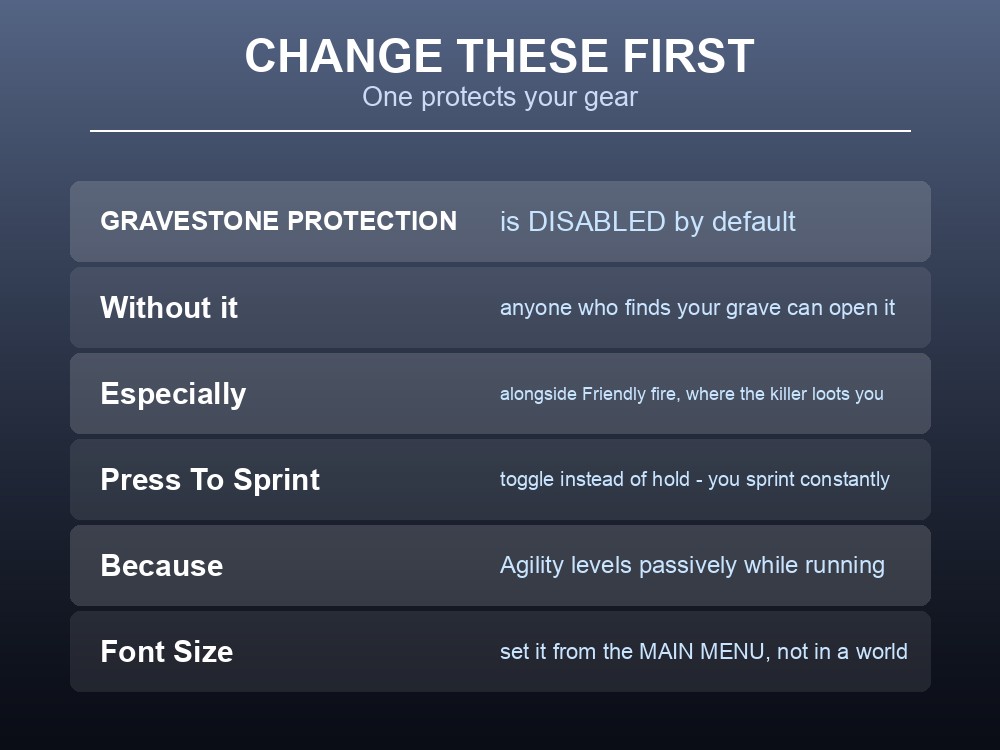
Gravestone Protection is the one that matters on a shared server, and the default is the wrong way round for most groups: "Players can choose to prevent other players from accessing their gravestone. This option is disabled by default."
Turn it on before you join a world with anyone you do not know. It is the counterpart to Friendly fire: with PvP on, the killer can loot your grave — and with Gravestone Protection off, so can anyone who simply finds it.
Press To Sprint is a comfort change with a real effect. Dragonwilds levels Agility passively while you run, so sprinting is something you do constantly. Holding a key for hours is the sort of thing you only notice when you stop.
And the font size quirk is worth repeating, because it looks broken: changing font size while in a world applies to Language instead. Set it from the main menu.
The Graphics Settings That Matter
Most of the video menu is the usual list — shadows, foliage, textures, view distance across six steps from Very Low to Epic. Four options are worth understanding:
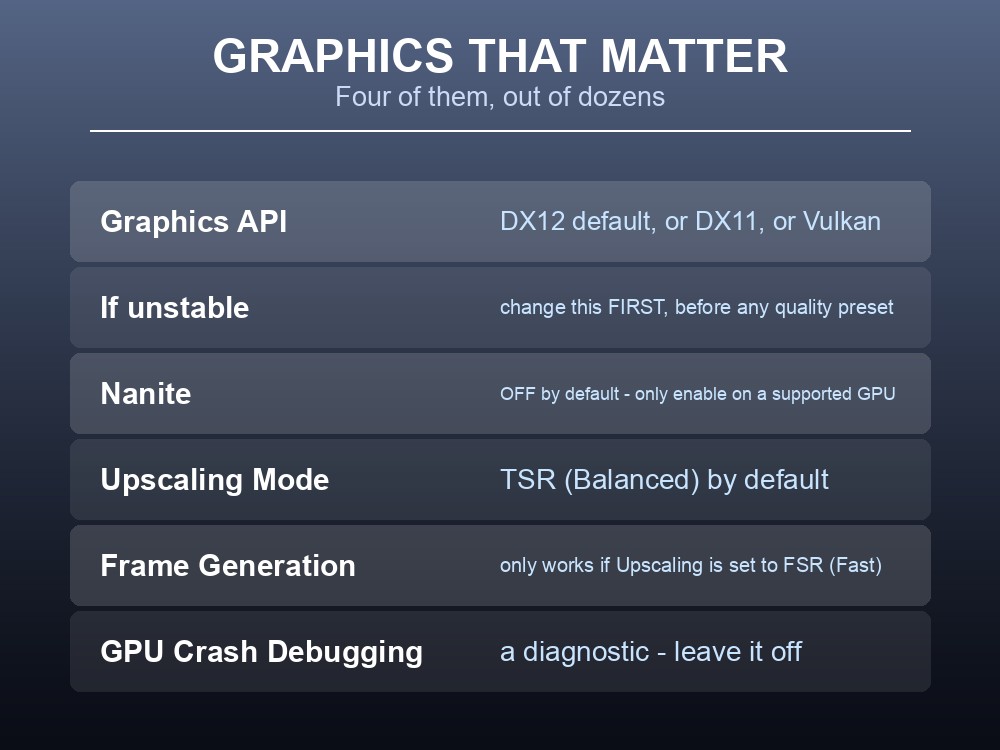
Graphics API — three choices: DX12 (default), DX11, and Vulkan. If the game is unstable, this is the first thing to change, not the quality preset.
Nanite — Unreal Engine 5's geometry system. "Players can choose to turn on Nanite to improve an object's geometry detail. Nanite is turned off by default", and the wiki carries a list of GPUs that can handle it. Off by default is a signal, not an oversight — enable it only if your card is on that list.
Upscaling Mode — "an algorithm used to improve visual fidelity", with TSR (Balanced) set by default.
Frame Generation — and this is the dependency people miss: "Players can turn on Frame Generation only if the Upscaling Mode option is set to FSR (Fast)." If Frame Generation is greyed out, your upscaler is the reason.
There is also GPU Crash Debugging under Advanced — a diagnostic rather than a performance setting. Leave it off unless you are actually chasing a crash, since debugging modes cost performance.
Accessibility and Language
The accessibility section is more capable than most:
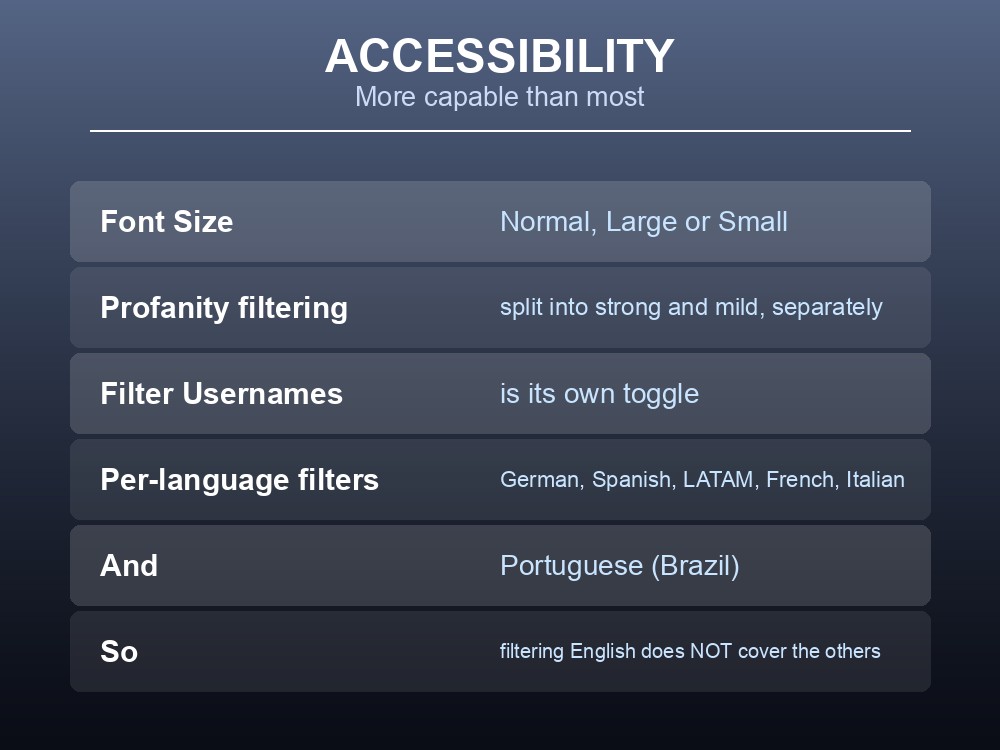
- Language and Font Size — Normal, Large or Small.
- Profanity filtering, split into strong and mild profanities as separate toggles.
- Filter Usernames — separate from message filtering.
- Per-language filters you can add on top: German, Spanish, Spanish (Latin America), French, Italian and Portuguese (Brazil).
That per-language design is unusual and useful on a mixed server. Filtering English does not filter German by default — you enable each language you want covered.
Controller vibration can be disabled under Controls, alongside KBM Action Direction and Gamepad Action Direction, which govern whether attacks follow your camera or your character. Jagex have confirmed camera-relative aiming becomes the controller default, with existing preferences preserved — so if aiming suddenly changes for you, that is the setting.
Key bindings are grouped by activity: Movement, Combat, Interaction, Inventory Item Management, Building, Crafting and Quest Dialogue. Rebinding is functional across the board, though the L key was notably broken until 0.10.2.
Settings on a Shared Server
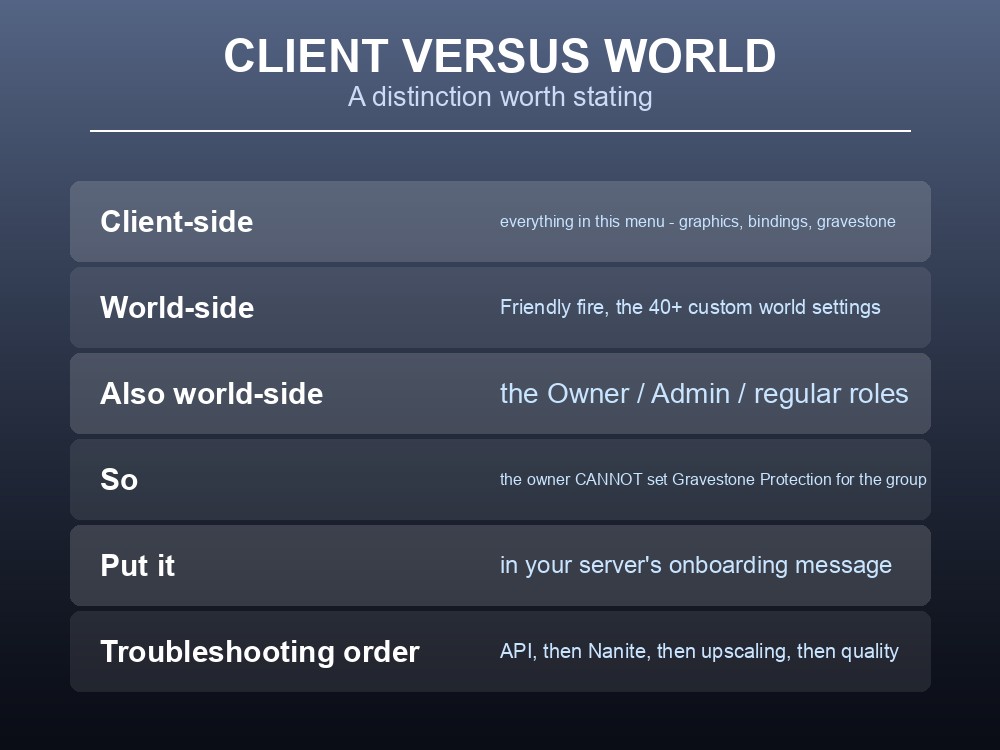
A distinction worth being clear about: everything in this menu is client-side. It affects your game, not the world.
The things that do affect everyone are elsewhere:
| Client setting | World setting |
|---|---|
| Gravestone Protection | Friendly fire (PvP) |
| Graphics, audio, bindings | Custom World settings — over 40 of them |
| Profanity filtering | Server roles: Owner, Admin, regular |
So "turn on Gravestone Protection" is advice you give each player individually — the world owner cannot set it for the group.
Two settings are worth making part of a server's onboarding message:
- Enable Gravestone Protection. Off by default, and it is the only protection against grave looting that does not depend on trust.
- Set Font Size from the main menu, not in-world.
And for troubleshooting, the order that saves time is: Graphics API first (DX12 → DX11 or Vulkan), then Nanite off, then upscaling, and only then the quality preset. Most stability complaints are API-level, not detail-level.
Practical tips
- Gravestone Protection is OFF by default. Turn it on — anyone can open an unprotected grave.
- Press To Sprint toggles instead of holding — Agility levels while you run, so you sprint constantly.
- Set Font Size from the main menu; in-world it changes Language instead.
- Nanite is off by default and only worth enabling on supported GPUs.
- Frame Generation requires Upscaling Mode set to FSR (Fast).
- Graphics API offers DX12, DX11 and Vulkan — change this first when unstable.
- Profanity filtering is per-language — enable each one you need.
- Everything here is client-side. PvP and world rules live in world settings.
Running your own RuneScape: Dragonwilds server
Client settings are each player's business; the world's rules are the server's. A gamever Dragonwilds server gives you the world-side half — configuration that persists, roles that hold, and one-click backups — while keeping Ashenfall online around the clock for up to six players, with automatic updates so client and server versions never drift apart.
Conclusion
The Dragonwilds settings menu hides a handful of consequential options among many cosmetic ones. The one to change immediately is Gravestone Protection, which is disabled by default and is the only thing stopping other players opening your grave — particularly relevant alongside Friendly fire, where the killer can loot you outright. Press To Sprint is worth toggling because Agility levels passively while running, and Font Size must be set from the main menu, since changing it in a world applies to Language instead. On the graphics side, Nanite is off by default and should stay off unless your GPU is on the supported list; Frame Generation only works with Upscaling Mode set to FSR (Fast); and Graphics API — DX12, DX11 or Vulkan — is the first thing to change when the game is unstable, ahead of any quality preset. Profanity filtering is per-language, so English filtering does not cover German or French unless you add them. And everything here is client-side — PvP, world rules and server roles live elsewhere.
Want the world-side settings to stay put between sessions? Rent a Dragonwilds server at gamever.io — instant setup, one-click backups and updates, and 24/7 uptime. Start with a free trial and use promo code WELCOME.