
Datapacks and Resource Packs on Your Minecraft Server
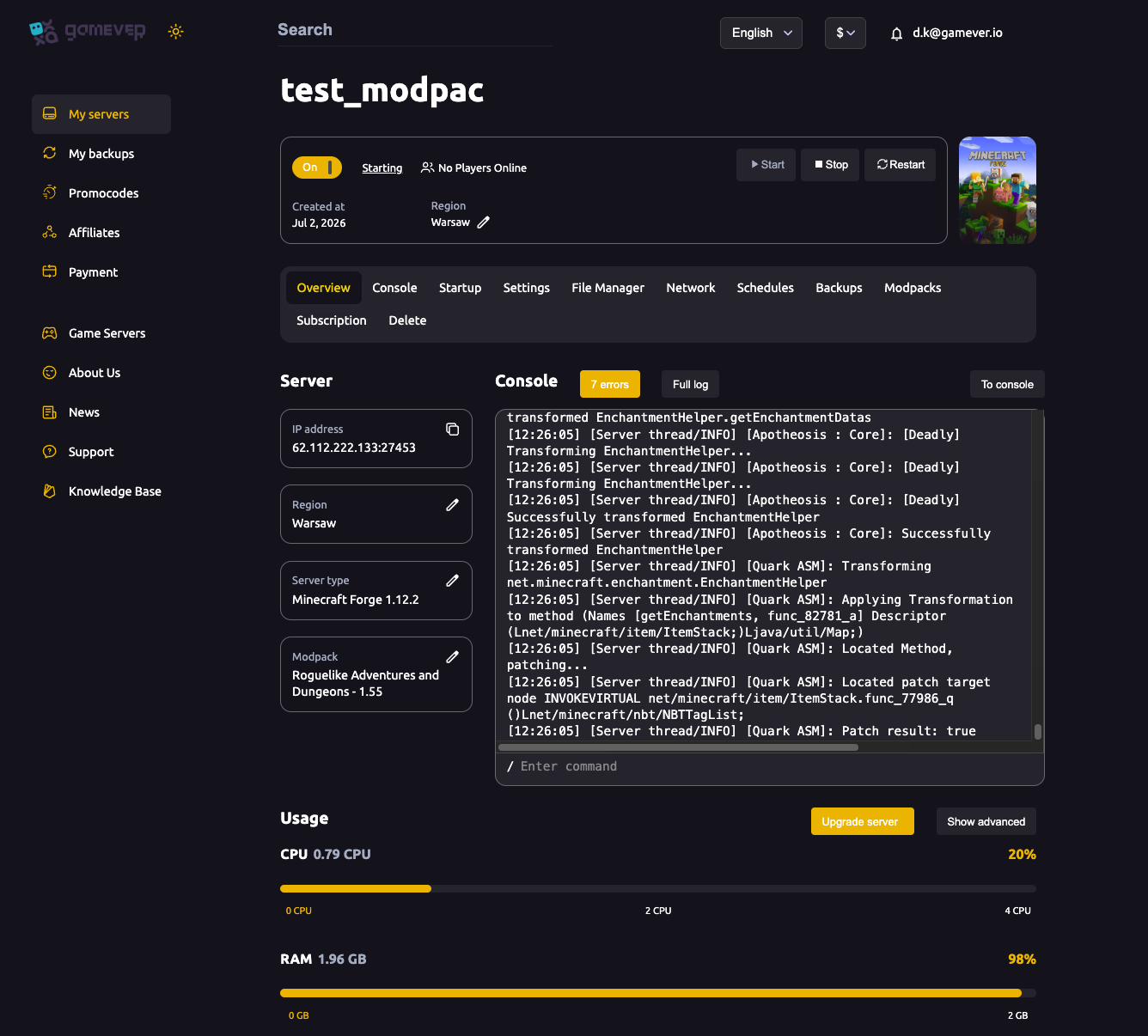
Datapacks and resource packs are the two official, no-mod ways to change a Minecraft server. A datapack adds or tweaks gameplay data — recipes, loot tables, advancements, functions — and runs server-side on vanilla Java. A resource pack changes how the game looks and sounds, and a server can offer one to every player automatically on join. Neither needs Forge, Fabric or any plugin. This guide shows how to install a datapack and push a server resource pack entirely from your gamever control panel.
Datapacks vs. resource packs
| Datapack | Resource pack | |
|---|---|---|
| Changes | Gameplay data (recipes, loot, advancements, functions) | Textures, models, sounds, fonts |
| Runs | Server-side | Client-side |
| Where it lives | world/datapacks/ on the server | A URL the server points clients at |
| Needs a mod loader? | No — works on vanilla Java | No |
| Players install anything? | No — the server handles it | No — the server offers it on join |
Because both are vanilla features, they work without changing your server type. (A heavily modded server is a different job — see installing mods and plugins.)
Install a datapack
On Java Edition, datapacks live in a datapacks folder inside the world save — on your server that is world/datapacks/, reachable from the panel's File Manager (or over FTP).
- Download the datapack from a trusted source. It will be either a
.zipfile or a folder containing apack.mcmetafile and adata/folder. - Open the File Manager and go to
world/, thendatapacks/. If thedatapacksfolder isn't there yet, create it. - Upload the datapack
.zipstraight intoworld/datapacks/(no need to unzip — Minecraft reads the zip directly). For several packs at once, FTP is faster — credentials are on Settings → FTP server settings. - Apply it, using one of the two methods below.
Apply a datapack
Open the Console tab and run a command — no restart needed for most packs:
| Command | What it does |
|---|---|
/reload | Reloads datapacks and applies tags, loot tables, recipes, advancements and functions. |
/datapack list | Lists all packs the server sees — available and enabled. |
/datapack enable <name> | Loads a pack (use the name exactly as /datapack list prints it). |
/datapack disable <name> | Unloads a pack. |
A freshly uploaded pack is usually picked up by /reload and enabled automatically. If it isn't, run /datapack list to see the exact name, then /datapack enable <name>. A restart guarantees the pack loads cleanly and is the safest option if /reload doesn't take.
Note:
/reloadapplies most data, but some changes — and any pack that enables experimental features — need a full server Restart instead.
Push a server resource pack
A server can tell every joining player to download a resource pack, so everyone sees the same textures without installing anything by hand. This is controlled by a few lines in server.properties, which lives in the server's root /home/ folder — edit it in the File Manager, then Restart.
| Key | Value | What it does |
|---|---|---|
resource-pack | A direct download URL to the pack .zip | The pack the server offers. Leave blank for none. The pack may not exceed 250 MiB. |
resource-pack-sha1 | Lowercase hexadecimal SHA-1 of the .zip | Verifies the download and lets clients cache it. Recommended — the console warns if it doesn't match. |
require-resource-pack | true / false (default false) | When true, players who decline the pack are disconnected. |
resource-pack-prompt | A custom message (optional) | The text shown on the download prompt when the pack is required. |
resource-pack-id | A hyphenated UUID (optional) | An ID that identifies the pack to clients. |
Steps:
- Host the pack
.zipat a stable, direct-download URL (the link must point straight at the file). - In the File Manager, open
server.propertiesand setresource-packto that URL. - Set
resource-pack-sha1to the file's SHA-1 so clients can verify and cache it, and decide whether to setrequire-resource-pack=true. - Save, then Restart. Players are offered the pack the next time they join.
Because the resource-pack lines aren't exposed as named fields in Server Settings, editing server.properties directly in the File Manager is the way to set them.
Additional Tips
- Match the pack format to your version. A datapack or resource pack built for one Minecraft version may be ignored or warn on another — keep it in step with your server's version.
- Upload the
.zipas-is. Both datapacks and resource packs load straight from the zip; unzipping is unnecessary and can break the folder structure. - Always set
resource-pack-sha1. It lets clients cache the pack instead of re-downloading on every join, and flags a corrupted upload early. - Think twice before
require-resource-pack=true. It keeps everyone's look consistent, but anyone who declines is kicked. - Back up the world before a big datapack change. A pack that rewrites loot or recipes is easy to roll back from a backup.
- Use
/datapack listwhenever a pack doesn't seem active — it shows the exact name and whether the pack is enabled.
Conclusion
Datapacks and resource packs let you reshape a Minecraft server without a single mod: drop a datapack into world/datapacks/ and load it with /reload or /datapack enable, and point resource-pack in server.properties at a hosted pack to dress every client the same way. Both are pure File Manager and Console work on a gamever server — no setup beyond a save and a restart.
Rent your Minecraft Java server at gamever.io — full File Manager and FTP access, a built-in Console, and one-click restarts for datapacks and resource packs alike. Free trial, promo code WELCOME.