
Can't Join Your ARK Server? The Complete Fix Guide
"Joining failed." "Connection timeout." "The server isn't even in the list." Few things are more frustrating than a server that's running but nobody can get in. The good news: almost every case comes down to one of a handful of causes — version, mods, ports, filters or BattlEye. This guide walks through them in the order worth checking. Applies to ARK: Survival Evolved and Survival Ascended.
First: is the server actually up?
Before blaming the network, confirm the server is online and finished booting.
- Open your gamever panel → Overview. The server should show On / Active with the player count, not starting or crashed.
- Check the Console (on Overview and the Console tab). It shows an error counter and a Full log — after a config change or mod download, ARK can take several minutes to fully load and isn't joinable until it reports ready.
- A bad
.iniedit can make the server crash on boot. If it won't stay online, see "Server won't stay online" below — and the Console tab has a Create Ticket button if you're stuck.
Problem 1 — Server doesn't show in the list
The ARK server browser hides servers aggressively. If yours is missing:
| Check | What to do |
|---|---|
| Wrong filter | Set the browser to Unofficial (or Unofficial PC Sessions), not Official. |
| "Hide full / hide password" | Turn those filters off while testing. |
| Name search | Type part of your exact session name in the search box. |
| Still booting | Wait a few minutes after a restart and refresh. |
| Version mismatch | If your client just updated but the server hasn't (or vice-versa), it's filtered out — update both to the same build. |
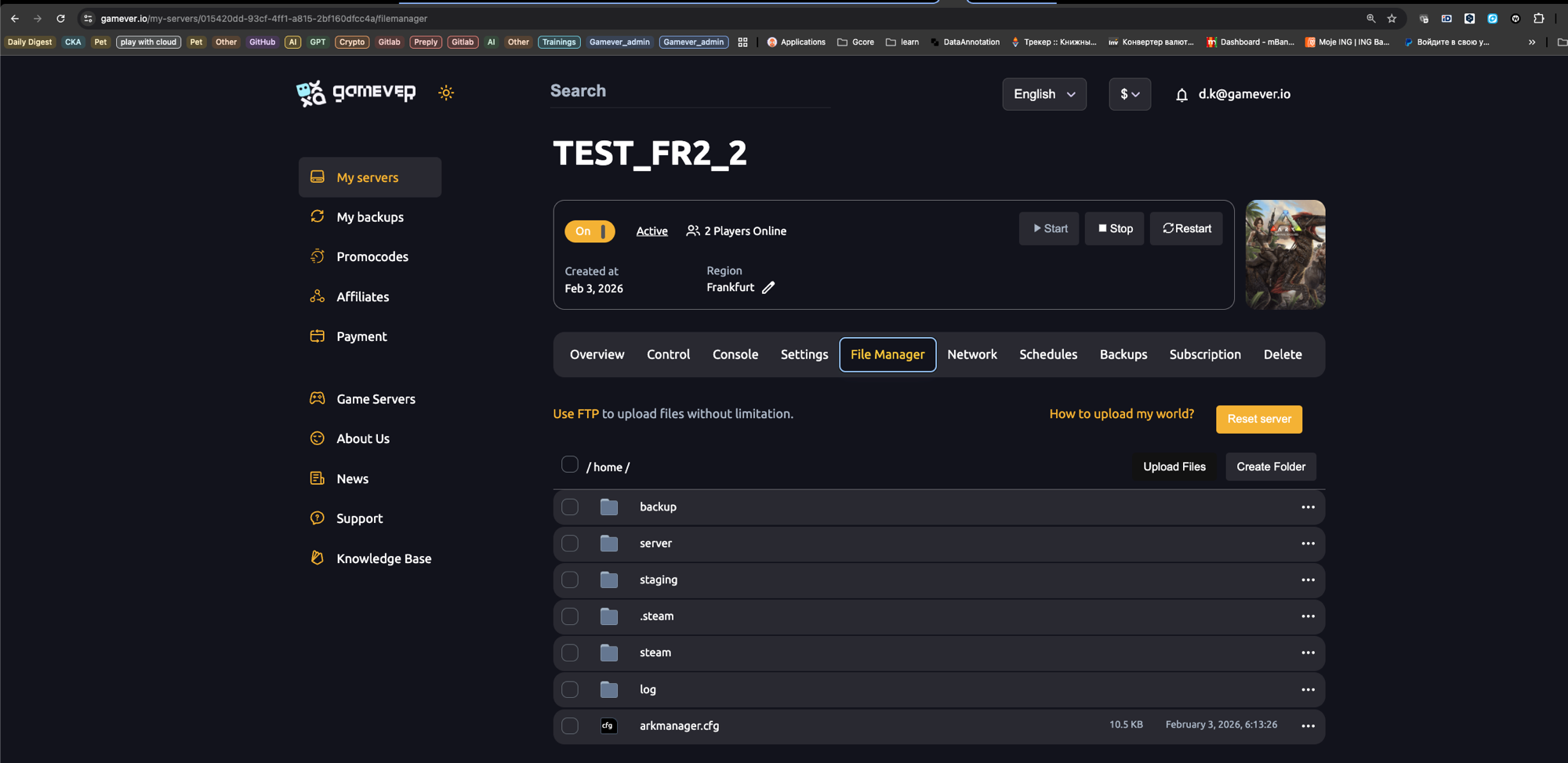
Tip: the most reliable way in is Steam → View → Servers → Favorites, add the server by its Steam address, then join from your favorites. This bypasses the flaky in-game browser entirely. On gamever the exact address is on the Overview page ("Steam address", e.g.
85.234.69.112:28469) and under the Network tab — gamever assigns each server its own ports, so use the address shown there, not the default:27015.
Problem 2 — "Joining failed" / connection timeout
This is almost always version, ports, or mods.
| Cause | Fix |
|---|---|
| Version mismatch | ARK blocks the handshake if the client and server differ by even one patch. Update your game and make sure the server is on the latest build (gamever: Server Version = Latest, restart). |
| Ports / wrong address | On gamever every server gets its own ports (see the Network tab) — connect via the exact Steam address shown there, not the default 7777/27015. If you self-host, ARK defaults to UDP 7777 (game) and 27015 (query) and those must be open in your router/firewall. |
| Mod mismatch | A missing or out-of-date mod stops you joining. Subscribe to the same mods, verify game files, and retry. See our mod install guide. |
| Server full | Player counts lag in the browser — the server may be at MaxPlayers. Refresh and check capacity. |
| Wrong password | If ServerPassword is set, an empty or wrong entry fails silently. Re-enter it. |
Problem 3 — Epic / crossplay players can't join (BattlEye)
If Steam players get in but Epic Games players can't, BattlEye is the usual culprit.
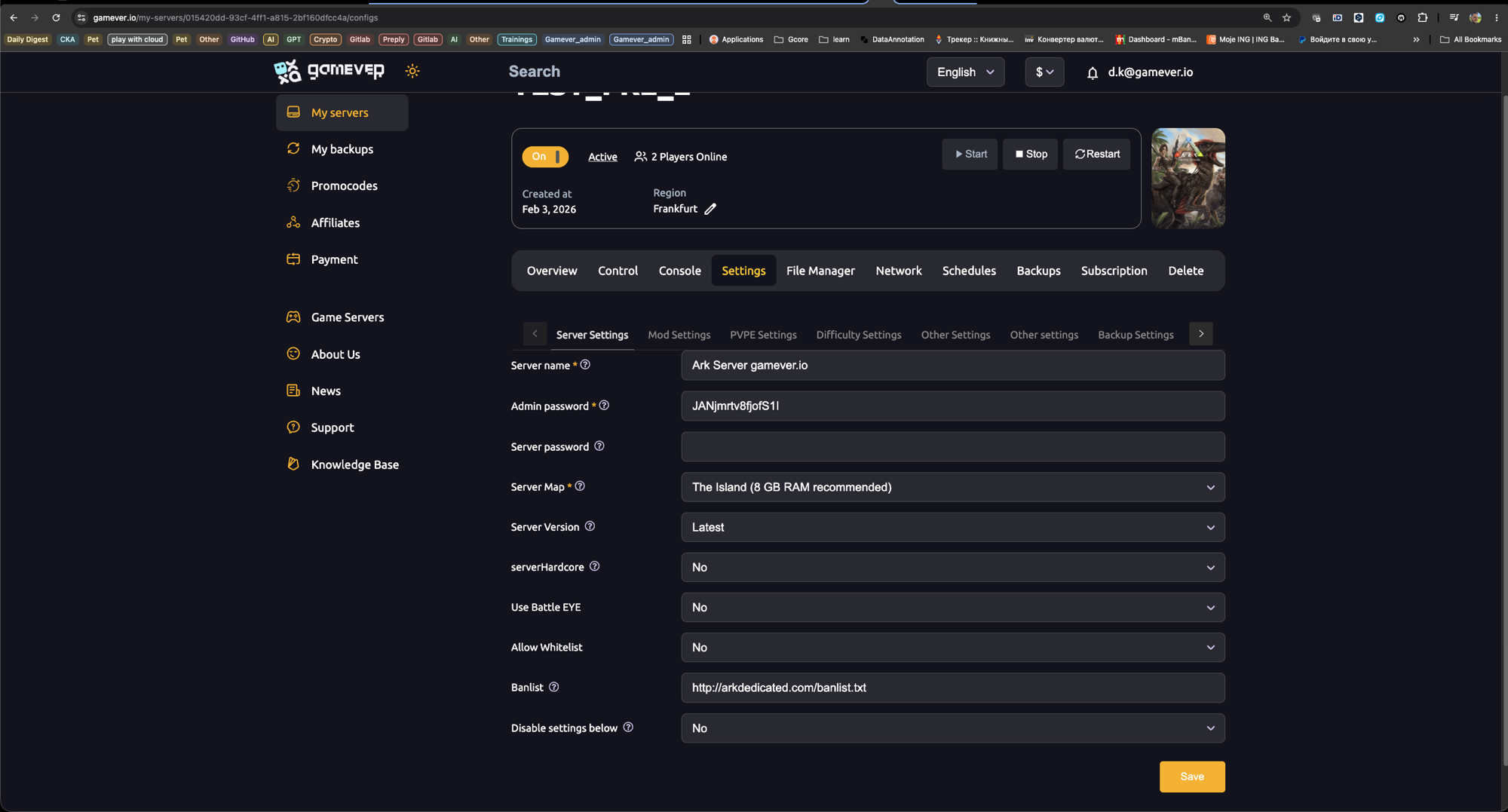
- Disabling BattlEye fixes most Steam↔Epic crossplay connection problems.
- On gamever, go to Settings → Server Settings and set Use Battle EYE to No, then Save and restart — no command line needed.
- Trade-off: BattlEye is anti-cheat — only turn it off if Epic players genuinely can't connect otherwise.
Problem 4 — Server won't stay online
If the panel keeps flipping to offline/crashed:
- Bad
.iniedit — a stray bracket or wrong section stops ARK loading the file. Restore your backup or fix the line. See our Game.ini guide and server settings guide. - A broken mod — remove the last mod you added (one at a time).
- Not enough RAM — ARK is memory-hungry (The Island wants ~8 GB; modded/larger maps want more). Check the map's recommended RAM in the panel and size up if needed.
- Read the Console — the crash reason is almost always printed in the log.
A quick checklist
- Server shows online in the panel and finished booting.
- Client and server are on the same version.
- Browser filters set to Unofficial, full/password filters off.
- Same mods subscribed and updated (or none on both sides).
- Connecting via the right address/ports — on gamever, the Steam address from the Network tab.
- For Epic/crossplay: Use Battle EYE = No (Settings → Server Settings) if needed.
- Still stuck? Add the Steam address to Steam → Favorites and join from there.
Conclusion
Ninety percent of "can't join" cases are a version difference, a mod mismatch, a closed port or an over-aggressive browser filter. Work down the list above and you'll have players in fast — and the Favorites-by-IP trick is the reliable fallback when the in-game browser misbehaves.
Rent your ARK server at gamever.io and skip the networking headaches — ports are configured for you, one-click version updates and restarts, and a live console to see exactly what's happening. Free trial, promo code WELCOME.